Suppliers
Suppliers are the companies you buy from. Record how to reach them and what they supply, attach them to deals, and store their credentials PDF.
Suppliers are the companies you buy from, the partners and vendors who help you deliver. You attach them to the deals they work on. The list sits under Sales, Suppliers, and the whole organization shares it. It’s for your team only; the app never contacts a supplier.
The Suppliers list
| Column | What it shows |
|---|---|
| Supplier | The company name |
| Country | As entered, or “n/a” |
| Industry | As entered, or “n/a” |
| Services | What it supplies: the first four tags, then a count such as “+2” for the rest |
| Reach | The first way to reach it: email, then WeChat/WhatsApp, then phone |
| Contacts | How many people you hold for it |
| Open deals | How many open deals it is attached to |
Search suppliers looks at names and services, so typing “video” finds every supplier that lists video work. Click a row to open the supplier.

Add a supplier
You need editor rights or more on CRM.
- Click Add a supplier.
- Type the Name. Add a Country and an Industry if you like.
- Under How to reach them, fill in at least one of Email, WeChat / WhatsApp or Phone. The form won’t save without one.
- Under Services or products supplied, type a service and press Enter (or click Add). Repeat for each one. Click a tag’s cross to remove it.
- Under Deals supplied, type the first letters of a deal and pick it, as many as needed. Open deals are listed first, then closed ones. This step is optional.
- Add a Website and Notes if you like.
- Click Add supplier.
The supplier’s page opens. If a deal couldn’t be attached, the form tells you, but the supplier is saved anyway; attach the missing deals from its page.
A supplier can list up to 50 services, each up to 120 characters. Duplicates are dropped, whatever their capitalization.
A company is either a client or a supplier. If you buy from a company and also sell to it, keep one record on each list.
The supplier page
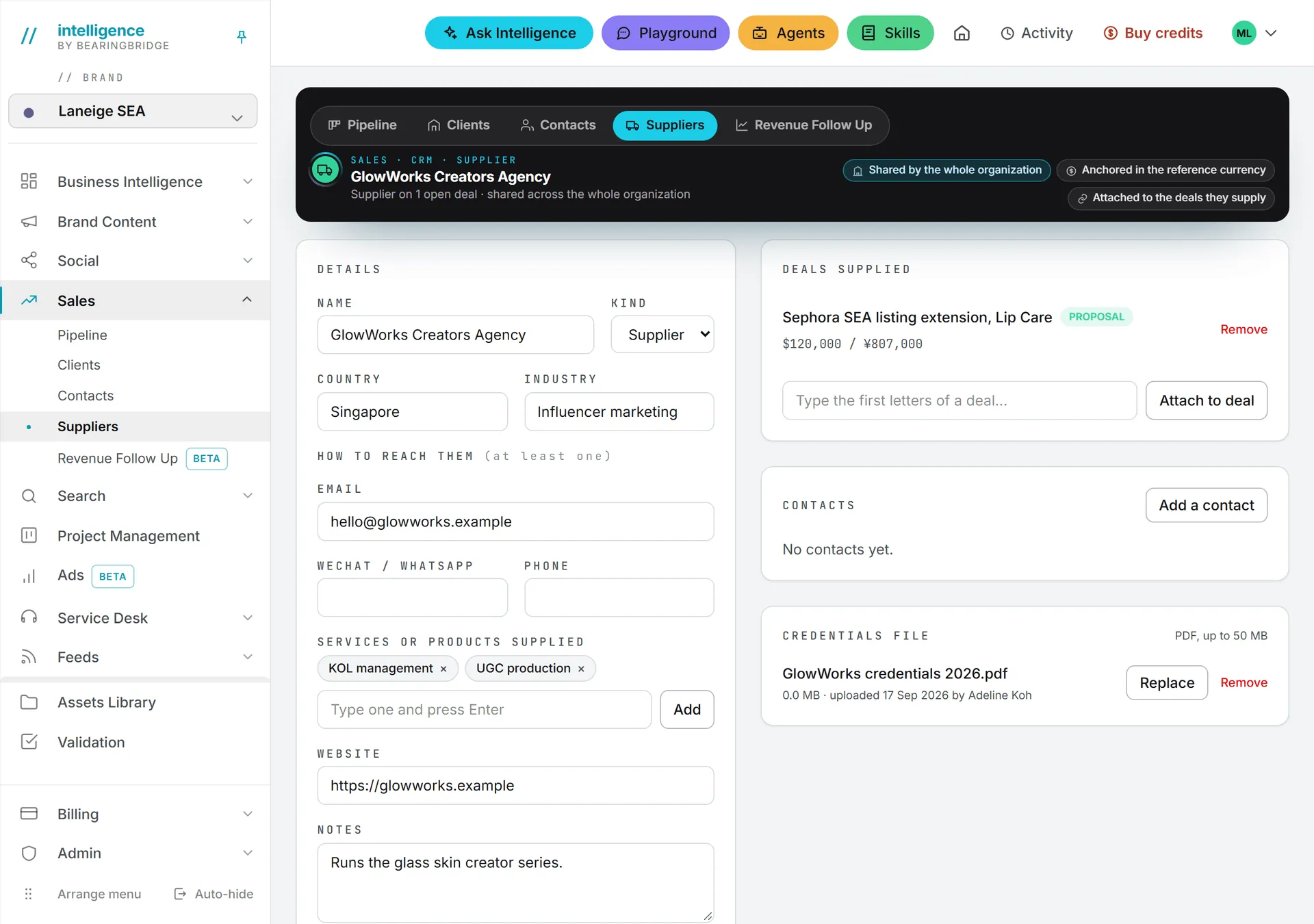
Once a supplier exists, most of the upkeep happens on its page. The top band shows the supplier’s name and how many open deals it is on.
Details
This card repeats the fields of the add form (name, country, industry, the three ways to reach the supplier, services, website and notes) and adds a Kind menu. Click Save details when you’re done; the button turns amber while changes are unsaved.
Note: At least one way to reach the supplier must stay filled. Clear all three and the save is refused with “A supplier needs an email, a WeChat/WhatsApp or a phone number.”
Set Kind to Client and save to turn the supplier into a client. It then moves to the Clients list.
Deals supplied
This card lists every deal the supplier is attached to, open and closed, with each one’s stage and amount. Click a deal to open it.
To attach the supplier to another open deal, type the first letters of the deal in the picker and click Attach to deal. Only open deals it isn’t on yet are offered; when there are none, the picker says “Every open deal already has this supplier”. Remove takes the supplier off a deal and changes nothing else; the deal and the supplier both stay.
The deal page works the other way round, with its own Suppliers card.
Contacts
Contacts work as they do for clients. Add a contact, Edit and Delete are in the card, and only admins see Delete. One difference: a supplier’s contact can’t be picked as a deal’s contact, since that list only offers the client’s people. See contacts.
Credentials file
Each supplier can hold one PDF: a credentials deck, a portfolio or case studies, up to 50 MB.
- Click Upload credentials (PDF).
- Pick the file. It uploads as soon as you choose it, with a progress bar.
Click the file name to download it. Replace swaps in a new file and deletes the old one. Remove deletes the file and keeps the supplier.
A file that isn’t a PDF is refused before the upload starts (“PDF required”), and so is one over 50 MB (“File too large”). After the upload, the app checks the file really is a PDF, so a renamed file of another type is refused too.
Delete a supplier
Deleting takes an admin, who’ll find Delete supplier at the bottom of the Details card. The supplier’s contacts and credentials file are deleted with it, and it comes off every deal it was attached to. The deals themselves stay.
A company that used to be a client and still holds deals or revenue lines can’t be deleted until those are removed.
Suppliers and costs
This list is about who your suppliers are. What you owe them is tracked separately, as vendor payables on the Costs tab of Revenue Follow Up. A payable names the vendor in free text, so it doesn’t need to be on this list.
Who can do what
| Action | Who |
|---|---|
| See suppliers and their pages | Everyone with view rights on CRM |
| Add and edit suppliers, attach them to deals, upload a credentials file | Editors and above with CRM rights |
| Delete a supplier or a contact | Admins only |
Roles and per-person rights are explained in roles and rights.
What it costs
Nothing here spends credits: suppliers are plain records, and no AI model is involved. See credits and costs.