Pipeline and deals
The pipeline board tracks every deal from lead to close. Create deals, move stages, read weighted numbers, log activity, sync next steps and attach proposals.
The pipeline is the board where your organization follows each deal from the first lead until it’s won, lost or dropped. It opens when you click Pipeline under Sales in the left menu, and it’s the same board for everyone in the organization.
How the board is laid out
The board has four columns: Lead, Proposal, Negotiation and Closed (30 days). Each card is a deal. The top of each column shows how many deals it holds and what they are worth together.
At a glance, a card gives you:
- The deal name, and a Won or Lost badge once it’s closed.
- The client.
- The amount, in your reference currency (and the second currency, if your admin set one).
- For a retainer, the amount of each period, such as “63,000 /mo”.
- The next step’s due date, in red when it’s overdue.
- The owner’s initials.
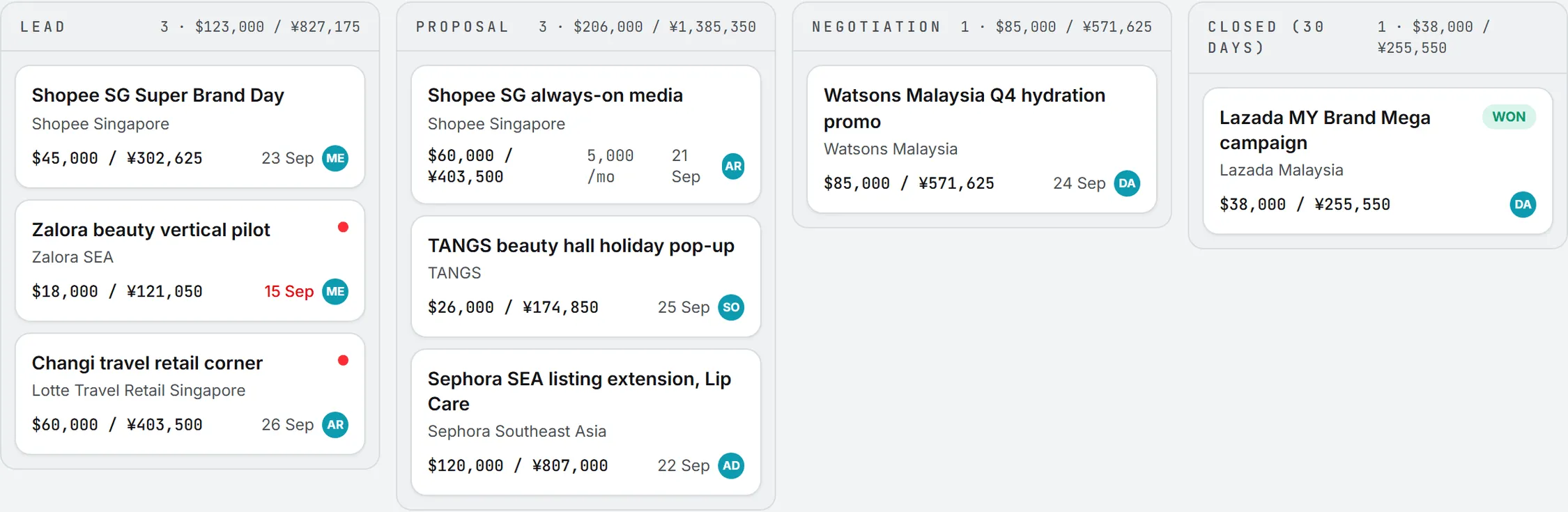
A red dot on a card means the deal needs attention. Hover the dot to see which of two reasons applies:
- Next step overdue: the next step date is before today, in your own time zone.
- No activity for a while: nobody logged an activity or moved the stage for more than the “stale” limit. It’s 14 days unless your admin changed it in CRM settings.
Won and lost deals stay in Closed (30 days) for 30 days after they close, then leave the board, though they still count in the numbers. Dropped deals never show on the board at all.
Filters
The row above the board filters what you see:
| Filter | What it does |
|---|---|
| Search deals or companies | Matches the deal name or the client name |
| All owners | Shows one person’s deals |
| All types | Shows one deal type, such as Project or Retainer |
| All sources | Shows deals from one source, such as Referral |
| Closed: won + lost | Picks what the Closed column shows: both, won only or lost only |
Filters change your view only; the numbers above the board ignore them.
The numbers above the board
Five tiles sit in the top band. They count over a period you set with the From and To dates in the band. By default the period runs from January 1 of this year to today. Days follow your own time zone, and amounts are in the reference currency.

| Tile | What it counts |
|---|---|
| Open pipeline | The total of open deals created in the period (a deal with no amount counts as zero) |
| Weighted pipeline | The same deals, each discounted by its stage weight |
| Won in the period | The total of deals won in the period |
| Win rate | Won deals as a share of won plus lost, among those closed in the period |
| Needs attention | Open deals from the period that are overdue or have gone quiet |
Stage weights come from CRM settings. By default a lead counts for 10 percent of its amount, a proposal for 60 percent and a negotiation for 80 percent. So a 100,000 deal at the proposal stage adds 60,000 to the weighted figure.
The win rate ignores dropped deals, since a dropped lead is one you walked away from, not one you lost to a rival. When nothing closed in the period, the win rate shows “n/a”.
The board ignores the period and keeps showing every open deal. For a summary outside Sales, the Commercial dashboard in Business Intelligence shows the pipeline value and weighted pipeline too.
Below the board, three cards read the same period:
- Where the money sits: the open pipeline, stage by stage, with a count and a total for each.
- Needs attention: each stuck deal, with its client, why it is flagged (“Next step was due” and the date, or “No recent activity”) and its owner.
- Dropped in the period: the leads dropped in the period, with the date.
Click any row to open the deal.
Create a deal
You need editor rights or more on CRM. Without them, the New deal button doesn’t show.
- Click New deal above the board.
- Type a Deal name.
- Pick the Client. If it is new, leave New client… selected and type its name in New client name. The client is created with the deal.
- Pick a Contact if you want one. The list only shows the chosen client’s people, so a brand-new client offers just No contact and New contact…. Pick New contact… to add one here: a name is required, and you can add a role, email, phone, WeChat and LinkedIn.
- Pick the Type and the Source.
- Enter the Amount and its Currency. Leave the amount blank if you don’t know it yet.
- Check the Owner. It starts on you.
- Enter the Next step and the Next step date. Both are required.
- Add an Expected close date and Notes if you like. The expected close date is for your reference: the numbers don’t use it.
- Click Create deal.
Every new deal starts in Lead. There’s no bulk import from a file: each deal is created this way.
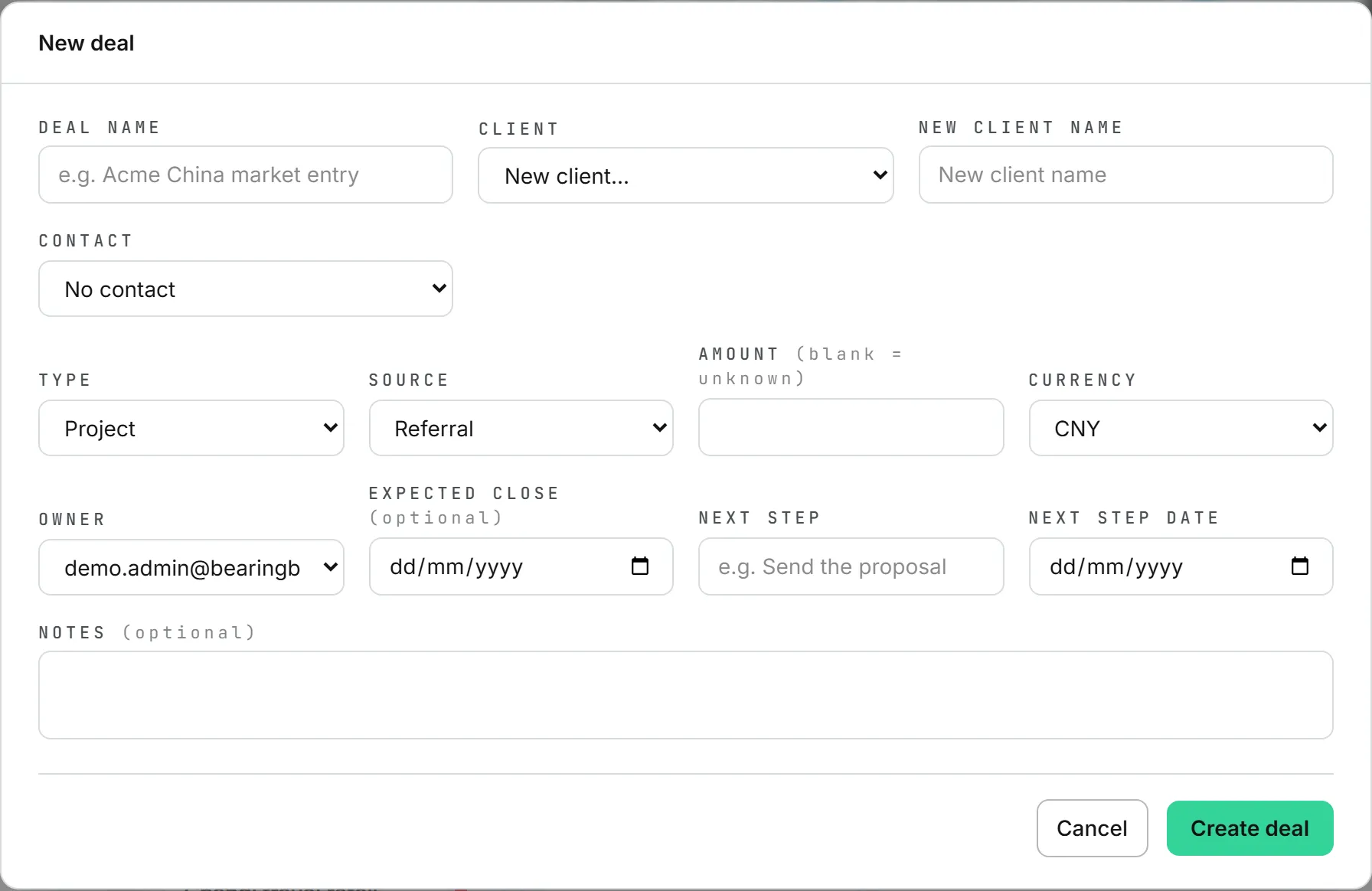
Tip: The Currency list starts on CNY, whatever your reference currency. Check it before you save a deal in another currency.
Retainers
Pick the built-in Retainer type and two more fields appear. Frequency says how often the client pays (Weekly, Monthly, Quarterly or Per semester), and Amount each period says how much each time.
The main Amount stays the total you type. The app doesn’t compute it from the period amount. The card shows the period amount next to the total, with a short suffix: /wk, /mo, /qtr or /sem.
Move a deal through the stages
On the board, drag a card to another column as the deal moves on (or back). You can only drag open deals, and only with editor rights.
To close a deal, drop it on Closed (30 days). A window asks whether it was Won or Lost. For a lost deal, pick a reason under Why was it lost?. You can add a Comment either way. It lands on the deal’s timeline. Click Close deal to confirm.
On a deal’s own page, the Move to row offers every stage: Lead, Proposal, Negotiation, Won, Lost and Dropped.
- Won asks you to confirm. The deal closes and its amount freezes.
- Lost opens Mark as lost, with the reason and an optional comment.
- Dropped asks you to confirm, and only the deal owner or an admin can do it. The deal leaves the board immediately and never counts as a loss.
The same row can reopen a closed deal: click an open stage. The deal needs a next step and a date to be open again. It keeps the ones it had when it closed.
Whichever way you move a deal, the timeline records the move and who made it.
The deal page
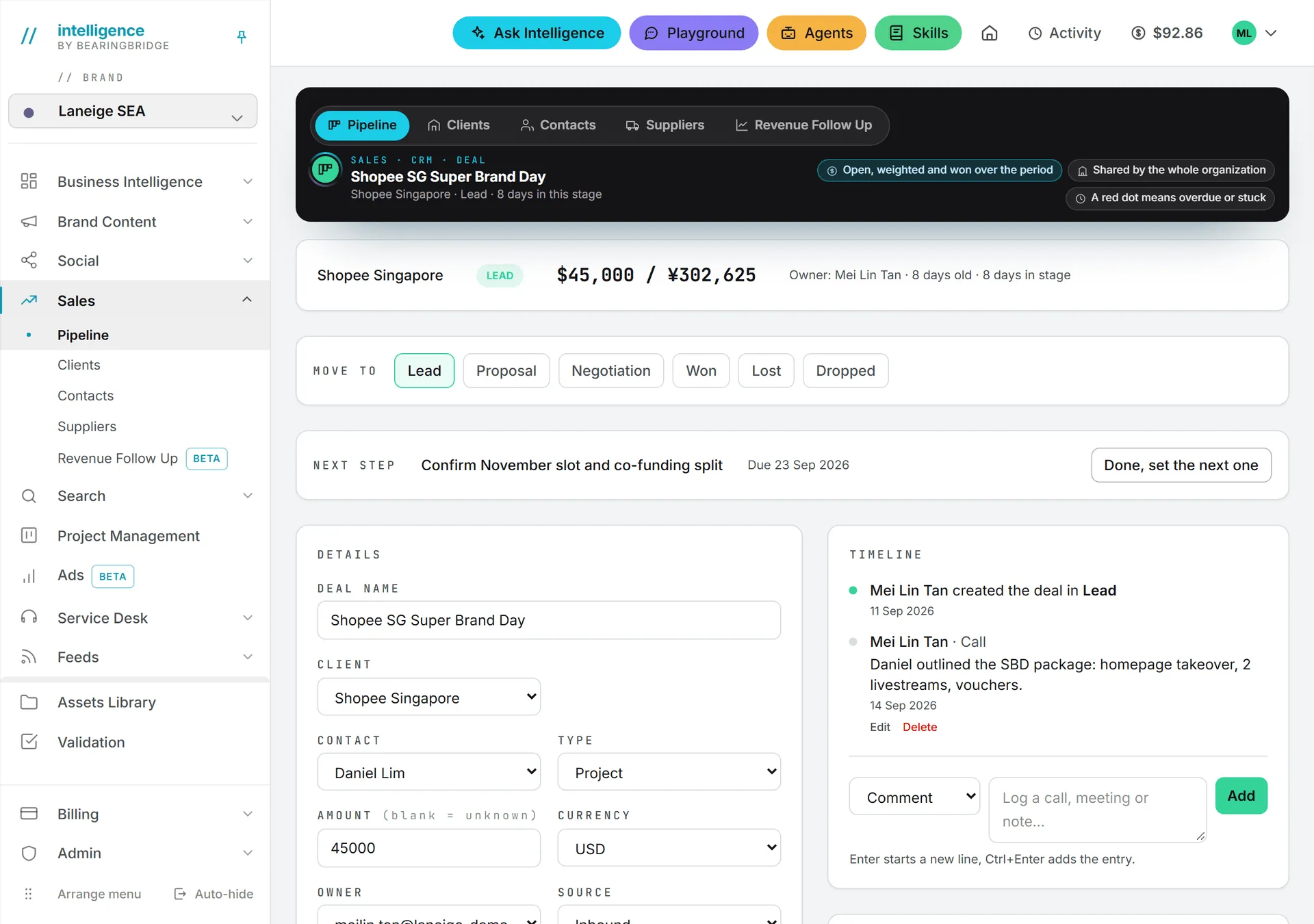
The board gives you the overview; the day-to-day work happens one level down. Click a card to open its page. The top band shows the deal name, the client, the stage and how many days the deal has been in that stage.
The summary card
The first card shows the client (click it to open the client), the stage, and the amount. If the deal was entered in another currency than your reference, the original amount and currency show too. You also see the owner, how old the deal is and how long it has been in its stage. A lost deal shows its reason.
Next step
Every open deal has a next step and a due date, shown in a card across the page. It turns red and says Overdue once the date has passed.
When you finish the step, click Done, set the next one. A window asks Step done. What happens next?. Enter the New next step and its Due date, then click Save next step. The old step goes on the timeline as “Done:” followed by its text.
Details
The Details card holds every field of the deal. Change what you need, then click Save details. You can even move the deal to another client, or to a new one typed in place. The contact list follows the client on the form, and New contact… works here too.
Once a deal is closed, its amount and currency are locked, and the next step fields disappear.
Only the owner or an admin can hand the deal to another owner. The new owner must be a member of your organization.
Timeline
Activities and stage moves share one Timeline, oldest first. The newest entry sits at the bottom, right above the box where you add the next one.
To log something, pick a kind (by default Comment, Call, Meeting or Email), type your note and click Add. Enter starts a new line; Ctrl+Enter (Cmd+Enter on a Mac) adds the entry without reaching for the button.
You can Edit or Delete the entries you wrote. An admin can do it for anyone’s. Stage moves can’t be edited.
Suppliers
The Suppliers card lists who supplies this deal, as many companies as you need. To add one, type the first letters of its name in the picker and click Add as supplier. Remove takes it off the deal but keeps the supplier. Manage suppliers opens the supplier list.
Proposal
Each deal can hold one proposal as a PDF of up to 50 MB.
- Click Upload proposal (PDF).
- Pick the file. The upload starts as soon as you pick it, with a progress bar.
Click the file name to download it. Replace swaps in a new file (the old one is deleted), while Remove deletes the file and leaves the deal alone. The app checks that the file really is a PDF: a renamed file of another type is refused. The proposal is stored with the deal, not in the Assets Library.
Delete a deal
Delete deal sits at the bottom of the Details card. Only the deal owner or an admin can use it.
Important: Deleting removes the deal, its whole timeline and its proposal for good. To take a deal off the board and keep its history, mark it lost or drop it instead.
Next steps on the project board
Each open deal’s next step also appears as a card on the Project Management board. The card is titled with the step and the deal name, such as “Send the proposal (Acme market entry)”. It sits in To Do, due on the next step date, assigned to the deal owner, and the whole organization can see it.
Deal and card stay in sync. Change the step, its date or the owner on the deal, and the card follows. A new step puts the card back in To Do.
It also works the other way. Mark the card done on the board and the deal logs “Done:” with the step. The deal then gets a stand-in step, “Define the next step”, due the next day, and a fresh card appears. Move the card’s end date and the deal’s next step date moves with it.
When a deal closes or is deleted, its card leaves the board.
Amounts and currencies
You enter each amount in the currency it was agreed in: USD, EUR, CNY, HKD or AUD. The app converts it to your organization’s reference currency when you save, using the exchange rates the BearingBridge team keeps for the whole product. The board, the tiles and the lists all use that converted value.
An open deal’s converted value moves when those exchange rates change. A closed deal’s value is frozen at the moment it closed. And if an admin switches the reference currency, every amount is converted to the new one.
When your admin sets a second currency, each amount shows both, such as “¥36,250 / $5,000”. The second figure is for display only. See CRM settings.
Won deals and revenue lines
A won deal shows a Create revenue lines button in its top band, if you can see Revenue Follow Up. It opens a new revenue line filled in from the deal: client, label, amount, currency, and this month as billing and collection month. Adjust it and save. See Revenue Follow Up.
Who can do what
| Action | Who |
|---|---|
| See the board, the numbers and deal pages | Everyone with view rights on CRM |
| Create, edit and move deals, log activities, attach suppliers, upload a proposal | Editors and above with CRM rights |
| Drop a lead, change the owner, delete a deal | The deal owner or an admin |
| Edit or delete a timeline entry | Its author or an admin |
| Create revenue lines from a won deal | People who can see Revenue Follow Up |
Roles and per-person rights are explained in roles and rights.
What it costs
Nothing on the pipeline or a deal page spends credits. It’s all record keeping, with no AI model involved. See credits and costs.
Troubleshooting
“Open deals must have a next step and date.” You cleared the next step or its date on an open deal. Fill both in and save again.
“Moving to Lost requires a reason.” Pick a reason under Why was it lost?.
“Only the deal owner or an administrator can drop a deal.” Ask the owner or an admin. The same rule covers changing the owner and deleting.
“That contact does not belong to this client.” The contact is one of another client’s people. Pick one from the list, which only shows the current client’s contacts.
“The owner must be a member of your organization.” Pick someone from the Owner list.
The proposal won’t upload. It must be a PDF of 50 MB or less.
I can’t drag cards. You need editor rights on CRM, and only open deals can be dragged.
A closed deal is gone from the board. Won and lost deals leave after 30 days, and dropped ones at once. Open the client’s page: its Deals card lists every deal, closed ones included.