Create an account
Open an Intelligence account: sign up yourself with a mailed code, pick a personal or team space, or accept an invitation from your organization's admin.
This page is for anyone opening an Intelligence by BearingBridge account for the first time. Most people sign up on their own from the sign-in page, and some get an invitation from an admin of their organization instead. Either way, you end up on the same welcome page.
Before you start
You need an email address you can open right now, because the app mails you a code or a link. You also need a password of at least 8 characters.
The sign-up, sign-in and invitation pages speak English, French and Chinese. Pick yours from the row of language names under the form before you begin. The Terms of Service and the Privacy Policy are linked from the sign-in page and open without an account, so you can read them first. See brands.
Sign up on your own
Sign-up is open to anyone. On the sign-in page, click Create an account under the form, or go straight to /signup.
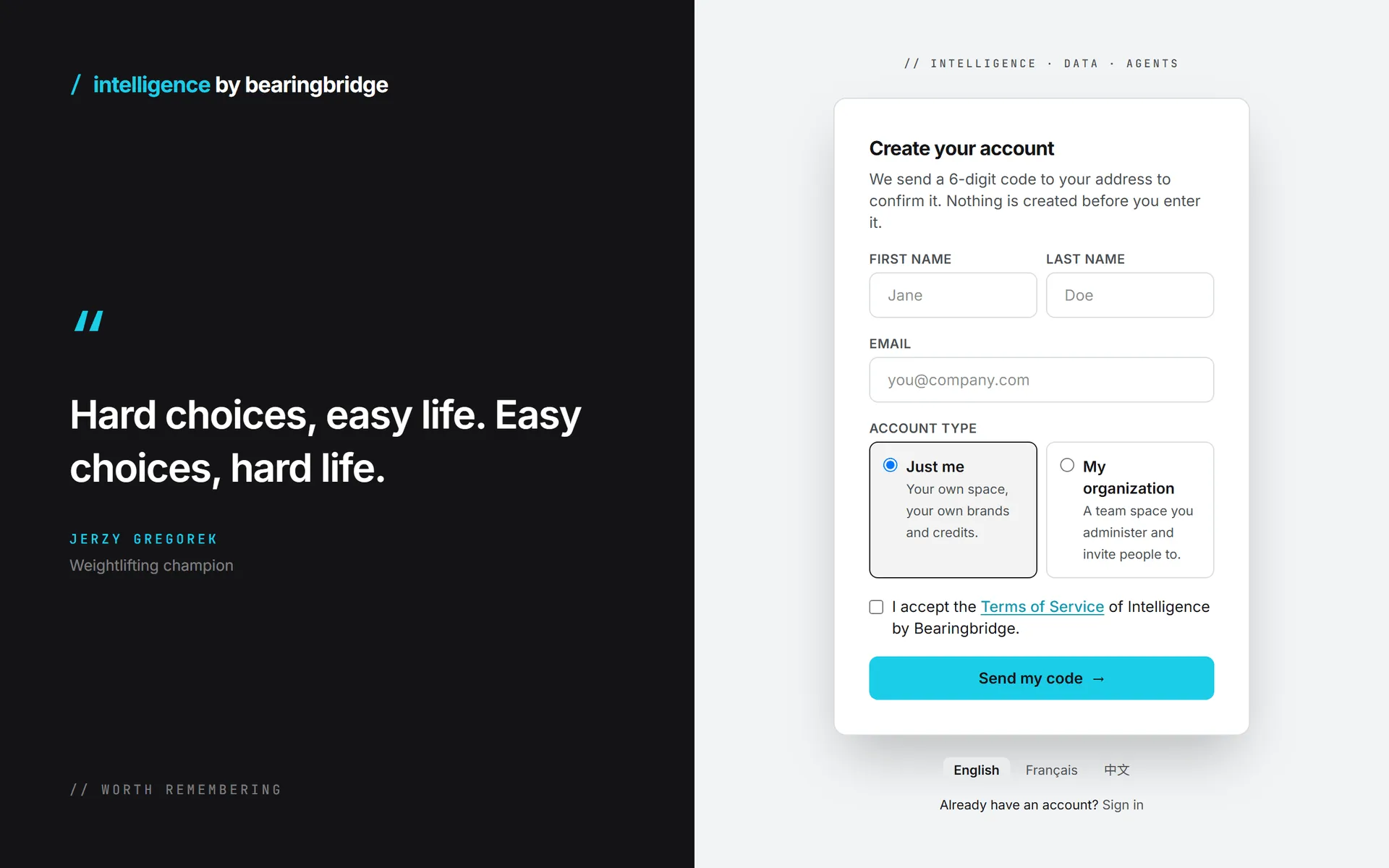
- Type your First name and Last name. From the first screen on, the app calls you by that name.
- Type your Email.
- Pick an Account type, if the page offers one: Just me or My organization.
- Tick I accept the Terms of Service of Intelligence by Bearingbridge.
- Click Send my code.
- Open the mail titled “Your verification code for Intelligence by Bearingbridge” and read the 6-digit code.
- On the Check your inbox step, type it in Verification code, then choose a Password.
- Click Create my account.
You’re then signed in and taken to the welcome page.
Until the code checks out, nothing is created. The code is good for one use and 20 minutes. Get it wrong five times and it’s dead, so send yourself a new one. If you close the tab before entering it, fill in the first step again. The new code replaces the old one.
You can change your name, your sign-in address and your password later, in profile and password.
Just me or My organization
Just me gives you a space of your own, with your own brands and your own credits. The app treats it as a personal organization with a single member: you. You’re its admin, and every AI run is paid from credits you buy.
My organization opens a team space you run and invite colleagues into. It asks for an Organization name. A box, Will you be the admin of your organization?, lets you tell us you’ll be the one running it. The BearingBridge team sees that answer and confirms the admin role once your account is verified.
The BearingBridge team decides whether My organization is offered at all. When it isn’t, the account type doesn’t appear and you get a personal account. Read organizations for how the two kinds differ.
A personal account can still join a company organization later, either when the BearingBridge team attaches it or when you accept an invitation. Your brands come along.
Partner links
A link from a BearingBridge commercial partner opens the same sign-up page with your address filled in and a line naming the partner. The account is yours all the same. The partner just stays your contact with us.
An address that already has an account
The page moves on to the code step as usual, but no code comes. You get a mail titled “You already have an account on Intelligence by Bearingbridge” instead, with a link to set a new password. Nothing new is created. Sign in with your usual password, or reset it from sign-in and security.
Addresses we refuse
Temporary mailboxes can’t open an account. Addresses at throwaway mail providers like Mailinator or YOPmail get the message “Temporary mailboxes cannot open an account. Please use your work or personal address.” The same rule applies to invitations.
Accept an invitation
Signed up on your own? Skip ahead to the welcome page.
Invitations come from an admin, who sends them from the Users page of their organization. You’ll recognize the mail: the subject names the person and the organization, and the button reads Open the invitation.
The invitation page repeats who invited you and into which organization, with the role you’ll hold. The next step depends on whether your address already has an account.
If you don’t have an account yet
- Type a password of at least 8 characters in Choose a password.
- Tick I accept the Terms of Service of Intelligence by Bearingbridge.
- Click Join and sign in.
Your account is created inside the organization with the role the admin picked, plus any brands they granted. You’re signed in and taken to the welcome page.
If you already have a personal account
Click Sign in to accept and sign in with the invited address. The invitation page opens again. Click Accept the invitation. Your account and your brands move into the organization.
Signed in under another address? Sign out first, then sign back in with the one the invitation went to.
An account that already sits in another company organization can’t be pulled in by invitation. The BearingBridge team moves those accounts; contact support to ask.
How long an invitation lasts
An invitation works once and stays valid for 7 days. Inviting the same address again replaces the earlier link, and an admin can revoke a link so it stops working. A dead link shows This invitation does not exist, This invitation was already used or This invitation has expired. Ask the person who invited you to send a new one. Admins manage all of this in users and invitations.
The welcome page
Whichever way you came in, you land on Welcome to Intelligence by Bearingbridge. The top line tells you whether you’re on an account of your own or a member of an organization. Below it sit your first steps, each with a button to the page where that work happens.
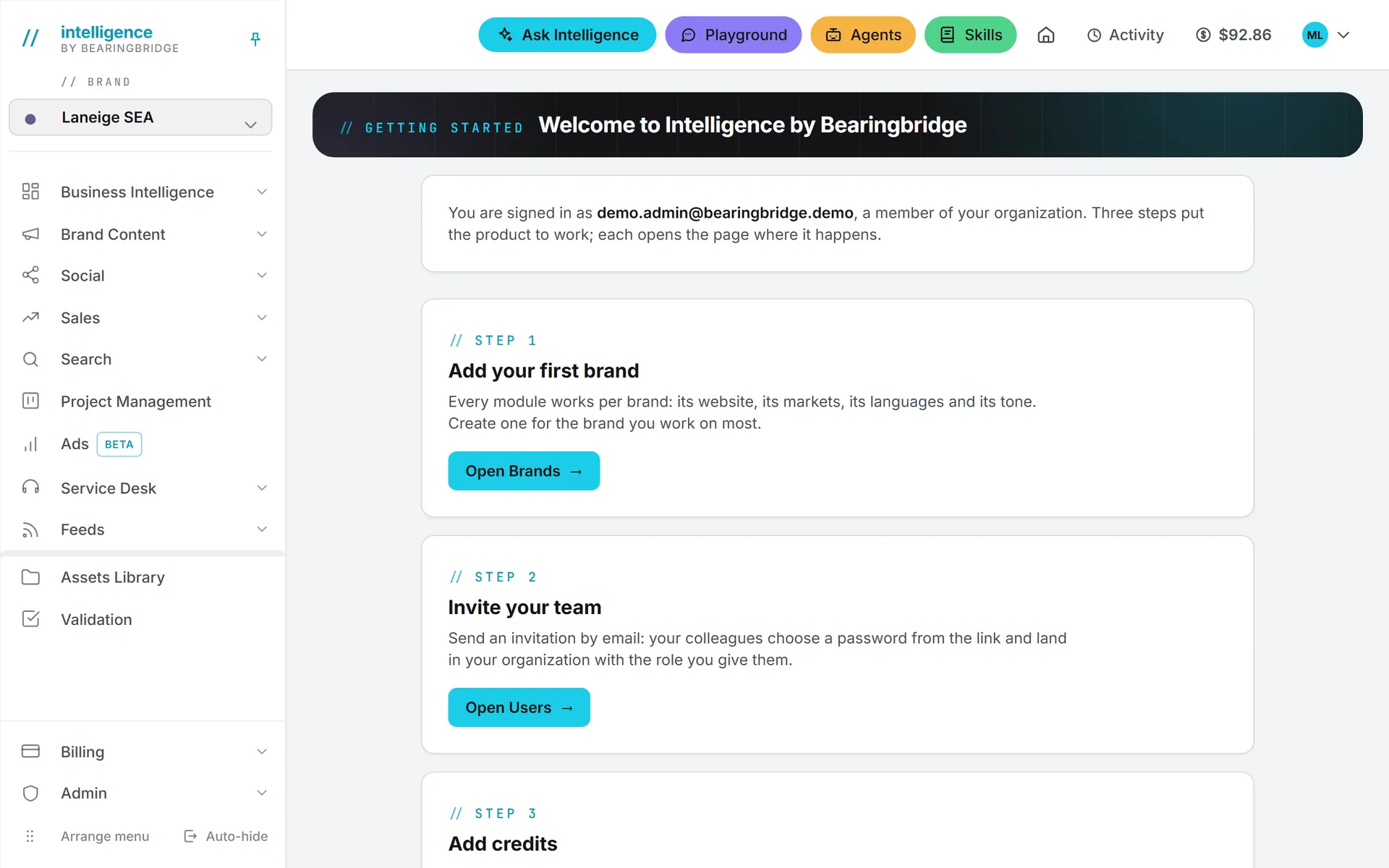
| Step | Shown to | Button |
|---|---|---|
| Add your first brand | Admins, personal accounts included | Open Brands |
| Invite your team | Admins of a company organization | Open Users |
| Add credits | Everyone | Open Billing |
| Explore the dashboard | Everyone | Go to the dashboard |
It stays at /welcome if you need it again. For a longer checklist, see first steps for admins or first steps for members.
What you have on day one
- A login on your email address, already confirmed by the code or by the invitation link.
- An organization: your personal one, the one you just opened, or the one that invited you.
- A role. On a personal account you’re the admin. An invited colleague gets whatever role the invitation named. See roles and rights.
- A No brand workspace for work that belongs to no brand.
- Two-step sign-in with a mailed code, which is on by default in organizations created now. Your next sign-in may ask for it; see sign-in and security.
- A credit balance, shown in the header. AI and data runs are paid from credits, at the price the app shows you.
Note: An invited member starts with a daily allowance of zero on the organization’s shared credits. Until an admin sets one, or you buy credits of your own, AI features won’t run for you.
What it costs
Signing up asks for no card and charges nothing. You pay later, by buying credits on the Billing page, and each paid action tells you its price. The details are in what costs credits.
Troubleshooting
If the code never arrives, check your spam folder first. Then click start again on the code step and check the address you typed.
“This code is not valid, or it has expired. Request a new one.” means the 20 minutes ran out or the code was mistyped five times. Go back and send a new code.
The page answers “Too many sign-up requests. Please try again later.” once the same address or network has made several requests within an hour. Wait a while, then try again.
“Creating an organization is not open at the moment. Open a personal account instead.” means My organization was switched off while you were on the page. Pick Just me.
On an invitation, “This invitation was sent to another address. Sign in with that one.” means you’re signed in as someone else. Sign out and sign in with the invited address.