Prospects
Search people by job title, place and company, tick the ones you want, and reveal their emails into a list, paid per page and address.
Watch the video
Prospects is where you find the people you want to write to and get their professional email address. The search covers more than 240 million people in 30 million companies. It shows names, job titles and companies, never an email, and each page of results has a small price. You tick the people you want, and their address is revealed into one of your lists, at a price per address found.
A list is what a sequence writes to. The lists themselves live on the Lists page, which you can also fill from a file, your CRM or an agent.
Open it from Email in the left menu, then Prospects, or from the Prospects switch in the black band of the Email pages.
Who sees it
Prospects, Lists and Sequences follow one right of the role grid, Prospects and Sequences, in the Email group. A person whose role doesn’t open it doesn’t see the three pages, in the left menu or in the band. The first two Email pages, Answering Machine and Mass Mailing, stay open to everyone.
| What you do | The right it needs |
|---|---|
| Open the three pages, read the lists and the sequences | View |
| Search for people, reveal emails, create and fill lists, add an address to Do not contact, create, test, start and pause a sequence | Create |
| Rename or describe a list, save a sequence | Update |
| Remove people from a list, delete prospects, lists and sequences, allow an address again | Delete |
The people you reveal belong to your organization, like the CRM: every member who can open Prospects sees every list. See roles and rights.
The band
Two tiles sit in the black band at the top of the page:
| Tile | What it shows |
|---|---|
| Lists | How many lists your organization has, and how many places they hold. Click it to open the Lists page. |
| Per email found | The price of one revealed address, and under it the price of one page of search results. |
When the people search isn’t available on your workspace, the second tile reads Search off and the page says so. You can still build lists from a file or from your CRM on the Lists page.
Search for people
The Find people card has two tabs at the top right: Search and Results. Running a search switches you to Results; click Search (or Edit search above the results) to adjust your filters.
Type one or more job titles in the big bar, separated by commas, such as Marketing director, Head of e-commerce, and click Search people. Include similar titles, on by default, also finds the titles that mean the same thing. The line under the bar gives the price of each page of results before you search.
Above the search bar, the Saved searches bar holds the filter presets your organization has saved. Click a saved search to load its filters, or click Save search to save the filters you have set under a name of your choice.
Every other filter sits under Filters, open below the bar. You can fold it away by clicking its title if you like. While it’s closed, a number on it says how many of its fields you’ve set.
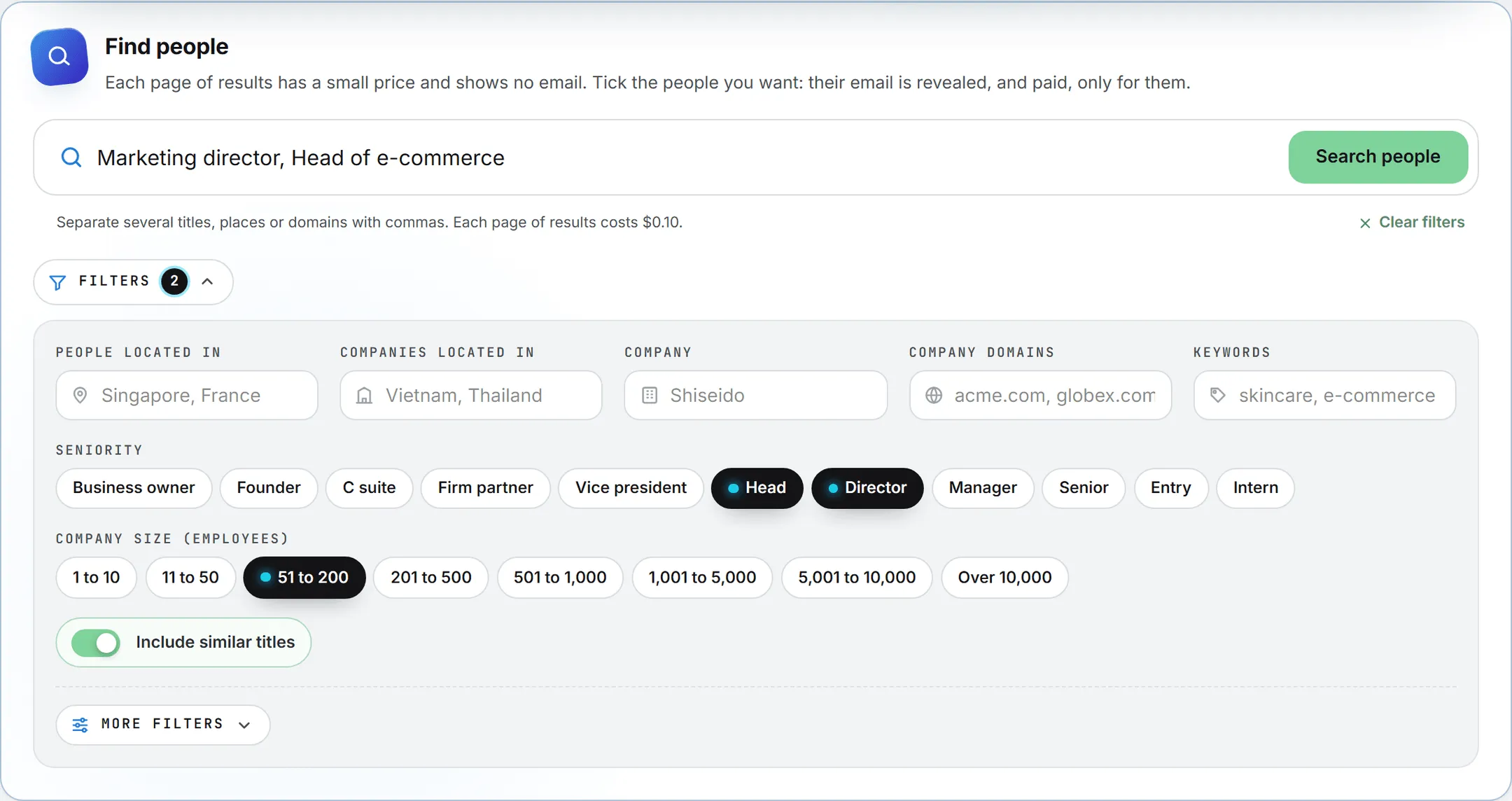
| Filter | What it narrows |
|---|---|
| People located in | Where the person works: a city, a region, a country. |
| Companies located in | Where the company is based. |
| Company | One company, by name. |
| Company domains | Companies by their website, such as acme.com. |
| Keywords | Words about the company, such as skincare. |
| Seniority | Business owner, Founder, C suite, Firm partner, Vice president, Head, Director, Manager, Senior, Entry, Intern. |
| Company size (employees) | From 1 to 10 up to Over 10,000. |
Several places, domains or keywords go in one field, separated by commas.
More filters, open too at the foot of Filters, holds the rarer ones, in four groups:
- Person: Person name, Email status (Verified, Likely to engage, Unverified, Unavailable) and Leave out companies by their domain.
- Company: Company revenue (USD), from and to, and Headcount growth (%) over the last 6, 12 or 24 months.
- Technologies the company uses: Uses any of, Uses all of and Uses none of. Technologies are written in lowercase with underscores, like
google_analytics. Type “Google Analytics” and it’s converted for you. - Hiring now: Hiring for (the jobs a company advertises), Jobs located in, the number of Open job posts, and Jobs posted between two dates.
Clear filters, under the bar on the right, puts every field back to its default. A search needs at least one filter. With none, the page says “Set at least one filter: a job title, a location, a company size or a domain.”
The results
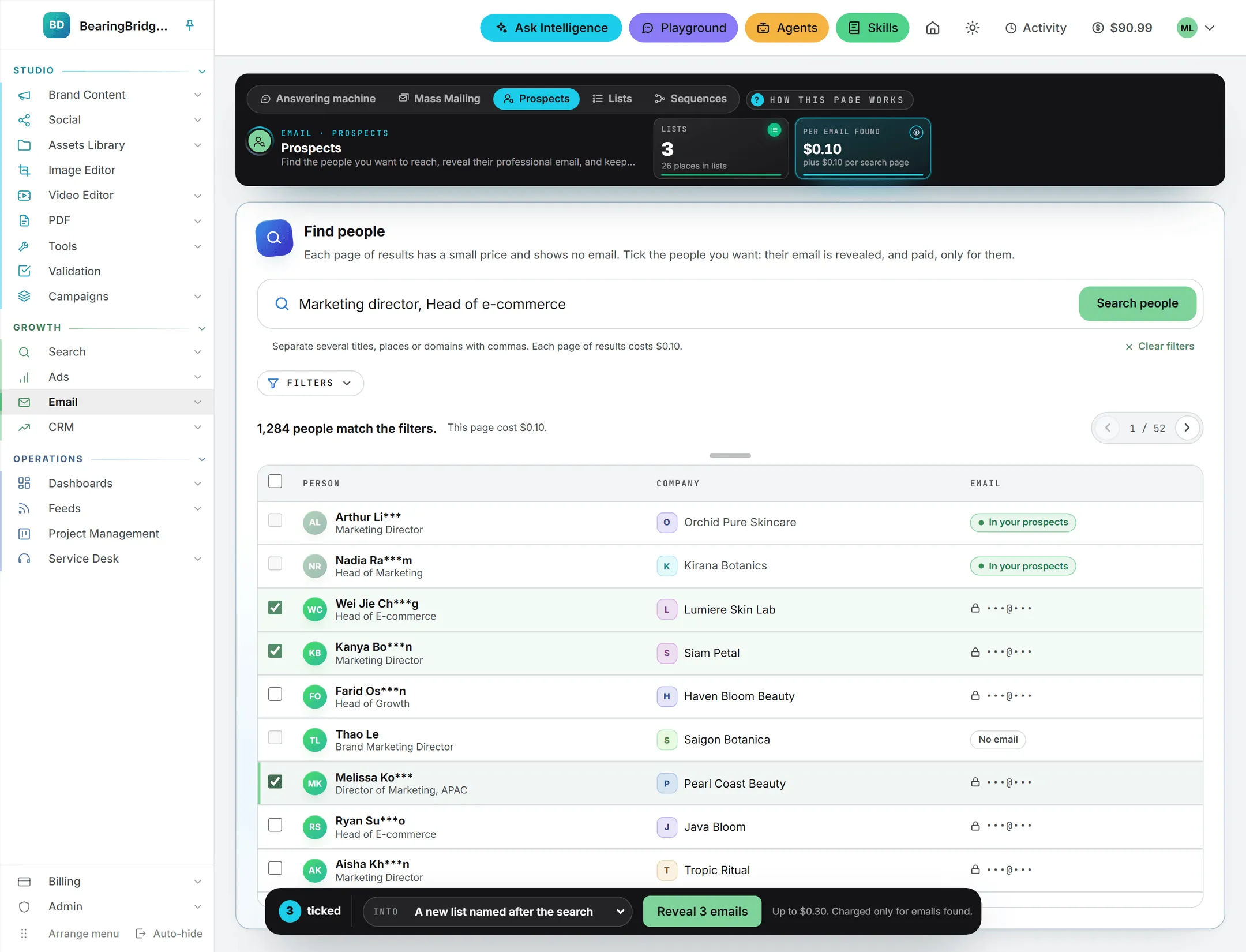
A line above the table says how many people match the filters, and what the page you’re looking at cost. The results come 25 to a page; the arrows on the right move between pages, and each page you open is a search of its own, paid like the first.
Each row shows the person, with their first name, the start of their last name and their job title, then their company. The Email & Lists column never shows an address before it’s revealed:
- A lock and dots: the address exists and can be revealed.
- No email: none is known for this person, so the row can’t be ticked.
- In your prospects: your organization already holds this person, and badges beside it name the lists they already sit in. You can still tick the row to add them to another list without paying for their address again.
Reveal emails
- Tick the people you want. The box in the header ticks everyone on the current page, and Select all results in the toolbar above the table selects up to 100 matching people across pages in one click. Ticks are kept when you move to another page of results.
- A dark bar rises from the foot of the screen. It counts the people ticked and shows the most the run can cost, charged only for new emails found.
- Click Reveal emails, which counts them, as in Reveal 3 emails. A dialog opens where you choose Add to an existing list (and pick the list) or Create a new list (pre-filled with a name from your search), and confirm.
One run reveals up to 100 people. A bar fills while it works, and the run shows up in Activity under Prospects, with a running count. Each person found lands in the list as soon as their address comes back, so a run cut short keeps everything it paid for.
When it’s done, a line under the table sums it up: how many emails were revealed into the list, how many people turned out to have no email, how many were already in your prospects and weren’t charged again, and what the run cost. Open the list takes you to it on the Lists page. The revealed people turn to In your prospects in the table.
A revealed person comes with their full name, job title, company and its website, city, country, LinkedIn profile, seniority and industry, plus the status of their address. A sequence can use that status to write to verified addresses only.
Tip: To add people to one list in particular, open that list on the Lists page and click Find people. Prospects opens in a new tab with that list already picked in Into.
What it costs
Searching is paid per page of results, at the small price shown under the search bar, and only once the page comes back: a refused or failed search costs nothing. Revealing is paid per address found, at the price shown on the Per email found tile: a person whose email can’t be found costs nothing, and neither does someone your organization already holds. Both come out of your credits like any other paid action, and the Usage log lists each reveal run as Prospect emails revealed. A role with View alone can’t search or reveal. See Credits and costs.