Answering Machine
Read your own Gmail or Outlook mailbox in Intelligence, have the answer to a message drafted in your name, change it, leave it in Drafts.
Watch the video
The Email module reads the mailbox you connected for yourself and drafts the answer to any message in it. You read the message, say in a few words what the answer should say if you like, and the reply is written in your name, in your own words as far as the product knows them, and left in your Drafts folder.
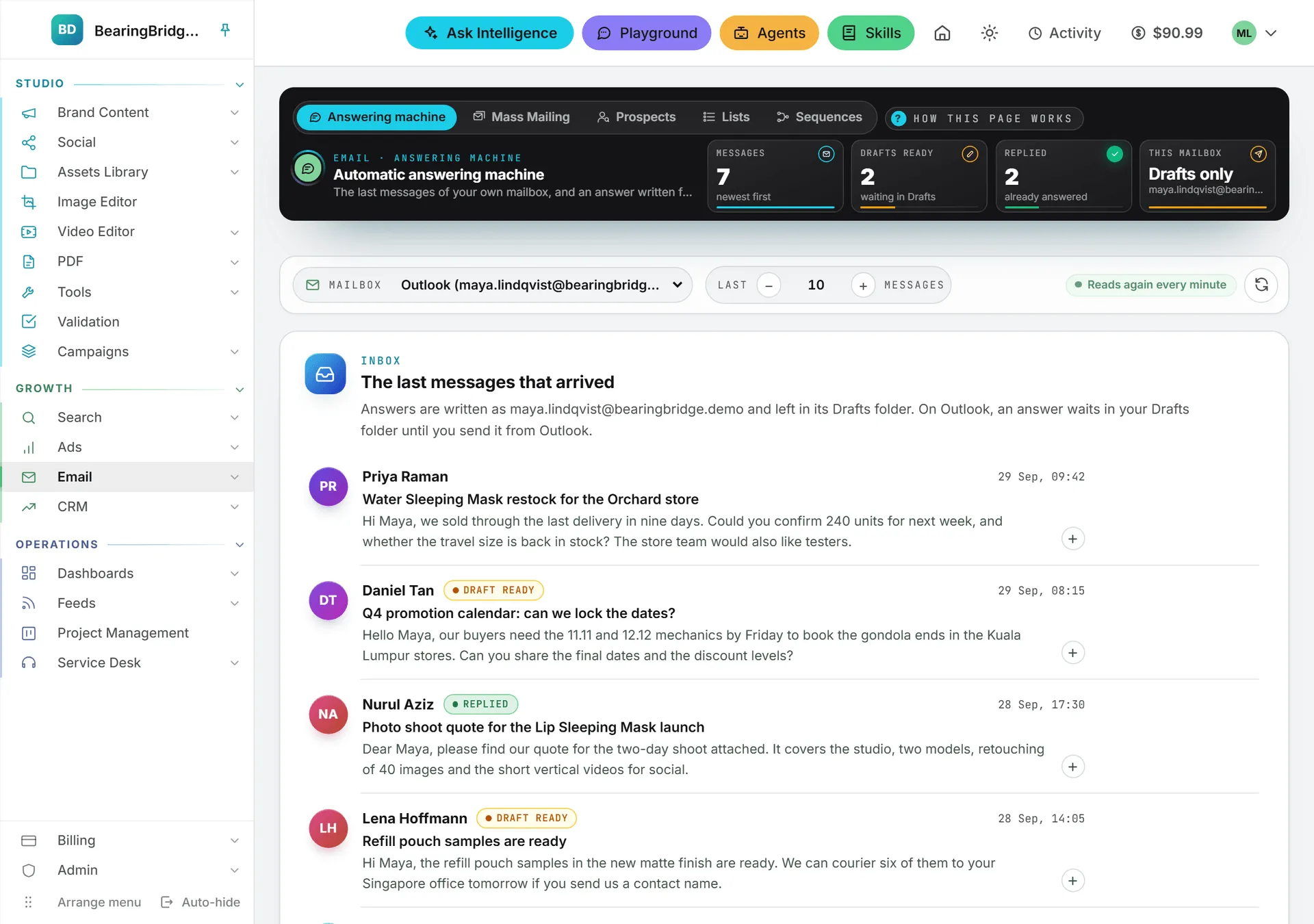
Open it from Email in the left menu, then Answering Machine. The black band at the top of the page switches between the pages of the module: Answering Machine here, Mass Mailing to write one email for a whole list (see Mass Mailing), then Prospects, Lists and Sequences to find people, keep them in lists and write to them from your mailbox when your role opens them (see Prospects). How this page works, next to them, sums the page up.
What you need first
A mailbox connected in your own name on My Connections: a Gmail or an Outlook mailbox. You can connect up to five of each and answer from any of them here. Until you connect one, the page says Connect a mailbox to start, and Open My Connections takes you there in a new tab.
A mailbox is personal and stays personal. Nobody else in your organization reaches it, administrators included, and the Email module reads yours and nobody else’s. There is no company mailbox anywhere in the product.
Reading your messages
The numbers in the band
Four tiles in the band keep count of the inbox on screen, and update as you work:
| Tile | What it counts |
|---|---|
| Messages | The messages listed on the page. |
| Drafts ready | The messages with an answer waiting in your Drafts folder, plus the ones being written right now (“2 being written”). |
| Replied | The messages you already wrote back to. |
| This mailbox | What the mailbox you’re reading can do with an answer: Can send or Drafts only, with its address under it. |
The toolbar
A toolbar sits above the list, and stays at the top of the screen while you scroll down it:
- Mailbox: which of your mailboxes you are reading, each named with its address, as in Outlook (you@company.com). Pick another one and the list reads that mailbox.
- Last N messages: how many to bring back, ten by default, twenty-five at most. Type the number, or use − and + to go down or up by five.
- The round arrow at the end reads the mailbox again at once.
The list also reads your mailbox again by itself every minute while the page is open, as the Reads again every minute badge says, and as soon as you come back to the tab. New messages slide in at the top.
Nothing is copied into Intelligence: the messages are read live each time and are not stored anywhere in the product.
The list
The Inbox card lists what arrived, newest first. Its first line says what this mailbox does with an answer: whether it stays in Drafts or can be sent from here.
Each message shows the sender’s initials in a colored circle, the sender’s name, the time it arrived, the subject and the first two lines. Point at a message and its Draft answer button appears at the end of the row.
The + under the first two lines of a message unfolds the whole of it right in the list, so you can read it without opening anything. A long message scrolls inside its row, and the − above or below it folds it back to two lines.
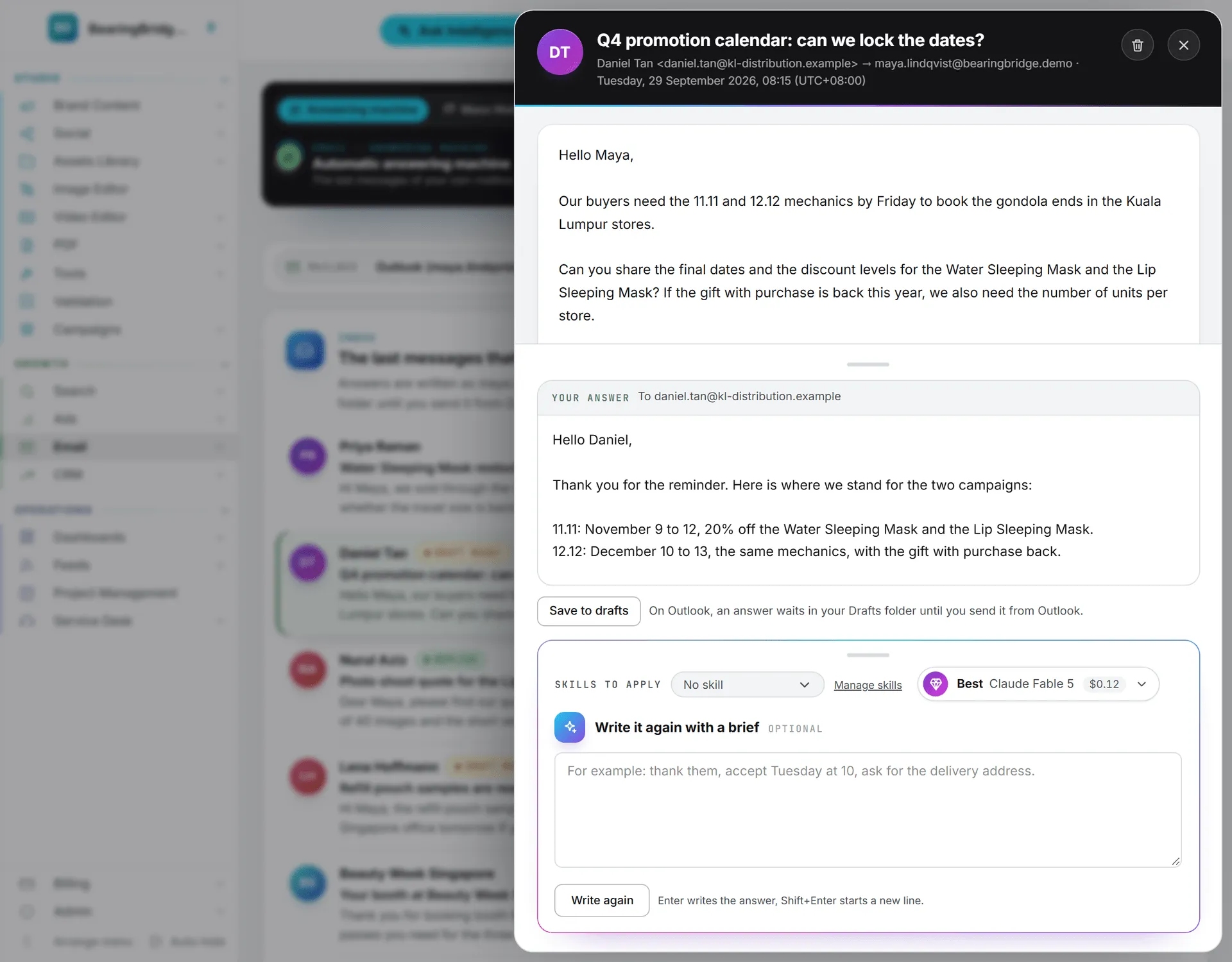
Click a message to open it in the pane that slides over the right of the page. Esc, the cross at the top of the pane, or a click on the page behind it closes the pane.
Where each message stands
Next to the sender’s name, a tag tells you where the message stands in your mailbox:
| Tag | What it means |
|---|---|
| Writing the answer | An answer you asked for is being written. |
| Draft ready | An answer to this message waits in your Drafts folder. |
| Replied | You already wrote back to this message. |
Draft ready and Replied are read from the mailbox itself, so a draft or a reply you wrote in Gmail or Outlook counts too.
Open a message marked Draft ready and the pane loads the answer waiting in your Drafts folder, even one written before you reloaded the page or written in Gmail or Outlook. It shows the answer alone, without the quoted conversation a mail client adds under a reply, ready to read, change or write again. If that draft can’t be found anymore, because it was sent or deleted in the meantime, the pane says “An answer to this message already waits in your Drafts folder.” and offers the brief. Open a message marked Replied and the pane says “You already replied to this message.” above the brief.
Deleting a message
On an Outlook mailbox, each row carries a bin next to Draft answer, and the pane has one at the top, next to the cross. Click it and the message moves to Deleted Items at once, with no question asked: the row folds away and the list is read again. You can still get the message back from Deleted Items in Outlook. The deletion is listed as Deleted under Written in your mailbox on My Connections.
A Gmail mailbox has no bin. Gmail is connected for reading and drafting only, so its messages are deleted in Gmail itself.
Drafting the answer
- Click Draft answer on the row. The pane opens on the message, with the cursor in a box headed Brief for the answer, marked optional. Opening the message yourself shows the same box, at the foot of the pane. Right above it, Skills to apply and the model picker set how the answer is written.
- Type a few words on what the answer should say, like “accept, propose Tuesday at 10”, in 1,000 characters at most. Or leave the box empty: the answer is then written from the message alone.
- Press Enter, or click Draft answer under the box. Shift+Enter starts a new line in the brief.
The brief is your own instruction for this reply: what it says, what it decides and how it sounds. What the brief states can go into the answer, facts included. A brief such as “yes to the 5% discount, delivery on October 3” lets the draft write that discount and that date, because they come from you.
The answer is written in the background. The pane shows Writing the answer next to a turning ring, the row shows the same tag, and you can close the pane, answer other messages at the same time or leave the page altogether. The answer still lands in your Drafts folder, and the Activity panel in the header tells you when it’s ready: it lists the job as an Email answer, named after the message’s subject, and its row brings you back to this page. If you stayed, the answer appears in the pane, ready to read, and the row turns to Draft ready.
What the drafter does, and what it refuses to do:
- It answers in the language the message is written in and matches its register.
- It signs in your name, the one on your profile.
- It invents nothing. A price, a date, a delivery or a commitment that neither the message nor your brief gives is never written. When the answer depends on something the product cannot know, the draft either asks the sender for it or leaves a bracketed gap like
[date]and lists it under the text. - It says so when a message is a newsletter or a notification that calls for no reply, unless your brief asks for an answer anyway.
The draft lands in the Drafts folder of that mailbox straight away, inside the conversation it answers and addressed to whoever wrote to you. You can finish it in Gmail or Outlook.
Under your answer, the draft quotes the message it answers, the way your mail client does: a From, Sent, To and Subject block on Outlook, an “On …, … wrote:” line on Gmail, dated in your own time zone. The pane shows your answer alone, and the quote is added back each time the draft is written or saved.
The cost of the draft is shown in the answer’s header, and it runs on this page’s default model unless you pick another one your organization allows. Pick another one in the model picker before you press the button: Quick, Balanced, Best, or any model under All models.
Writing it again with a new brief
Not quite what you meant? Under the answer, a second box, Write it again with a brief, takes a new brief. Click Write again, or press Enter in the box, and the answer is written again from the message and that brief. The new version goes over the draft already waiting in your mailbox, never beside it: writing it again doesn’t add a second draft to the conversation.
If you changed the text of the answer by hand, the app asks first: “Write the answer again? The changes you typed in it will be replaced.” Once an answer is sent, the box is gone.
The brief you typed stays in its box if you close the pane and open the message again.
Changing it, and sending it
The answer sits in a card headed Your answer, with the address it goes To and its cost. The text is yours to change: your version saves itself over the draft waiting in your mailbox a second after you stop typing, and again when you close the pane, open another message or leave the tab, so the two never disagree. Until it’s saved, Save to drafts stays amber; click it to save at once.
Need more room, or less? Pull the bar above the answer up to make the box taller, or down to make it shorter. The brief has the same bar above its box. Once a bar has the focus, the up and down arrow keys resize its box too. Each box keeps the height you gave it from one message to the next while the page stays open.
Send appears on a Gmail or an Outlook mailbox you connected with sending allowed, and only when the sending tool is ticked for that mailbox on My Connections. It asks you to confirm, then the mail leaves your mailbox and the card’s header turns to Sent. There is no way back.
Without it, the answer waits in your Drafts folder until you open Gmail or Outlook and press Send yourself. An Outlook mailbox connected before the app could send has to be reconnected first, with Reconnect on My Connections. The This mailbox tile and the Inbox card both say which of the two your mailbox is.
Every draft written, every mail sent and every message deleted is listed under Written in your mailbox on My Connections, with the address of the mailbox and what wrote it.
Answering in your own voice, with a skill
A skill is a set of instructions you write once. Attach one to a mailbox and every answer drafted from it follows the skill: your sign-off, the questions you always ask, the tone you keep for clients.
The Skills to apply box sits in the pane, right above the brief and next to the model picker. It belongs to the mailbox you’re reading. It offers every skill you have, your organization’s and your own, and what you pick is saved on that mailbox as soon as it changes. Each mailbox keeps its own choice, so your work mail and your personal mail can answer differently.
A skill shapes the voice and the method. It cannot lift the rules above: an answer still invents no fact that neither the message nor your brief gives, and commits you to nothing you didn’t ask for.
What it costs
Reading your mailbox costs nothing. Each draft is one AI call, and so is each Write again. They are paid from your credits like every other AI feature, and the price is printed in the answer’s header. Editing and sending cost nothing.