Brands
A brand is a website and its markets, languages, voice and team. Learn what it holds, how the picker works and who sees each brand.
A brand is a website plus everything that defines it: its markets and languages, how it sounds and looks, and the people who work on it. Most of the work in Intelligence is filed under one. Here’s what a brand holds, how you switch between brands, and who gets to see each one.
One organization, many brands
Each brand belongs to one organization. An organization can run as many brands as it needs: one per product line, one per country site, or one per client if you’re an agency. The app puts no cap on the number of brands. What costs credits is the paid work you run for them.
Set a brand up once and its settings flow into the rest of the app:
- Its markets decide which Google country rankings are checked in, where ads are targeted and where AI search is tested. With no market set, the app uses the United States.
- Its languages decide the language content is drafted in. With no language set, the app uses English.
- Its voice and visual identity guide every text, post, ad, report and service desk answer the AI writes for it.
- Its capabilities and modules decide which areas of the app appear while it is the active brand.
What a brand holds
Administrators edit a brand in Admin > Brands, with Edit on the brand’s card or + New brand at the top. The brand editor has these sections:
| Section | What you set |
|---|---|
| Identity | Brand name (required), Owner (the person who runs it, shown as “Run by” on the card), Website (required), Brand color and Brand logo (PNG, JPEG or WebP, 2 MB max) |
| Capabilities | Which capabilities and modules this brand uses |
| Coverage | Languages and Markets. The first of each is the default for Search, Ads and AI search. |
| Clusters | The keyword clusters (topic groups) the brand works in. Keywords can only be filed under one of these. |
| Profile | Links to the brand’s Google Search Console property and Google Ads dashboard |
| RTB & Audience | Target customers, Precise targeting and Reason to buy |
| Voice & tone | The verbal identity: positioning, audience, promise, personality, voice traits, tone by context, vocabulary, claims and examples |
| Visual identity | Palette, logo, typography and imagery, used by the image generators |
Every brand must be linked to a website; the app won’t save a brand without one.
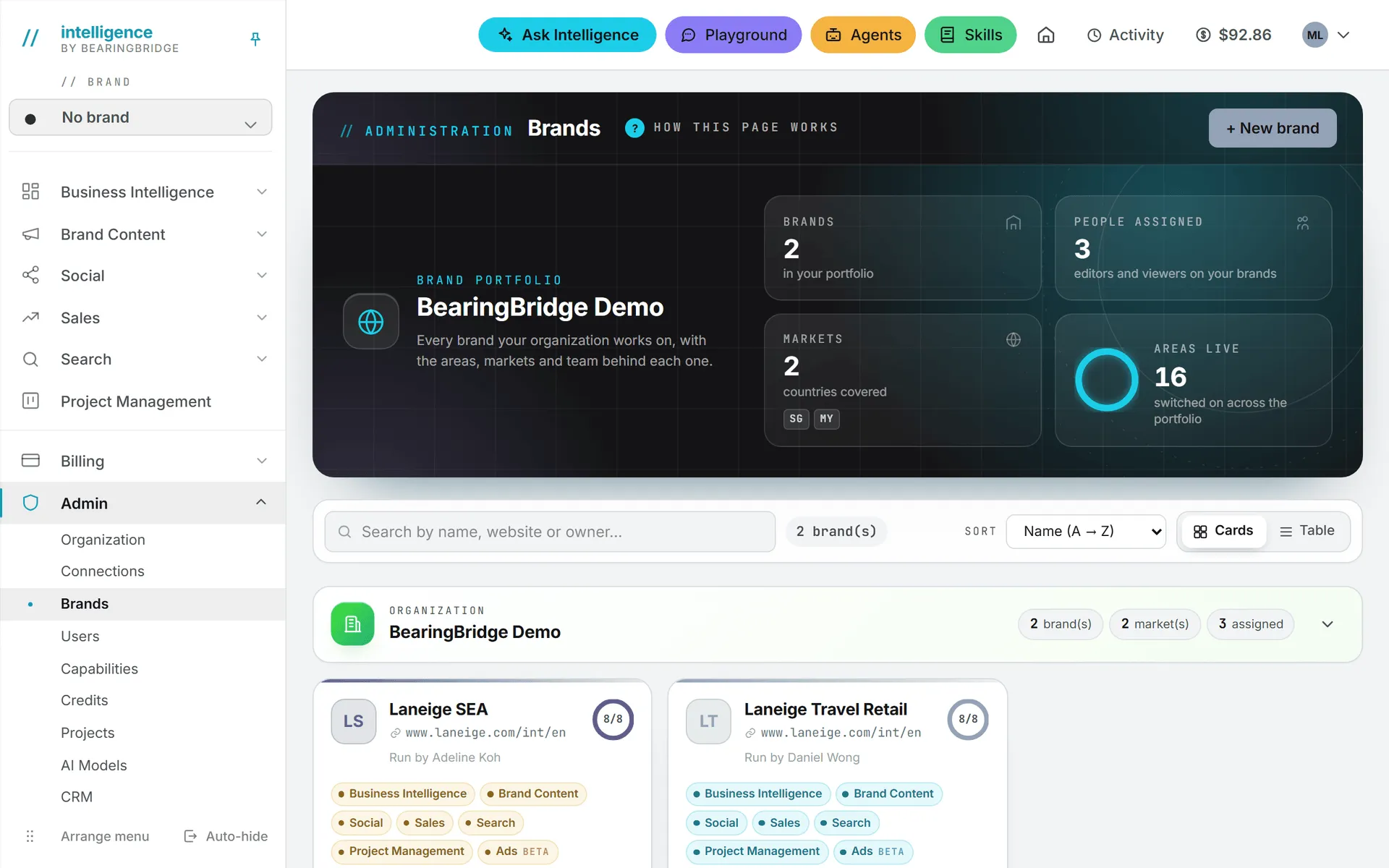
Once you add a logo, it takes the place of the color dot in the brand picker, the brand lists and on task cards.
The voice and visual identity carry a status, Draft or Approved. Once a brand has been saved, Draft with AI can fill them from a reference page or a brand book PDF. That draft is an AI call, so it costs credits and shows its cost like any other. The longer brand texts, such as the manifesto and the brand story, are written in the Brand foundation studio.
The brand picker
The brand picker sits at the top of the left menu, under the ”// brand” label. It shows the active brand with its logo or its color dot.
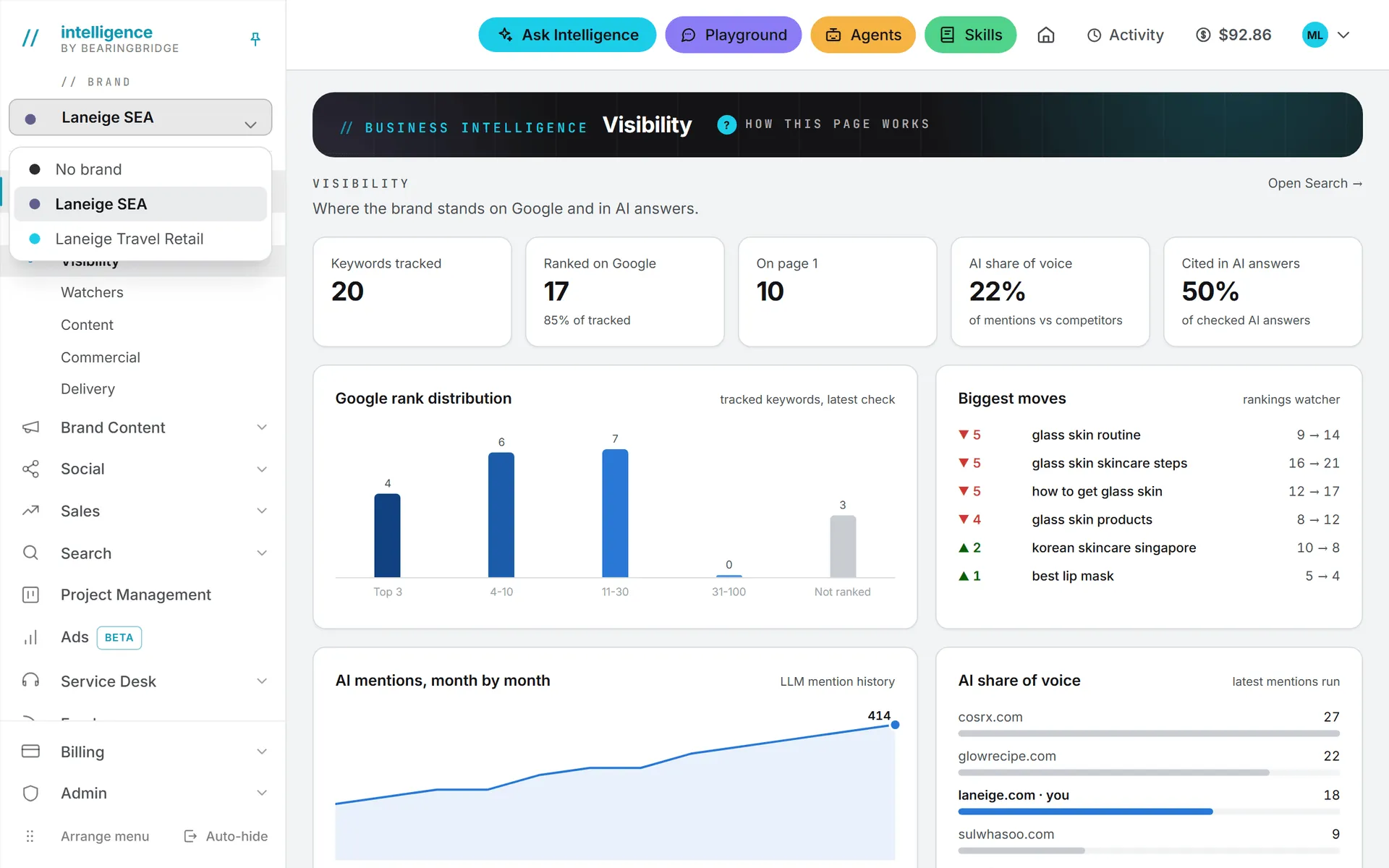
On a brand page, such as Search, Social or Brand Content, picking another brand switches the page’s data to that brand without leaving the page. The app remembers your last pick in this browser.
Tip: If a page looks empty, check which brand is selected before anything else.
On organization pages the picker is grayed out and reads No brand. That happens on Project Management, Admin, Billing, the Assets Library, Validation, Ask Intelligence, Agents, Skills and the Playground. Those pages hold organization data, or have their own way of choosing brands.
On Admin > Brands, the Open button on a brand’s card makes it the active brand and takes you to its dashboard.
The No brand workspace
Every organization has one reserved workspace called No brand. It’s where work that belongs to no brand lives: a post you draft for yourself, a picture you try out, a task that concerns the whole company.
In every module it acts like a normal brand, with every capability and module switched on. It’s always first in the brand picker. It never shows up on the Brands page, and nobody can edit or delete it. And everyone in the organization has it, whatever their role, without any grant.
Work in No brand is private until you share it
Social posts and assets you create under No brand are yours alone at first. The sharing menu offers three choices:
- Only me: the default for anything new.
- Everyone in the organization: all members can see it.
- Chosen brands: whoever can open one of the brands you pick. The item stays in No brand.
Only the author can change who sees an item. Administrators don’t see a colleague’s private No brand work either. If you send an item for validation, the validator can see it too. The full set of visibility rules is in Data access and privacy.
Brand pages and organization pages
Not everything in the app is split by brand. Roughly, the line falls here:
| Works per brand | Works for the whole organization |
|---|---|
| Search (SEO and GEO) | Project Management (tasks and projects) |
| Ads | Sales: the CRM and Revenue Follow Up |
| Brand Content | Users, roles, credits and connections |
| Social | Organization agents and skills |
| Service desks, each one belonging to a brand | |
| The Visibility and Content dashboards | The Watchers, Commercial and Delivery dashboards |
Sales data is never split by brand: every deal, client and contact belongs to the organization. Project Management tasks can carry a brand as a tag, but the task still belongs to the organization. In the Assets Library, a file is either organization-wide or tied to one brand.
Who sees which brand
This is the part administrators get asked about most. Brand access is data access. If you can’t open a brand, its data stays hidden from you everywhere, Ask Intelligence answers and agent runs included.
| Role | Brands they see |
|---|---|
| Admin | Every brand of the organization |
| Brand Manager, Editor, Viewer, and custom roles below admin level | Only the brands they were granted, plus No brand |
| Personal account | Their own brands, plus No brand |
Administrators grant brands in two places. On a person’s page in Admin > Users, the Brands card lists the organization’s brands to switch on for that person. On Admin > Brands, a brand’s Team button lists the organization’s editors and viewers with a switch for each, and shows admins under Always have access. Brand managers and people with a custom role don’t appear in that list; grant them brands from their own page.
Roles and rights explains what each role may do once it can see a brand.
Capabilities per brand
Each brand can switch any capability off for itself. While that brand is active, the capability disappears from the menu. Open one of its pages anyway and you get a notice instead of data. It reads something like “The Search capability isn’t enabled for Acme.” and points to the Brands page.
A brand can never switch on something its organization doesn’t own, and a new brand starts from its organization’s set. Inside a capability that stays on, you pick which modules the brand uses, for example Google Ads but not LinkedIn Ads. See Capabilities and modules.
None, one or several brands in Ask and agents
Ask Intelligence and the agents can read more than one brand at a time. On the Ask Intelligence page, the Brands button lets you pick none, one or several, or use All brands. With None, only your organization’s own data is read. Each brand you add brings its own data into the same answer.
You can only pick among the brands you can open. For Ask, the details are in Data and web search; for agents, in Runs and schedules.
Who can manage brands
Only administrators create, edit and delete brands, and assign people to them. The Brands page is part of the Admin menu, which other roles don’t see. If you need a new brand, or access to one you can’t open, ask an administrator.
Brand managers work on the brands they were granted. Beyond what an editor can do, they can set up brand-level agents for those brands and use Initialize with AI to get a starting keyword list in Search.
Deleting a brand removes it “and all its data”, as the confirmation box warns, and it can’t be undone.
Manage brands has the step-by-step guide.