AI models
Every AI model is open to everyone unless admins forbid it. See how defaults, the picker and My models work, and what web search costs.
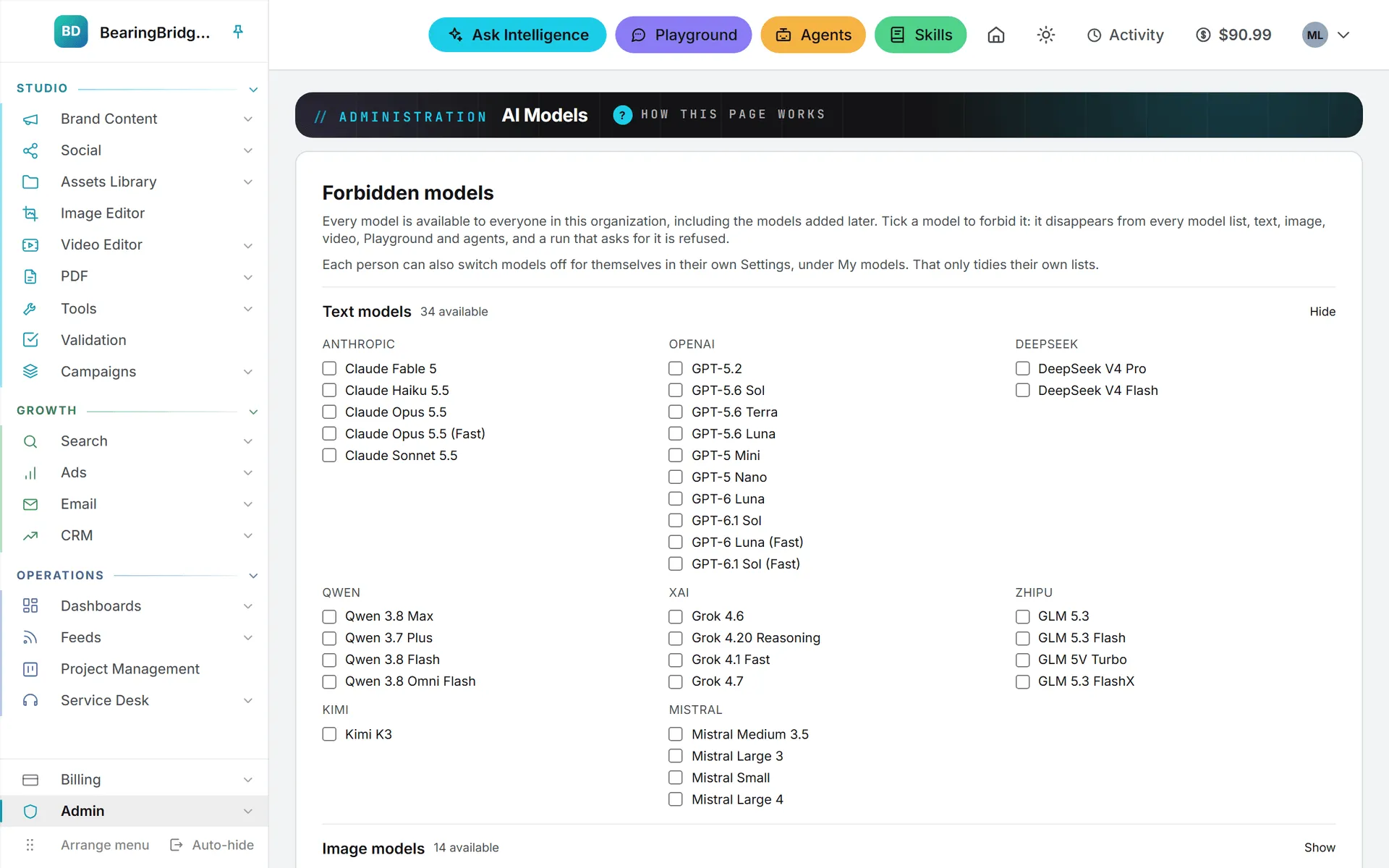
Intelligence doesn’t tie a feature to a single AI model, and it doesn’t make anyone build a list either. Every model in the app, from several makers, is open to everyone by default, including the models added later. Your administrators can forbid some for the whole organization, and you can hide the ones you don’t use from your own lists. The options on a form can shift when you switch, and this page explains why.
Every model open, unless forbidden
Three layers decide what a model list shows you:
- Every model in the app. The BearingBridge team adds them, and each new model is open to everyone right away. Nobody has to switch it on.
- Forbidden models. An administrator can take a model away from the whole organization, on the AI Models page under Admin. A forbidden model is gone from every list (text, image, video, Playground and agents), and a run that still asks for it is refused. At least one model of each kind always stays allowed.
- My models. You can switch off, for yourself only, the models you don’t want to see. They leave your own lists and nobody else’s. See My models.
Every AI feature also has a default: the model that runs when you don’t choose one. Administrators set it on the same AI Models page, for a whole module, such as Social or Search, and again page by page: Editorial long-form content can run on a stronger model than TikTok captions, for instance.
A level with nothing set inherits from the one above it: the page from the module, the module from the defaults every organization starts with. So when an administrator changes a module’s default, everyone who never picked a model moves with it. If a default becomes forbidden, the feature runs on the next allowed model rather than failing.
The modules on that page are Ask Intelligence, Content, Ads, Search, Social, CRM (quotes and proposals), Customer Self-Service (the public chat of a service desk) and Email. Set by page opens a module’s own menu pages, such as Editorial or LinkedIn, so each can get its own default.
The model picker
Most AI text forms carry a compact model button next to the button that runs them. It shows your current choice, its model and what one typical run of that feature costs. Click it and it opens on three plain choices, Quick, Balanced and Best, with the feature’s default starred Recommended here, and All models below: every model your organization allows, grouped by maker, minus the ones you switched off in My models, each with its price for one run. Pick a choice or a model and your runs use it. If you switched off a feature’s default, the picker opens on your first remaining model instead. The whole picker is described in Choosing a model.
The data a feature may read stays the same whichever model runs it, and so do the access rules around it.
Your browser remembers the choice for that feature. Write every LinkedIn post on the same model and you’ll only pick it once. If an administrator later forbids your model, your next run is refused with a sentence and the picker reloads without it.
You’ll find the picker on Ask Intelligence, the Dashboards builder, the Brand Content text forms, the social post forms, the AI steps of Search and Ads, the Email pages, and the rewrite menu that appears when you select text.
Two things carry a model of their own instead of a picker. Each service desk has a model setting on its page, chosen from every text model your organization allows (see Create a desk). Each agent has a model in its form (see Agents).
Which model should you pick?
Start with the card marked Recommended here. It holds the default your administrator chose for that page. Switch when you have a reason, such as a long article or a question the default keeps getting wrong: Best for the work that matters most, Quick for drafts and short captions. Bigger models tend to write better and cost more per run, and every card shows that cost before you pick. Brand Content, which writes long pieces over and over, opens on a lower-cost writer unless your organization chose otherwise.
To see how the models compare on public benchmarks, click Compare models at the top of any picker. It opens the Model benchmarks page in a new tab. To weigh price against quality on your own material, run the same prompt through Compare in the Playground: each answer shows its own cost.
Text, image, and video models
Text models write: answers, articles, posts, ad copy, quotes, findings. They come from Anthropic (Claude), OpenAI (GPT), xAI (Grok), DeepSeek, Qwen, Zhipu (GLM), Kimi and Mistral. All of them are open unless your administrator forbids one.
Images and videos run on engines of their own, and you choose the engine on the image or video form. They follow the same rules as text: open to everyone unless an administrator forbids one on the AI Models page, and each person can hide engines under the Image and Video tabs of My models. Image engines include ChatGPT Image, Nano Banana, FLUX, Seedream, Muse Image, MAI-Image, Grok Imagine, and Topaz Wonder for upscaling. Video engines include Veo, Kling, Wan, Grok Imagine, Seedance, MiniMax, HeyGen, and Gemini Omni Flash, plus Topaz Proteus and Starlight for upscaling a clip. The Enhancement module runs the three Topaz engines on files already in the Assets Library; an engine forbidden here is refused there too.
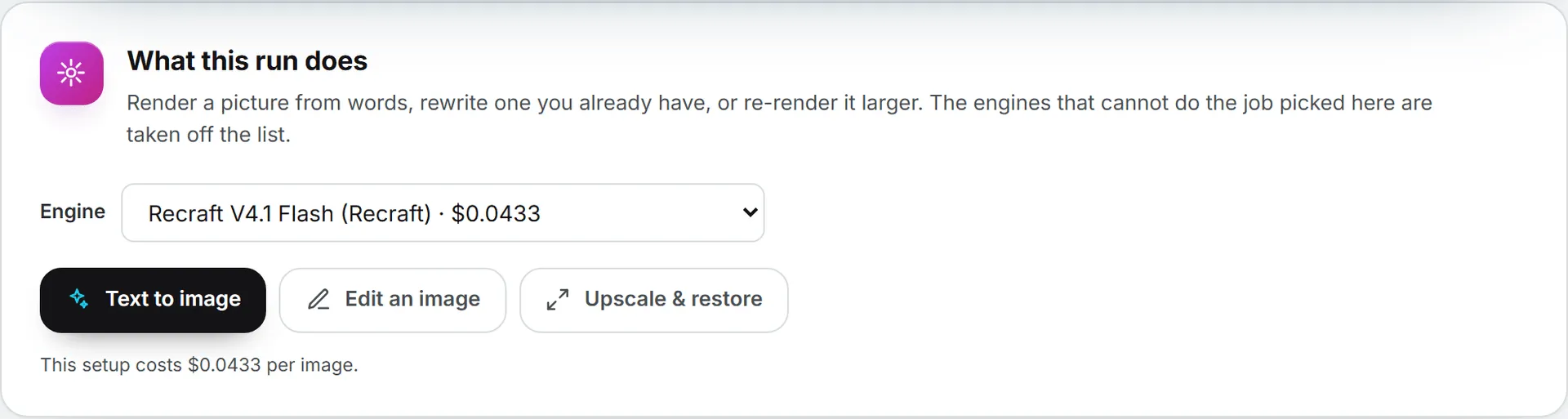
The image form lists only the engines that can do the job you picked: Text to image, Edit an image, or Upscale & restore. Each engine shows its price in the list. The form opens on the cheapest allowed engine able to do the job, and the video form opens on the cheapest allowed engine too. In practice, the job narrows the list more than anything else: editing an existing picture rules out several engines that only render from text. The Images and Video articles go through every engine option.
A model’s limits decide the options
If you only write text, you can skip ahead to web search. This part matters most for images and video. Each model declares what it can do: sizes and shapes, resolutions, how long a video may run, whether it adds sound, which file formats it takes. A form only offers what the chosen model declares, which is why the options change when you switch engine.
Files you attach are checked the moment you pick them. The format, the file size, the length of a clip, and the frame size are compared with what the engine accepts, and if one doesn’t fit, the form tells you why right away, before any render is paid for.
Some options are left out on purpose. The ChatGPT Image engines have an automatic quality setting, but it isn’t offered, because its price can’t be shown before the run.
Web search
Only some models can search the web on their own. Claude and GPT models can, and so can Grok 4.6 and Grok 4.20 Reasoning. The others work from what they’re given.
Ask Intelligence allows web search unless an administrator turns it off for the organization on the AI Models page. You then turn it on or off for each conversation with the Web search switch. While it’s on, the model list shows only the models that can search, so turning the switch on may move you off a model that can’t. If the switch can’t be used, it stays on screen grayed out and says why. More on that in Data and web search.
The Playground works much the same way: the web button is there for the models that search and out of reach for the others. A conversation starts with it off, and administrators can turn it off for the whole Playground.
Note: A web search costs about a cent. It’s charged like any other paid call and is added to the price shown under the answer. The pages the model read are listed with the answer.
What a model costs
Prices vary from model to model. On top of that, a run pays for the text the model actually reads and writes, so a long brief costs more than a short one on the same model.
Every run shows what it cost, next to the result, and lands in your usage log. The image and video forms show the price before you click.
Administrators see each text model’s price on the AI Models page: the price of a million tokens read, then of a million tokens written, as billed to you with everything included. Members don’t see those figures, only the cost of each run. How runs are paid for is covered in Credits and costs.
Trying models side by side
If you’re unsure which model suits a job, the Playground is where to find out. You chat with a model directly, with none of your data, and Compare sends one message to up to three models side by side, each with its own cost. It lists every allowed model unless an administrator narrows its own list. See Playground.
When models are added or withdrawn
The model list isn’t fixed. The BearingBridge team can add a new model to the app at any time, without a release. It’s open to everyone at once, appears in your lists already switched on, and you get an email saying it’s available and where to use it. You can turn that email off in Settings; see emails and notifications. Models can also be withdrawn. When that happens, any default that pointed to the withdrawn model falls back to the level above it, and a picker that remembered it goes back to the default, so the feature keeps working.
Who can do what
| Action | Who |
|---|---|
| Pick a model when running a feature | Anyone allowed to run that feature (viewers can’t run AI features at all) |
| Hide models from your own lists, in My models | Everyone, for themselves |
| Forbid a model for the whole organization | Administrators, for their own organization |
| Set the default for a module or page | Administrators, for their own organization |
| Choose the models behind Quick, Balanced and Best | Administrators, for their own organization |
| Allow or block web search in Ask Intelligence | Administrators |
| Choose the Playground models and allowance | Administrators |
| Pick an image or video engine | Anyone allowed to use the image or video form |
The steps are in AI models administration.
Tip: If you opened your organization yourself at sign-up, you’re its administrator, so every setting on this page is yours.