Feeds
Feeds is your private news reader, a module of its own since September 2026. Follow feeds, sort them in folders, and turn articles into content.
Feeds is the news reader built into Intelligence. You follow RSS or Atom feeds, or news pages without one, and read their articles without leaving the app. Folders keep them sorted. Your list is yours alone: it’s stored against your account, and nobody else can see it, admins included.
Before you start
Since September 20, 2026, Feeds is a module of its own. It sits in the left menu as Feeds, under an RSS icon, and it is the one module no capability gates: every account has it, in every role, whether you belong to an organization or hold a personal account. Nothing has to be switched on for you (see capabilities and modules).
It used to be the first dashboard of Business Intelligence. Old links still work: the former address forwards to the new one.
Reading costs nothing. You only pay when you follow a page with no feed, since the AI has to read it for you (see What it costs).
Note: If Business Intelligence is switched off for you, Feeds is where the app opens when you sign in. It is the one module every account has, so it makes a safe home page.
The two halves of Feeds
Feeds is split between the left menu and the page:
- The Feeds menu, in the left rail, holds your folders and your sources. It is on every page of the product, so a source is one click away wherever you are.
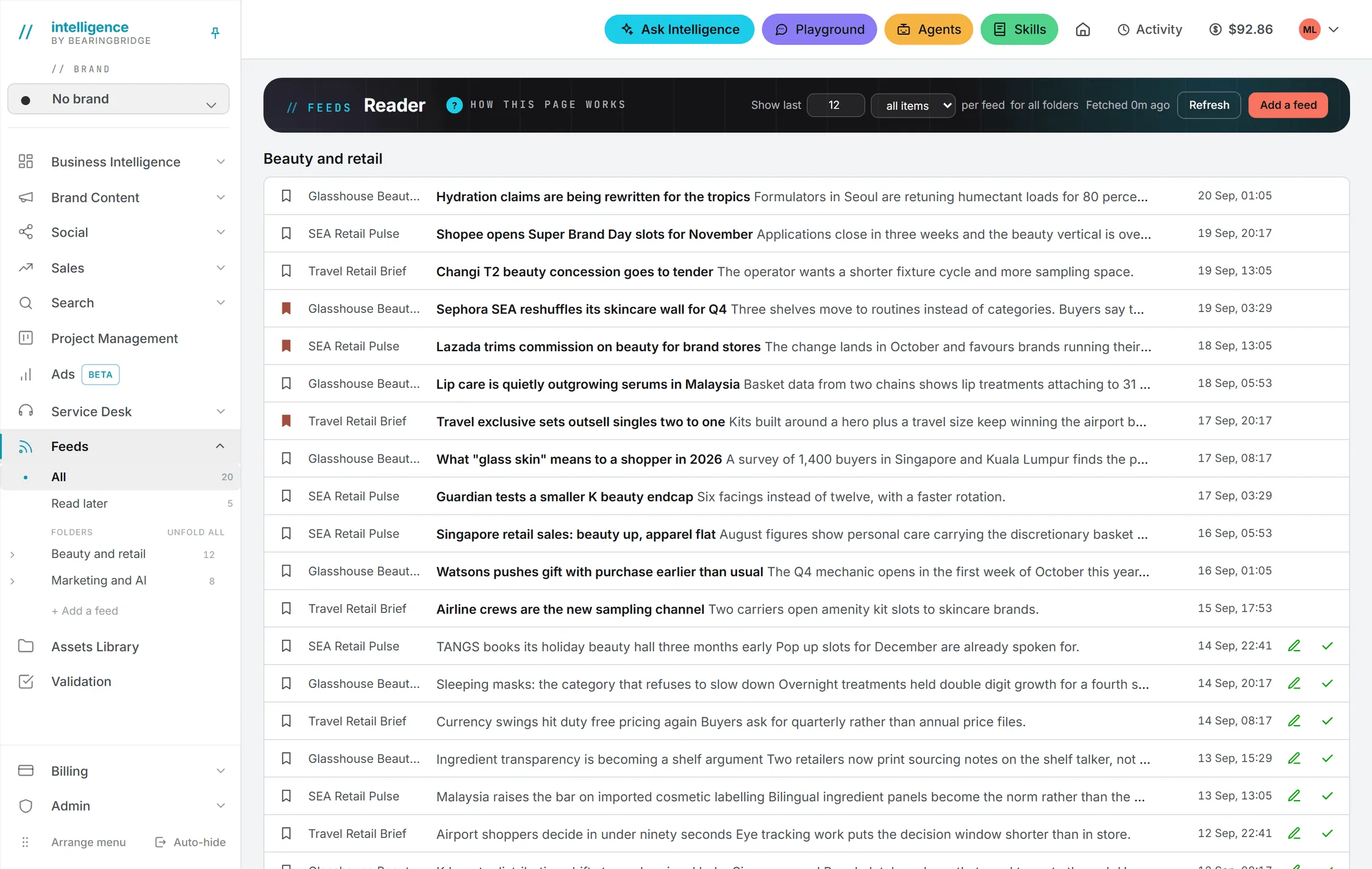
- The page at Feeds, headed Reader, holds the articles, the reading pane and everything you make from an article.
Click a folder or a source in the menu and the page lists only its articles. On any other page of the product, the same click takes you to the reader, already filtered.
Follow a feed
- Open Feeds in the left menu, then click Add a feed at the top right of the reader.
- In Feed or site address, paste the address of the feed, or simply the site’s address.
- In Folder, type a folder name or pick one you already use. Left empty, the feed goes into a folder called Feeds.
- Click AI Follow.
Despite its name, the button only calls the AI when it has to. The app first looks for a real feed at that address. If the address is a site, it finds the site’s feed on its own. The page then reloads with the new feed in its folder. If you already follow that address, the form says “You already follow that feed.”
When the page has no feed
If the address has no RSS or Atom feed at all, the AI takes over. It reads the page and picks out the articles listed there. Then it notes the pattern their links follow. Later refreshes reuse that pattern with no AI call, so they stay free. When the page lists articles without dates, each new article’s own page is read once to find its publication date.
It doesn’t always work. The AI does its best with what the page shows, and says so when it finds no list of articles. The call is paid either way, and its price depends on the size of the page and on the model, so it’s shown right after:
- When it works, a note above the list says what the AI built, how many articles it found and what it cost.
- When it finds nothing, the error message ends with the cost.
Your credits and any spending limit are checked first. If they don’t allow the call, it’s refused with a message that says why, and nothing is charged.
A feed built this way carries an AI badge in the Feeds menu. If the site changes its layout, the feed stops refreshing with the message “The page no longer matches what the AI learned. Learn again from its menu.” Right-click the feed and choose Learn again with AI. It’s a new paid call, and the app asks you to confirm first.
The AI uses the model your organization set for Ask Intelligence.
How refreshing works
When you open Feeds, the list shows the articles fetched last time, straight away. The app then fetches every source again in the background. If new articles arrived, a bar says how many, with a Show button that reloads the list. Nothing is added to the list until you ask for it.
Click Refresh to fetch every source now. If there’s nothing new, the bar says “Nothing new since the last fetch,” or how many sources did not answer. Next to the button, “Fetched … ago” tells you when the sources were last read.
Note: A feed read less than a minute ago isn’t fetched again when you reopen the page. Refresh always fetches.
A source that fails keeps its last articles. A red exclamation mark appears next to its name; hover the name to read the error.
Read articles
Articles are listed under their folder’s name, newest first. To read one, click its title. A reading pane opens over the right of the page with the full article: the text the feed carries, or the text taken from the article page when the feed only gives a teaser (the pane then says “Text taken from the article page.”). If the article can’t be read inside the app, the pane says so; open it on the website instead.
Opening an article marks it as read.
The pane’s header holds four buttons. Their keyboard shortcuts work while the pane is open.
| Button | What it does | Shortcut |
|---|---|---|
| Full screen | Uses the whole window, with the text kept in a column. Remembered in this browser. | f |
| Previous article | Opens the article above in the list | k or Left arrow |
| Next article | Opens the article below in the list | j or Right arrow |
| Close | Closes the pane | Esc |
Those four keys only answer while the pane is open, and they step aside while you’re typing. They’re the only shortcuts Feeds has; the rest of the product’s are in keyboard shortcuts.
At the foot of the pane, Read later keeps the article for later; the button then reads “Kept for later”, and a second click undoes it. Create from this post opens a menu of everything you can make from the article, covered below. Visit website opens the article on its site in a new tab, as does the title at the top.
Each row of the list
A row shows a bookmark (Read later), the source, the title followed by the start of the summary, and the date and time the article was published. On hover, two more buttons show: a pencil, Create an asset from this, and a check mark, Mark as read, which also marks it unread again.
Dates and times follow your own time zone and date format from Settings. The year only shows when it isn’t this year. Hover a date for the full one.
There’s no search box in Feeds. What narrows the list is the folder or source you pick in the menu, plus the unread setting below.
The Feeds menu
Your folders and your sources sit under Feeds in the left menu, on every page of the product. Once you follow more than a handful of feeds, this is where you’ll spend most of your time.
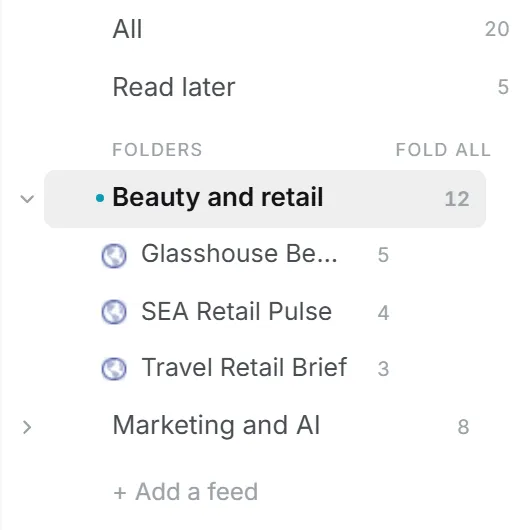
At the top, All lists every folder, with your number of unread articles. Read later lists what you kept for later, read or not. At the bottom, + Add a feed opens the reader with the add form already unfolded.
Under Folders, your folders start folded. The ones you open stay open in this browser, and Unfold all or Fold all on the heading handles them in one click. Each folder shows its unread count and a pencil to rename it. Each source shows its site’s icon, its name and its unread count, plus an AI badge when the AI built it and a red exclamation mark when its last refresh failed. Hover the name to read the error.
Click a folder or a source to show only its articles. A bar then appears above the list with its name and a Mark all read button.
Hover a feed and three small buttons show up:
| Button | What it does |
|---|---|
| Hide read posts (eye) | Lists only the feed’s unread articles. Click again to show them. |
| Mark all read (double check) | Marks every article of the feed as read |
| Unfollow (cross) | Stops following the feed, after you confirm |
Note: The unread counts in the menu are the ones the reader last counted. Open Feeds once and they catch up. In a browser that has never opened it, the counts stay blank until you do.
Right-click menus
Right-click a feed to get Mark all read, Hide read posts (or Show read posts), Move to any of your folders, New folder, Learn again with AI (AI-built feeds only), Rename feed, Open website and Unfollow. Moving, renaming and opening the website have no other way in, so the right-click menu is worth remembering.
A folder’s right-click menu is shorter: Mark all read, Fold (or Unfold) and Rename folder. Give a folder the name of another one and the two merge into one folder. A folder only exists while a feed sits in it, so there’s no way to make an empty one.
Drag folders and feeds into your own order
In the Feeds menu, drag a feed above or below another feed, in its own folder or another one. Drop it on a folder’s name to put it at the top of that folder; a folded folder opens as you hover it. Drag a folder by its row to move it among the others.
The menu rearranges as you drag. Letting go saves the new order. When a feed changes folder, the page reloads so both folders show the right counts. If the save fails, everything goes back where it was, with the message “Could not save the new order.”
Choose how much each feed shows
At the top of the reader sits one line: Show last [number] [unread or all items] per feed, followed by what it applies to.
- With a feed selected, it applies to that feed only.
- With a folder selected, it applies to that folder.
- With All or Read later selected, it applies to every folder that has no setting of its own, and the line reads “for all folders”.
Any number from 1 to 500 works, and 500 is also the most a feed keeps. After typing it, press Enter or click Apply; the button turns amber until you do. Esc puts the saved number back. Switching between unread and all items saves at once.
A new feed starts with its own setting: its last 50 articles, unread only. Because it has its own setting, a folder or page setting doesn’t change it. To change what a feed shows, select that feed first.
With “unread” chosen, a read article leaves the list the next time the list is filtered, never while you’re reading it. Articles kept for later always stay in Read later.
Create an asset from an article
This is where Feeds hands off to the rest of the app. Click the pencil on a row, or pick a kind in Create from this post in the reading pane. The Create from this article dialog opens:
- What to create: any copy format of Brand Content, grouped by category (Brand foundation, Editorial, Commercial, Creative, Corporate & PR); a social post (LinkedIn post, X post, Instagram caption, Facebook post, TikTok script); an image; or a video.
- Brand: the brands that have Brand Content switched on, or Social for a social post. If none qualifies, the dialog says so, with a Manage brands link.
- Brief: written for you from the article, using the text you read in the pane, or the feed’s summary if you haven’t opened it. Edit it freely.
- Click Open in the studio.
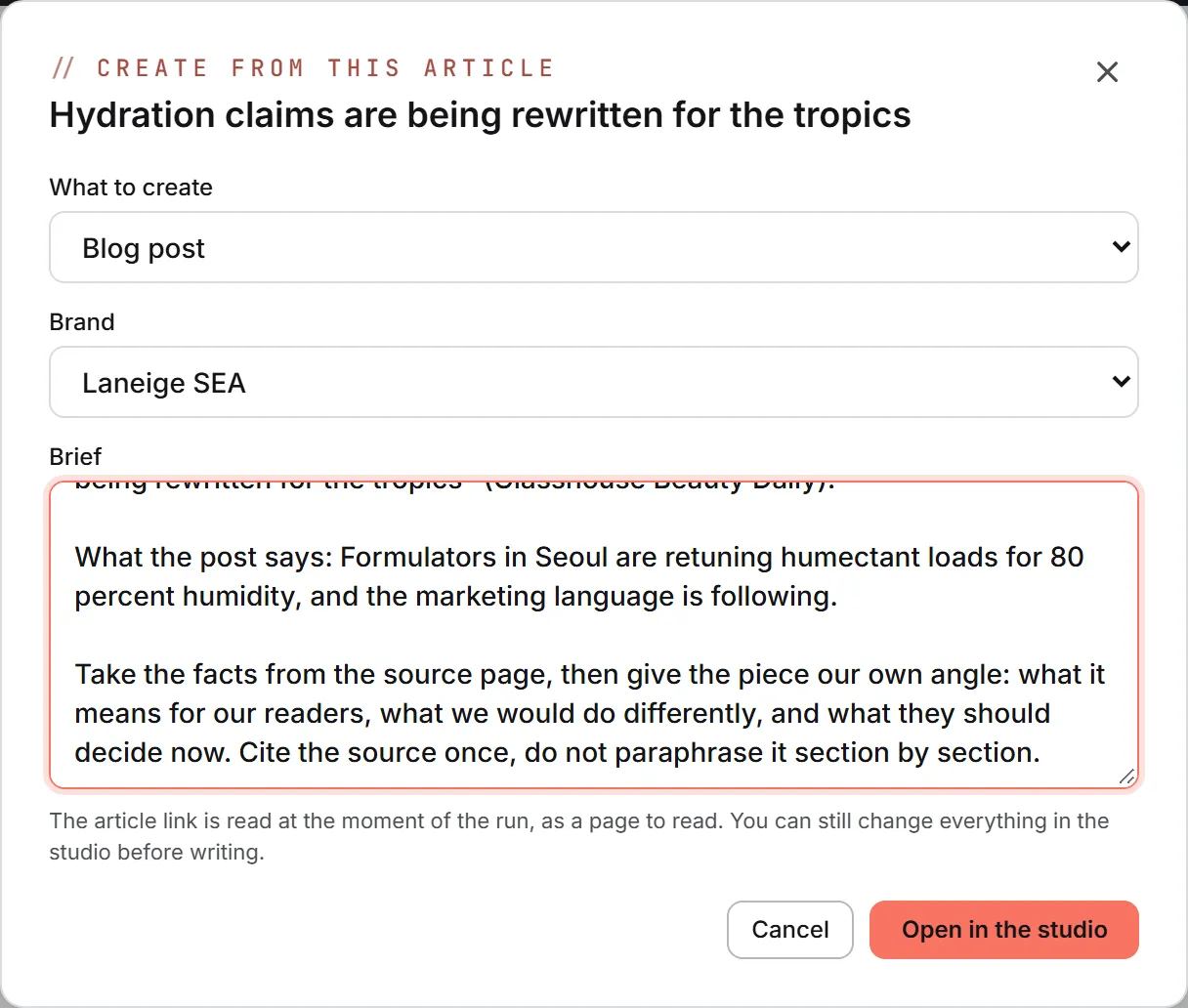
The matching studio opens with the brief, the article title and the article link filled in, and the brand you picked becomes the active brand in the header (see brands). For copy and social posts, the article link is read as a source page when you run. For an image or a video, the brief becomes the generator’s prompt, which you can improve with AI before rendering.
Nothing is charged in the dialog. You pay for the run in the studio, at the price the studio shows. The dialog remembers the last kind you picked. See Copy studios, Writing posts, Images and Video.
Ask Intelligence reads your feeds
Ask Intelligence can list the feeds you follow with their latest stored headlines. It reads only what Feeds already fetched, never the open web, and, like Feeds itself, it needs no capability to do it. See What Ask can read.
What it costs
| Action | Cost |
|---|---|
| Following a feed that has RSS or Atom | Free |
| Refreshing, reading, marking, sorting, moving | Free |
| Following a page with no feed (the AI reads it) | Paid, price shown after the run |
| Learn again with AI | Paid, price shown after the run |
| Creating an asset from an article | Paid in the studio, when you run it |
Every paid call appears in your usage log. See also Credits and costs.
Nothing in Feeds runs on a schedule. Sources are fetched when you open the reader and when you press Refresh, never on a timer. See what runs by itself.
Troubleshooting
“No RSS or Atom feed found at that address.” The AI read the page and found no list of articles. Try the address of the site’s news or blog section rather than its home page.
“The source did not answer in time.” The site was too slow. The feed keeps its last articles. Try Refresh later.
A red exclamation mark next to a feed. The last refresh failed. Hover the feed’s name to read why. If it’s an AI-built feed and the message mentions what the AI learned, use Learn again with AI.
The AI call is refused. Your credits, your daily allowance or your organization’s monthly limit doesn’t allow it. The message says which. See Credits and costs.
“Could not save the read state.” Your connection dropped while an article was being marked. Check it and try again, or the article may come back as unread next time.
I can’t find Feeds in the menu. It’s a top-level entry called Feeds, with an RSS icon. If it isn’t where you expect it, you moved it at some point: the menu order is yours alone, and Arrange menu at the foot of the left menu resets it. See finding your way.
The folders and sources are gone from the page. They moved into the left menu on September 20, 2026. The page itself is the reader, and nothing else.