Landing page briefs
Turn one keyword into a landing page brief built from live Google results: title tags, outline, keywords and gaps. Then record where it went live.
A landing page brief tells a writer what page to build for one keyword. Intelligence looks at what ranks on Google for that keyword today and writes a page plan meant to convert the search. Search marketers and paid media managers use it to decide where their clicks should land, ideally before a campaign goes live.
Where to find it
Landing page briefs don’t have a tile in the Text band. You reach them two ways.
- From a Google Ads campaign. In an ad group, pick the keyword the landing page targets and click Create landing page. The brief page opens in a new tab with that keyword and the group’s language filled in. Once the page is live, paste its address back into the ad group (Google Ads campaigns covers that side).
- Directly: add
/content/landingafter the app’s address in your browser.
Old links to the Ads landing page address land here too.
Tip: A brief is for a writer or a page builder: structure, angle, keywords. If you want the page copy itself, section by section, use the Landing page format in the Commercial studio instead. See Copy studios.
Before you start
- Pick the brand in the brand picker. The brief is written for it.
- You need the editor role or above to create a brief. Viewers can read saved briefs.
- Keywords the brand tracks on the Keywords page are suggested as you type. See brands and roles and rights.
Create a brief
The form shows three steps across its top: The keyword, The brief and Review.
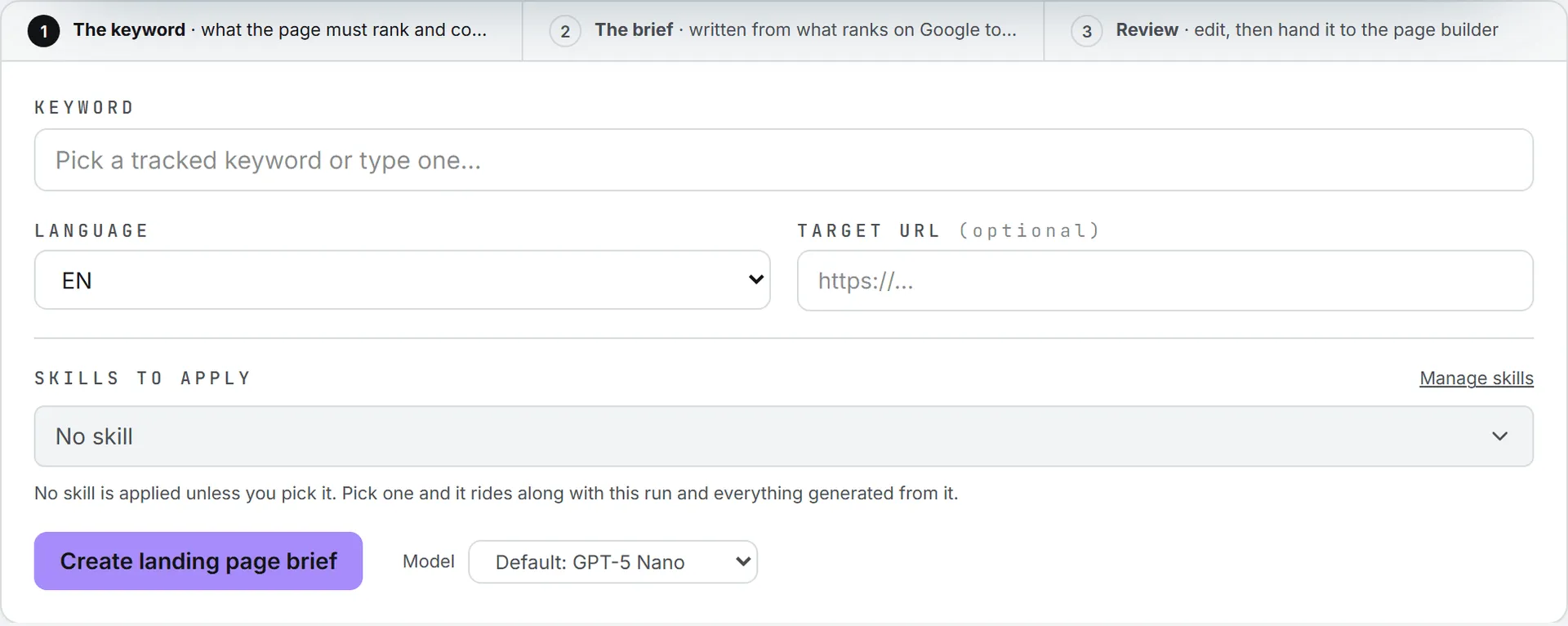
- In Keyword, pick a tracked keyword from the list or type one.
- Choose the Language: EN or FR. It sets the language of the brief and the market it reads: United States results for EN, France for FR.
- Add a Target URL if the page already has an address. It’s optional, and it’s passed to the AI as the page’s address. (It’s separate from Published at, which you fill in later on the saved brief.)
- Pick any Skills to apply. None is ticked by default.
- Choose a model in the Model menu. It lists the models your organization offers for this page, with the default first.
- Click Create landing page brief.
While it runs
The run works in two phases, shown next to the button.
- Fetching live SERP & search volume. It pulls the Google results for the keyword, keeping up to 10 competing sites, and the keyword’s search numbers. The header then shows the monthly volume, the cost per click and how many competitors were found.
- Writing the landing-page brief. The brief appears as it’s written. When it’s done, the header adds the tokens and the price of the run, and the button line says Saved to the shared database.
When you pick a tracked keyword, the search intent tagged on it in Search is passed along. Otherwise, the intent is inferred from the results.
The third step, Review, is yours. Read the brief and check the angle against what you know of your buyers before it goes to a writer.
What’s in a brief
A brief always has these nine sections, in Markdown:
- Landing Page Plan and the keyword, as the title
- Target intent & angle: one paragraph
- Recommended title tag & H1: two or three title tags of 60 characters or less, and one H1
- Meta description: one option of 155 characters or less
- Outline: the full H2 and H3 structure, with a suggested word count per section, based on what competitors cover plus the gaps
- Entities & keywords to cover
- Suggested internal links & CTAs
- Competitive gap: two to four points
- Target length & format
The brand’s guidelines are applied too, which keeps the angle and the calls to action on brand. Unlike the Text studios, this page has no switch to leave them out. See Brand foundation and guidelines.
Your saved briefs
The brief is saved as soon as it’s written. Here’s where to find it afterward.
Under the form, Landing page briefs lists what the brand has made. Filter with Search keyword…, Language, and Status (Draft or Published).
Each brief shows its keyword, its language, the monthly search volume, the tokens and price of the run, and when it was created. Click it to read the brief.
Copy puts the brief’s Markdown on your clipboard. Paste it into a doc for your writer, or straight into your page builder’s notes.
When the page goes live, type its address in Published at. The brief turns green, with a Published badge and the date. Clear the field to take it back to draft.
Nothing here builds or publishes the page. The brief is a document you hand over. It can’t be edited or deleted on this page: copy it into your own document to change it.
Briefs belong to the brand. Everyone with access to the brand sees the same list.
Important: Running the same keyword in the same language again replaces the saved brief rather than adding a second one. Copy the old brief first if you want to keep it. A published address already recorded on it is kept.
What it costs
Each brief is paid twice over: the live search data for the keyword, then the AI run that writes the brief. A second run on the same keyword buys the search data a second time. The brief shows the tokens and price of the AI run. The search data isn’t shown on the brief, but both appear in your usage log. Earlier briefs show what a run tends to cost. See credits and costs.
Troubleshooting
- The button does nothing. The Keyword field is empty.
- We got an empty brief back. Please retry. The AI returned nothing. Run it again.
- Connection lost. Is the server running? The run couldn’t start. With a viewer role, that’s the usual cause: viewers can read briefs but not create them, so ask an admin for the editor role. A keyword longer than 200 characters is refused the same way. Otherwise, reload the page and retry.
- A message about credits or a spending cap. Your credits ran out or you reached your daily cap, so the run didn’t start.
- The volume says “volume n/a”. No search data came back for that keyword. The brief is still written from the results that were found.