Shorts autopilot
Give Shorts autopilot a long video and it listens, picks the moments that stand on their own, frames them, captions them and saves each short.
Watch the video
Shorts autopilot turns a long video, such as an interview, a talk, a podcast, a webinar or a live, into vertical shorts for YouTube Shorts, TikTok and Instagram Reels. You pick the video and a few choices, then click once. It listens to what’s said, keeps the moments that work on their own, frames them for a phone, adds captions and a hook line, and saves each short in the Assets Library. Open it from the left menu with Assets Library > Shorts autopilot or Video Editor > Shorts autopilot, or from the start page of the Video editor.
How it works
The page lists the four steps before a video is open:
- It listens: every word said, timed to the word.
- It picks the best moments: a text model reads what was said and keeps the moments that stand on their own. Each one opens on a hook (a surprising claim, a question, a number), tells one complete idea and ends on a payoff, never in the middle of a sentence.
- It frames them: each moment is cut to the upright 9:16 frame. On a wide video, a vision model looks at three frames of each moment to find the person speaking, and the crop follows them.
- It writes and saves them: captions word by word, a hook line over the first seconds, and an MP4 for each short in the library.
Each moment also gets a score, a title, a sentence on why it was picked, and a caption ready for each network you chose.
Note: Your browser writes the videos, which takes about as long as the shorts last. Keep the tab open until the run ends.
Open a video
- Go to Assets Library > Shorts autopilot, or Video Editor > Shorts autopilot.
- Under The long video, drop a video on the box, or click it to choose one from your computer: MP4, MOV or WebM, up to 2 GB.
- Or click From the Assets Library and pick one of your organization’s videos.
Several minutes of someone speaking work best. A video already in the library can go straight in: open its Actions menu in the Assets Library and click Make shorts.
Chrome and Edge open the most formats. A phone video in HEVC may not open in every browser: the page says so, and opening it in Chrome or Edge on a recent computer, or saving it as H.264 first, solves it.
Set the shorts
Once the video is read, The shorts card names it with its length and lays out the choices.
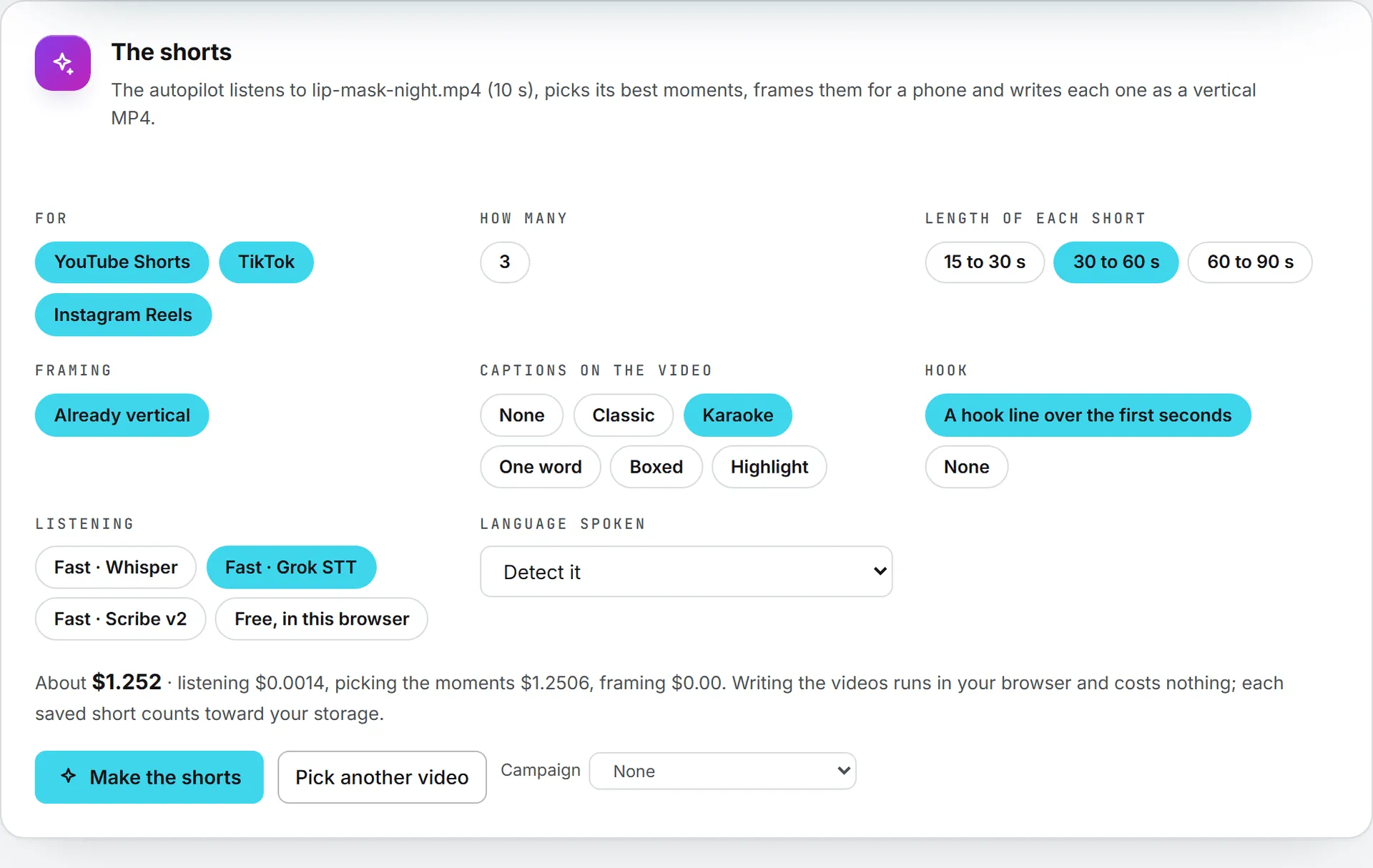
| Choice | Options |
|---|---|
| For | YouTube Shorts, TikTok and Instagram Reels, all three on at first. Click one to leave it out; at least one has to stay. Each network you keep gets its own caption. |
| How many | 3, 5, 8 or 10 shorts, 5 at first. A shorter video offers fewer: about one short for every 20 seconds of video. |
| Length of each short | 15 to 30 s, 30 to 60 s (the first choice) or 60 to 90 s. |
| Framing | Follow the speaker crops the picture to 9:16 around the person speaking. Center crops the middle. Whole picture, blurred around keeps all of it, over a blurred copy of itself. A video that’s already upright reads Already vertical. |
| Captions on the video | None, or one of the Video editor’s five looks: Classic, Karaoke (the first choice), One word, Boxed or Highlight. When the listening is Fast · Scribe v2, two more choices appear: One color per speaker (the first choice) gives each person their own caption color, the same in every short, and One color for all keeps a single one. |
| Hook | A hook line over the first seconds: a few words in a white box near the top of the short. Or None. |
| Listening | One Fast choice per speech model, billed by the minute of sound, or Free, in this browser. See Fast or free listening. |
| Language spoken | Detect it, or one of 18 languages. It starts on French or Chinese when your interface is in that language. |
Under the choices, a line gives the price before you start: About a total, then what listening, picking the moments and framing each cost. Writing the videos runs in your browser and costs nothing. When a model’s price can’t be read, the line says the cost will show once the run is done.
The card warns you about two kinds of video. A video under 45 seconds is short for this: the autopilot works best on several minutes. A video with no sound can’t be used at all, since the moments are picked from what’s said, so Make the shorts stays off.
Click Make the shorts to start, or Pick another video to go back. The Campaign choice beside them files every short the autopilot saves in a campaign; see Campaigns.
Fast or free listening
| Fast | Free, in this browser | |
|---|---|---|
| How | The sound goes to a speech model, five minutes at a time, and the words come back quickly. | A speech model runs on your own computer. Nothing is sent and nothing is billed. |
| Cost | Billed by the minute of sound. The price line shows what it comes to for this video. | Free. |
| Time | Quick. | About as long as the video, or longer on a modest computer. Best under 20 minutes. |
| Model | Pick one of the Fast choices. The cheapest one is picked when the page opens. | Pick the Speech model: Quick (about 40 MB), Balanced (about 80 MB) or Accurate (about 250 MB). It downloads the first time, then your browser keeps it. |
Scribe v2, one of the Fast choices, also tells the speakers apart, which suits an interview or a podcast, and spells your organization’s vocabulary and the terms of the video’s brand right. It understands more than 90 languages.
While it runs
The Autopilot at work card ticks off five steps: Listening to the video, Picking the best moments, Framing each moment, Writing the shorts and Saving them in the Assets Library. A bar shows the progress of the step on view, and Spent so far adds up the cost of the model calls as they’re made. Framing is skipped with Center, with Whole picture, blurred around and on an upright video.
Each short appears below the card as soon as it’s written, so you can watch the first ones while the others are made. The run also shows in the Activity panel, as Shorts from followed by the video’s name, with the step it’s on. Once it ends, clicking the row opens the Assets Library.
Stop the autopilot ends the run, and the shorts already written stay on the page. If you try to leave the page while it runs, your browser asks first.
When something goes wrong, the card says why:
- “Almost nothing was heard in this video. Check its language, or try the other way of listening.” Set the Language spoken, or switch between fast and free listening.
- “No moment of this video fits the length asked. Try another length.”
- “The answer was cut short. Ask for fewer shorts and try again.” The model ran out of room before writing a single complete moment, even on a second try. When a cut answer holds some complete moments, the run keeps them and goes on with those.
- If the framing step fails, the shorts are cropped in the center instead, and the run goes on.
The shorts
The results card, 5 shorts for example, lists them best first. Each short shows:
- The video itself, ready to play.
- Its Score, from 0 to 100: how strongly the moment should work alone as a short.
- Its length, and where it starts and ends in the original video.
- A title, in the language of the video, and one sentence on why the moment was picked.
- One fold per network you chose, holding a caption ready to paste: a title and description for YouTube Shorts, a caption with its hashtags for TikTok and Instagram Reels. Copy puts it on your clipboard.
Three buttons close each card:
| Button | What it does |
|---|---|
| Download | Saves the MP4 to your computer. |
| Edit in the Video editor | Opens the short in the Video editor on its Social panel, for a last touch. It opens on TikTok when TikTok is among your networks, on Instagram otherwise. |
| Open in the Assets Library | Opens the short in the library, in a new tab. |
Each short is an MP4 of 1080 × 1920 pixels at 30 frames a second, with H.264 video and AAC sound, named after the original with “short 1”, “short 2” and so on. It’s saved next to the original when the video came from the library, and at the top of the library when you dropped it from your computer. If a short can’t be saved, it stays on the page for Download, and the next ones still try.
Who can use it and what it costs
Everyone who opens the Assets Library can use Shorts autopilot, whatever their role.
| Part | Cost |
|---|---|
| Listening, fast | Billed by the minute of sound |
| Listening, free | Nothing |
| Picking the moments | One text model call, billed. When the answer comes back cut short with no complete moment, a second call is made and billed too. |
| Framing | One vision model call, billed, only with Follow the speaker on a wide video |
| Writing the videos | Nothing: your browser does it |
| Keeping the shorts | Each saved short is an upload like any other: it counts toward the organization’s storage from the next day. See Storage costs. |
The billed calls need credits; when there aren’t enough, the run stops with a message saying so. Picking and framing run on the model your organization set for Re-purposing, under Social, on the AI Models page.
Writing a video takes a browser that can encode H.264: a recent Chrome, Edge or Safari. Another browser gets a message saying so as soon as you click Make the shorts.