Date, time, language and theme
Set your time zone, date and time formats, interface language and light or dark theme. Learn what each one changes and which devices keep it.
Four settings decide how the app reads to you: your time zone, your date and time formats, the language of the screens, and a light or dark theme. They’re yours alone, so changing one affects nobody else. You set them on the Settings page, and the language and theme also sit in the account menu under your picture.
| Setting | Where it’s saved | Follows you to other devices? |
|---|---|---|
| Date and time | Your account | Yes |
| Interface language | Your account and the browser | Yes. A browser where you picked a language keeps that one. |
| Light or dark theme | The browser only | No |
Date and time
Your time zone, date format and time format apply to every date and time the app shows you. That covers lists, calendars, logs, dashboards, schedules, exports and the emails we send you.
Saved on your account, they follow you to every computer and phone you sign in from.
Change your date and time settings
- Click your picture in the top right corner and choose User Settings.
- Go to Date and time.
- Pick a Time zone, a Date format and a Time format.
- Check the preview on the right. It shows the time Right now and a date as it would appear In a list.
- Click Save. The page reloads so every date on it is written the new way. If the save fails, the card says why and nothing changes.
The Save button turns amber while you have unsaved changes.
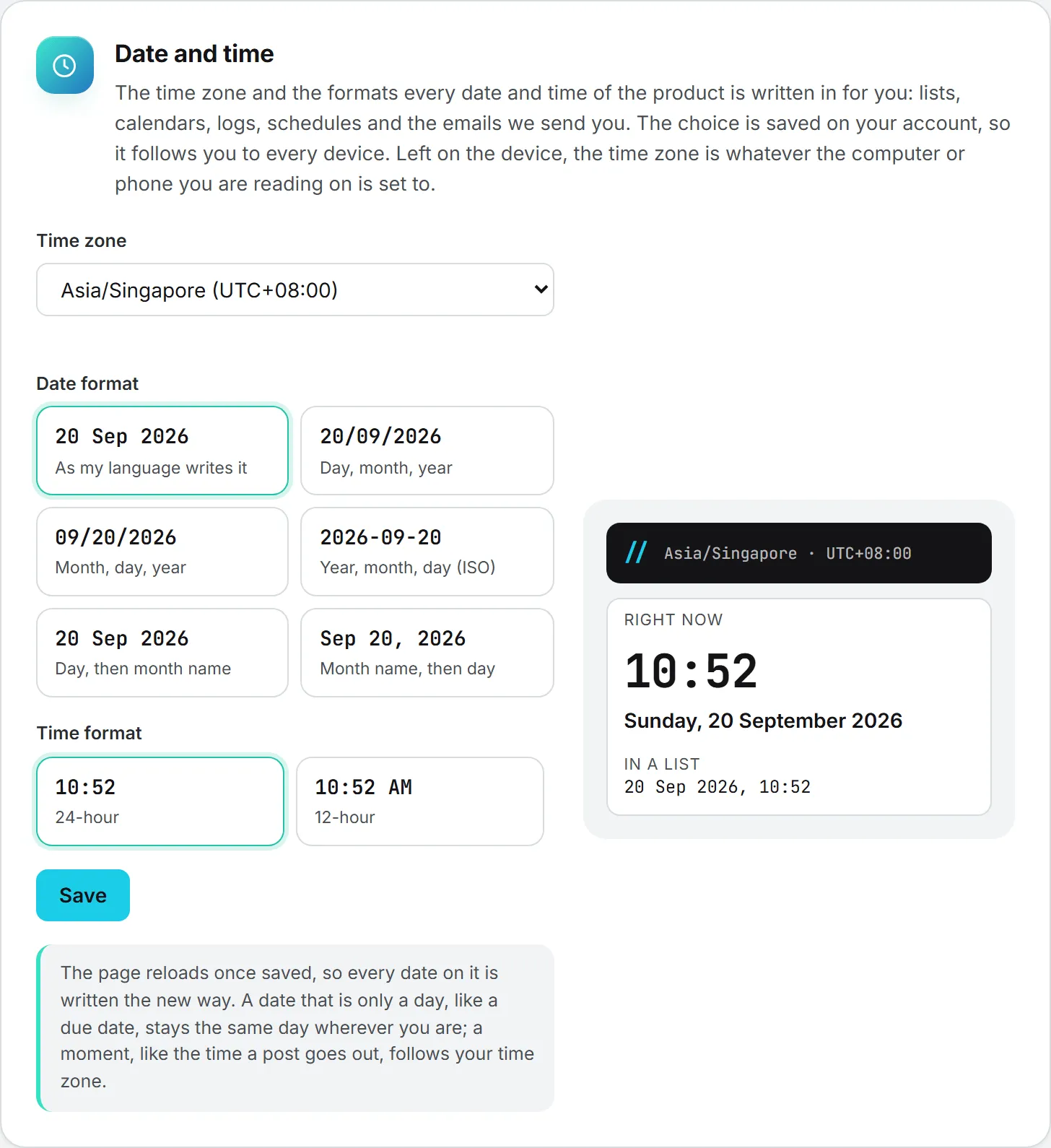
Time zone
Leave Follow this device selected and the app reads the zone from whatever computer or phone you’re on. The option shows that zone and its offset from UTC, for example “Europe/Paris, UTC+02:00”.
Or pick a zone from the list. Zones are grouped by region, each with its current offset. A zone you pick applies on every device.
Tip: If you travel, or share a computer set to another zone, pick your zone instead of following the device. Otherwise the times you see move with the machine.
Date format
Each choice shows today’s date written that way.
| Option | Example |
|---|---|
| As my language writes it (default) | The usual way for your interface language |
| Day, month, year | 19/09/2026 |
| Month, day, year | 09/19/2026 |
| Year, month, day (ISO) | 2026-09-19 |
| Day, then month name | 19 Sep 2026 |
| Month name, then day | Sep 19, 2026 |
Month and weekday names are written in your interface language.
Time format
Pick 24-hour (the default) or 12-hour, whichever your eye is used to.
Times that move, days that don’t
The app keeps two kinds of dates apart, and it helps to know which is which.
A moment has a time, like when a post goes out or when a comment was written. Moments follow your time zone. When you schedule a post, the time you type is read in your time zone, so a post set for 9:00 goes out at 9:00 your time (see publishing). A colleague six hours ahead of you sees the same post listed at 15:00, their local time.
A day has no time. Think of a due date or a project’s start date. A task due March 4 is due March 4 in Paris and in Shanghai; only the way the date is written changes.
Changing your time zone later doesn’t move anything already scheduled. The post still goes out at the same moment; the page just shows that moment in your new zone.
The periods Project Management uses to count finished tasks, such as yesterday or last week, start at midnight in your time zone.
Dates in emails
One last place dates show up is your inbox. The emails we send you carry the same settings: your zone and your formats. If you follow your device, emails use the time zone of the device you last used. With no zone known, they use UTC.
Interface language
That’s it for dates. The language setting is simpler. The interface can be in English, French (Français) or Chinese (中文). Your organization decides which of these are offered. English is always one of them.
Change your language
In Settings:
- Click your picture, choose User Settings and go to Language.
- Pick a language in My language.
- Click Save. The page reloads in the new language.
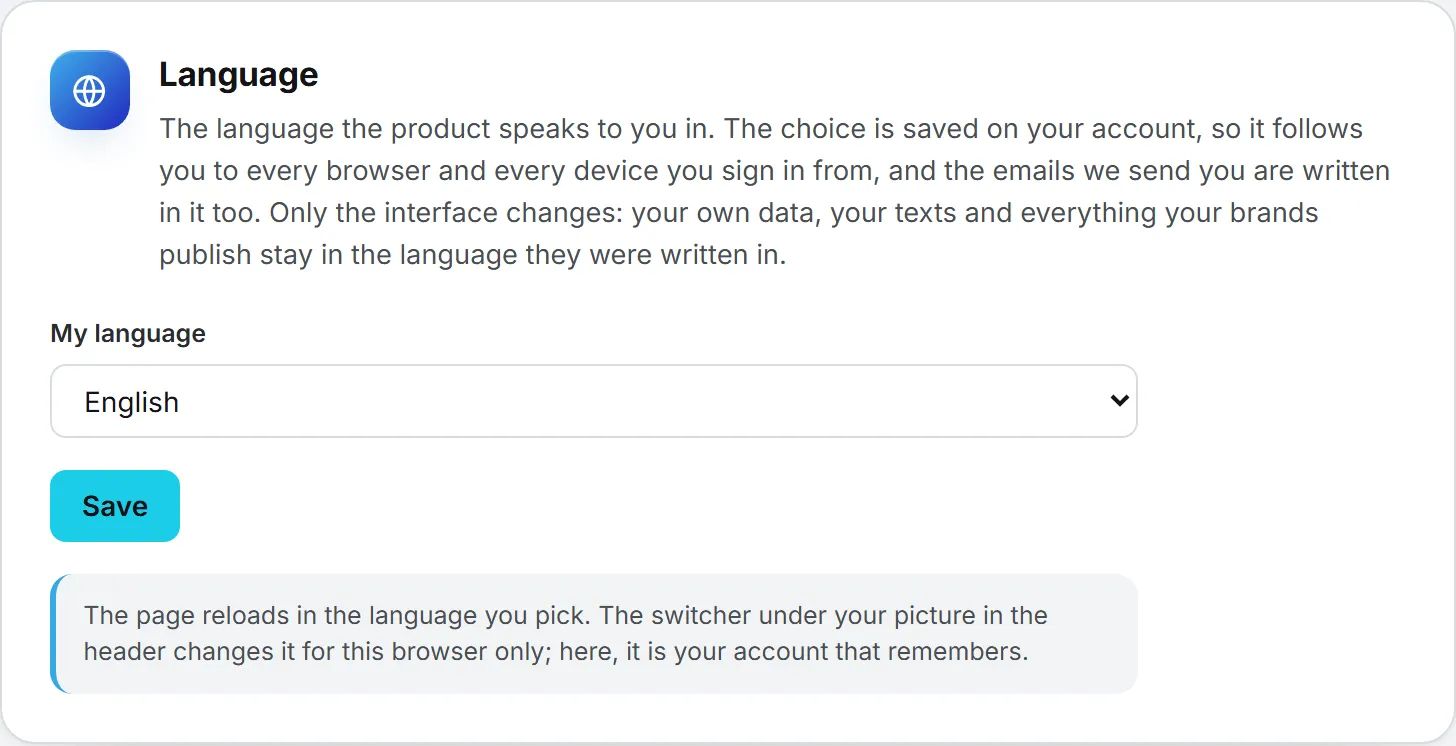
Faster, from any page: click your picture and pick a language in the row labeled Language · Langue · 语言. The page reloads right there.
If your organization only offers English, the Language card says so and the menu shows no language row. An administrator adds languages on the Organization page. See organization settings.
What changes and what doesn’t
The language changes the interface: menus, buttons, labels and messages. Most emails we send you are written in it too. A few follow other rules, for example task emails use the language of the colleague who assigned the task. See emails and notifications.
Note: Your content stays as it is. Your data and texts stay in the language they were written in, and so does everything your brands publish. When a form lets you choose the language of a piece of content, that choice is separate from your interface language.
Which language wins on which device
Your language is saved on your account, so it follows you to other devices and to the emails we send. The browser where you picked it also keeps it. If you pick French on your laptop and Chinese on your phone, each keeps its own choice, and your emails follow the one you used last.
Light and dark theme
Some people prefer a dark screen, others find it hard to read. The Appearance setting lets you choose.
| Option | What it does |
|---|---|
| System | Follows this device. If your device switches to dark at sunset, the app switches with it. |
| Light | Stays light, even when the device turns dark. |
| Dark | Stays dark around the clock. |
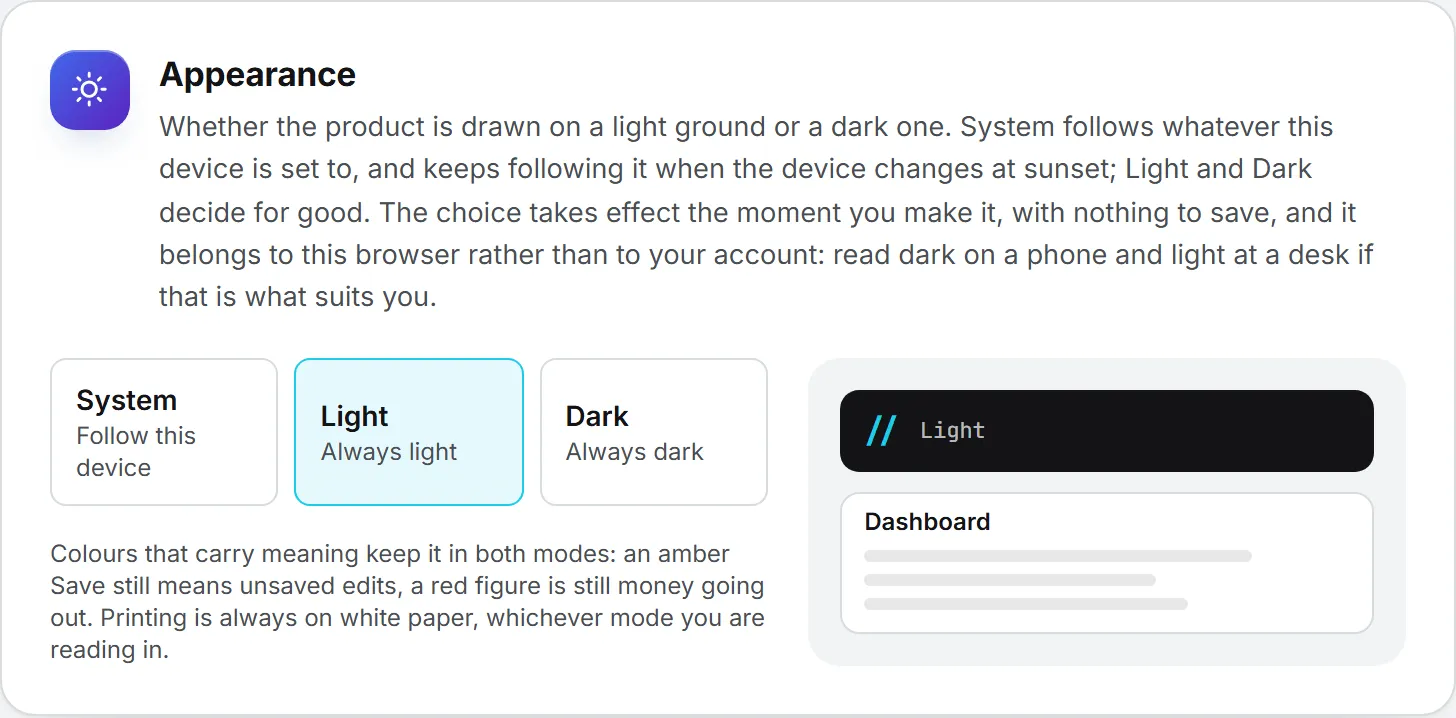
The switch sits in two places, the Appearance card in Settings and the Appearance row in the account menu, and it works the moment you click. There’s nothing to save.
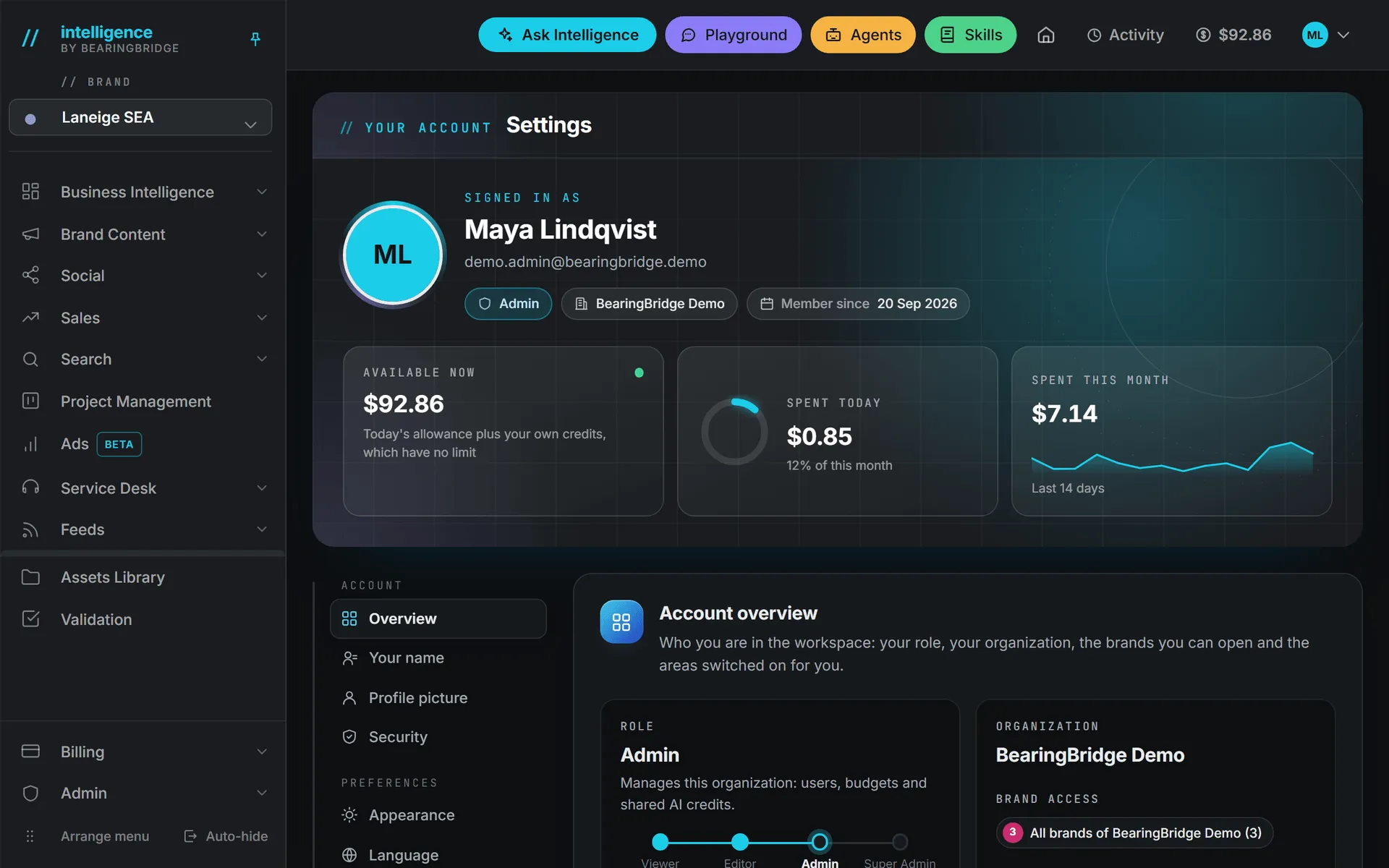
The theme belongs to the browser, not to your account, so you can read in dark on your phone at night and in light at your desk. In a private window, or a browser that blocks site storage, the theme applies to the page you’re on but isn’t remembered.
Colors that carry meaning keep it in both modes. An amber Save still means unsaved edits. Red figures are still money going out. Printing always uses white paper.
What it costs
Nothing. Change them as often as you like; none of them uses credits. See credits and costs.
Troubleshooting
| Problem | What to do |
|---|---|
| Times look a few hours off | Check your Time zone. With Follow this device, a computer set to the wrong zone shows the wrong times. |
| The times in an email look wrong | With Follow this device, emails use the zone of the device you used last. Pick a fixed Time zone. |
| The language row is missing from the account menu | Your organization offers English only. Ask an administrator. |
| The theme resets every visit | Your browser blocks site storage, for example in a private window. Use a normal window, or pick the theme again each time. |
| “Your organization does not offer this language.” | The language was switched off for your organization. Pick another one. |