Recordings
Upload a recording or pick one in the library, link it to the CRM, and read its transcript, summary and insights, each playing its moment.
Recordings is the first page of Voice of Customer. You add a call, a customer interview, a support call or a webinar, and it comes back transcribed, with its speakers, its summary and its insights.
Add a recording
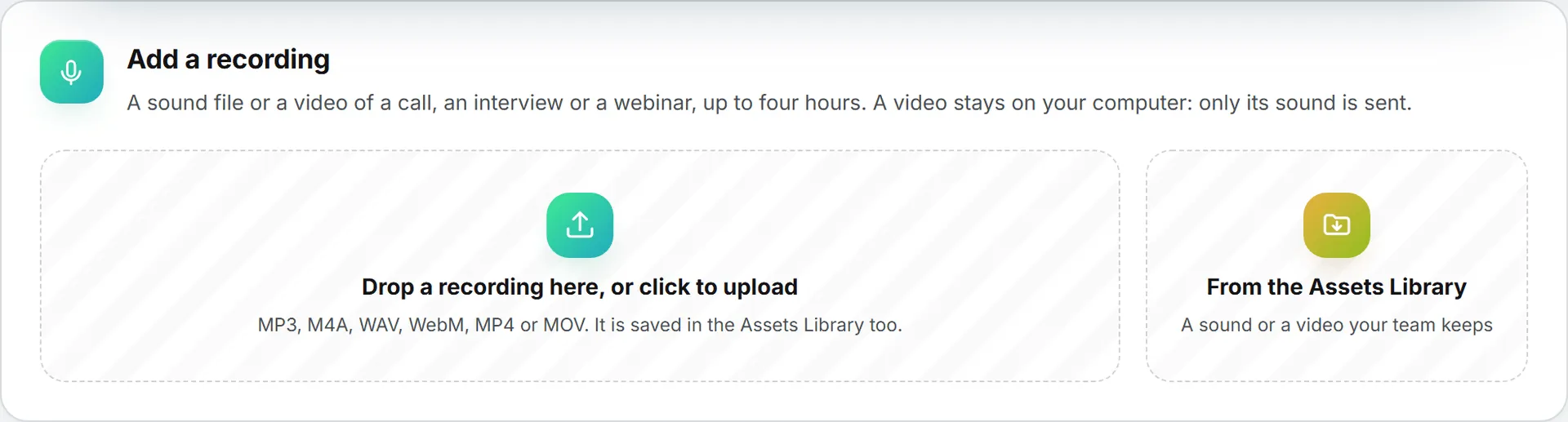
Drop a file on Drop a recording here, or click to upload, or click From the Assets Library to pick one your team already keeps. A sound file (MP3, M4A, WAV, WebM) or a video (MP4, MOV, WebM) works, up to four hours. A file you upload is saved in the Assets Library first, so the recording can be played back later.
Then fill in:
- Title: taken from the file name, change it as you like.
- Type: Sales call, Customer interview, Support call or Webinar. The insights page filters on it.
- Brand: optional. It labels the recording; it never limits who sees it.
- Company in the CRM, Deal and Contact: optional, shown if you can view the CRM. Picking a deal or a contact fills its company in.
The line next to the button gives the price of the transcription for the file’s length. Click Transcribe and draw the insights.
What happens to the file
A video never leaves your computer for this: your browser extracts its sound and sends only that, in pieces of ten minutes. Each piece is transcribed in turn, and the progress bar shows how far it got. Once the transcript is whole, a text model reads it and draws out the insights. This part runs in the background and reports in Activity, so you can leave the page.
If you close the page before the end, nothing is lost. Open the recording: it carries on by itself where it stopped, sending only the pieces the server is missing.
The recordings list
Every recording of your organization, the newest first, with its type, length, date, number of insights and price. Its status says where it stands: Waiting for its sound, Transcribing, Drawing the insights, Ready or Stopped with the reason. Open opens it; Delete removes the recording and its insights for the whole organization, never the file in the library.
A recording’s page
- The player plays the sound or the video. Click a line of the transcript or an insight and it jumps to that moment.
- The summary says what the conversation was about and how it ended. Below it, the sentiment: overall, and for each speaker, from very negative to very positive, with a short note.
- The transcript shows who spoke when. Name the speakers once in the fields above it (for example “Anna, buyer”) and click Save the names: the transcript, the insights and the sentiment use them.
- Insights lists what was drawn out, filtered by type with the chips above. Each one shows its topic, the words said, the speaker and the time.
- Details changes the title, the type and the brand, and links to the CRM records. Repurpose opens the recording in Repurpose. Draw the insights again reads the transcript once more and replaces its insights; only the reading is billed.
Good to know
- Speakers are told apart by their voices. On a long recording, a speaker is followed from one ten-minute piece to the next by the words heard at the seam; if two voices get mixed up, naming them fixes the display.
- Your organization’s vocabulary, the brand’s pronunciation terms and the competitors already known are given to the transcription of an uploaded recording, so they come out spelled right. A call saved by the Live call copilot keeps its live transcript, which gets none of them.
- A recording can’t be longer than four hours. Cut a longer one in two.