Live call copilot
The copilot hears a call in your browser and shows the battle card, CRM history and prices when a competitor, price or objection comes up.
The Live call copilot listens to a call while it happens and helps you answer. There’s no phone line: the call runs in another tab (a video call) or on this computer, and the copilot listens in your browser.
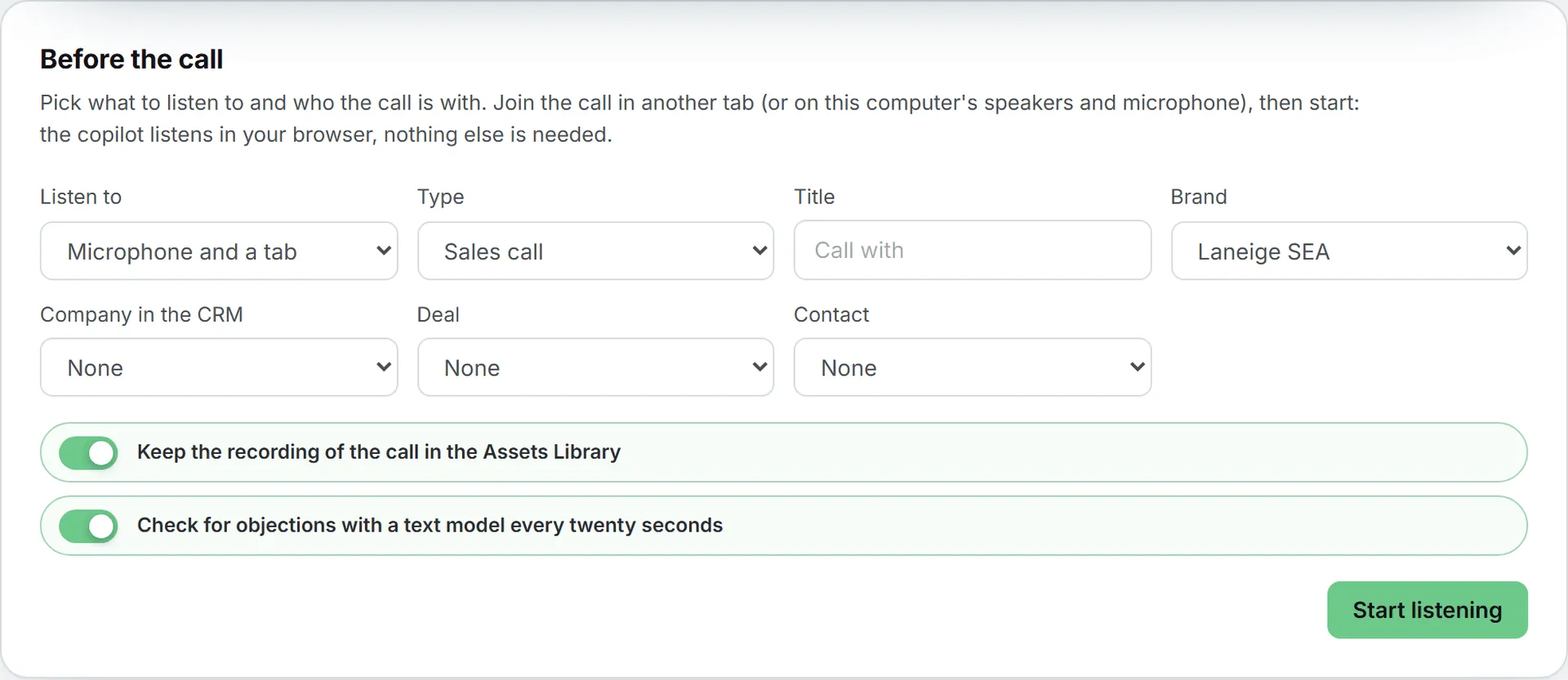
Before the call
- Listen to: Microphone, Sound of a tab, or Microphone and a tab for both sides of a video call. For a tab, your browser asks which one: tick Share tab audio.
- Type, Title and Brand of the call.
- Company in the CRM, Deal and Contact: pick who the call is with, if you can view the CRM. Their history shows during the call, and the summary is written on the deal at the end.
- Keep the recording of the call in the Assets Library: on by default.
- Check for objections with a text model every twenty seconds: on by default, see below.
Click Start listening. Your browser asks for the microphone the first time. Use Chrome or Edge on a computer.
During the call
The transcript appears as people speak, with the time of each stretch. The bar above it shows the running time, the sound level and what the call has cost so far.
On the side, the copilot shows what matters as soon as it is said:
- A competitor named: its battle card, with the answers to its objections, its proof points and its pricing position. The name is highlighted in the transcript.
- A price or a budget: your price levels, set on the Battle cards page.
- An objection: the answer written for it on a battle card, when one covers it.
This first detection matches the words as they come in against your competitors, their other spellings and the objections your team already heard. It costs nothing. With the objection check on, a text model also reads the last stretch of the call every twenty seconds for objections the matching can’t catch, and its few words are billed.
The live transcription isn’t given your organization’s vocabulary or your competitors’ names beforehand: it can’t receive them. When a competitor’s name keeps coming out spelled another way, add that spelling under Also written as on its battle card, and the copilot recognises it from then on.
In the CRM shows the company, its deals with their stage and next step, its people and its last activities.
After the call
Click End the call. The copilot then:
- saves the recording in the Assets Library, if you kept it
- saves the transcript as a recording of Voice of Customer and draws its insights
- writes the summary on the linked deal as a call, if you can write in the CRM
A link opens the recording. Nothing is transcribed twice: the live transcript is the one kept. Live transcription has no speaker names; the recording keeps the sound, so you can play any moment back.
What it costs
The live transcription is billed by the second of the call, the objection check by the words read, and the insights at the end like any recording’s. The running total shows during the call and the final price at its end.
Troubleshooting
| What you see | What to do |
|---|---|
| “No sound came with that share. Pick a tab and tick “Share tab audio”.” | Start again, pick the tab of the call and tick Share tab audio. |
| “The browser was not allowed to listen. Allow the microphone (or the share) and try again.” | Allow the microphone from the icon in the address bar. |
| “This browser cannot listen to a call. Use Chrome or Edge on a computer.” | Open the page in Chrome or Edge. |
| Nothing shows on the side | Add your competitors and price levels on the Battle cards page first. |