Sonic brand kit
Set how a brand sounds once: its language, voice, pace and pronunciations, its sonic logo, jingle and interface sounds, then every audio feature uses them.
The sonic brand kit is how one brand sounds. Set it once, and every audio feature of the app uses it as soon as that brand is picked.
Where it is used
- Voiceovers, dialogues, podcasts and audio ads open on the kit’s language, voice, quality and pace.
- The voice tracks of the video editor speak in the kit’s voice.
- Listen versions of social posts and web pages are read in the kit’s voice. When the text is in another language than the kit’s, a native speaker of that language, of the same gender as the kit’s voice, reads it.
- Pronunciations are applied to every script before it is spoken.
- Captions and transcripts are given the kit’s terms, so the brand’s names are spelled right.
A form can still change a setting for one take; the kit only decides what the form opens on.
Who can change it
A kit belongs to a brand. Pick the brand at the top right of the band. The organization’s admins and the managers of that brand change it; everyone else who works on the brand can listen to it and use it, and the page says so. If you have no brand, an administrator creates one in Brands (see Brands).
The brand’s voice
Pick the language first, then the voice: the native speakers of the language come first, then the voices that speak it with an accent, and each one plays a free sample in that language. Then pick the quality (Quick, Balanced, Best or a model by name; only the models that speak the language are offered) and the pace.
Pronunciations
Each line is a term and how to say it, spelled the way it sounds: “Laneige” said “la-NEZH”. The play button says the line in the kit’s voice at Quick quality, so you can hear it before you save; each play is billed by the character, and its price shows on the line. Add a pronunciation adds a line.
Sonic logo and jingle
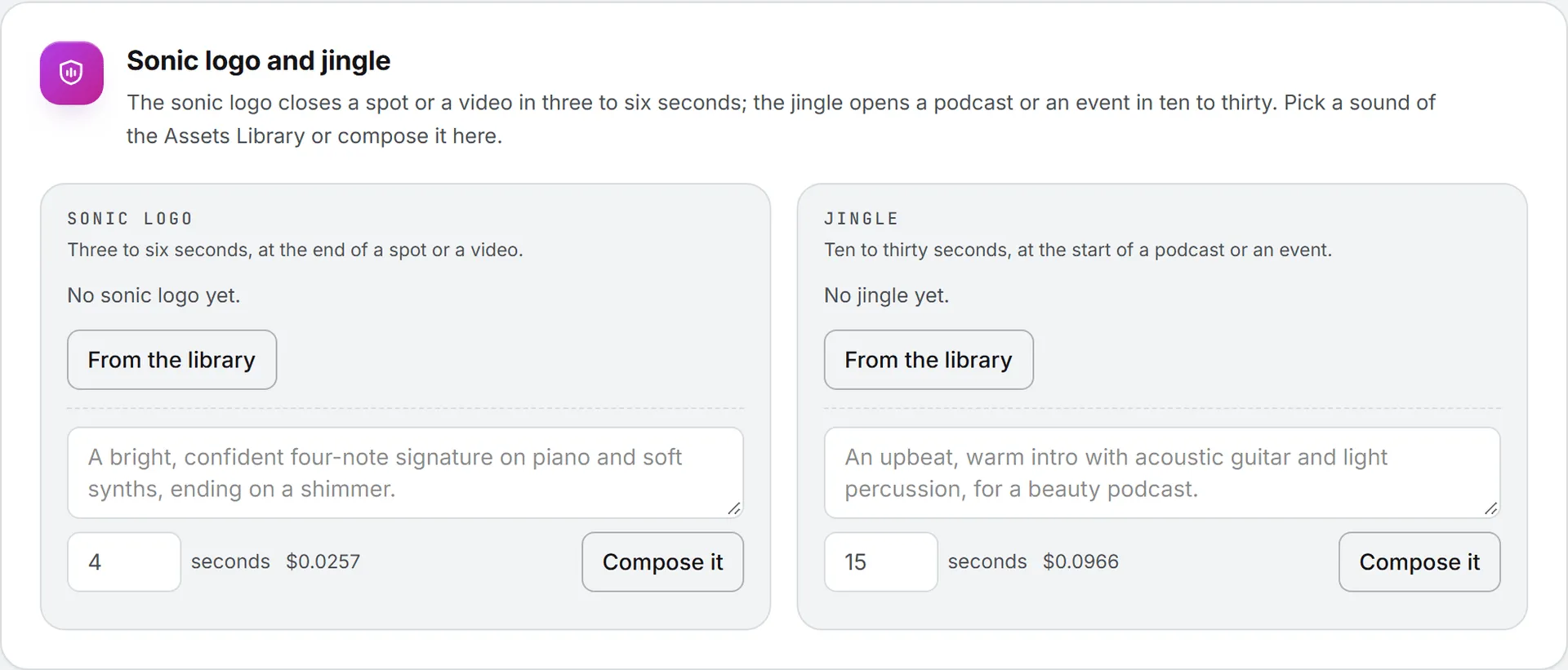
The sonic logo closes a spot or a video in three to six seconds; the jingle opens a podcast or an event in ten to thirty. For each:
- From the library picks a sound file of the Assets Library.
- Compose it composes it from a description and a length, as instrumental music, billed by the second. The take is filed in the library and set in the kit.
- Remove takes it out of the kit; the file stays in the library.
Interface sounds
The short sounds of the brand’s app, website or stand. Give the sound a name (Notification, Success, Error or your own), then either pick a file From the library, or write a description and click Make it to make it here as a sound effect. Each sound plays in the list and can be removed.
Save
Click Save the kit. The button turns amber as soon as something changes, so nothing is left unsaved. A sound composed or made on this page is in the library at once, but only becomes part of the kit once you save.