X
Write X posts and threads within 280 weighted characters, publish them for a price shown before you press, and update or delete them once live.
The X page is where editors write posts and threads for X and publish them. X differs from the other networks in two ways. Sending a post through the app costs credits. And a post that’s already out can still be updated or deleted from Intelligence.
Where you find it
In the left menu, open Social, then X. You’ll see every X post of the brand there, drafts and published ones alike.
Writing an X post
An X post moves through four steps, shown as tiles at the top: 00 the brief, 01 the copy, 02 the pictures, and 03 publishing. The general flow is in writing posts.
On the draft form, pick the shape first: Text only, + Image, or + 2 to 4 pictures. X has no carousel. Up to four pictures sit side by side.
The panel How it goes out on X holds X’s own options:
| Option | Choices |
|---|---|
| Shape | One post, thread only if needed (default), Single post, Thread (3-5 posts) |
| Hashtags | None (recommended), Up to one, Up to two |
| Mentions | Handles to mention, such as @handle, separated by commas |
| Link to share | Optional. A switch puts the link in a short follow-up post instead of the first one |
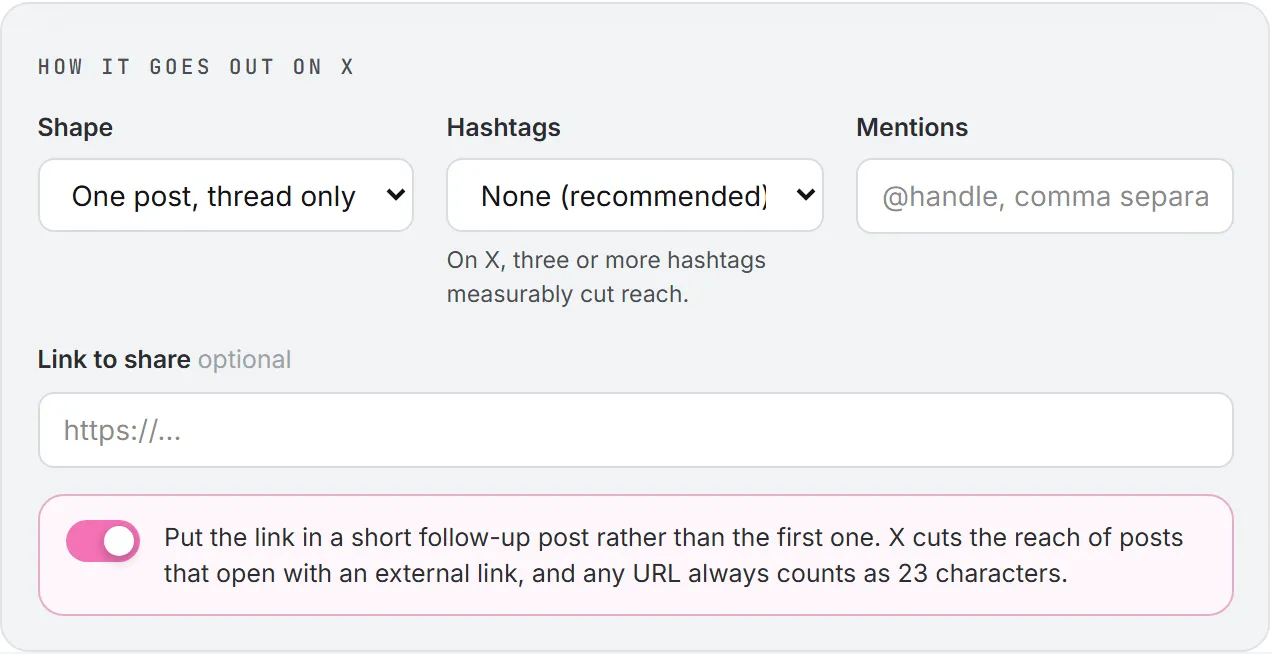
The link switch starts on, because X cuts the reach of posts that open with an external link. The hashtag setting has a similar note: three or more hashtags cut reach on X.
How X counts characters
X doesn’t count every character the same, and the editor follows X’s own counting rules. Each post must fit in 280 weighted characters:
- Latin letters, spaces and punctuation count 1.
- Every emoji counts 2.
- Every Chinese, Japanese or Korean character counts 2.
- Every web address counts 23, whatever its length.
- Hashtags and mentions count at their full length.
A Premium X account may post longer, but drafts here are held to 280 so every post shows in full in the timeline.
A counter under the editor tracks each post, for example “Post 1: 245/280”, and turns red as soon as one runs over.
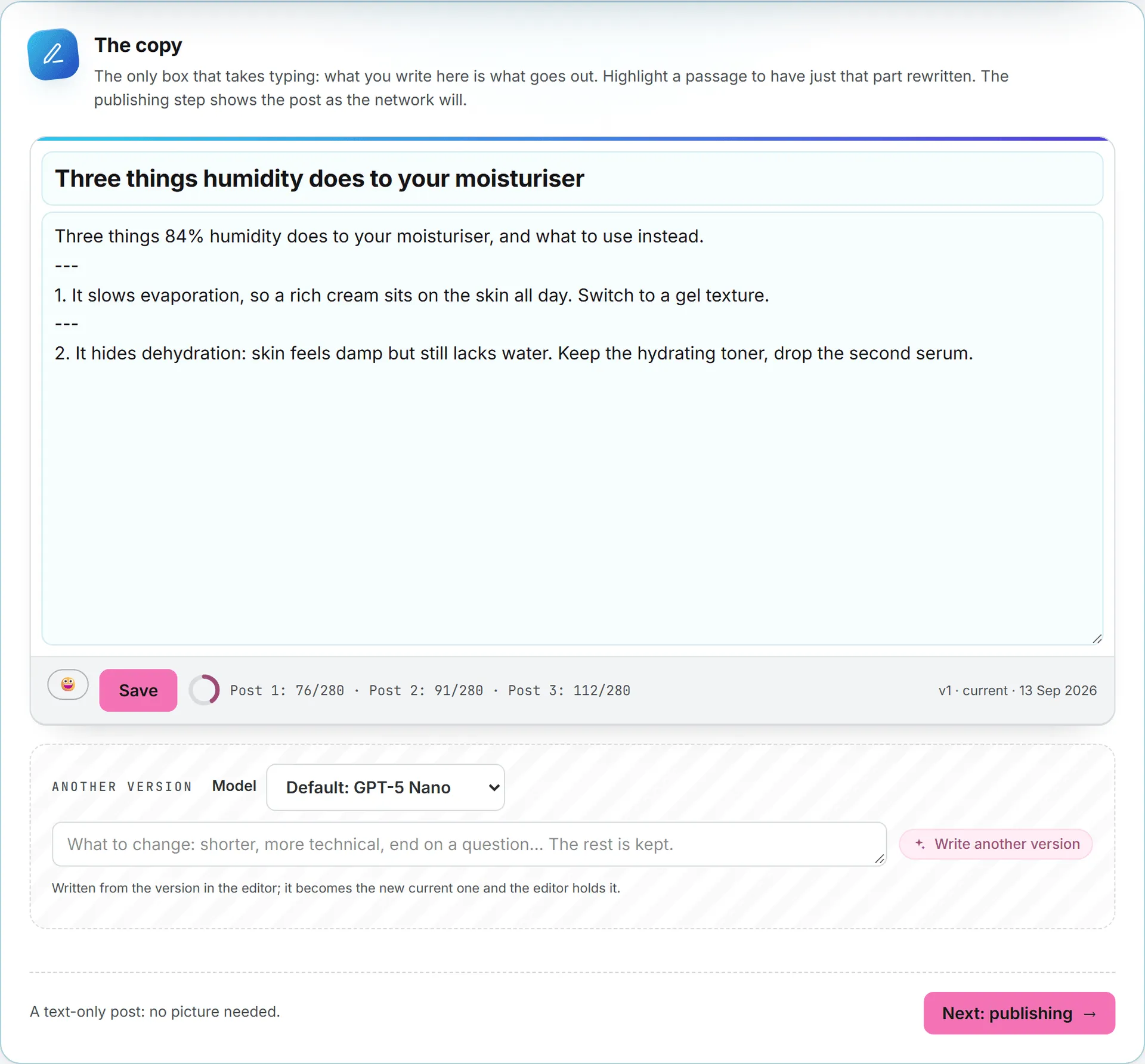
In a draft, a thread’s posts are separated by a line with only --- on it, and a thread has at most 6 posts. The preview shows the thread post by post, with the count on each.
The X post format skill is picked by default. With it, the app checks the draft against these rules and asks the AI to fix it once. If the draft is still over the limit, the app says so and asks for a tighter brief.
X limits
| Limit | Value |
|---|---|
| Copy | 280 characters per post |
| Posts in a drafted thread | 6 at most |
| Pictures | Up to 4 per post |
| Picture types | JPG, JPEG, PNG, WEBP, GIF |
| Picture size | 5 MB each |
| Video | Not offered on X |
| Gap between two sends on one account | 30 seconds |
Connect an X account
- Check which X account your browser is signed in to. Only that one comes back.
- Go to My connections, press Connect on X, then press Authorize app on X.
- For a second account, sign in to X as that account and connect again. A private browser window is the simplest way to do it.
There’s nothing to renew later: the connection keeps itself alive.
Publish on X
In the publishing step, tick the X account, pick a time, and press Schedule or Publish now. Everything that isn’t specific to X, from the queue to retries, is in publishing.
Threads
Open What X asks for and tick Send as a thread when the copy is longer than one post. It is ticked for you when the copy is over 280. The app cuts the copy at a paragraph break where it can, otherwise at the end of a sentence, and never in the middle of a word. Each post ends with a number such as (1/3). The pictures go on the first post.
This cut is made by length when the post is sent. It doesn’t follow the --- lines of the draft, so the posts that go out can break in different places from the ones in the preview.
Without the thread box, copy over 280 characters is refused. Shorten it or send it as a thread. This check counts the characters of the copy as written, without X’s weights.
What it costs
Here’s how the money side works.
Publishing on X through the app is billed in credits, per post, to the person who scheduled or sent it. A thread of four posts is billed as four posts, and sending to two accounts costs twice as much. Pictures aren’t billed on their own; they ride with the post.
A post with a link costs more than a post without one. Any web address counts, even without “https://”: example.com is a link as far as the price goes.
Before you press anything, a line under the buttons shows the exact price of your send, such as “This send costs (price), 4 posts on 2 accounts.” The price follows the accounts you tick and the thread box. After the send, the banner and the queue row show what it actually cost.
Nothing is charged when you schedule: the charge lands when the post goes out, and only for posts X accepted. If a thread stops halfway, you pay for the posts that went out. A refused send costs nothing.
The app checks your credits when you press Schedule or Publish now, including any daily allowance your admin set on shared credits. With no credit left, nothing is queued. At send time it checks the balance again. Every send also appears in the usage log, as “Social · published post” or, for an update, “Social · post replaced”. See what costs credits.
Tip: Posting by hand in the Publish manually tab costs nothing. The post goes out from your own X session, not through the app.
After it’s published
A published X post gets two extra buttons on its queue row.
Update the post on X replaces the post with the current version: copy and pictures. X’s own rules apply. Only a Premium account can edit, within an hour of posting and up to five times. The post keeps its replies and likes. Its link changes, and the old one forwards. For a thread, the new copy must make the same number of posts. An update is billed like a new post.
Delete the post from X takes it down, the whole thread included. Its replies and likes are lost. The post stays in Intelligence and can be published again. Deleting isn’t billed.
Both buttons ask you to confirm before anything happens on X.
Posting it yourself
The Publish manually tab opens X’s own composer with the first post of the thread in it. In the preview, each thread post has its own copy button (Copy 1, Copy 2 and so on) so you can paste the rest as replies. One picture goes on your clipboard. Several download as files.
Who can do this
Writing and publishing need the editor role or above and access to the post’s brand. Automatic publishing also needs an X account connected on your own My connections page, and credits to pay for the send. See roles and rights.
Troubleshooting
Update the post on X failed. X refused the edit. Usually the account isn’t Premium, or the post is more than an hour old or already edited five times. You can delete it and publish it again instead.
The update says the copy makes a different number of posts. X edits a thread post for post. Shorten or lengthen the copy until it cuts into the same number of posts, or delete the thread and publish it again.
The counter says the post fits, but publishing refuses it. The editor counts a web address as 23 characters, as X does, but the publishing check counts the copy as written. A long address can push the copy past 280 there. Shorten the address or send the post as a thread.
The send was refused for lack of credit. Buy credits or ask your admin, then press the button again. A scheduled post that fails for lack of credit is retried, so a top-up before the next attempt still sends it.