Social reporting
Social reporting counts a brand's output: posts published in the last 30 days and overall, posts planned ahead, drafts in the pipeline, and refused sends.
Social reporting counts a brand’s social output on one page: what went out and what’s coming. Editors use it to keep the calendar full. Managers tend to open it to see whether the pace is holding.
Where you find it
Open Social, then Calendar, and click the Reporting tab next to Monthly and Weekly. It reports on one brand at a time, the one chosen in the brand picker in the header. Switch brands there to compare.
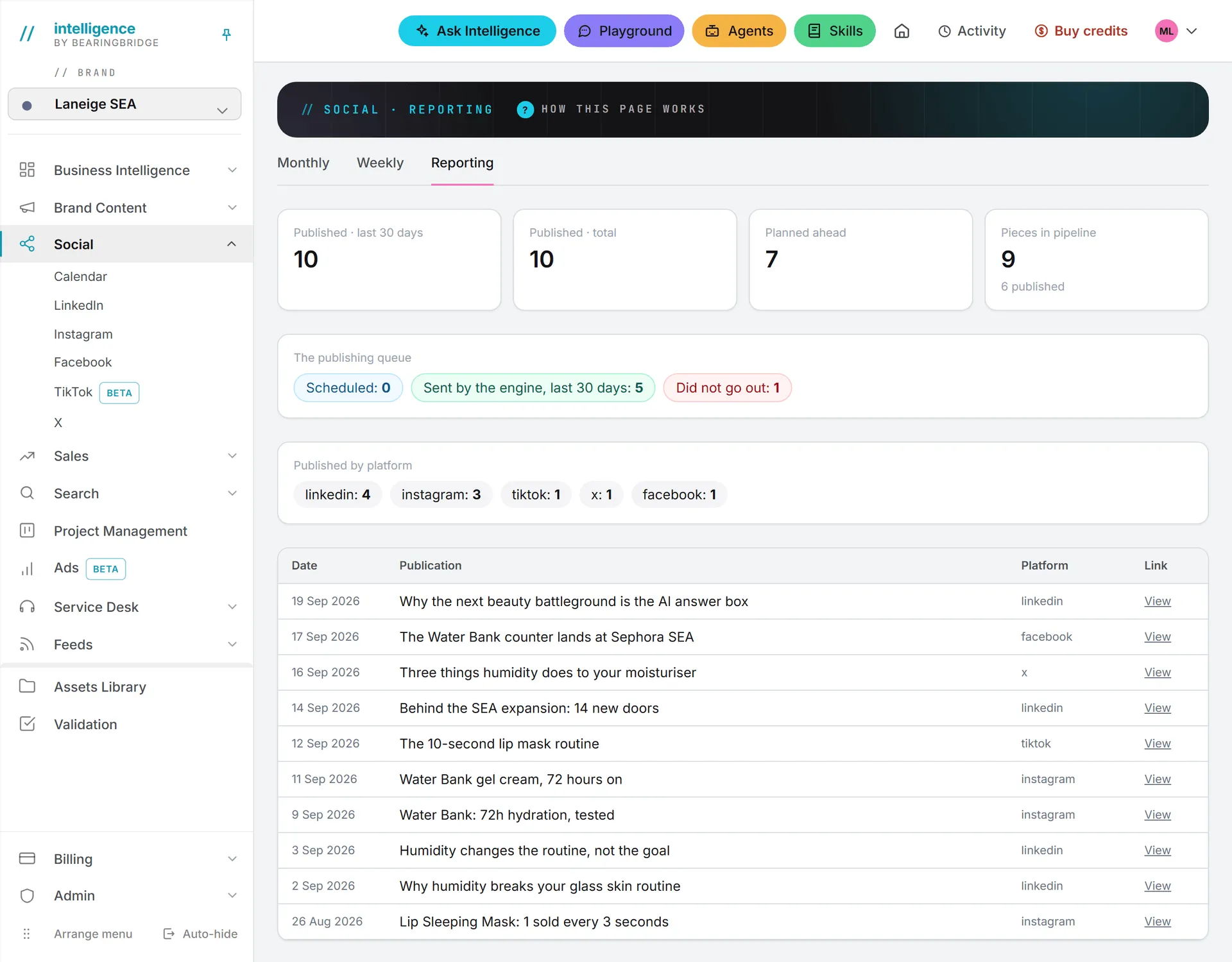
The four numbers at the top
| Tile | What it counts |
|---|---|
| Published · last 30 days | Calendar entries marked published whose calendar day falls in the last 30 days |
| Published · total | All calendar entries marked published |
| Planned ahead | Calendar entries still to do, dated today or later |
| Pieces in pipeline | Posts not published yet: drafts, posts waiting for validation, approved posts. Below it, the number of published posts |

All four tiles are read from the publishing calendar. A post counts as published whether the app sent it or someone set it to published after posting it by hand, because both put it on the calendar as published.
The publishing queue
Below the tiles, a second card appears as soon as the queue has anything to report.
Scheduled counts posts waiting to go out, plus any being sent right now. Sent by the engine, last 30 days counts what the app sent itself. Did not go out counts posts a network refused, including those still waiting for another attempt. It shows only when there are some. Click it to open the weekly calendar, then move to the week the post was due.
This card counts sends, one per account: a post scheduled on two accounts counts twice. Only posts the app handles are here, so a post you published by hand never appears. See publishing for how the queue works.
Published by platform
Each network gets a chip with its number of published calendar entries, the busiest first.
The latest publications
The table at the bottom holds the 10 most recent published posts:
| Column | Content |
|---|---|
| Date | The day it was published, in your date format |
| Publication | The post’s title |
| Platform | The network |
| Link | View opens the live post. n/a when no address was saved |
If nothing is published yet, the page says Nothing published yet.
Reading the numbers
Each count is simple, but a pair of them can tell you more. A low Planned ahead next to a high Pieces in pipeline usually means posts are written but not on the calendar yet. A Did not go out count above zero needs a look: each refused post shows the network’s reason on its queue row, with Try again now once you’ve fixed it.
What the page doesn’t show
Note: The page reports output only. It doesn’t show reach, impressions, clicks, likes or followers.
There’s no date filter either. The two windows are fixed: the last 30 days, and everything since the start. The page has no export. For reach and engagement, use each network’s own statistics.
Who can see it
You need Reporting, one of the three modules of the Social capability, switched on for you. Admins manage that in capabilities; the idea is explained in capabilities and modules. You see only the brands you have access to. Posts made in the No brand workspace count only for their author, until they are shared. See the No brand workspace.
Good to know
- The figures are read when the page opens, so reload it after a send to see it counted.
- Opening the page costs nothing: it reads data Intelligence already holds and makes no AI call.
- Dates follow your own date format. See date, time, language and theme.