Social overview
Social gives each network a studio plus one shared calendar, so your team can brief, write, illustrate, validate, schedule and publish posts in one place.
Social is where your team plans, writes, illustrates and publishes posts for LinkedIn, Instagram, Facebook, TikTok and X. It’s meant for marketing teams: editors do most of the work here, and admins set who sees what. Each network has its own studio, and one calendar shows everything that’s planned, booked or already live.
What’s in the Social menu
Click Social in the left menu and you land on the monthly calendar. The sub-menu under it has one entry per area.
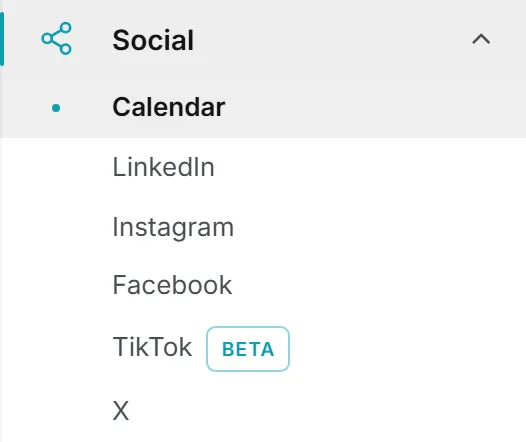
| Entry | Address | What it’s for |
|---|---|---|
| Calendar | /social/calendar/monthly | The plan. Switch between Monthly, Weekly and Reporting on the dark band at the top. |
| /social/linkedin/posts | The LinkedIn post studio. | |
| /social/instagram/posts | The Instagram studio: a picture, a carousel or a reel, then its caption. | |
| /social/facebook/posts | The Facebook page post studio. | |
| TikTok (Beta) | /social/tiktok/posts | The TikTok studio: a video, then its caption. |
| X | /social/x/posts | The X studio: single posts and threads. |
Each studio page opens on a dark band with the network’s logo, a button that lists every post of the brand, a How this page works note and, for editors, a New post button.
Before you start
Social has to be switched on for your organization and for you. If it isn’t in the left menu, ask an admin (see capabilities and modules).
Inside it, three areas are graded per role and per person: Social Calendar, Social Content (the five studios) and Social Reporting. You only see the areas your rights open. See roles and rights.
Pick the brand in the header before you start, because every Social page follows it. You only need to connect a social account if you want the app to post for you. Everything else, publishing by hand included, works without one. See brands.
How a post moves from idea to live
Whatever the network, a post goes through roughly the same stages. In the studio, the brief, the copy, the pictures and the publishing show as tiles on the band, each with a small bar and a state: done, in progress, to do or not needed.

- Brief it. On LinkedIn, Facebook and X you describe the angle, the audience and the goal, and attach material to write from.
- Write it. Draft with AI writes the copy in the brand’s voice. Write it myself opens the editor with no AI call.
- Add the visual: a picture, a carousel or a video, rendered with AI, picked from the Assets Library or uploaded.
- Get it validated. If a colleague has to sign off, Send for validation locks the post until they decide.
- Schedule it. On the Publish automatically tab, tick the account it goes out on and pick a day and time.
- Publish it. The app sends it at that moment, or right away with Publish now. Or use the Publish manually tab and post it yourself in the network’s own composer.
Instagram and TikTok turn the order around. There the picture or the video is the post, so the studio opens on the visual (step 01), then the caption (step 02), then publishing (step 03). There’s no brief step. The Instagram and TikTok articles walk through it.
The studios only offer shapes a network really publishes, and the app checks the post against that network’s limits again before it’s queued. So if something would be refused, you usually find out while you’re still on the page.
Along the way a post carries one of four statuses: draft, waiting for validation, approved or published. The full editor is described in writing posts, and the last stage in publishing. What went out, per network, is counted in social reporting.
A post doesn’t have to start in a studio. Create from this post in Feeds, the reader every account has in the left menu, opens a studio with a brief written from the article you were reading, and Re-purpose for other networks on a post’s publishing step turns it into posts for the other networks.
Brands and the No brand workspace
Every post belongs to a brand: the one the header was on when the post was made. Each studio lists that brand’s posts only, so when you switch brands in the header, the list switches with it.
Posts made in the No brand workspace work differently. They belong to the person who wrote them, and nobody else sees them until that person shares them. The author opens Who sees it on the band and picks Only me, Everyone in the organization or Chosen brands.
On the calendar, several brands can be laid over each other. With four brands, that’s one month to read instead of four. See the calendar.
Your social accounts
Social accounts are personal. You connect your own LinkedIn profile, X account, Facebook page, Instagram professional account or TikTok on My Connections, under Your social accounts, and what you connect there is yours alone: other people, admins included, don’t see it or post with it. The flip side is that you can’t post from a colleague’s account either, even for a company page they run. That article covers each network’s requirements, how long a connection lasts and how to renew one.
Publishing by hand doesn’t need a connected account. The post leaves from your own session on the network, the same as if you’d typed it there. See publishing.
Who can do what
In short, editors do the work and admins handle the deletions that affect other people.
| Action | Who |
|---|---|
| Read posts and the calendar | Anyone whose rights open Social Content or Social Calendar |
| Brief, draft, edit and render | Editors and above |
| Schedule or publish through the app | Editors and above, on accounts they connected themselves |
| Delete a post the organization or a brand can see | Admins |
| Delete a post in the No brand workspace | Its author, while it’s still Only me, or an admin |
| Change who sees a No brand post | Its author |
Viewers are read-only everywhere in Social. An admin can adjust your rights on the three Social areas on your user page.
What it costs
Most of Social is free to use. You pay for the AI work, for sending on X and for storing what you upload. Paid actions are billed to your credits. Most show their price where you work: on the button before you press (renders, and publishing on X), or on the status line right after the run (drafts, versions, rewrites). In Social, these are paid:
- Draft with AI, Draft again, Write another version and rewriting a highlighted passage
- Improve with AI on an image or video prompt
- Rendering a picture (priced per image) or a clip (priced per second)
- Check voice, and the voice score added after a draft when the brand voice is on
- Publishing on X through the app, which is billed per post
These cost nothing: Write it myself, publishing by hand, and publishing through the app on LinkedIn, Instagram, Facebook and TikTok. Files you upload are stored in the Assets Library and count toward storage. If you’ve reached your spending limit, a paid action stops with a message saying so. Every charge is listed afterward in the usage log, and credits and costs explains how billing works.
TikTok is in Beta
The TikTok entry carries a Beta badge in the left menu. A TikTok post is a video, so the studio starts at the clip and the copy is its caption. TikTok also has a second tab, Brief, for briefing a video script in depth. Details are in TikTok.
Saving, Activity and the library
Your work saves itself: about a second after you stop typing, again when you leave the field, and when you close the tab. Save is still there if you want to force it.
Slow runs go to Activity. A draft or a render keeps going in the Activity panel in the header, so you can leave the page and come back to it later (see Activity).
Each drafted post is saved in the Assets Library as a text, next to the pictures and clips you render or upload.
Dates and times follow the time zone and formats you picked in Settings.