Skills
A skill is a set of instructions the AI follows wherever you tick it. Organization skills reach everyone, personal ones override them on your runs.
A skill is a set of instructions the AI follows: a method, a checklist, a house style, a list of rules. Write it once and tick where it applies. From then on it joins the AI runs there, and you stop pasting the same instructions into every brief.
Anyone who can write in the app can keep skills of their own. Admins also write skills for the whole organization. For how skills sit next to agents and formats, see Agents, skills and formats.
A simple example: a skill called “House style” that says “Write in US English, no exclamation marks, sentence-case headings, and never promise delivery dates.” Tick it for Brand Content and Social, and every text you ask for follows it.
Where to find skills
Click Skills in the header. On a phone or a narrow window, look for it in the left menu. The Skills area has three tabs:
| Tab | What it holds | Who sees it |
|---|---|---|
| Personal | Your own skills. | Everyone |
| Organization | The skills shared with the whole organization, and each member’s personal skills. | Admins |
| Catalog | The standard skills the app ships with, the content formats, and your organization’s skills to copy. | Everyone |
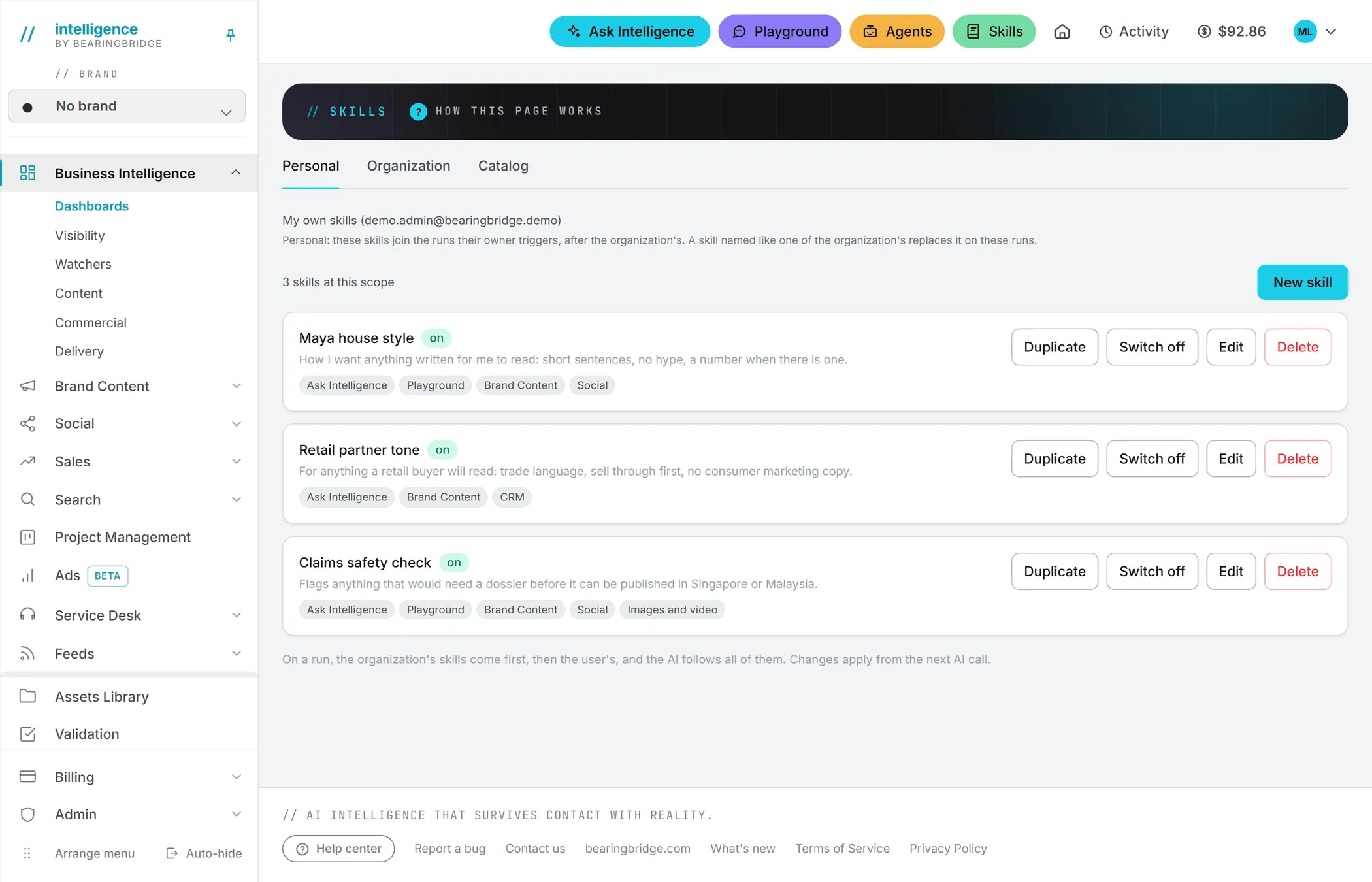
Two levels: organization and personal
A skill lives at one of two levels.
An organization skill reaches every member of the organization. Only admins write and manage those.
A personal skill applies only to the runs you start yourself. You write your own, though an admin can step in and manage them for you.
On a run, the organization’s skills come first, then yours, and the AI follows all of them. If two of them contradict each other, the one listed later wins, which means yours. When two skills have the same name, yours replaces the organization’s on your runs. That’s how you adapt an organization skill without changing it for everyone: copy it into your skills, keep the name, and edit your copy. See Organization and personal skills.
Note: There is no brand level. A skill belongs to the organization or to a person, never to a brand, even when you’re working on one brand’s content.
Where a skill applies
Each skill says where it applies, in Where it applies. A skill with nothing ticked is kept but never used. A skill can also be switched off: it stays stored, and stops applying anywhere until it’s switched back on.
| Where it applies | What it shapes |
|---|---|
| Ask Intelligence | Answers on the Ask Intelligence page. |
| Playground | Your chats with a model, on top of the conversation’s own instructions. |
| Agents | The watchers and the weekly operating review. |
| Brand Content | Content plans, article outlines and drafts, the formats under Text, repurposing and executive reports. |
| Social | Social posts and LinkedIn articles. |
| Ads | Search ad copy written for an ad group. |
| Search | The Search Conquest Strategy drafted from the competitor search reports. |
| CRM | Quotes and proposals drafted from a deal. |
| Service Desk | The public assistant that answers a brand’s customers. |
| Images and video | The Improve with AI button that rewrites a prompt before an image or a video is made. |
How skills join a run
It depends on the page.
Pages with the skills picker
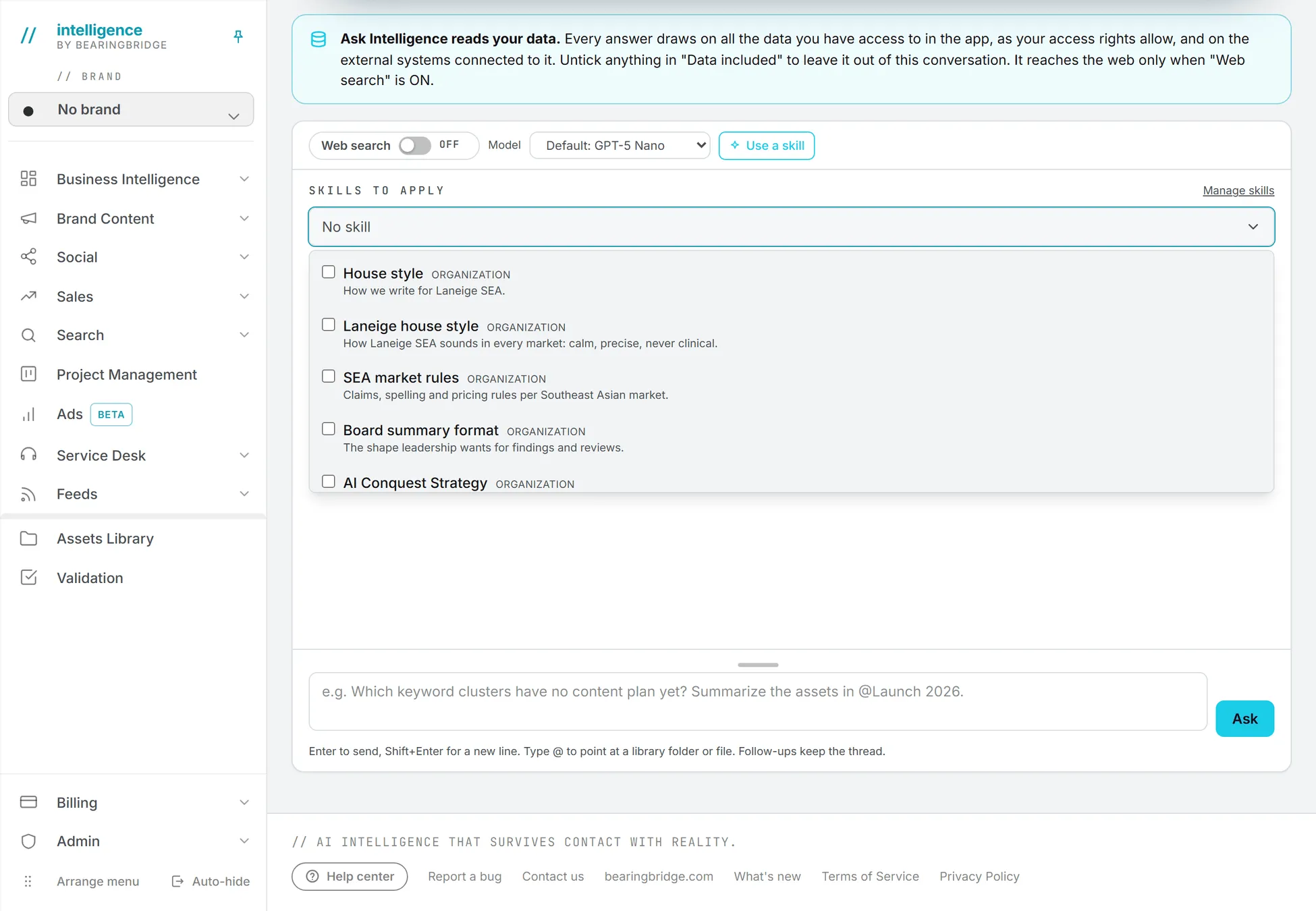
Forms that write something for you carry the standard skills picker, under Skills to apply. It sits on the Brand Content > Text forms, the content plan and article forms, the social post forms and the TikTok brief. Ask Intelligence has it too, behind Use a skill.
- Open the list. It shows every switched-on skill ticked for this page, with a tag saying Organization or Personal and the skill’s description.
- Tick the skills you want.
- Run the form. The skills ride along with this run and everything made from it.
Until you pick a skill, none is applied. The closed list shows “No skill”, the skill’s name, or the number of skills picked.
On the social post forms, the skill of the network you’re writing for is ticked for you, for example LinkedIn post format. See Standard skills.
Manage skills in the picker opens your skills in a new tab, so the form you’re filling in stays as it is.
Ask Intelligence lists all your organization’s and your own switched-on skills, whatever they are ticked for.
Pages without a picker
Some features have no picker. On those, every switched-on skill ticked for that place joins the run by itself. That’s the case for the Playground, the agents, ad copy, CRM quotes and Improve with AI on images and video. The Search Conquest Strategy and the AI Conquest Strategy work the same way, and show a Skills applied list so you can see which ones joined.
The Service Desk assistant is a special case. It answers visitors, not someone in your organization, so only the organization’s skills apply to it.
Standard skills
You don’t have to start from a blank page. Some skills come already written with the app, and they carry a Standard tag.
| Group | Skills | Applies to |
|---|---|---|
| Social networks | LinkedIn post format, X post format, Instagram caption format, Facebook post format, TikTok script format | Social |
| Search methods | Search Conquest Strategy, AI Conquest Strategy | Search |
| Content formats | The skill behind each of the 37 formats under Brand Content > Text | Brand Content |
The social network formats and the two search methods are added to every organization automatically. An admin can rename, rewrite or switch them off in the Organization tab.
Picking the LinkedIn, X or TikTok format skill on a post does one more thing: the draft is checked against that network’s rules and repaired if it breaks them. Untick it and the post is written freely, with no check.
The content formats work differently. Each format has exactly one skill, so a personal version replaces the organization’s instead of adding to it, and an admin can switch a format off for everyone. See Content formats, and the Catalog for adding standard skills.
Limits
A skill’s name takes up to 80 characters, its description up to 300 and its instructions up to 8,000. A single run takes at most 12 skills from each level, the oldest first; any beyond that are left out. A few focused skills work better than a pile of small overlapping ones.
What skills cost
Skills are free to write and store. A change applies from the next AI call. On a run, their instructions are added to what the AI reads, so each one adds tokens to the price of that run. The longer the instructions, the more they add: a two-line rule costs next to nothing, a skill near the 8,000-character limit adds noticeably more to every run it joins. So say what to do and what to avoid, and leave the rest to the page’s own instructions. See Credits and costs.
Who can do what
| Role | Personal skills | Organization skills |
|---|---|---|
| Viewer | Read only | n/a |
| Editor, Brand manager | Write, edit, delete their own | n/a |
| Admin | Write, edit, delete their own | Write, edit, delete; manage members’ personal skills |
Your organization’s roles can also close the Skills area to some people. See Roles and rights.