Content formats
Each Brand Content format is written by one skill. Admins edit or switch formats off for everyone; anyone who writes can keep a personal version.
Behind every format under Brand Content > Text, from a manifesto to a press release, sits a skill of its own. The Content Formats section of the skill catalog is where you read those skills and change them: for the whole organization if you’re an admin, otherwise just for your own runs. It concerns anyone who writes there.
Where to find the formats
Click Skills in the header, open the Catalog tab and scroll to Content Formats at the bottom. The old address, /skills/formats, leads there too.
Or start from the format itself. On the Brand Content > Text pages, each format card has a Skill link. It opens that format’s skill in a new tab, already unfolded.
How the list is organized
Unlike the other standard skills, formats aren’t cards you add: they’re always there, and you edit them in place. They’re grouped by category, the same way as in Brand Content:
| Category | What it covers |
|---|---|
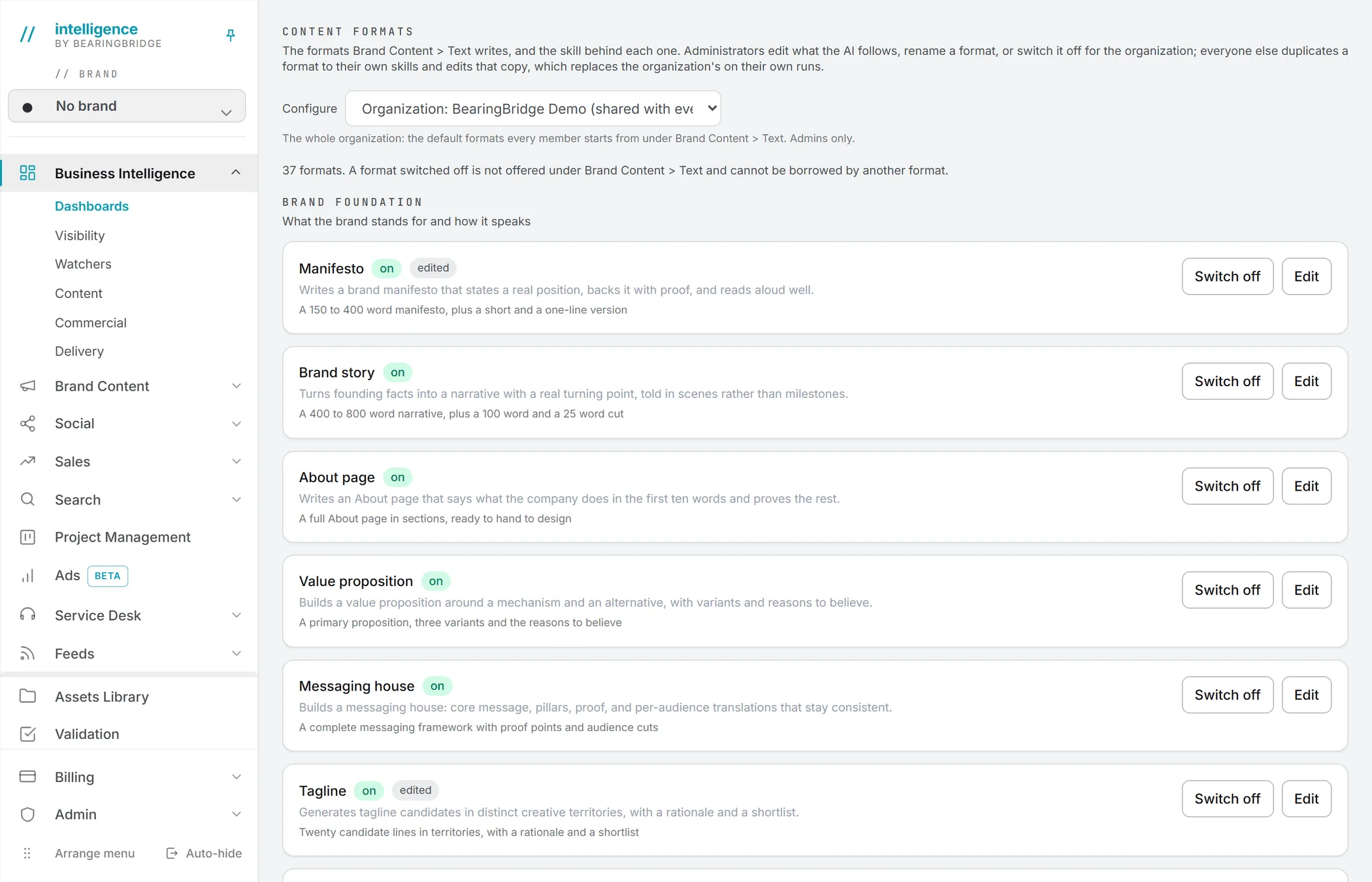
| Brand foundation | What the brand stands for and how it speaks: manifesto, brand story, value proposition, tone of voice guide and more. |
| Editorial | Long-form pieces: blog post, whitepaper, case study, newsletter issue and more. |
| Commercial | Copy that has to convert: landing page, product description, pricing page, proposal boilerplate and more. |
| Creative | Scripts and campaign ideas: video script, podcast episode, campaign platform and more. |
| Corporate & PR | What the company says publicly: press release, executive statement, FAQ and more. |
A line above the list gives the count, for example “37 formats, 2 switched off.” A viewer’s list also carries a read-only note.
Each format row shows its name, an on or off tag, a line on what it’s for and what it produces. An edited tag means the scope you’re looking at has its own version. A my version tag means you wrote your own.
How a format’s skill works
A format has exactly one skill. When you write a piece in that format, its skill is always applied: the Text form shows it under Writing skill, marked Always applied.
You can add more. Borrow another format’s skill on the form lends you the craft of another format, say the interview skill for a case study. None is borrowed unless you tick it. Your organization’s and your own skills can also join through the skills picker. See Copy studios.
Format skills differ from ordinary skills in one way: versions don’t stack. The closest one wins outright.
| When someone writes in a format | The version used |
|---|---|
| They wrote their own version | Theirs |
| They didn’t, but an admin changed the format for the organization | The organization’s |
| Nobody changed it | The one the app ships with |
The brand’s guidelines always ride along on top, whatever version is used.
Admins: change a format for the organization
The next three parts are for admins. If you’re not one, skip to Write your own version.
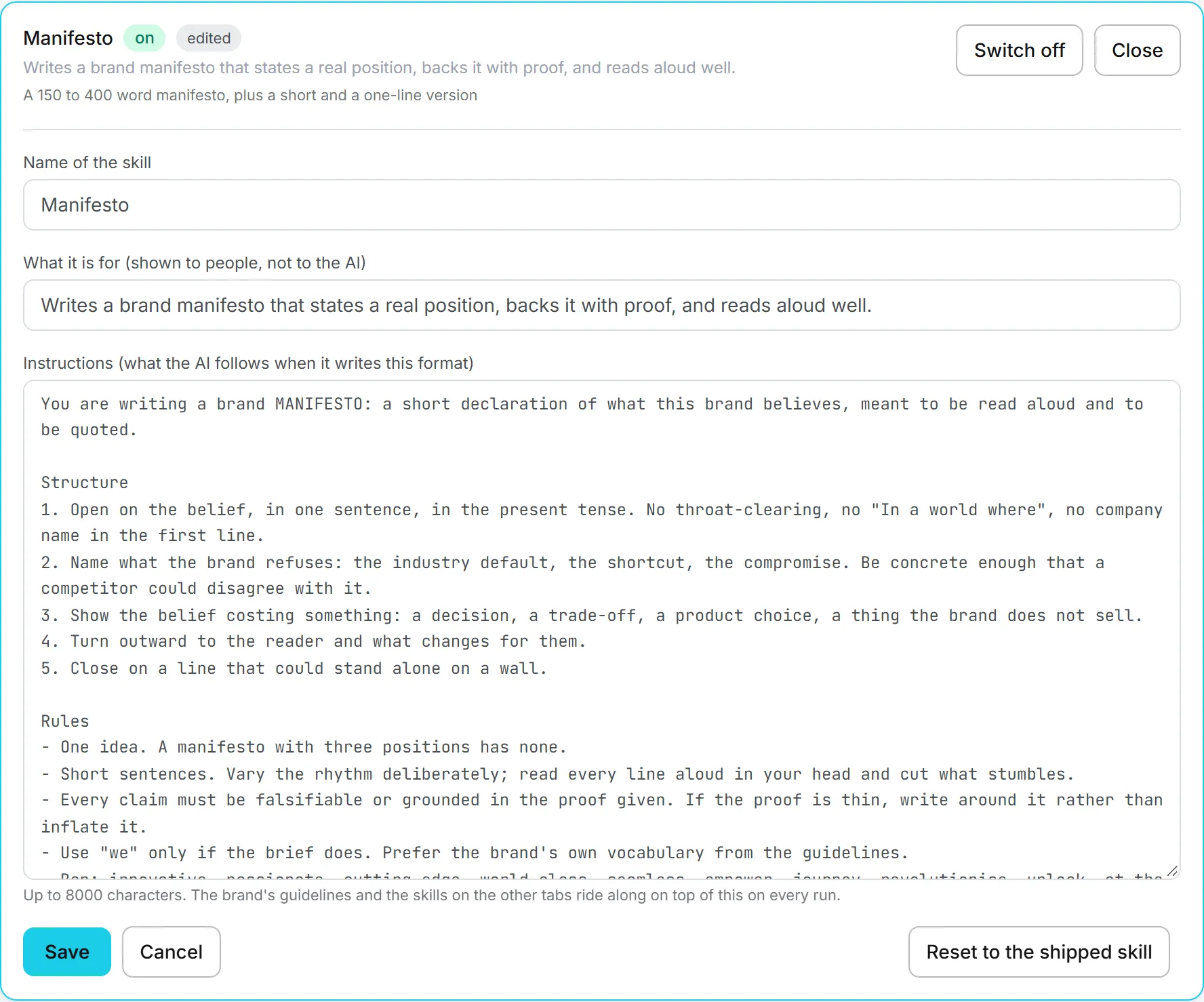
- Open Content Formats. Check that Configure shows your organization, “shared with everyone in it”.
- Click Edit on a format.
- Change Name of the skill, What it is for (shown to people, not to the AI) or Instructions (what the AI follows when it writes this format). The instructions take up to 8,000 characters.
- Click Save. The format shows edited.
The new name also shows on the format’s card under Brand Content > Text.
Changed your mind? Open the format and click Reset to the shipped skill. The instructions you wrote are dropped. The page doesn’t show the shipped text next to yours, and resetting is the only way to see it again, so copy your own instructions somewhere first if you might want them back.
Switch a format off
Click Switch off on a format. It disappears from Brand Content > Text for everyone in the organization, and nobody can borrow it from another format either. Click Switch on to bring it back.
Tip: Switching off trims the Text pages down to the formats your team uses. Nothing is deleted; the format’s skill is still there when you switch it back on.
Your own and a member’s formats
In Configure, admins can also pick their own scope, or a member’s, and edit the versions used on those runs only. There, the reset button reads Reset to the inherited skill: the person goes back to the organization’s version.
Write your own version (non-admins)
If you’re not an admin, you see the formats as your organization set them. What you can do is write your own version, used on your runs alone.
- Open Content Formats.
- Click Duplicate to my skills on a format. Your version is created right away from the text your runs use today, the format shows my version, and its editor opens.
- Edit the instructions and click Save.
From then on, whenever you write in that format, your version is used. Your colleagues keep the organization’s.
Click Edit my version to change it again. Remove my version drops it, after a confirmation, and your runs go back to the organization’s format.
You can’t switch a format off, not even for yourself: only admins can.
Who can do what
| Action | Viewer | Editor, Brand manager | Admin |
|---|---|---|---|
| Read the formats and their skills | Yes | Yes | Yes |
| Write their own version | No | Yes | Yes |
| Edit the organization’s version | No | No | Yes |
| Switch a format off or on | No | No | Yes |
| Edit a member’s version | No | No | Yes |
A viewer sees “Your role is read-only, so you can read these formats but not change them.” See roles and rights.
Good to know
Editing a format costs nothing. Longer instructions do add tokens to every piece written in that format, and so does each skill you borrow from another format.
A change applies from the next run of that format. Pieces already written keep their text.
Formats are managed only here, so your own versions don’t show up in the Personal tab.