Skill catalog
Browse the standard skills, from LinkedIn and X post formats to the conquest strategies, and add one to your skills or copy an organization skill.
The Catalog tab of the Skills area is where the app’s ready-made skills live. From there, you make a standard skill your own, or copy one of your organization’s skills into your personal skills to adapt it. Use it when you want the AI to follow a tested method and would rather not write one from scratch.
Open the catalog
Click Skills in the header, then the Catalog tab. The address is /skills/catalog.
You’ll find up to four sections, top to bottom:
| Section | What it holds |
|---|---|
| Social networks | The posting rules of each network: LinkedIn post format, X post format, Instagram caption format, Facebook post format and TikTok script format. |
| Search methods | The Search Conquest Strategy and the AI Conquest Strategy. |
| To copy | The skills your organization wrote by hand. Shown when there is at least one and you can write. |
| Content Formats | The skill behind every format under Brand Content > Text. See Content formats. |
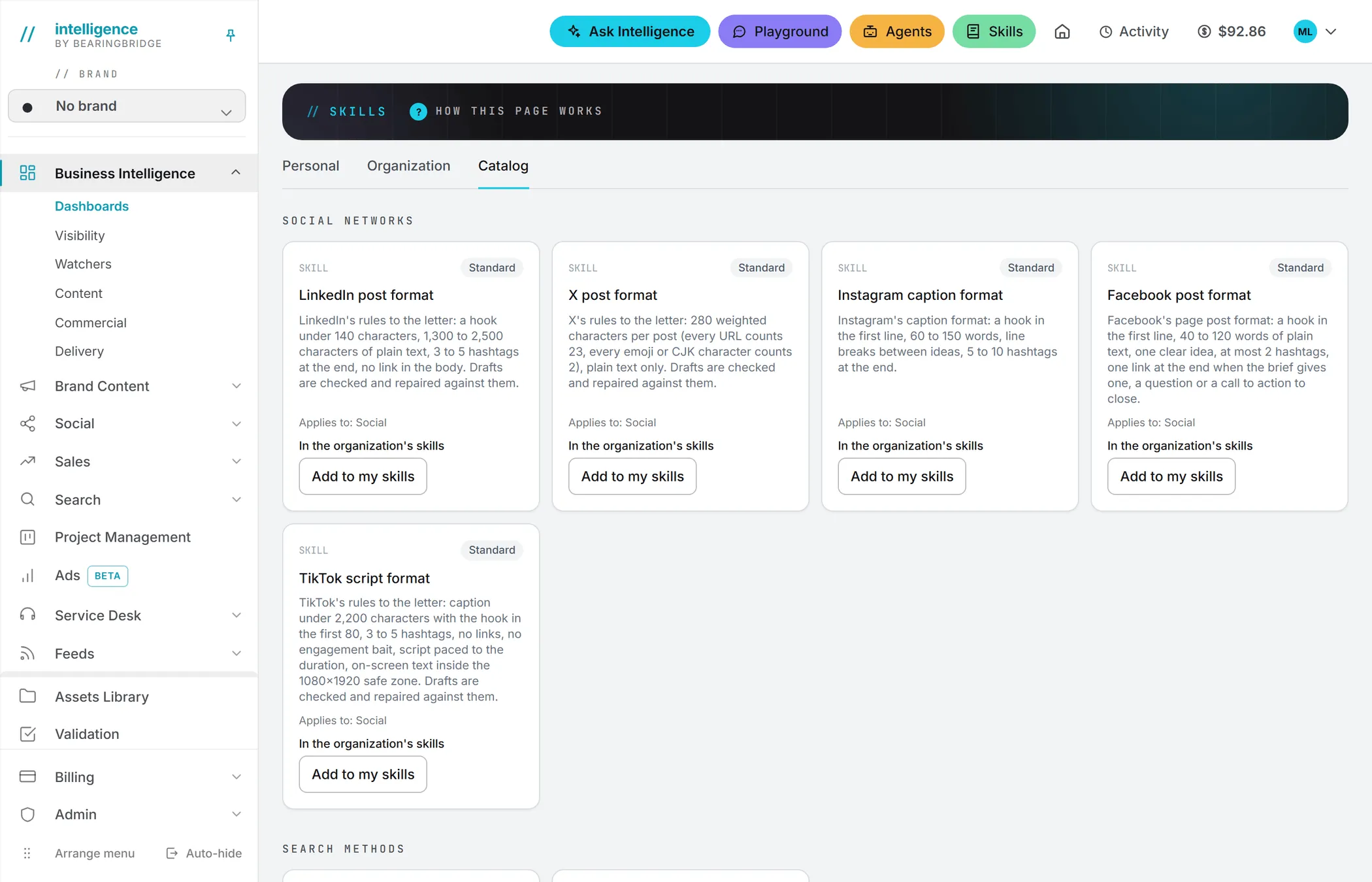
Reading a skill card
Each card in the first two sections carries a Standard tag, the skill’s name, a line on what it does, and Applies to: with the place where it works, Social or Search. The buttons or links at the bottom depend on your role and on what you already added.
The card shows the description, not the full instructions. To read those, open the skill where it lives: the Organization tab for admins, or your own copy under Personal once you’ve added it.
The social network skills spell out each network’s limits. The LinkedIn one, for instance, asks for a hook under 140 characters, 1,300 to 2,500 characters of plain text and 3 to 5 hashtags at the end, with no link in the body. The LinkedIn, X and TikTok formats also check each draft against those rules and repair it; the Instagram and Facebook ones guide the writing only. On the social post forms, the skill of the network you write for is ticked for you (see Writing posts).
The search methods describe how the competitor search reports, or your AI visibility data, are turned into a plan. They power the conquest strategy buttons in Competitors and AI search.
Standard skills are already in your organization
The social network formats and the two search methods are added to your organization’s skills automatically. That’s why their cards usually show In the organization’s skills rather than a button. The link opens the Organization tab, where an admin can reword them or switch them off.
Deleting one there won’t stick, because the app puts the shipped version back the next time it’s needed. To stop using one, switch it off instead.
Should a new standard skill arrive that your organization doesn’t have yet, admins will see Add to the organization on its card. Adding it gives the organization its own copy of the shipped text, and every member uses that version from then on.
Add a standard skill to your own skills
Anyone who can write in the app can do this, admins or not.
- Scroll to the skill you want.
- Click Add to my skills.
- The button turns into an In my skills link. Follow it to the Personal tab to edit your copy (see Organization and personal skills).
Your copy starts from the organization’s version, admin changes included, or from the shipped text if the organization has none.
Your copy replaces the organization’s version on your own runs, even if you rename it, because the app still knows which standard skill it came from. Delete your copy to go back to the organization’s version.
Note: Your copy is yours from then on. If an admin later changes the organization’s version, your copy doesn’t follow. Delete it and add it again to start from the new text.
Copy one of your organization’s skills
Your organization may have written skills of its own. The To copy section lists them.
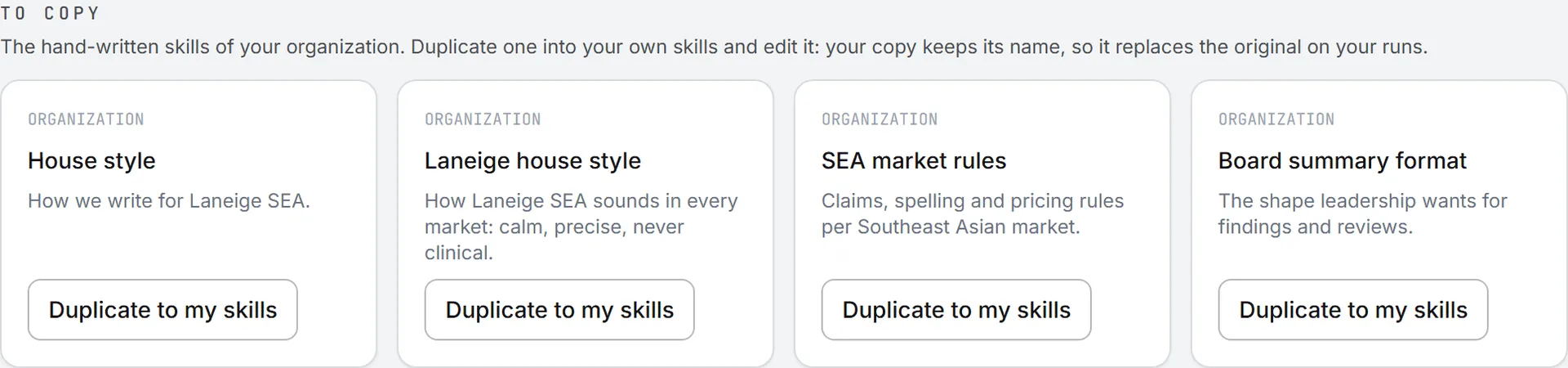
- Click Duplicate to my skills on the card.
- The button turns into In my skills.
- Edit your copy under the Personal tab.
The copy keeps the original’s name, so it replaces the original on your runs. If you want both to apply, give your copy another name.
Who can do what
| Role | What they can do in the catalog |
|---|---|
| Viewer | Can read the catalog, with no buttons to click. |
| Editor, Brand manager | Add to my skills, Duplicate to my skills |
| Admin | All of the above, plus Add to the organization |
Roles and per-person rights are explained in roles and rights.
Good to know
Adding or copying a skill costs nothing, and standard skills carry no extra charge. A skill only costs tokens when it joins a run (see What skills cost).
A skill you add starts switched on, ticked for the same places as the original. You can change both in the Personal tab.
If you add the same standard skill twice, for example from two open tabs, the second attempt says “Already added at this scope.”