Service Desk overview
Service desks answer your customers from your documents. Learn how desks work per brand, where to manage them, who can edit, and what visitors see.
Service Desk answers your customers’ questions with AI. Each desk works on a public page, or on your own website, and answers only from the documents you give it. This page is for the people who set up and run desks.
What a desk is
A desk is one public assistant, tied to one brand. It has its own web address and knowledge base, plus settings and a conversation log that no other desk touches.
A brand can run several desks: one for customers and another for resellers, say, or one per product line or market. The desks stay apart. A question asked on one desk is answered only from that desk’s documents, and its conversations stay in that desk’s log. A brand can run up to 20 desks.
A desk knows nothing until you give it documents. With an empty knowledge base, all it can tell customers is that it couldn’t find the answer. See Build the knowledge base.
Where to find it
Open Service Desk in the left menu. It appears once the Service Desk is switched on for your organization (see Capabilities). The first entry is Desks, the list of every desk you can open. Below it, each desk has its own entry, named after the desk, oldest first. The menu lists the desks of every brand you have access to, not only the brand selected at the top.
Bookmarks to the former Service Desk home page or to the old self-service portal now open the Desks page.
The Desks page
The Desks page lists every desk you can open, grouped by brand. The brand selected in the header comes first.
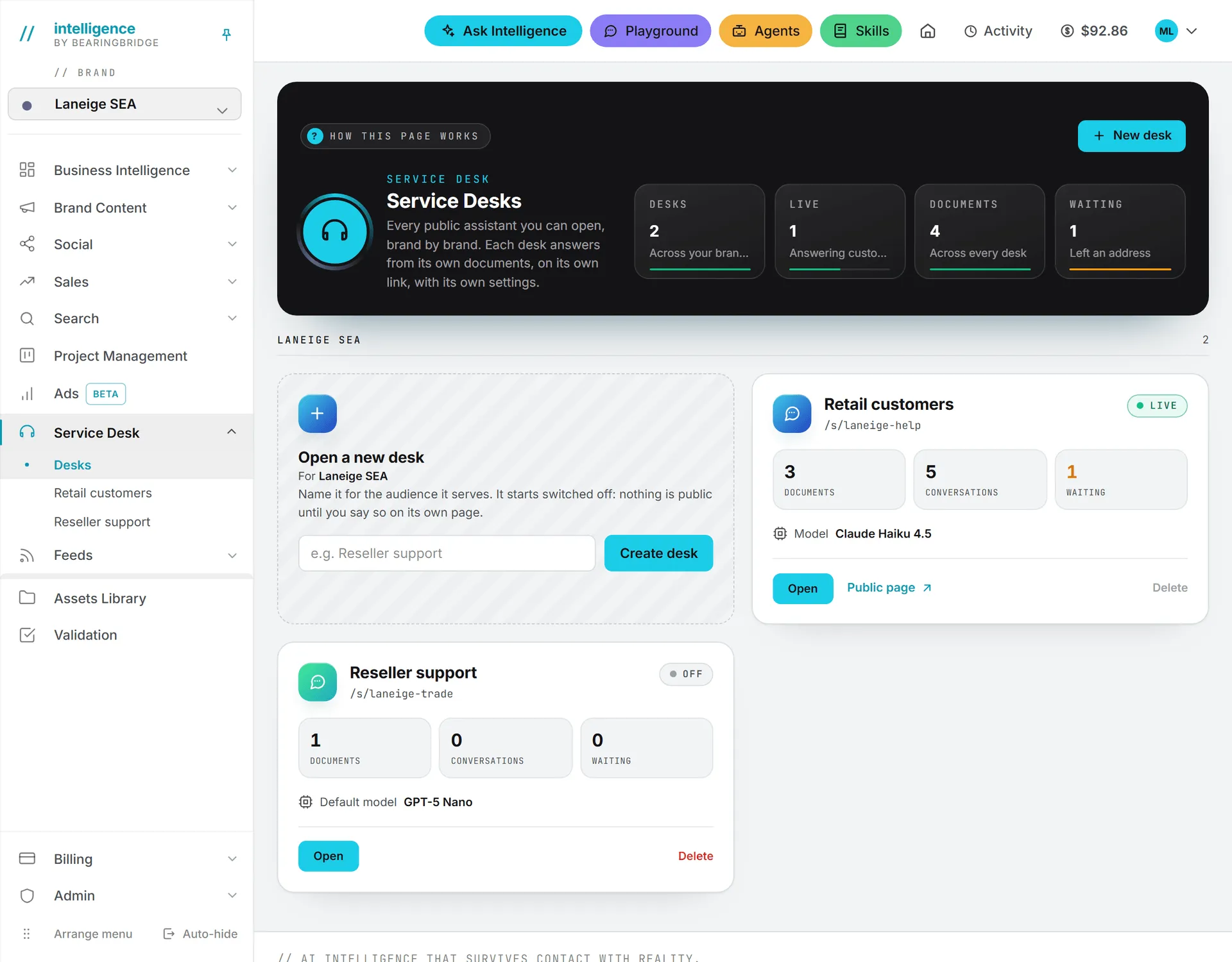
Four counts sit in the dark band at the top:
| Tile | What it counts |
|---|---|
| Desks | All the desks listed, across your brands |
| Live | Desks switched on and answering customers |
| Documents | Documents in the knowledge bases of all those desks |
| Waiting | Conversations where a customer left an email address |
Every desk gets a card with its name, its public address (/s/ followed by the desk’s slug, the short name that ends its web address), a Live or Off badge, and three counts: Documents, Conversations and Waiting. It also names the model the desk answers with, marked Default model when the desk follows your organization’s default.
Open takes you to the desk’s own page. While the desk is live, Public page opens what customers see in a new tab. People who can edit desks also get Delete, which leads to the desk’s Danger zone; on a live desk it’s grayed out until you switch the desk off.
If you can create desks, a dashed card labeled Open a new desk sits at the head of the selected brand’s group. The New desk button in the band jumps to it. See Create and set up a desk. If you cannot create desks and none exist yet, the page just says “No desk yet.”
The How this page works panel in the band, on the Desks page and on every desk page, sums up these rules.
A desk’s own page
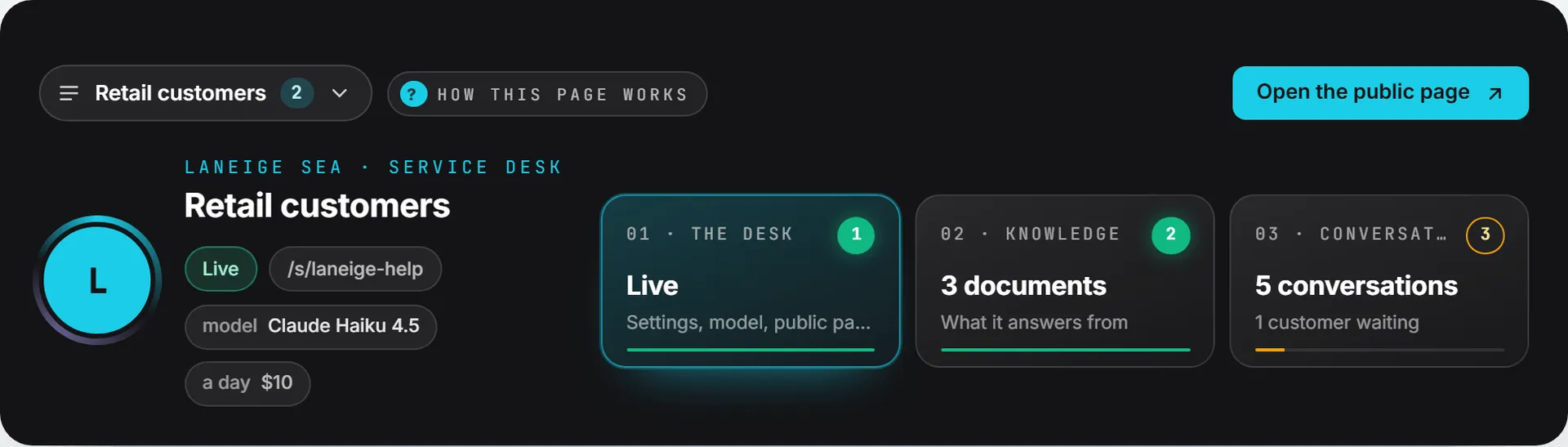
Each desk page has three tabs, shown as tiles in the band:
- The desk: settings, model, public page and the codes for your website.
- Knowledge: the documents, the websites and the library folders the desk answers from.
- Conversations: what customers asked.
Next to the settings, a phone frame shows the public page as customers see it, and it updates while you type. People who can edit the desk can also ask it test questions there.
The band also carries a desk picker. It lists every desk of the same brand, with its address and status, plus a link back to All desks. Open the public page appears while the desk is live.
Open a desk of another brand than the one in the header, from a link or a bookmark for instance, and the header switches to that brand. Pick a different brand afterward and you’re taken back to the Desks page.
What your customers see
Note: A new desk starts switched off. Nothing is public until you turn it on and save.
Customers never sign in. They reach a desk through its public page, at https://intelligence.bearingbridge.com/s/ followed by the desk’s slug, or through your own website: a round chat button in a corner, a window inside a page, or a plain link.
The page shows your brand logo, the name you chose and your welcome message. The customer types a question and gets a short answer, with the documents it came from listed under it.
A desk that is switched off shows nothing. Its address returns a “not found” page, and the chat button does not appear on your site. The details are in Public page and website embed.
How the desk answers
The assistant answers only from the desk’s documents. It won’t reach for general knowledge about your brand, or guess. Whatever language the customer writes in, it replies in that language.
When the documents do not hold the answer, it says so, in words like “I do not have that information in [your brand]‘s documentation.” It then offers the ways out you switched on: Send an email to your contact address, Fill in the form, or both. Contact details a customer leaves land in the desk’s Conversations tab.
There is no live chat with your team. The desk hands a customer over by email or through the form, and someone on your side replies later.
Each desk answers with the model picked in its settings, or with your organization’s default model for the Service Desk.
Your brand guidelines shape its tone, and so do the organization skills set for the Service Desk. Neither can make it answer from outside the documents. See Brand foundation and Organization and personal skills.
Who can do what
If a button you expect is missing, your role is usually why. The Service Desk must be switched on for your organization, and inside it, what you can do depends on your role and on your brand access.
| Action | Who can do it |
|---|---|
| See the Desks page, open a desk, read its settings, documents and conversations | Anyone whose role can view the Service Desk, for the brands they can open |
| Create a desk, save settings, add documents, design the website button | Editor level and above |
| Ask test questions in the phone frame | Editor level and above |
| Delete a desk | Editor level and above, once the desk is switched off |
Someone at viewer level sees a desk’s settings but gets no Save settings button, and the test box stays locked.
Your organization’s administrators can adjust these rights per role or per person. See Roles and rights.
What it costs
You spend credits when you index documents or a website, when you ask test questions on the desk page, and on every answer a customer gets. The app prints the cost of indexing and of each test answer right where you run them. Answers to customers are paid from your organization’s credits and show in its usage log. Each desk also has a daily budget that caps them, 10 US dollars unless you change it. The full breakdown is in Conversations and costs. See credits and costs.
Good to know
- Ask Intelligence can read your desks, their documents and recent conversations, for people who have the Service Desk. See What Ask can read.
- To feed two desks from the same material, link the same library folder, or the same website, to both.
- The menu and the Desks page always list the same desks.