Articles from search data
Pick a keyword cluster in the Articles workspace and the run reads live Google results, volumes and your ranks before proposing outlines. Here is how.
Articles built on search data live in Brand Content: open Brand Content in the left menu, then Text, then the Other tab. If you kept a link to the old Search articles page, it still works and lands in the same workspace. Here’s how your Search keywords feed it. The full guide to the workspace is in Articles.
Start an article from a keyword cluster
Every article starts from a brief: text, a link, a PDF, a keyword cluster, or any mix. Only the cluster brings in search data.
- In the Articles workspace, add your brief: text, a page to read, a PDF. All of it is optional once you pick a cluster.
- In Keyword cluster, pick one of the brand’s clusters. The list shows the clusters that hold keywords on the Keywords page. With none, it says “None yet. Add them on the Keywords page.”
- Pick the Language, EN or FR. The run reads the cluster’s keywords in that language only.
- Set Outlines to draft, from 1 to 20.
- Check the summary line next to the button. With a cluster it says “cluster: [name] (buys search data)”. Without one it says “no cluster (no search spend).”
- Click Create the brief and its outlines.
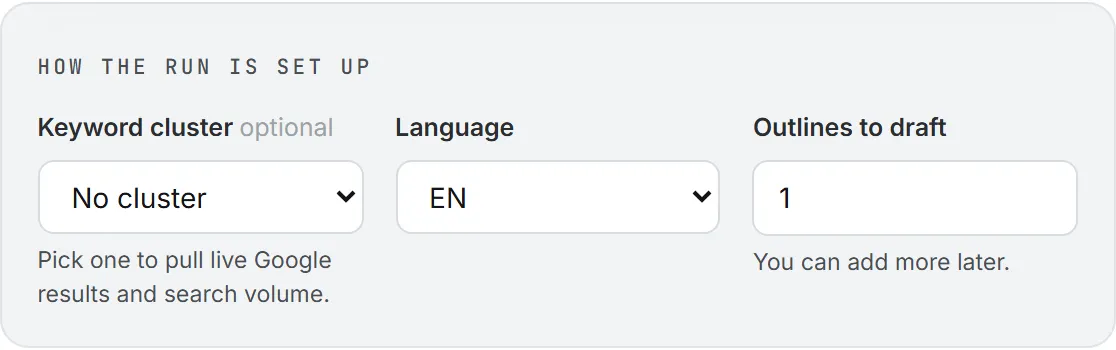
With a cluster, the run reads the cluster’s keywords in the brief’s language. For each keyword it fetches the top Google results and the search volume. It also brings in, as evidence:
- The brand’s current Google ranks for those keywords.
- The figures of the competitor report for that cluster, if there is one (see Competitors).
- The latest findings of the market monitor, Search rankings and AI visibility agents, if any ran for the brand.
The AI proposes outlines with that evidence in hand, so they point at keywords with volume where the brand is weak or absent. Before proposing anything, it looks at the articles already planned for that cluster to avoid repeating one.
If the cluster has no keywords in the brief’s language, the run works from the rest of the brief. With no other brief content, it stops and says so.
Outline runs are queued and run on the server one after another, so you can leave the page and come back to them finished.
See coverage from the Keywords page
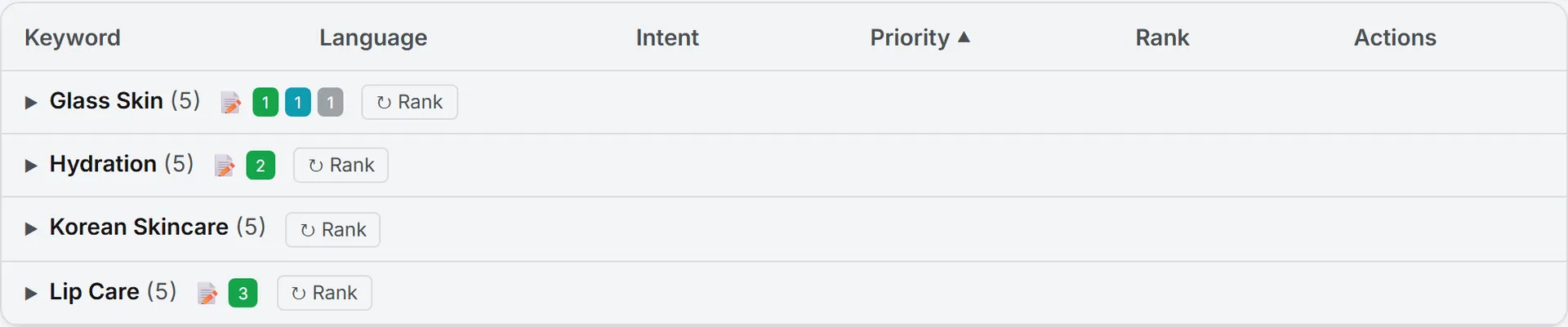
On the Keywords page, a cluster with articles shows a small note icon on its header with three counters:
| Counter | Label on hover | Meaning |
|---|---|---|
| Green | Published | Articles live on the site |
| Blue | Accepted | Articles approved, not yet published |
| Gray | Proposed | Articles suggested, not yet accepted |
It helps you spot a cluster you want to rank for that has no content behind it yet.
Fill the clusters first
A cluster with three keywords gives the run little to go on. Two ways to grow it:
- Keyword Gap lists what competitors rank for and you don’t. + Track adds a keyword to your list.
- Initialize with AI on the Keywords page proposes a full clustered list for a new brand.
The Content plan page works per cluster too.
What it costs
A run with a cluster buys live Google results and volume for each keyword, on top of the AI writing. The summary line in step 5 tells you before you click.
Tip: To test a brief without buying search data, leave Keyword cluster on No cluster.
The Articles workspace shows the cost of every generation. See What costs credits.
Who can do this
The Articles workspace belongs to Brand Content. You need access to it (the Content: Text area in the roles grid) and the editor role or higher to start a run. See Roles and rights.
Troubleshooting
- “Add a brief, or pick a keyword cluster.” The form is empty. Give it at least one of the two.
- The Keyword cluster list says “None yet.” The brand has no keywords filed in clusters. Build the list on the Keywords page first.
- “No EN keywords found in cluster…” The cluster has no keywords in the language you picked, and the brief is empty. Switch the language or add a brief.