Sales overview
Sales holds your pipeline, clients, contacts, suppliers and Revenue Follow Up. Learn how the pages connect, who sees which numbers, and who can delete them.
Sales is where your organization tracks the deals it’s chasing, and later the money they bring in. It holds a CRM (the pipeline, clients, contacts and suppliers) and a finance area called Revenue Follow Up. Start here if you’re new to it. This is also the page that answers who in your team can see the numbers.
What is in Sales
Sales has its own entry in the left menu. Open it and you get five pages:
| Page | What it holds | Where it lives |
|---|---|---|
| Pipeline | Every deal on a board, with its value above it | /sales/crm |
| Clients | The companies you sell to | /sales/crm/clients |
| Contacts | The people at your clients and suppliers | /sales/crm/contacts |
| Suppliers | The companies you buy from | /sales/crm/suppliers |
| Revenue Follow Up | Billing, costs, profit and loss, cash flow and team | /sales/revenue |
Revenue Follow Up carries a Beta badge in the menu. The same five pages also sit in a bar at the top of every Sales page, so you can jump between them. Revenue Follow Up adds a second row with its own tabs: P&L, Revenue lines, Costs, Team and Cash flow.

Stuck on a page? Each one has a How this page works note in its top band that sums up its rules.
Sales belongs to the organization
Sales data belongs to your organization, not to a brand, so you won’t find a brand picker here. A client added while you work on one brand is there for every brand, and one client can hold deals for several of them.
So everyone with access to Sales works from the same pipeline and the same lists. There’s one board per organization.
Every amount in Sales is shown in the organization’s reference currency. An admin picks it in CRM settings, which sits in the Admin menu under CRM, and can add a second currency that shows next to it.
Who can see and do what
This is the section admins tend to come back to. Your access comes down to a few layers.
- The Sales capability must be on for your organization and for you. If it’s off, Sales isn’t in your menu at all, and only an admin can switch it on (capabilities and modules explains how).
- Your rights on two areas: CRM (pipeline, deals, clients, contacts and suppliers) and Revenue Follow Up (the finance pages). Admins grade these per role, or per person. See roles and rights and how admins set them.
- A handful of fixed rules, covered below.
Unless an admin has set other rights, the defaults are:
| Action | Viewer | Editor or Brand Manager | Admin |
|---|---|---|---|
| See the pipeline, clients, contacts and suppliers | Yes | Yes | Yes |
| Create and edit deals, clients, contacts and suppliers | No | Yes | Yes |
| See and edit Revenue Follow Up | No | No | Yes |
| Change CRM settings | No | No | Yes |
| Delete a client, supplier or contact | No | No | Yes |
Some rows hold whatever the grid says. A viewer is read-only everywhere in the app, so granting a viewer write rights on CRM changes nothing. CRM settings always need an admin. So do the deletes in the last row.
Important: Revenue Follow Up is finance. Viewing it already shows every number: income, salaries, costs and cash. Give view rights on it with care.
An admin can open it to an editor, for example a finance lead, on that person’s own rights. Someone without them who opens a Revenue page is sent back to the pipeline.
Rules tied to the deal owner
Every deal has an owner. It’s you when you create the deal, unless you pick a colleague in the Owner field. Some actions are the owner’s (or an admin’s) alone:
- Dropping a lead.
- Handing a deal to another owner.
- Deleting a deal.
A timeline entry on a deal can be edited or deleted by the person who wrote it, or by an admin.
Deletes are admin-only
Deleting a client, a supplier or a contact takes an admin. The Delete buttons don’t show for anyone else. A client or supplier that still has deals or revenue lines can’t be deleted at all until those are removed.
How deals, clients and suppliers connect
A deal always belongs to one client, and a contact to one client or one supplier. You can create the client and a contact right from the New deal form, so nobody has to fill in three pages before logging a lead.
Suppliers attach to deals, as many per deal as you need. The same supplier can sit on several deals at once.
When a deal is won, people with Revenue rights get a Create revenue lines button on the deal. It takes you to Revenue Follow Up with a new revenue line already filled in from the deal: client, name, amount and currency.
Every open deal carries a next step with a date. That step also shows up as a card on the Project Management board, assigned to the deal owner. See pipeline and deals.
Your sales data elsewhere in the app
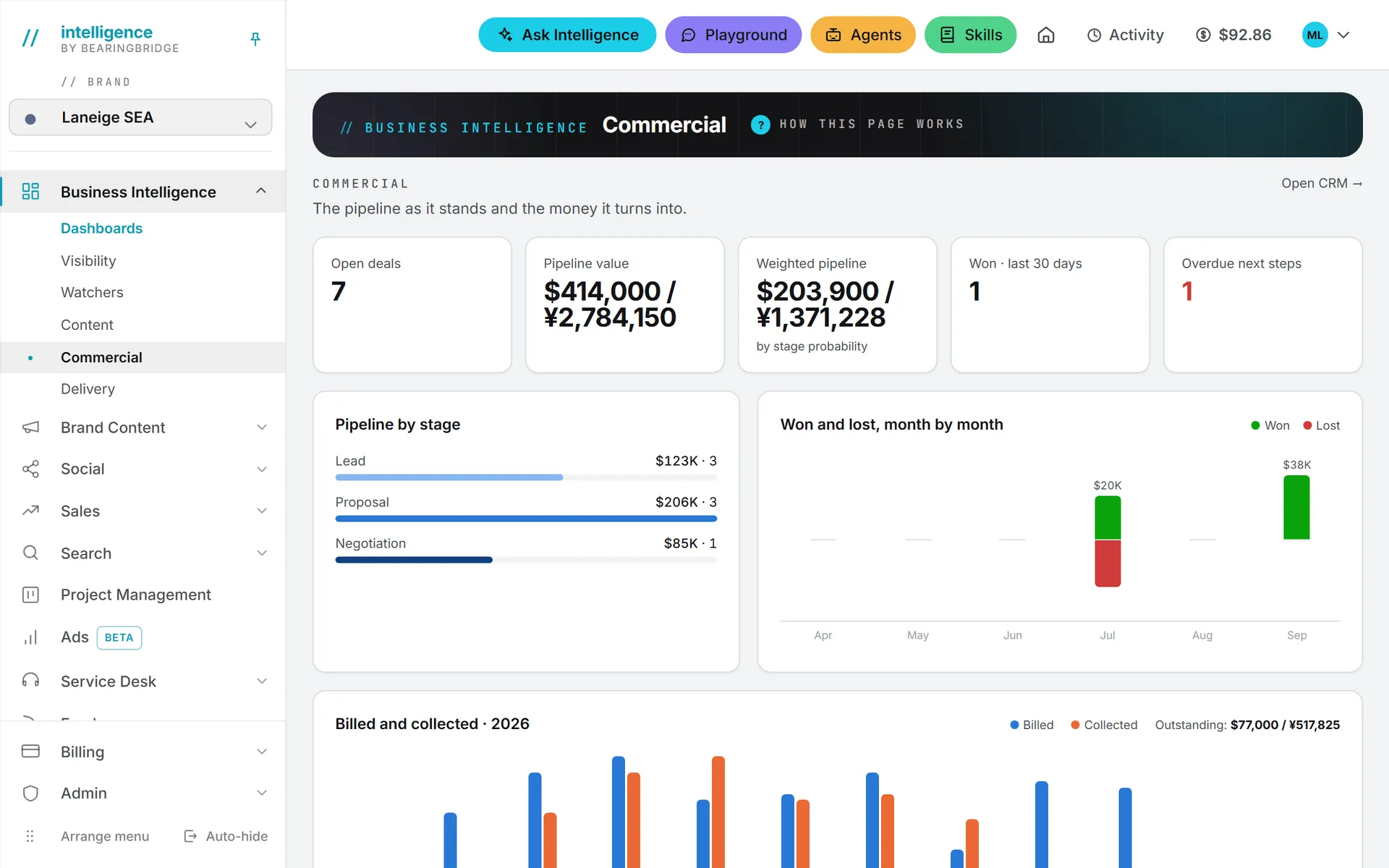
The Commercial dashboard in Business Intelligence sums up the pipeline: open deals, pipeline value, weighted pipeline, deals won in the last 30 days and overdue next steps, with an Open CRM link back here.
Ask Intelligence reads your pipeline, clients, sales activity, revenue and costs by default. Untick CRM and revenue in the Data included panel if a conversation should leave them out. It only reads the areas you can see yourself: without Revenue rights, it can’t read revenue or costs either. See what Ask can read.
What it costs
Nothing in Sales spends credits on its own. Deals, clients and the rest are plain records: saving one calls no AI model. Asking Ask Intelligence about your sales data is billed like any other question, with the cost shown on the answer (credits and costs has the details).
Setting up Sales for a new team
If your organization is starting from scratch, this order saves rework:
- An admin opens CRM settings and picks the reference currency. Do it first: changing it later converts every amount already entered.
- The same admin checks the dropdown lists (deal types, sources, lost reasons) and renames anything that doesn’t fit how you sell.
- Add your clients on the Clients page, or let them appear as you create deals.
- Put your open opportunities on the Pipeline, each with a next step and a date.
- Add suppliers and contacts as you go.
- If you track finances here, an admin sets the opening cash on the Cash flow tab of Revenue Follow Up and adds the team.