CRM settings
CRM settings let admins pick the reference and second currencies, set when deals go stale, weigh each stage, and edit the dropdown lists across Sales.
CRM settings shape how your organization’s Sales capability counts, and what its lists offer. Only admins can open the page, and what they set applies to everyone who uses Sales.
Open the settings
In the left menu, open Admin and click CRM. The page’s band reads Pipeline settings. The entry only shows when your organization has the Sales capability. Anyone who isn’t an admin and opens the page is sent to the pipeline.
Pipeline
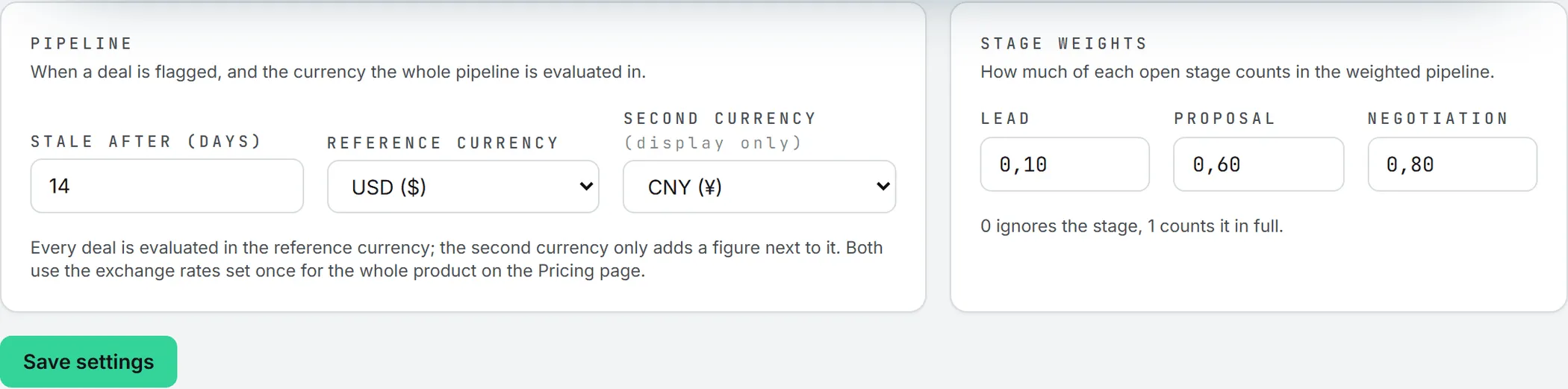
The Pipeline card holds three settings.
| Setting | What it does | Default |
|---|---|---|
| Stale after (days) | How many days without an activity or a stage move before a deal gets a red dot on the pipeline; the minimum is 1 | 14 |
| Reference currency | The currency every amount in Sales is shown in | CNY |
| Second currency | An extra figure shown next to each amount, for display only | None |
The currency lists offer USD ($), EUR (€), CNY (¥), HKD (HK$) and AUD (A$). A new stale limit shows on the board the next time anyone opens it: the red dots are worked out each time the page loads.
Reference currency
Deals, revenue lines and costs are entered in whatever currency they were agreed in, then converted into the reference currency on save. The board, the numbers above it, the client lists and every Revenue Follow Up table use that converted value.
If you can, pick it before your team starts entering data. Switching later converts every amount already saved, in two passes:
- All converted amounts move from the old currency to the new one at today’s exchange rates, closed deals and paid rows included.
- Open deals, and unpaid revenue lines and payables of this month or later, are then recomputed from the amount and currency they were entered in.
Once it’s done, the page confirms: “Saved. Every amount of the organization was re-anchored in the new reference currency.”
Switching back later won’t restore the old figures to the cent, since each switch converts at that day’s rates.
Important: Team salaries and the opening cash are typed straight in the reference currency, and they are not converted when you switch. Check them on the Team and Cash flow tabs of Revenue Follow Up and correct them by hand.
Second currency
The second currency adds a figure after each amount, such as “¥36,250 / $5,000”, and changes nothing in the numbers themselves. Pick None to hide it (choosing the reference currency again also hides it).
Exchange rates
Exchange rates aren’t set on this page. The BearingBridge team keeps one rate table for the whole product. When it changes, open deals and unpaid revenue lines and payables of this month or later follow. Closed deals and paid rows keep their value for good. The rates aren’t shown in the app; if you need the one used on a given day, contact support.
Stage weights
The Stage weights card sets how much each open stage counts in the Weighted pipeline figure on the pipeline band. The Commercial dashboard in Business Intelligence uses the same weights.
| Stage | Default |
|---|---|
| Lead | 0.10 |
| Proposal | 0.60 |
| Negotiation | 0.80 |
Weights run from 0 (the stage is ignored) to 1 (it counts in full). A value outside that range is refused with “Weights must be between 0 and 1.” With the defaults, a 100,000 deal in negotiation adds 80,000 to the weighted pipeline.
Click Save settings to keep the pipeline and stage weight settings. Both cards save together, and the page confirms with “Saved.”
Dropdown options
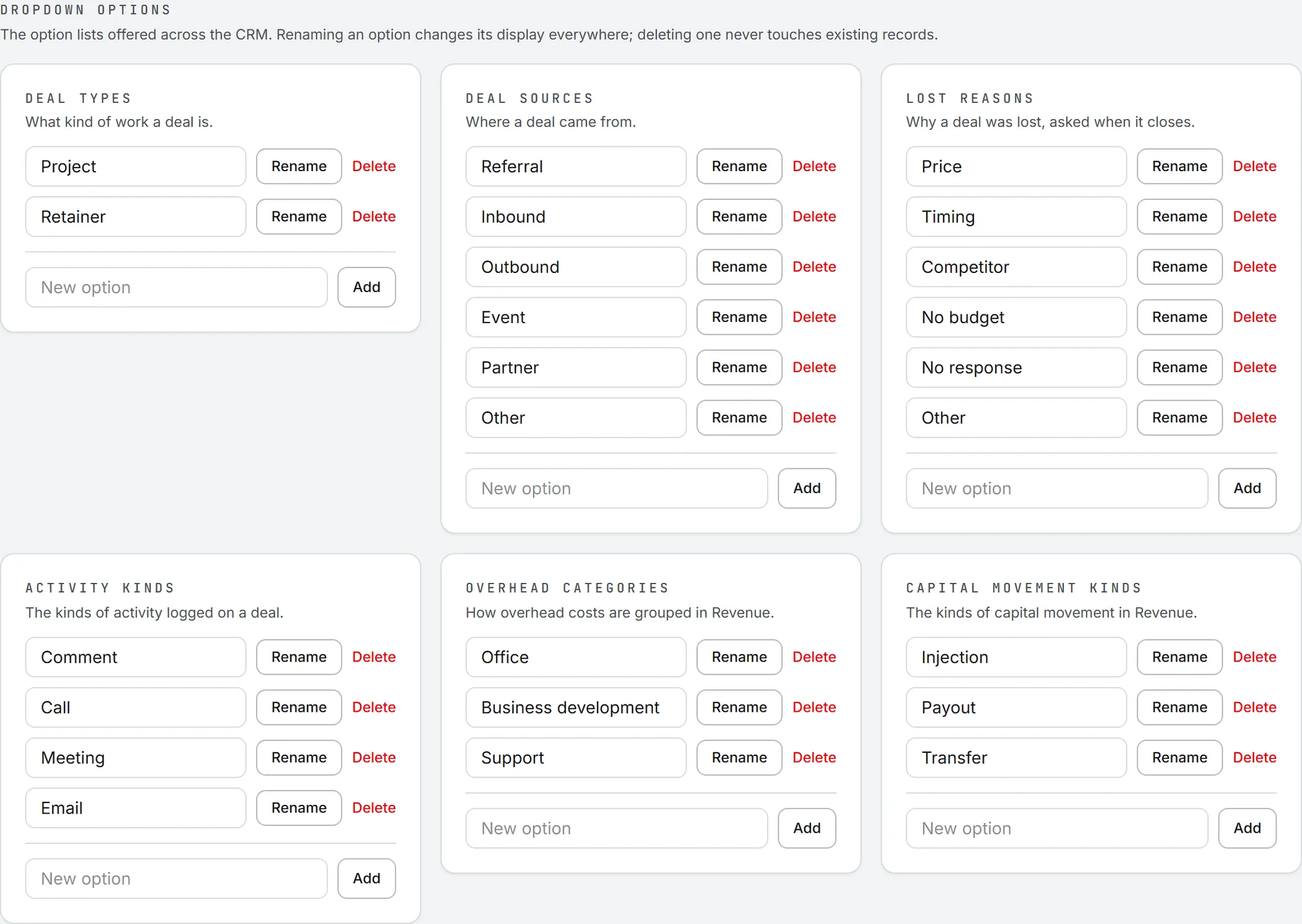
The rest of the page is lighter work. Further down, the page manages the six option lists used across Sales:
| List | Where it is used | Default options |
|---|---|---|
| Deal types | The type of a deal | Project, Retainer |
| Deal sources | Where a deal came from | Referral, Inbound, Outbound, Event, Partner, Other |
| Lost reasons | Asked when a deal is lost | Price, Timing, Competitor, No budget, No response, Other |
| Activity kinds | The kinds of timeline entry on a deal | Comment, Call, Meeting, Email |
| Overhead categories | Overheads in Revenue Follow Up | Office, Business development, Support |
| Capital movement kinds | Capital movements in Revenue Follow Up | Injection, Payout, Transfer |
The default options are created the first time your organization opens the CRM. Unlike the cards above, each change to a list is saved on its own, as soon as you click its button. New options go to the end of their list; there’s no way to reorder them.
Add, rename or delete an option
To add an option, type its label in New option at the bottom of a list and click Add. To rename one, change the label in its box and click Rename; the button says “Saved” for a moment, and the new label shows everywhere, on existing records too.
Delete asks you to confirm, then stops offering the option. Records that already use it keep their value, though they may show the option’s short internal name instead of its label.
Tip: The Retainer deal type is the one that adds the billing frequency and period amount fields to a deal. You can rename it safely; the fields are tied to the option itself. If you delete it, those fields won’t appear again until an option named “Retainer” is added back.
Who can do this
Admins only. The page and every change on it need the admin role; rights granted in the grid don’t open it to anyone else. See roles and rights.
What it costs
Nothing. Changing settings never spends credits. See credits and costs.