Reminders and recurring tasks
The app emails a new assignee, reminds them daily until the task is done, and creates the next occurrence whenever someone finishes a recurring task.
The app emails a colleague when you hand them a task. It can also remind them every day until the task is done, and bring it back on a schedule once it’s finished.
The assignment email
Whoever you assign a task to gets an email. It goes out when you pick them in Assigned to in the task details, when you use Assign to in the right-click menu, and when you add a task on My tasks, which assigns it to you.
It only goes out when the task changes hands. Saving it again with the same person sends nothing. Clearing the assignee doesn’t send one either. Assigning a task to yourself does send one, so you keep a record with a link to the task.
The subject reads “New task for you: ” followed by the title. When the task has a brand tag, the brand comes first in brackets, as in “[Acme] New task for you: Draft the Q4 plan”, and the email takes on that brand’s logo and color.
Inside, a short table repeats what the card says: the task, its column, project, brand, start and end dates, how often it repeats, the task it waits on (“Starts after”) and who assigned it. An Open the task button opens the board with the task’s details already open. Two more links lead to the board and to My tasks.
The email is written in the language you use in the app (English, French or Chinese, among those your organization offers). The dates follow the reader’s own date settings. A reply goes straight to the person who assigned the task.
Cards the app creates on its own don’t send this email. That covers CRM next steps (including when a deal changes owner), validation requests and social posts. Validation sends its own emails instead.
Daily reminders until it’s done
A reminder nudges the assignee once a day while the task is still open. To switch it on:
- Open the task details.
- Pick someone in Assigned to.
- Tick Daily email reminder until done.
- Click Save.
The card then shows a bell with “daily”. You can tick the box before anyone is assigned. Nothing is sent until someone is.
A run works like this. The app sends at most one reminder a day, in a daily pass around 6:00 UTC (2 p.m. in Hong Kong, early morning in Europe). It stops after seven. Each one is counted, “reminder 3 of 7” for example, and says that nothing more will come after the seventh.
Reminders don’t look at the due date. Once switched on, they go out at every daily pass, whether the task is due tomorrow or next month. You can’t change the hour or the number of reminders.
What happens to a run when the task changes:
| When this happens | Reminders |
|---|---|
| The task reaches Done | Stop |
| The task is archived | Stop |
| The assignee is cleared | Stop |
| Someone unticks Daily email reminder until done | Stop |
| The task is handed to someone else | Start over, so the new person gets a full week |
| Reminders are switched off, then on again | Start over |
A reminder’s subject reads “Still open: ” followed by the title, with the brand first when there is one. It’s written in the language of the person who switched reminders on, and replies go to them.
Recurring tasks
Repeats and reminders are separate settings: a task can have either, both or neither. A recurring task comes back after you finish it. Choose the interval in the task details, under Repeats: Repeats every day, Repeats every week, Repeats every 2 weeks or Repeats every month. Does not repeat turns it off.
The card then shows a loop with the interval, such as “every week”.
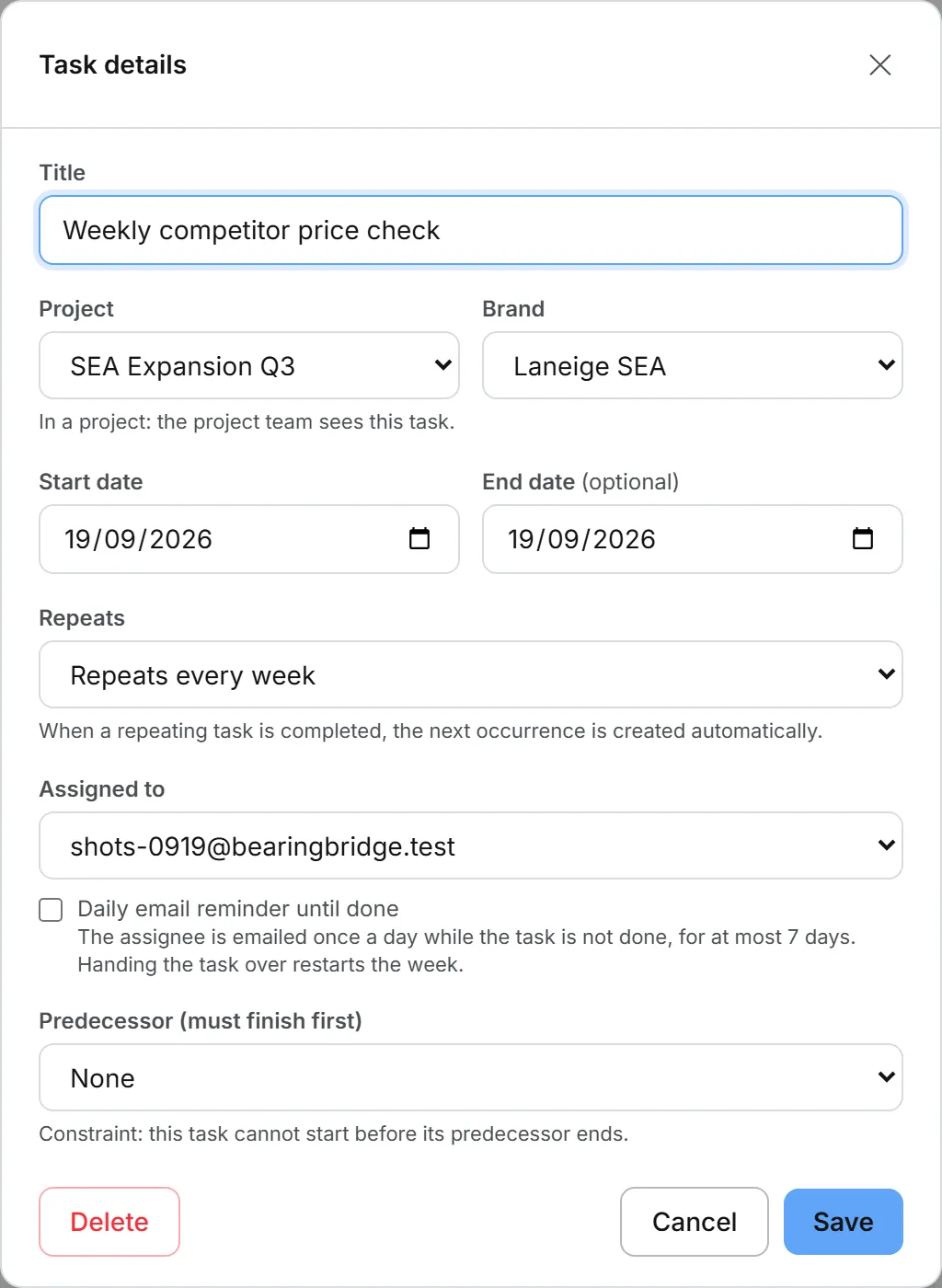
Move a recurring task to Done, from the board, from My tasks or by ticking it on the Today card, and the next occurrence appears in To Do right away. It keeps the title, project, brand, assignee and reminder setting, with a fresh week of reminders. It drops the predecessor, which applied to the occurrence you just finished. The finished card stays in Done and stops repeating, so the series carries on in the new card.
When the next one is due
The dates move forward by the interval, as many times as needed for the end date to land after today. If the task has no end date, its start date moves instead. So a weekly task finished two weeks late comes back due next week, not already overdue. Start and end move together, so the task keeps its length. A monthly date past the end of a shorter month, such as the 31st, moves to that month’s last day.
And if a recurring task gets finished twice, say from two open tabs or with a double click, only one next occurrence is created.
Who can do this
Anyone who can edit a task can assign it and set it to repeat. The same goes for switching its reminders on or off. It doesn’t have to be the person who created it. See who can do what on the board.
What it costs
Nothing. The emails are free.
Good to know
- To get reminders about your own work, assign the task to yourself and tick the reminder box.
- These emails can’t be switched off in your settings. To stop reminders, untick the box on the task, or finish it.
- If an email’s button no longer opens the task, it may have been archived or reassigned since. Ask an admin of your organization.