The project board
The project board holds your organization's tasks in three columns and a Gantt view. Learn who sees each task, how cards move, and what's reported.
The project board holds your organization’s tasks in three columns: To Do, In Progress and Done. You add tasks there and hand them to colleagues, then push them along as the work moves. At the end of the day, or the week, it shows what got finished. The same tasks also fit on a timeline.
Before you start
Project Management is a capability. Your organization needs it switched on, and so does your own account. If Project Management is missing from the left menu, ask an admin to check capabilities.
Tasks belong to the organization, not to a brand. A task can carry a brand tag, but the brand picked in the left menu doesn’t filter the board. See brands.
What’s on the page
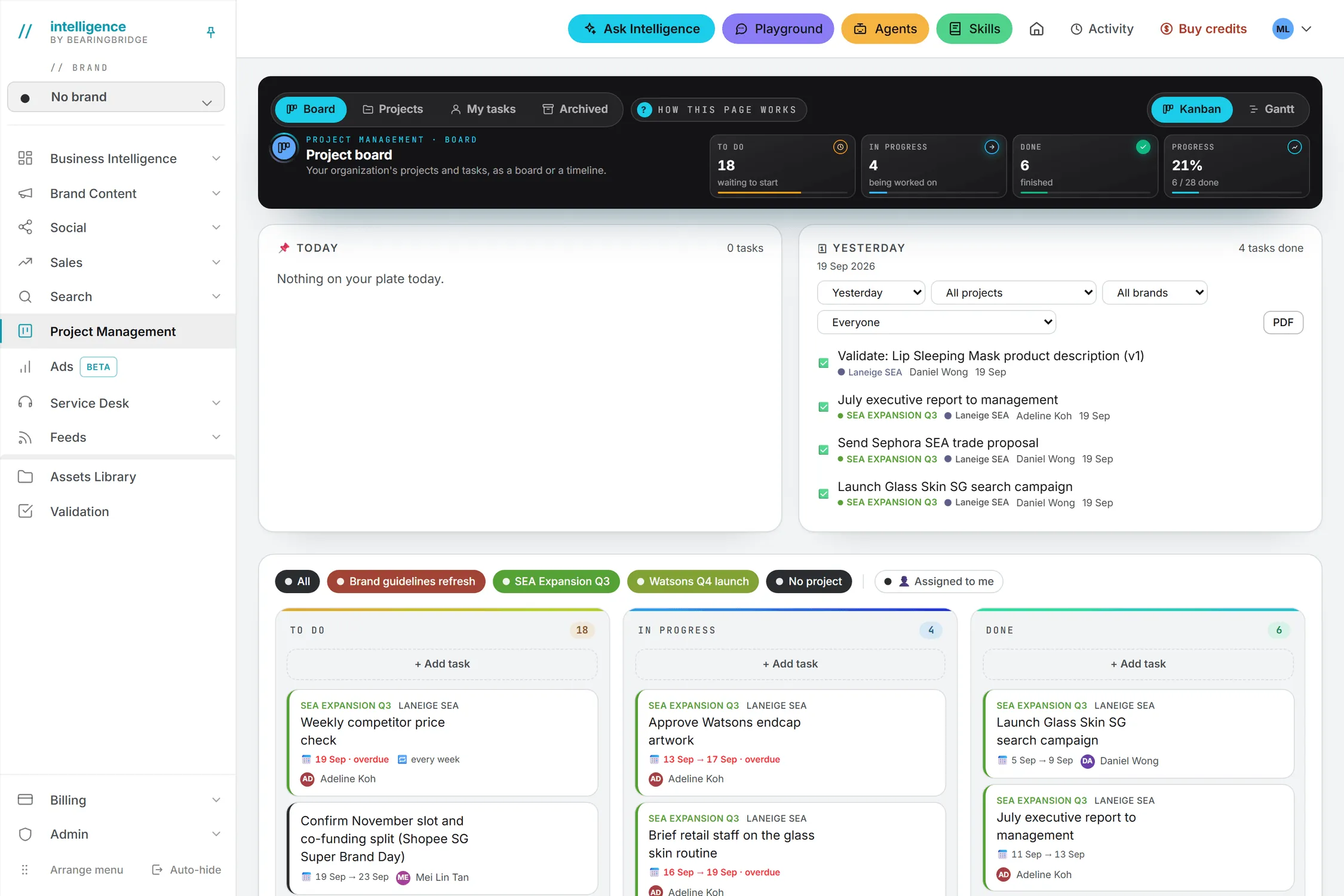
Open Project Management in the left menu and you land on Board. The dark band at the top carries four tabs (Board, Projects, My tasks and Archived) and a How this page works note.
The band also holds four tiles. To Do, In Progress and Done count the tasks in each column, and Progress gives the share that’s finished, as a percentage and as “done / total”. The tiles count what the board shows, so a filter changes them too.
Under the band come two cards, Today and the report of finished work, and then the three lanes. A switch on the band flips the lanes to Gantt and back to Kanban. Your browser remembers the last view you used.
Who sees a task
Two people can open the same board and see different cards. What you see depends on where each task sits.
| Where the task sits | Who sees it |
|---|---|
| In a project | The project’s team, plus the organization’s admins |
| Outside any project, created by a person | Only the person who created it and the person it’s assigned to. The card says “personal” next to a lock. |
| Outside any project, created by the app | Everyone in the organization. This covers CRM next steps, validation requests, social posts and agent findings. |
Moving a task into a project hands it to that project’s team. Taking it back out makes it personal again, to whoever created it. When an admin deletes a project, its tasks stay on the board outside any project, and from then on everyone in the organization can see them.
The brand tag plays no part in this: a task tagged with a brand is seen by the same people as an untagged one. The line under Project in the task details always tells you who sees that task. Teams are set on the Projects page.
What the chips on a card mean
A card shows the project name in the project’s color, then the brand tag if there is one. Under the title, small chips appear only when they apply:
- The dates, as a range. An end date in the past turns the chip red and adds “overdue”.
- A lock with “personal”, for a task outside any project that only its author and assignee see.
- A loop with the interval, such as “every week”, for a recurring task.
- A bell with “daily”, when the assignee gets a daily reminder.
- The assignee’s initials and name.
Add a task
- Click + Add task at the top of a lane. The task starts in that column.
- Pick where it goes, if the app asks. The list appears only when you have a real choice: No project (personal) or one of your projects.
- Type a title in the New task… box.
- Press Enter to save, or Escape to cancel. Clicking away also saves.
The new task starts today and has no end date. Open it to set the rest.
Note: A task saved under No project (personal) is private. Only you, and whoever you assign it to, will ever see it.
Edit a task
Click the pencil on a card, or double-click the card, and the Task details window opens. A Gantt bar or the right-click menu opens it too.
| Field | What it does |
|---|---|
| Title | Required. |
| Project | The project, or No project (personal). The line under it says who sees the task. |
| Brand | An optional brand tag, or No brand. You can only pick brands you have access to. |
| Start date | Required. You can move it but you can’t clear it. |
| End date (optional) | The due date. Leave it empty for open-ended work. |
| Repeats | Does not repeat, or every day, week, 2 weeks or month. See reminders and recurring tasks. |
| Assigned to | Unassigned or a colleague. On a project task, only the team is listed. |
| Daily email reminder until done | Emails the assignee once a day, 7 times at most. |
| Predecessor (must finish first) | Another task that has to end before this one can start. |
Click Save. The app checks the schedule first and won’t save a broken one. A red line tells you what’s wrong, with messages such as “The end date cannot be before the start date.”, “This task cannot start before its predecessor ends” (with the date), “A task cannot be its own predecessor.” or “This would create a circular predecessor chain.”
Move a task
Drag a card to another lane, and a blue line shows where it will land. The left and right arrows on the card move it one column at a time. ← Move left and Move right → in the right-click menu work the same way.
When a one-off task reaches Done, the app sets its end date to the day you finished it. If the task was planned to start later than that, the end date becomes its start date instead.
You don’t arrange the lanes by hand. Inside each lane, the card with the nearest end date comes first, and tasks without an end date follow, newest first. The small up and down arrows on a card (and ▲ Move up and ▼ Move down in the menu) only break ties between cards with the same end date and creation time, which is rare. In practice the end date decides, so to pull a card up, give it an earlier end date.
The right-click menu
Right-click a card for quick actions:
- ← Move left and Move right →
- ▲ Move up and ▼ Move down
- Assign to, with Unassigned and your colleagues (the team only, on a project task)
- Project, to move the task into a project or to No project
- Edit details…
- Duplicate, which adds a card with the same title in the same project and column (the copy starts today, unassigned)
- Archive, on finished tasks, for admins
Filter the board
A row of chips sits above the lanes when there’s something to filter. All shows everything. Each project has its own chip, and No project covers the loose tasks. Click chips to hide or show them, or click All to clear the selection and start over.
Assigned to me narrows the board to your own tasks. Filters apply to the lanes and the tiles. The Gantt view always shows every task you can see.
The Gantt view
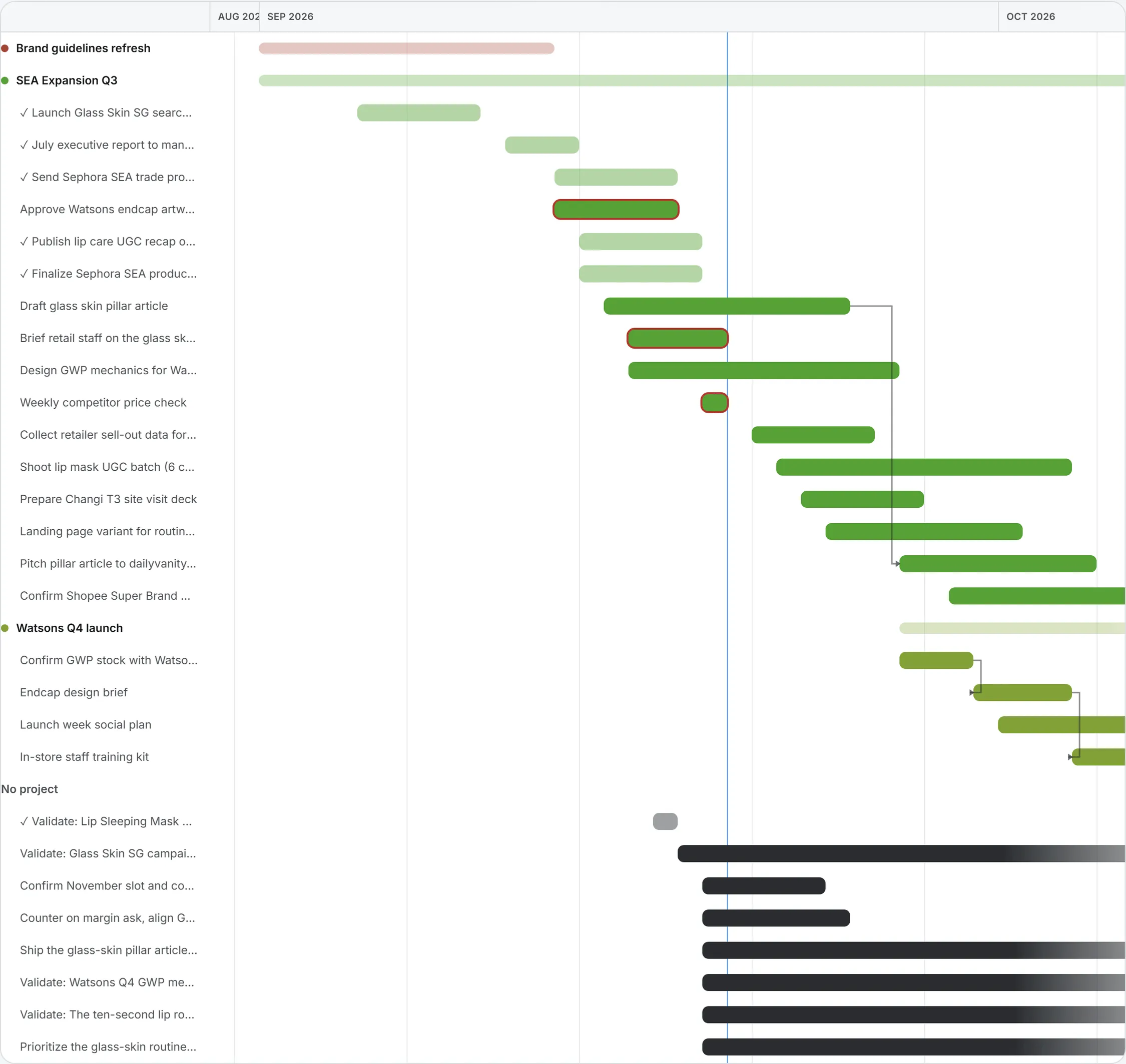
Click Gantt to see the same tasks on a timeline. Each project gets a header row with a pale bar from its start date to its end date, and its tasks follow as bars. Tasks outside any project sit under No project.
The bars carry a few signals. A task with no end date fades out at the right edge. A late task gets a red outline. A finished task is pale and starts with a check mark. An arrow runs from a predecessor to the task waiting on it, and a thin line marks today. A bar opens the task details when you click it.
The Today card
The two cards above the lanes answer the questions people ask most often: what’s on my plate today, and what got done? Today is your own list for the day. It shows the tasks assigned to you that are In Progress, and the ones in To Do that are due today. Tasks in progress that are already late come first, in red. A late task still sitting in To Do does not appear here, so check the board’s red chips too.
Each line opens its task when you click the title, and the circle in front of it marks the task done.
The Done card and the PDF report
The second card lists what was finished over a period. Pick the period in its first list:
| Period | What it covers |
|---|---|
| Yesterday | Yesterday, midnight to midnight, in your time zone. It’s the default. |
| Last week | The last complete week, Monday to Sunday. |
| Last 2 weeks | The last 2 complete weeks. |
| Last month | The last 4 complete weeks (28 days), not a calendar month. |
The next three lists narrow it down: All projects (or No project), All brands and Everyone. The brand filter matches a task’s own tag, or any brand its project covers.
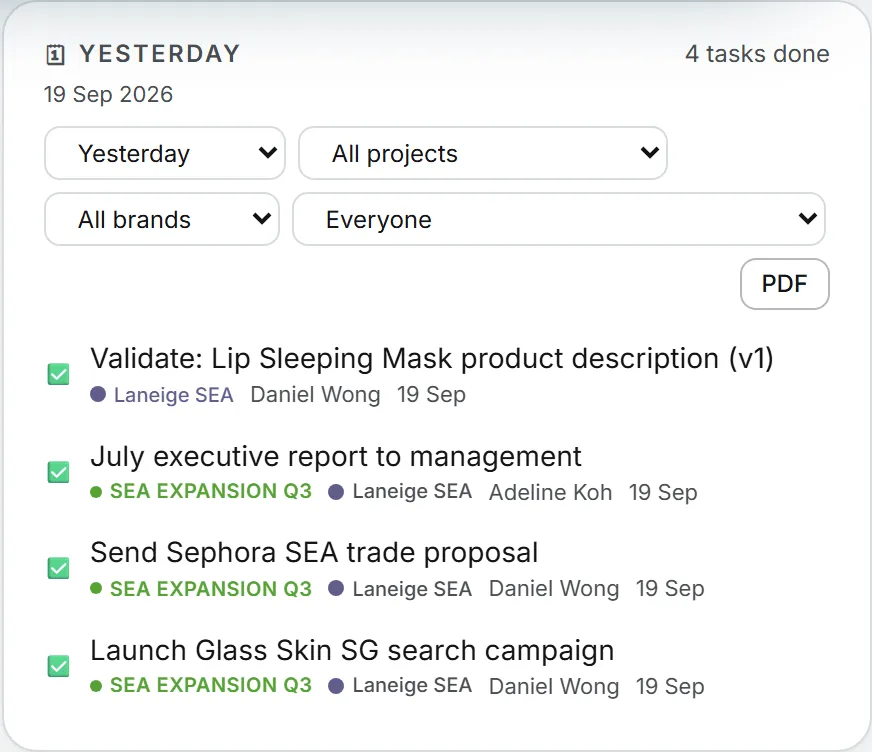
Click PDF to download the list. The file is titled “Completed tasks” and shows the period, your organization and the filters you used, then one row per task with the date it was done, the task, its project, brand and assignee. Archived tasks are included. Anyone who can see the board can export this report, including people with view rights only.
Archive and delete
Archiving takes a finished task off the boards but keeps it. Only organization admins can archive. They’ll find an archive icon on cards in Done, an Archive button in the task details of a finished task, and Archive in the right-click menu. It happens without a confirmation, because nothing is lost.
Archived tasks wait on the Archived tab. The tab lists only the archived tasks you’d be allowed to see on the board. There, Restore sends a task back to the column it was in, and Delete removes it for good after a confirmation.
Delete in the task details is just as final. It removes the task for everyone in the organization, and there’s no undo.
Tasks that other modules create
Four other modules put cards on the board by themselves. Anyone in the organization can see those cards.
| Source | What lands on the board |
|---|---|
| Sales CRM | One card per open deal with a next step, titled after the step and the deal, due on the step date and assigned to the deal owner. Finishing the card marks the step done on the deal’s timeline and opens a new step, “Define the next step”, due the next day. Moving the card’s end date moves the step date. |
| Validation | A card titled “Validate:” for the validator. Its details carry an Asset to validate link. The card finishes itself when the validator decides. |
| Social calendar | A card titled “Social post:” once a planned post has an assignee. It moves to Done when the post is marked published. |
| Agent findings | A card made with Create task on a finding, titled with the suggested action. |
Who can do what
That covers the board itself. The last sections are about rights, cost and the odd problem.
| Action | Who |
|---|---|
| See the board | Anyone whose organization and account both have Project Management, with the view right |
| Add, edit, move and assign tasks | People with the create and update rights. Editors and up have them by default. |
| Delete a task | People with the delete right, on any task they can see |
| Archive a finished task | Organization admins |
| Restore an archived task | People with the update right |
Someone with view rights only can read the board, but a move or an edit is refused and the card snaps back. Admins can grade these rights per role and per person. See roles and rights.
What it costs
The board uses no AI, so nothing you do on it draws on credits. That includes the cards other modules file here.
Troubleshooting
- A task has disappeared. Check the filter chips and Assigned to me first. Then check the Archived tab. If it was moved into a project you’re not on, only that team and the admins can see it now.
- “This task is not yours to open.” The task is personal to someone else, or in a project you’re not on.
- “You are not on this project.” Ask an admin to add you to the team.
- “This person is not on the project team. Add them to the project first.” Project tasks can only go to team members.
- “Only an organization admin can archive tasks.” Ask an admin, or leave the task in Done.
- “Could not save the change” followed by a reason. The board reloads what’s saved. Try again, or check your rights.
Good to know
- The assignment email has an Open the task button that opens the board with that task’s details already open.
- The Done card dates a task by its last change while in Done. If someone edits a finished task later, it can move into a later period.
- Dates on cards, in the Gantt view and in the PDF follow your own date format and time zone, set under date and time.
- Old links to /board open this page.