What's new
Follow product changes on the What's new page, in the Monday digest email, or on the public changelog, and see how to stop the email.
New features and fixes reach Intelligence regularly, and there are three places to follow them: the What’s new page inside the app, a digest email every Monday, and a public changelog on bearingbridge.com.
The What’s new page
What’s new lists the app’s changes, newest first, in plain language. It’s fed from product releases: a change appears there once it has shipped, not before.
Where to find it
The quickest way in is the What’s new link in the footer of any page, which opens in a new tab. You’ll also find a See what’s new link under Settings > Weekly digest, and the Read the full changelog button in the weekly email lands on the same page.
Anyone signed in can open it. Your role doesn’t matter.
How entries are organized
Entries are grouped by the day they were released, most recent on top, and each day is written in your own date format.
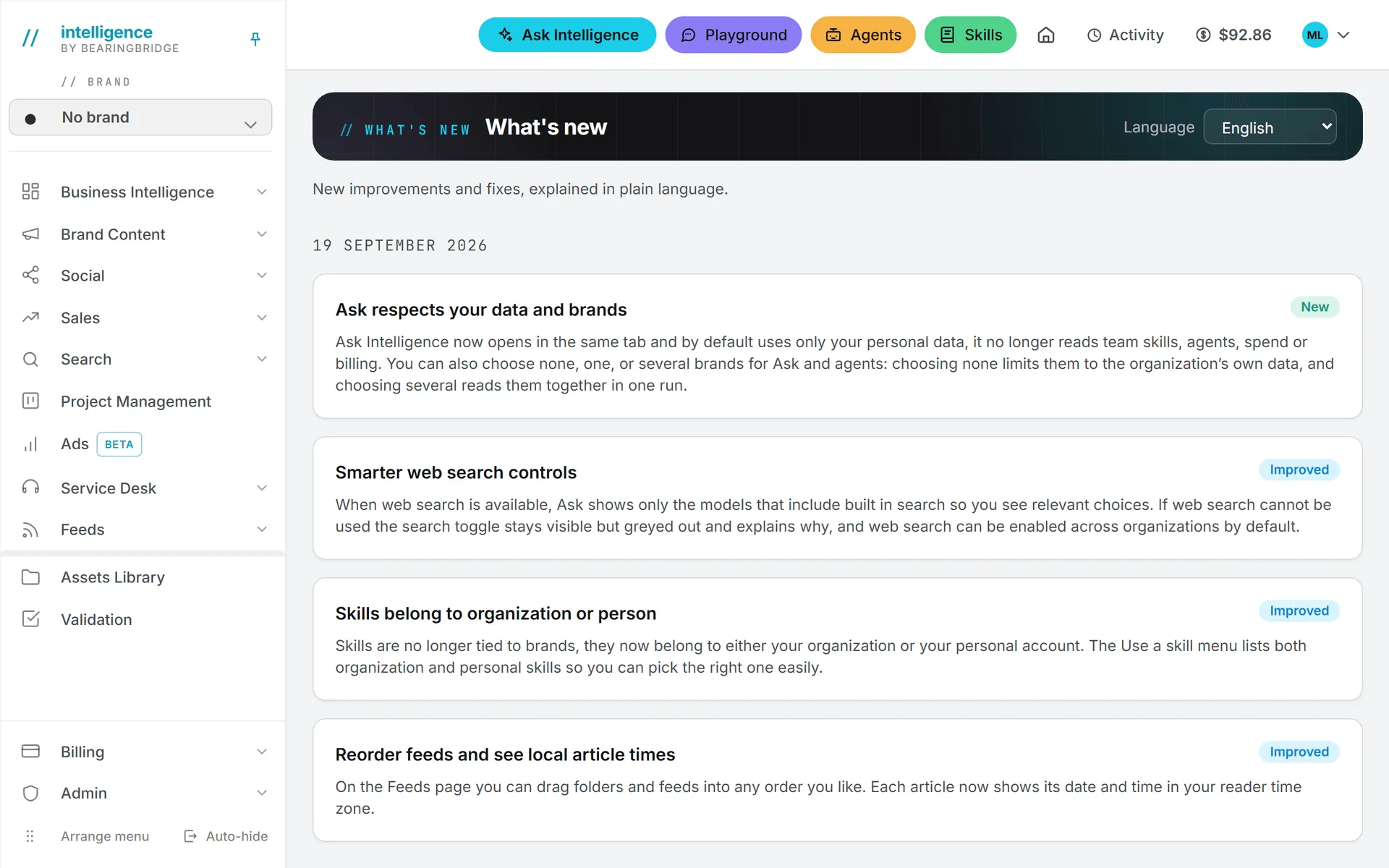
Each entry has a title, a short explanation, and a tag:
| Tag | Meaning |
|---|---|
| New | A feature that didn’t exist before. |
| Improved | Something that already existed now works better. |
| Fixed | A problem that has been corrected. |
Which language it’s in
The entries themselves are in English. The page around them, its title and tags included, follows your interface language.
If your organization offers more than one interface language, a Language picker appears at the top of the page. Changing it switches the interface language for the whole product in this browser, not only for this page. It only offers the languages your organization has switched on.
The weekly digest email
Every Monday, you get an email that sums up what changed during the previous week, Monday to Sunday.
Don’t expect a copy of the page. The digest regroups the week’s changes by theme and explains each one by what you can now do, and where. An In this issue list at the top gives you the themes at a glance, and a Read the full changelog button takes you to the What’s new page.
The subject line reads “What’s new this week” followed by the number of improvements, and the top of the mail names the week it covers. Unlike the page, the digest is written in your interface language, the one you last used in the app. If nothing changed during the week, no email goes out.
The digest goes to every user who has it switched on, and it’s on by default. People whose login is deactivated, or whose organization’s access is paused, don’t receive it. Neither the digest nor the What’s new page uses any of your credits.
Stop the digest, or turn it back on
You can stop it from any of three places:
- In the app. Go to Settings > Weekly digest and switch off Send me the weekly digest of what’s new. The page confirms with Unsubscribed. No more weekly digest.
- From the email. Click Unsubscribe from the weekly digest. A page opens saying You are unsubscribed, and you don’t need to sign in.
- From your email app. Many mail apps show their own unsubscribe button next to the sender’s name. It works with this digest too.
Changed your mind? Switch it back on in Settings > Weekly digest, and the page answers Subscribed. The next digest arrives on Monday. The other emails the app sends you are covered in emails and notifications.
If an unsubscribe link says This link is not valid, the link is incomplete or no longer matches your account. Use the switch in Settings instead.
The public changelog
The last two places are outside the app. The same releases also appear on the public changelog at bearingbridge.com/changelog. It’s rewritten for people who don’t use the app yet, and it’s in English only. You don’t need an account to read it, so it’s the link to send to someone outside your organization.
Documentation updates
This help center keeps its own log of changes to the articles. The Documentation updates page, linked from the header and footer of every help page, lists which articles were added or changed on each date, so you can reread the ones that matter to you.
When a change doesn’t show up for you
What’s new and the digest cover the whole product, so some entries concern modules your organization doesn’t use or you don’t have access to. If you read about something and can’t find it in your menu, it may not be switched on for you or for the brand you’re working in. Troubleshooting walks through the causes. For anything else about a change, write through Contact us.