Finding your way
Tour the Intelligence screen: arrange the left menu, pick a brand, set your home page, read the header, Activity and credits, and understand busy buttons.
Just signed in to Intelligence by BearingBridge and not sure where things are? This tour starts with the menu on the left and works its way across the header. It ends with the small signals buttons give while they work.
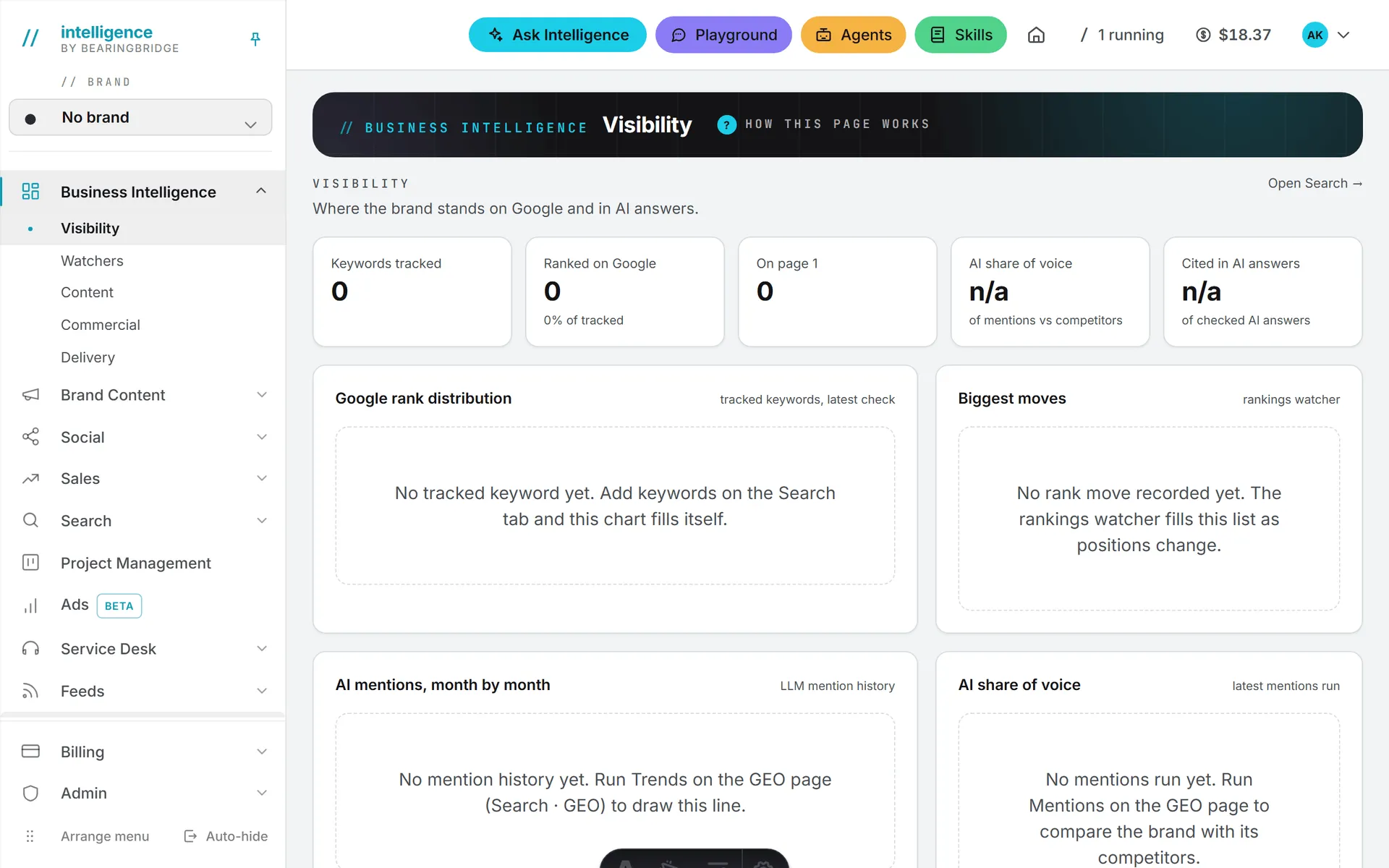
The left menu
Each area of the app has its own group in the menu down the left side. A group with several pages opens when you click its name, and its pages appear underneath; clicking another group folds the first one away. A group with a single page, such as Assets Library, opens that page directly.
Don’t be surprised if a colleague’s menu looks different from yours. An area your organization doesn’t have, or that your role can’t open, isn’t drawn at all. If something you need is missing, ask an admin of your organization. Capabilities and modules and roles and rights explain how access is decided.
What’s in each group
| Group | Pages inside |
|---|---|
| Business Intelligence | One page per dashboard: Visibility, Watchers, Content, Commercial, Delivery. A dashboard only shows when you have the area it reads. |
| Brand Content | Text, Image, Video, Tools |
| Social | Calendar, LinkedIn, Instagram, Facebook, TikTok (Beta), X |
| Sales | Pipeline, Clients, Contacts, Suppliers, Revenue Follow Up (Beta) |
| Search | SEO, GEO |
| Project Management | Board |
| Ads (Beta) | Ads |
| Service Desk | Desks, then one entry per desk |
| Partner | Leads, Invitations, Commissions (commercial partners only) |
| Feeds | Your news reader: All, Read later, then your own folders and sources |
| Assets Library | Assets |
| Validation | Assets |
| Billing | Buy Credits, Invoices, Usage |
| Admin | Organization, Connections, Brands, Users, Capabilities, Credits, Projects, AI Models, CRM (admins only) |
New accounts get the groups in that order. Feeds is the one group nothing can switch off: every account has it, in every role. Billing and Admin always sit at the foot of the menu, a little apart from the rest. A personal account has no Users or Credits page under Admin, since nobody else is in it, and the CRM entry only appears when your organization has Sales.
Pinned, auto-hide or drawer
On a computer the menu has two modes. Pinned, it stays fully open and the page sits beside it. On auto-hide, it shrinks to a narrow rail of icons and slides open when your mouse rests on it (on a touch screen, the first tap opens it).
Switch modes with the pin icon at the top of the menu or the Auto-hide button at its foot, which then reads Keep pinned. Your browser remembers the mode.
Tip: The backslash key (
\) switches between pinned and auto-hide from any page, as long as you aren’t typing in a field. The pin icon’s tooltip reminds you of it.
On a phone or a narrow window, the menu becomes a drawer. The Menu button at the left of the header opens it. Tap outside it to close it, or use the X or Escape. The backslash key opens and closes it too.
Arrange the menu in your own order
- Click Arrange menu at the foot of the menu. Arrows appear next to each row.
- Drag a group to its new place, or move it with the up and down arrows.
- Open a group with its arrow to reorder the pages inside it the same way.
- Click Done.
Each move is saved on your account right away, so the menu shows your order in every browser you sign in from. Reset to the default order, shown while you arrange, puts both the groups and the pages back where the app had them. Billing and Admin can’t be moved. If a move doesn’t stick, the menu says “Could not save the menu order.”
The Feeds group is the exception inside. Its group can be moved like any other, but what sits under it is your own folders and sources, and those are put in order by dragging them where they are. See feeds.
The brand picker
The brand picker sits right under the logo, below a small ”// brand” label. Open it to see No brand first, then every brand you have access to, each with its logo or color. If your brands come from more than one organization, they’re grouped under each organization’s name.
Picking a brand filters the page you’re on, with no reload. Your browser remembers the choice for the next page. When the selected brand has a module switched off, that module leaves the menu until you pick another brand, and a page for it says “The … module isn’t enabled for” the brand, with a pointer to the Brands page.
Some pages don’t work per brand at all. Sales, Project Management, Billing and Admin cover the whole organization, so there the picker reads No brand and doesn’t open. Brands covers what the No brand workspace holds.
Your home page
Your home page is where you land after signing in, and where the logo at the top of the menu takes you. Out of the box that’s the first Business Intelligence dashboard, whichever one you moved to the top of that group. If your account doesn’t have Business Intelligence, it’s Feeds, the one module every account has. Commercial partners start on their commissions.
To make the page you’re on your home page, click the house icon in the header. The icon fills in to show that this page is now home. Click it again to go back to the default. Settings > Home page offers the same choice as a list, under Open this page when I sign in, with Default for my role at the top.
A link to a specific page still opens that page, not your home page. And if you lose access to the page you picked, signing in takes you to the default instead.
The header
That’s it for the menu. The header across the top is where the everyday controls live.
On a wide screen the controls on the right of the header start with four buttons: Ask Intelligence, to ask questions about your own data; Playground, to talk to an AI model directly; Agents; and Skills. Each opens its own page in the same tab. On a phone there’s no room for them in the header, so they move into the menu drawer, near the top.
Then come the house icon, the Activity button, your credit balance and the button with your picture or initials.
Activity
Long jobs, like an article being written or an image being drawn, show up under Activity. While something runs, the button turns into a ”/” spinner with a count, like “2 running”. A small badge counts jobs that finished while you were on another page.
Open it and you’ll see what’s running and the last jobs that ended, each with its brand and how long it took. Click one to go to its page. Clear finished empties the recent list. When a job ends while you’re somewhere else, a notice pops up in the lower right corner with an Open button.
Credit balance
The amount next to the coin icon is what you can spend right now, in US dollars. Running low, it turns amber. At zero it goes red and reads Buy credits, and AI features stay off until you add some. If your organization shares credits, hover it for the breakdown: what’s left of your daily allowance on the shared credits, plus your own credits. Click it to open Billing.
After each paid run, the balance flashes the amount that run took, then settles on the new total. How the shared and personal credits work is explained in credits and costs.
Your profile menu
The button with your picture opens a menu headed by your name and your sign-in address. It links to User Settings, Billing & credits and My Connections, plus Admin if you’re an admin. Appearance switches between System, Light and Dark; the choice belongs to the browser, so your phone and your laptop can differ. When your organization offers more than one language, a Language · Langue · 语言 row lets you switch the interface. Sign out is last. Settings repeats the Appearance choice and adds a Language card that keeps your language on your account; both are described in date, time, language and theme.
The page header band
Every page opens on a dark band with its name in it. Most bands carry a How this page works link with a question mark; click it for a short plain-language explanation of the page. The page’s own buttons and filters sit on the right of that band. Inside some pages, a smaller note with the same question mark, often titled What am I looking at?, does the same job for one section.
Spinners, amber buttons and prices
Click a button that starts real work and it shows a ”/” spinner, then ignores further clicks until the work is done. A form being saved freezes the same way, so nothing gets saved twice. Moving to another page shows the same spinner in the middle of the screen while the page loads.
Change a field on a card that has its own Save button and the button turns amber. It means the change isn’t saved yet. It goes back to normal when you click it.
Paid actions tell you what they cost. Many show the price before you start. The image form, for one, prints what a single image costs at the settings you picked. The result then shows what the run cost, and the balance in the header drops by the same amount. What costs credits lists them.
The rest of what this tour covers is free: arranging the menu, switching brands, setting a home page and changing the theme use no credits.
Links at the bottom of every page
At the bottom of every page: a Help center button, then Report a bug, Contact us, bearingbridge.com, What’s new, Terms of Service and Privacy Policy. Each opens in a new tab, so you don’t lose your place. Help center is this site. The rest is covered in reporting a bug, what’s new and terms and privacy.
One more thing worth knowing before you start: a handful of keys save time on the screens you live in. They’re all in keyboard shortcuts.