Mass Mailing
Write one email for a list, merge each person's name and details into it, and leave one draft per person in your Gmail or Outlook.
Watch the video
Mass Mailing writes one email for a whole list of people and leaves a separate draft for each of them in your own mailbox. Every draft is addressed to one person, with their name and details filled in, so nobody sees who else got it.
Nothing is sent from this page. The drafts wait in your Drafts folder, and you send them yourself from Gmail or Outlook, one by one, or not at all.
Open it from Email in the left menu, then Mass Mailing, or from the Mass Mailing switch in the black band of the Email pages.
What you need first
A mailbox connected in your own name on My Connections: a Gmail or an Outlook mailbox, with the drafting tool ticked. You can connect up to five of each. Without a mailbox, the page says Connect a mailbox to start, and Open My Connections takes you there in a new tab. If the mailbox you pick doesn’t allow drafting, step 03 tells you and the button stays off.
How the page is laid out
The page works in three numbered steps, top to bottom, along a line on the left that fills as you scroll down. Each step’s number turns into a check mark once the step is done.
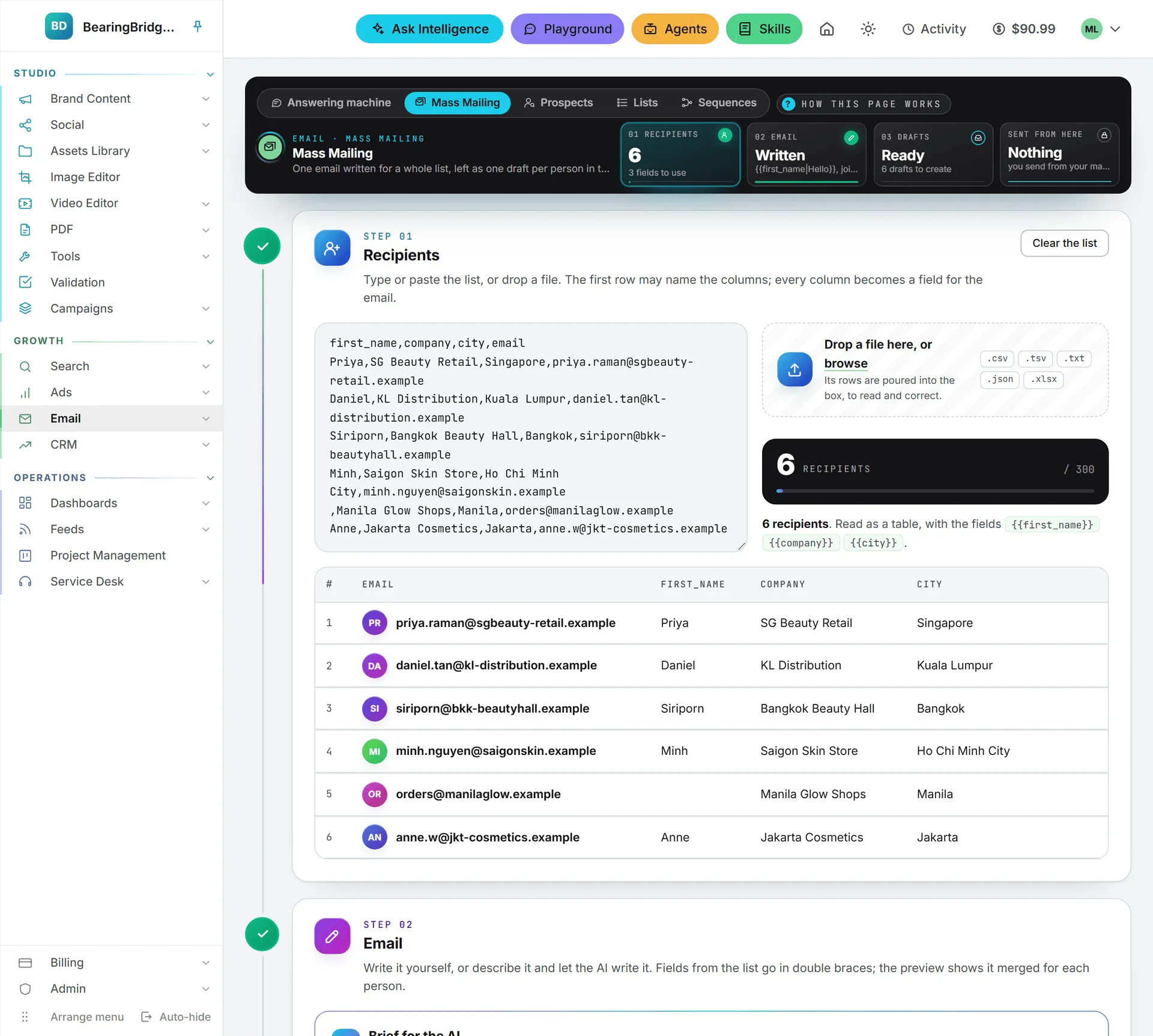
The band at the top keeps the score in four tiles:
| Tile | What it shows |
|---|---|
| 01 Recipients | How many people are on the list, and how many fields they bring. |
| 02 Email | To write, then Written with the subject once the email has a body. |
| 03 Drafts | Not yet, then Ready with the number of drafts to create, then how many were created. |
| Sent from here | Always Nothing: you send from your own mailbox. |
A tile lights up once its step is done. Click one of the first three to jump to its step.
01 Recipients
Type or paste the list into the box on the left, or bring a file: drop it on the zone on the right, or click the zone to pick one. The app reads the list as you go and tells you how it read it: as a list of addresses, as a table, or as JSON.
It takes any of these:
- One address per line.
Ben Moreau <ben@globex.com>works too, and the name becomes a field. - A CSV or TSV with a header row. Commas, tabs, semicolons, and pipes all work.
- A JSON list, of addresses or of records.
- A file:
.csv,.tsv,.txt,.json, or an Excel.xlsxworkbook, of which only the first sheet is read. A file can’t be larger than 5 MB. A bar fills while it’s read.
An imported file is poured into the box, so you can read what came in and correct it like anything you typed.
One run takes up to 300 people. Under the zone, a dark block counts the recipients, with a bar that fills toward 300. The table under the box lists everyone who made it in, one column per field, each address with the person’s initials in a colored circle. Click the cross at the end of a row to take someone out, or Clear the list, at the top of the step, to start over.
Lines that didn’t make it are counted under the count, as “lines left out.” Open that line to see each one with its reason: not an address, already in the list (the same address twice, whatever the capitals), or over the 300 of one run.
The list is never stored. It lives in this browser tab and in the request that creates the drafts, and nowhere else.
02 Email
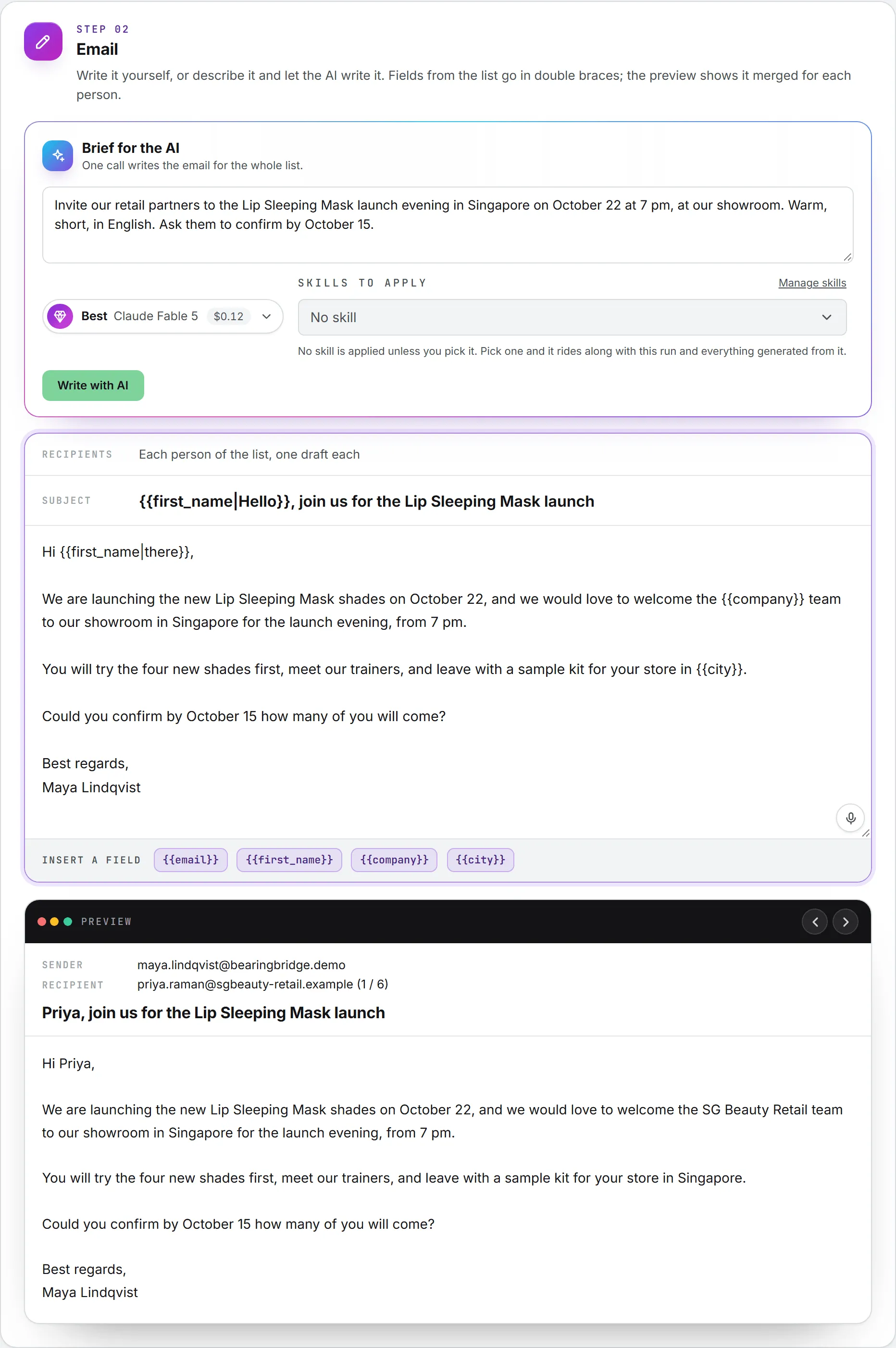
Every column of your list, other than the address, becomes a field you can place in the email. A column called “First name” becomes {{first_name}}, a column called “Company” becomes {{company}}, and {{email}} is always there. The row of buttons at the foot of the email, after Insert a field, drops one where your cursor last was, in the Subject or in the body.
Some people on a list have no first name, or no company. Give those a fallback after a bar: {{first_name|there}} reads “Hi Anne” for Anne and “Hi there” for someone with no first name.
You can write the email yourself, on the sheet under Subject, or let the AI write it from the panel above:
- Describe it in Brief for the AI: what the email is about, who it’s for, the tone, the language, and every fact it must carry, such as dates, prices, and links.
- Pick the model that writes it in the model picker (Quick, Balanced, Best, or any model your organization allows under All models), and the skills to write with in Skills to apply, if you want your usual sign-off or tone. Manage skills opens your skills in a new tab.
- Click Write with AI. The subject and the body arrive a few seconds later, placeholders included.
The AI writes in your name and never says software wrote it. It doesn’t invent a price, a date, an offer, or a link your brief didn’t give. When the email needs something it wasn’t told, it leaves a gap in brackets, like [date], and lists what to fill in under the button. A skill can shape the voice, but it can’t lift those rules.
Clicking Write with AI again rewrites the subject and the body from the brief. The app asks first, since what’s in them now is replaced.
Your brief, subject, and body are kept in this browser, so a closed tab doesn’t cost you a long email.
The preview
Beside the email (under it on a narrower screen), once the list and the email are both there, Preview draws the email the way one recipient will read it: the sender (your mailbox), the recipient, the subject and the body, with their values filled in. The arrows at the top step through the list, person by person. Until then, the space says The preview shows here.
Under the preview, the app warns you before the drafts exist, not after. It flags a placeholder that isn’t a column of the list (it would be left empty) and counts the people who have no value for a field, with a reminder to add a fallback.
03 Drafts
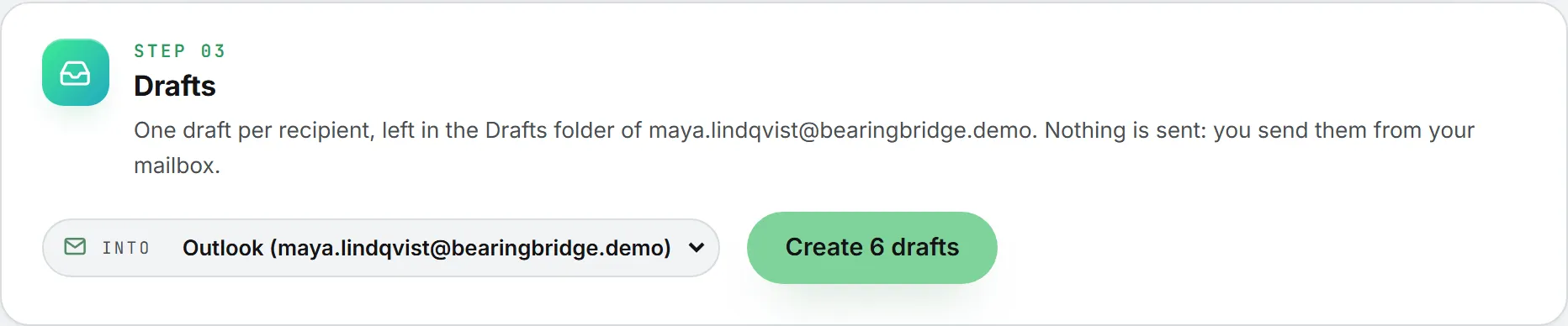
Pick the mailbox the drafts will land in, Into, each named with its address, as in Outlook (you@company.com). The button counts the drafts for you, as in Create 42 drafts. It stays off until the list has someone in it and the email has a body, and the line beside it says which step is missing.
Click it and confirm. A bar fills while the drafts are written, and the run shows up in Activity with a running count, so you can keep working while it goes.
When it’s done:
- Each row of the table in step 01 gets a check mark, or turns red if that draft couldn’t be written.
- A line says how many drafts were created, and that nothing was sent, with an Open your drafts link to the Drafts folder of that mailbox.
- Any address that failed is listed with the reason. One failure never stops the others.
Every draft is also listed under Written in your mailbox on My Connections, with the address of the mailbox and Mass Mailing as what wrote it.
Important: Read a few drafts in your mailbox before you send anything. Sending them is up to you, and once an email leaves your mailbox there is no way back.
What it costs
Reading the list, the preview, and creating the drafts cost nothing. Write with AI is one AI call for the whole list, however many people are on it, paid from your credits like every other AI feature. Its price appears next to the button as soon as the email is written. See Credits and costs.