What is Intelligence
A map of Intelligence by BearingBridge: organizations, brands, the eight capabilities, shared AI tools, billing and admin, and how every part of the app connects.
Intelligence by BearingBridge is a marketing and business intelligence platform. It measures where your brands show up on Google and in AI assistants, follows your advertising, and runs the work that improves all of it: content, social posts, campaigns, sales follow-up and projects. This page is a map of the whole product: what each part does and where it sits.
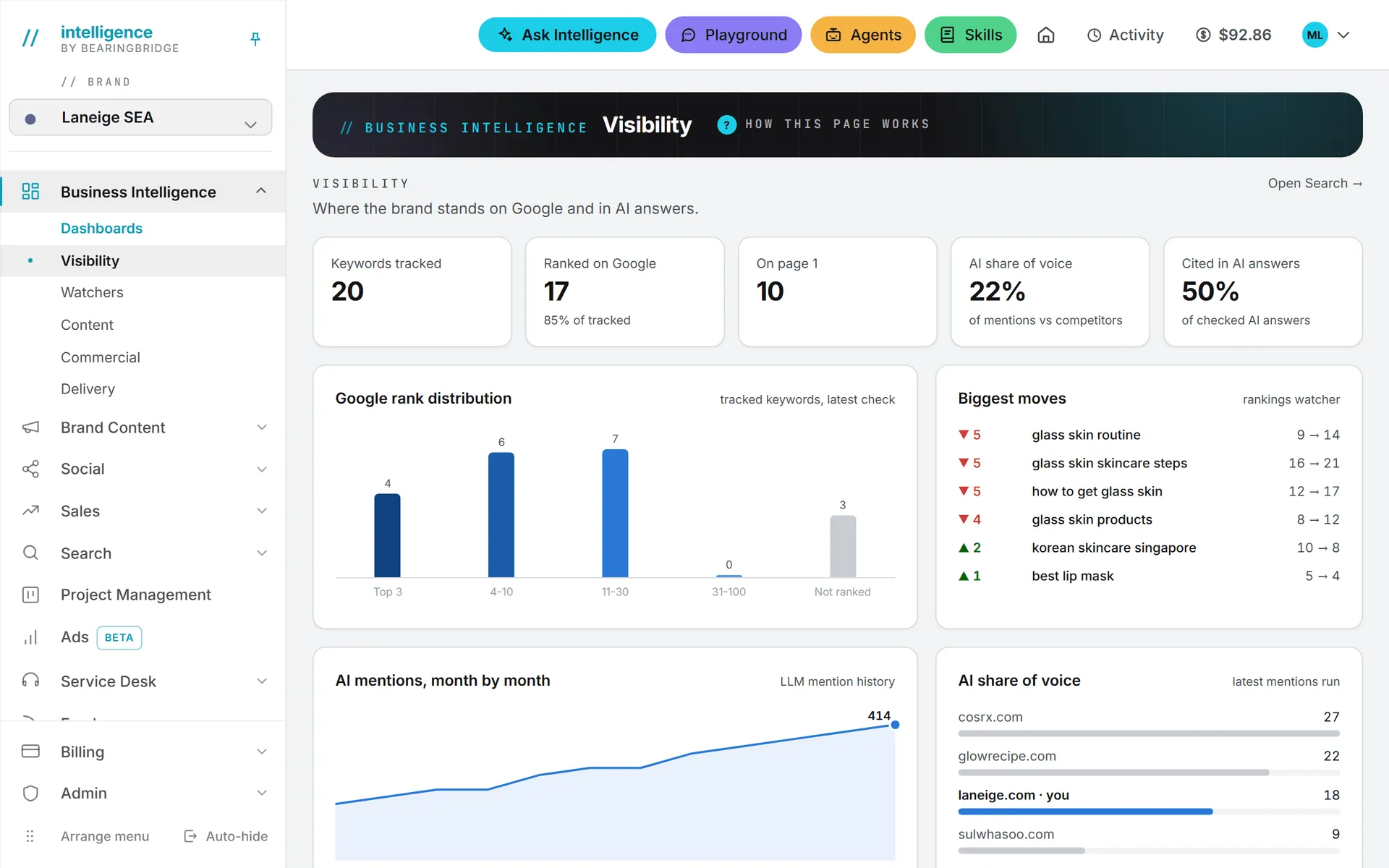
The five core ideas
Every other article builds on these five. Your company works in one organization. The organization owns brands, people, projects and money. The app is split into eight capabilities, each holding modules. Roles and rights decide who can see and change what. And every AI or data call is paid from prepaid credits, with the cost shown in the app.
| Idea | What it is | Read more |
|---|---|---|
| Organization | Your company’s workspace. It owns brands, users, projects, the CRM and the shared credits. | Organizations |
| Brand | A website plus its markets, languages, voice and team. Most work is filed under a brand. | Brands |
| Capability and module | A capability is one side of the app, such as Search or Sales. A module is an area inside it. | Capabilities and modules |
| Role and rights | What a person may view, create, update and delete, feature by feature. | Roles and rights |
| Credits | Prepaid money that pays for AI and data calls. | Credits and costs |
The eight capabilities
The left menu lists your capabilities in this order. You only see the ones switched on for your organization, for the brand you have selected and for you, so a colleague’s menu may be shorter or longer than yours.
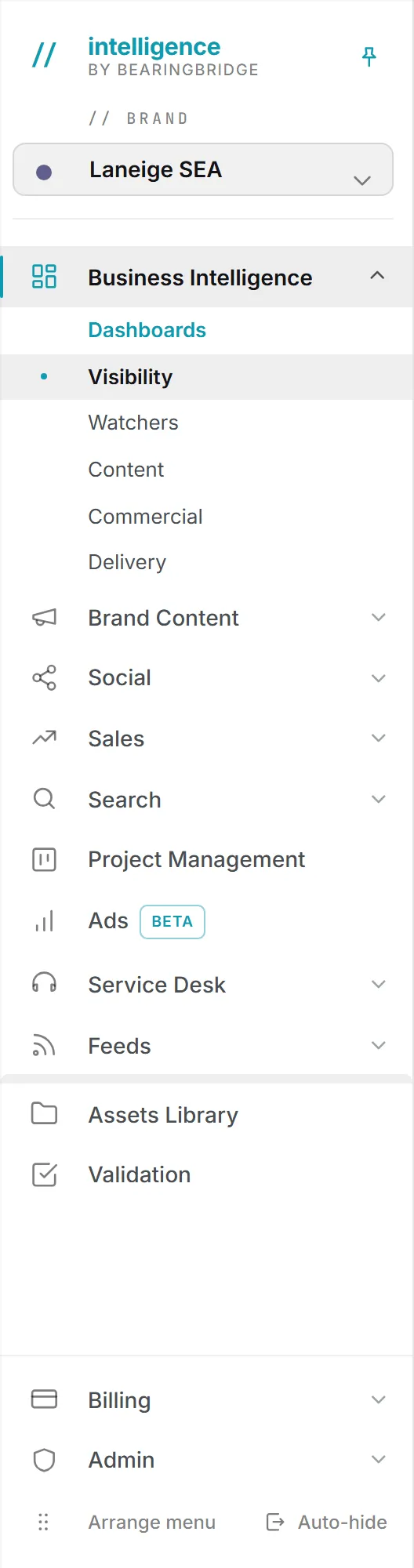
| Capability | What it covers | Menu entries, and the pages inside them |
|---|---|---|
| Business Intelligence | Dashboards over the data the product already holds. The first entry is your home page. | Visibility, Watchers, Content, Commercial, Delivery |
| Brand Content | Texts, images and videos in your brand voice. | Text (Brand foundation, Editorial, Commercial, Creative, Corporate & PR, Other), Image, Video, Tools (Image anonymizer, YouTube) |
| Social | Planning, writing and publishing posts, then reporting on them. | Calendar (Monthly, Weekly, Reporting), LinkedIn, Instagram, Facebook, TikTok (Beta), X |
| Sales | The CRM and the revenue it brings in. | Pipeline, Clients, Contacts, Suppliers, Revenue Follow Up (Beta) |
| Search | Where the brand ranks on Google and what AI assistants say about it. | SEO (Keywords, Competitors, Keyword Gap), GEO (AI Visibility, Ask the AIs, AI Volume, Who AI Trusts, Trends) |
| Project Management | The shared task board, projects and your own tasks. | Board, which opens on four tabs: Board, Projects, My tasks, Archived |
| Ads (Beta) | Google Ads keywords, campaigns and reporting, and the LinkedIn Ad Library. | Ads, with Google Ads (Keywords, Campaigns, Reporting) and LinkedIn Ads (Ad Library) |
| Service Desk | AI answer desks trained on your knowledge base. A brand can run several. | Desks, then one entry per desk |
A Beta tag means the area works but is still changing. Beta badges lists where it shows today.
Some dashboards depend on other capabilities. Visibility needs Search, Content needs Brand Content, Commercial needs Sales, and Delivery needs Project Management. Watchers is always there.
One module sits outside this table. Feeds, the news reader, is open to every account whatever its capabilities, with its own entry in the left menu.
If a menu you expected isn’t there, it’s usually switched off for the brand you picked, or for you. Try another brand, and if it’s still missing, ask an administrator.
The shared tools
Six tools don’t belong to any one capability and can reach into any of them.
- Ask Intelligence: ask questions about your own data in plain language. The answer shows its sources.
- Playground: a direct chat with any AI model your organization allows.
- Agents: AI agents that watch, analyze and report, when you ask or on a schedule.
- Skills: reusable instructions the AI follows wherever they apply, set by your organization or by you.
- Assets Library: every file your organization uploads or creates in the app, sorted in folders.
- Validation: send an asset to a colleague for approval before it goes out.
On a desktop screen, Ask Intelligence, Playground, Agents and Skills are buttons in the header. On a small screen they move into the menu drawer. Assets Library and Validation are entries in the left menu, open to every role.
The header and your account
The dark header at the top of every page holds a few more controls. The house icon, Make this my home page, sets the page you’re on as the one that opens when you sign in; click it again to go back to the default. Activity lists the AI generations running for you and how they ended. Next to it, your credit balance links to Billing.
Your user menu, under your picture or initials, opens User Settings, Billing & credits and My Connections, plus Admin for administrators. It’s also where you switch between light and dark, and change the interface language when your organization offers more than English.
You can reorder the left menu with Arrange menu at its foot, and fold it into a narrow rail with Auto-hide, so your menu order may differ from the tables here. Finding your way walks through the screen.
Billing and Admin
Two housekeeping areas sit at the bottom of the left menu, away from the day-to-day work.
Billing is open to everyone, viewers included, because it’s where you check your balance and top it up. It has three pages: Buy Credits, Invoices and Usage. With no credit left, no AI feature runs. The Billing section has the details.
Admin is for administrators only. It holds the organization’s settings: Organization, Connections, Brands, Users, Capabilities, Credits, Projects, AI Models and, when your organization has Sales, CRM. A personal account sees a shorter list, because nobody else shares it. See Organization settings.
Commercial partners of BearingBridge get one more menu, Partner, covered in the Partner program.
How the pieces connect
That covers where things are. What matters next is that the parts share their data. For example:
- The voice and visual identity you set once for a brand guide every text, post, image, ad and service desk answer written for it.
- The brand’s markets and languages set the defaults for Google rankings, ads targeting and AI search checks.
- A content plan starts from a keyword, so the keywords you track in Search become articles in Brand Content.
- Everything you generate is saved to the Assets Library, and you can hand a folder of it to a generator as context.
- Agents read the same data as the modules. What they find shows up on the Watchers dashboard.
- Ask Intelligence can answer from any of it, as long as you have access to the data.
The rules on who sees what don’t change from one area to the next. If a capability is switched off for your organization, its pages disappear, and agents and Ask Intelligence can’t read its data either.
What costs credits
Each AI generation and each paid data refresh draws on prepaid credits. The app shows the cost of each action, the header shows the credits you have left, and Billing > Usage lists every paid action with what it cost. When both your own credits and any shared credits run out, AI features stop until someone buys more. Credits and costs explains the wallets, and What costs credits lists the paid actions.
How this help center is organized
The help center follows the app, in the same order as the left menu.
You’re in Start here. After these concepts, Getting started covers your account and your first session, with separate first steps for admins and for members.
The Modules group has one section per capability, from Business Intelligence to Service Desk. Shared tools covers Ask Intelligence, AI Agents, Skills and formats, the Playground, the Assets Library and Validation.
Account and money holds your own settings, starting with your profile, and everything about Billing. Administration is for the people who set up the organization, its users, brands and capabilities. And Help has the FAQ, troubleshooting, what’s new and how to contact support.
At the top of each article you’ll see who it’s for and where the feature lives in the app.