Organizations
Your organization is the workspace that owns brands, people, projects and shared credits. Learn how personal organizations work, how people join and who controls settings.
An organization is your company’s workspace in Intelligence. It owns your brands, people, projects and shared credits, and everything you do in the app happens inside one. This page covers what it holds and who controls it.
Brands, people and projects
Everything else hangs off the organization. Each brand belongs to one organization only: an agency can run all its client brands in one, and a group can run one brand per country site. Each person belongs to exactly one organization and may work on several of its brands. And each project on the Project Management board belongs to one organization.
A person never belongs to two organizations at once. If you work for two companies that both use Intelligence, you need two accounts, each with its own email address. Only the BearingBridge team can move a person from one organization to another. If you change companies, ask them to move your account rather than opening a new one.
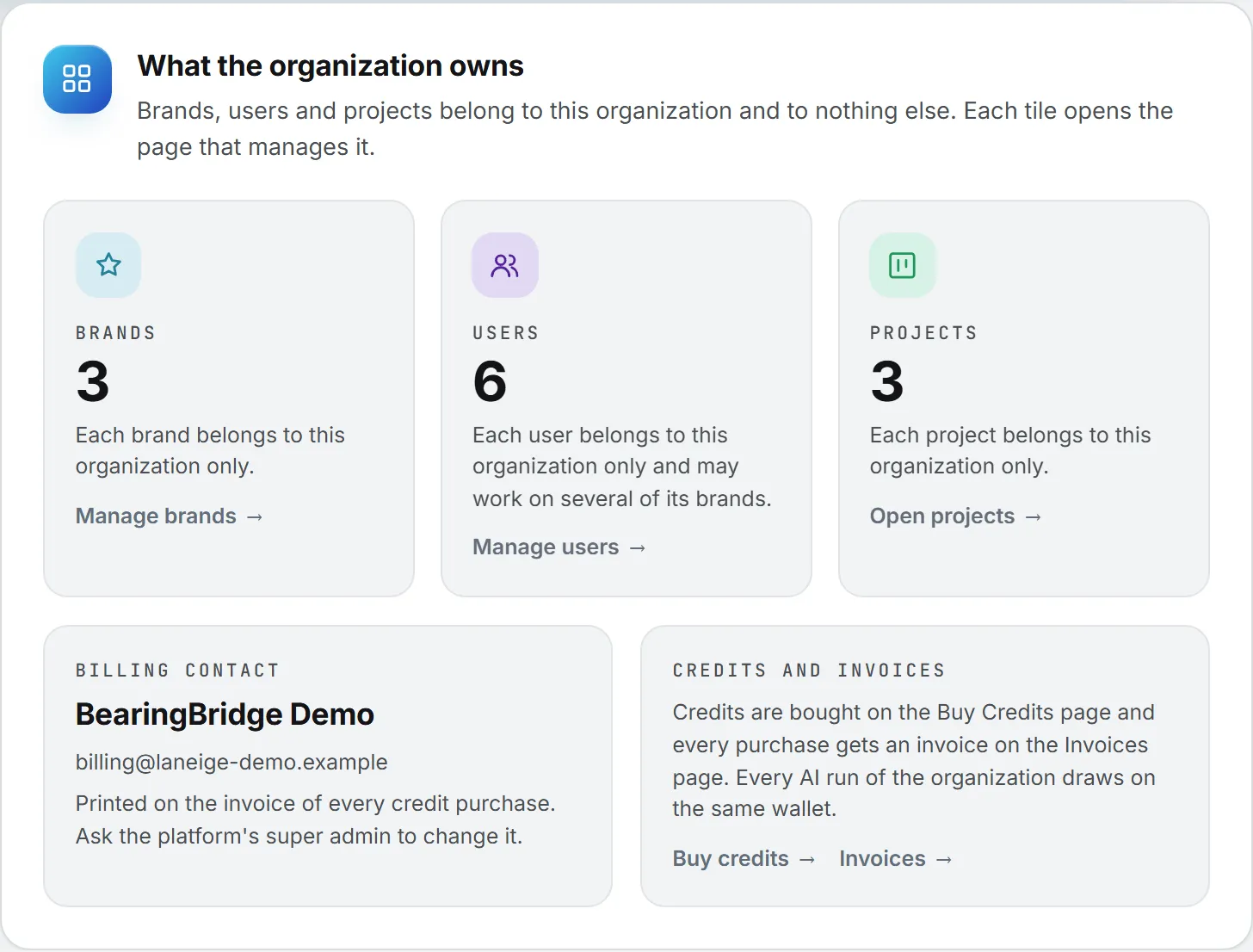
What the organization owns
Some data belongs to a brand. The rest belongs to the whole organization and is shared by everyone in it who has the right to see it, whichever brand they have selected.
| Owned by the organization | Where it lives |
|---|---|
| Tasks and projects | Project Management, and Admin > Projects for creating projects |
| Deals, clients, contacts and suppliers | Sales > CRM |
| Revenue, costs, profit and cash flow | Sales > Revenue Follow Up |
| Users, invitations and custom roles | Admin > Users |
| The shared credits (bought in Billing > Buy Credits) and each person’s daily allowance | Admin > Credits |
| External systems it connects to, such as a CRM, spreadsheets or an ERP | Admin > Connections |
| Organization agents and organization skills | Agents and Skills |
| Which AI models each feature offers | Admin > AI Models |
| Interface languages and sign-in security | Admin > Organization |
Brand work, such as keywords, ads, content and social posts, belongs to its brand. Brands covers that side.
Personal organizations
Every account has an organization behind it. If nobody adds you to a company’s organization, you get a personal one. It is created the first time you sign in and is named after your email address.
Only you are in a personal organization, and you’re its administrator. It runs Project Management, Sales, organization agents and skills like any other organization.
What differs is everything to do with other people. Since nobody else can join, there is no Users page and no Credits page; your Admin menu shows Organization, Connections, Brands, Capabilities, Projects, AI Models and, with Sales, CRM. You pay for everything from your own credits, and your brands are yours alone.
You can’t invite colleagues into a personal organization. To work as a team, ask the BearingBridge team to add you to a company organization. Your brands come with you: they become that organization’s brands, and you keep access to them.
How people join an organization
You get into an organization in one of three ways.
- An administrator adds you or invites you. The administrator picks your role and, below admin level, the brands you work on. An invitation link works once and lasts a week, and it drops you straight into their organization. The admin side is in Users and invitations.
- You sign up with “Just me”. Anyone can create an account from the sign-in page. Just me gives you a personal organization that you administer.
- You sign up with “My organization”. When BearingBridge offers this choice on the sign-up form, it asks for an Organization name and creates a new team space in that name, with you as its administrator. The form also asks Will you be the admin of your organization? and says the BearingBridge team confirms the admin role once your account is verified.
Whichever way an account is opened, the BearingBridge team gets a note about it. Create an account has the steps.
Who decides what
A handful of settings shape how the organization works. Some belong to your administrators, others to the BearingBridge team.
| Setting | Who decides it |
|---|---|
| Organization name and billing identity | The BearingBridge team |
| Which capabilities the organization owns | The BearingBridge team |
| The organization’s monthly spend cap, which limits how fast the team can use the shared credits | The BearingBridge team |
| Moving a person between organizations | The BearingBridge team |
| Pausing the organization | The BearingBridge team |
| Interface languages offered to members | Your administrators |
| Code by email at sign-in | Your administrators |
| Brands, users, roles, connections and AI models | Your administrators |
| Each person’s daily allowance on the shared credits | Your administrators |
The billing contact is printed on the invoice of every credit purchase. To change it, or the organization’s name, contact the BearingBridge team.
The Organization page
Administrators open Admin > Organization. Other roles don’t see the Admin menu at all. The page has four cards:
- What the organization owns: a tile each for brands, users and projects, plus the billing contact and links to credits and invoices. The dark band at the top shows the credits available.
- Modules of the organization: the capabilities switched on for your organization, each marked On or Off. They’re read-only here, because the BearingBridge team sets them.
- Interface languages: the languages your team can switch the interface to. English is always on; French (Français) and Chinese (中文) can be added. Content and data are never translated.
- Sign-in security: Code by email at sign-in asks every member, administrators included, for a 6-digit code mailed after their password. It’s on by default for new organizations.
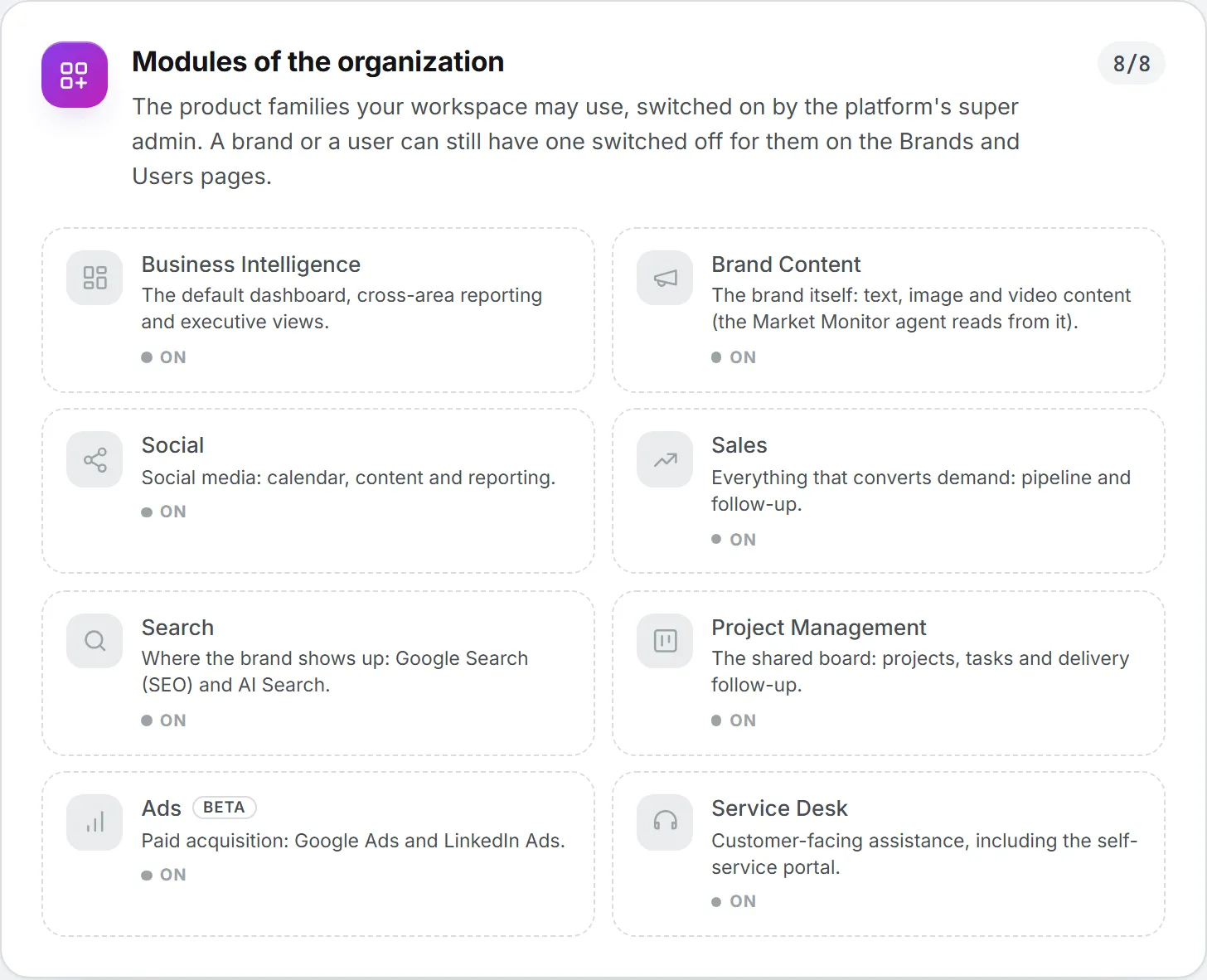
Organization settings walks through each card.
Shared credits
A company organization has one shared pot of credits. Members draw on it first, up to a daily allowance an administrator sets per person, then on credits they bought themselves. Credits you buy for yourself are never capped.
A new member starts with no allowance on the shared pot, unless the administrator set one when adding them. Until they have one, they can only spend credits of their own. When a day’s allowance runs out, they carry on with their own credits if they have any; otherwise their AI features pause until midnight UTC or until an administrator raises the allowance. A personal organization has no shared pot at all: you spend your own. For the admin settings, read Shared credits; for how wallets work, Credits and costs.
When access is paused
The BearingBridge team can pause a whole organization. Every member is signed out at once, and the sign-in page says: “Access for your organization is currently paused. Please contact your administrator.” Nothing is deleted, and when the pause is lifted, people sign in again as usual.
An administrator can also close one person’s access by deactivating their login. The person gets an email about it, and sees “This account has been suspended. Contact your administrator.” when they try to sign in. Users are never deleted, and the login can be reopened at any time. See Roles and rights.