Capabilities and modules
Intelligence has eight capabilities, most with modules. Three switches, for the organization, the brand and the person, must all be on to reach an area.
Intelligence is split into eight capabilities, one per side of the app, and most capabilities hold modules. Switches at three levels decide which of them you see, set for your organization, for the active brand and for you. Below you’ll find how the two differ and where each switch lives.
Capability, module, feature
You’ll meet three words in the app and in this help center.
- A capability is a whole family of features, such as Search, Social or Sales. Each one is a group in the left menu.
- A module is an area inside a capability, switched on or off per brand. Modules come in two levels. A level-1 module is an area such as Ads or Content. A level-2 module is a part of it, such as Google Ads or LinkedIn Ads.
- A feature is the unit the role grid grades with view, create, update and delete. Features mostly match modules, though the names can differ: the Content Plan module, for example, is the Content: Text row of the grid. Roles and rights covers the grid.
The eight capabilities and their modules
This table follows the order of the left menu. The middle column shows the module switches you find for each brand in the brand editor.
| Capability | Module switches per brand | Menu entries |
|---|---|---|
| Business Intelligence | None | Visibility, Watchers, Content, Commercial, Delivery |
| Brand Content | Content: Content Plan, Content Reports, Image, Video. Plus Market Monitor. | Text, Image, Video, Tools |
| Social | Social: Calendar, Content, Reporting | Calendar, LinkedIn, Instagram, Facebook, TikTok (Beta), X |
| Sales | CRM, Revenue Follow Up | Pipeline, Clients, Contacts, Suppliers, Revenue Follow Up (Beta) |
| Search | Search: Google Search (SEO), AI Search | SEO, GEO |
| Project Management | None: always on for every brand | Board |
| Ads (Beta) | Ads: Google Ads, LinkedIn Ads | Ads |
| Service Desk | None | Desks, then one entry per desk |
One entry of the menu is in no row of this table. Feeds, the news reader, is gated by no capability at all: every account has it, in every role. It used to sit under Business Intelligence and became a module of its own on September 20, 2026.
Some details the table can’t show. Business Intelligence and Service Desk have no modules, so the capability switch alone opens or closes them. Project Management has no switch per brand either, because tasks belong to the organization, but the capability itself can still be off for the organization or for a person.
In Brand Content, Market Monitor is an agent rather than a menu page: you reach it from its dashboard card and from the Agents area. Content Reports is described in the editor as published content reports. In Social, the Content module covers the LinkedIn, Instagram, Facebook, TikTok and X entries together.
The Business Intelligence dashboards follow the other capabilities: Visibility needs Search, Content needs Brand Content, Commercial needs Sales and Delivery needs Project Management.
Three switches: organization, brand and user
Each capability has a switch at three levels, and you only reach an area when all three are on.
| Level | What it means | Who sets it | Where |
|---|---|---|---|
| Organization | What your company bought | The BearingBridge team | Shown read-only in Admin > Organization and Admin > Capabilities |
| Brand | What this brand uses | Your administrators | Admin > Capabilities, or the Capabilities section of the brand editor |
| User | What this person works on | Your administrators | The Modules card on the person’s page in Admin > Users |
If you aren’t an administrator, you never see these switches, only their effect on your menu. Here’s how it plays out. Say your organization owns Ads, the brand Acme has Ads switched on, but your own Ads switch is off. You won’t see Ads at all, on any brand. Once an administrator turns your switch on, Ads shows up while Acme is selected, but not while you’re on a second brand that has Ads switched off.
Think of the organization as the ceiling. When the BearingBridge team switches a capability off for your organization, it goes off on every brand in the same move. To add a capability your organization doesn’t have yet, an administrator contacts the BearingBridge team; it isn’t something you can switch on yourself. A brand can’t be switched on for a capability its organization doesn’t own: the brand editor locks it with a note saying so. A new brand starts from its organization’s set.
The Capabilities page
Admin > Capabilities lays the organization and all its brands out as one table, with a column per capability. The first row, marked “(what it bought)”, is the organization’s; administrators can read it but not change it. Each brand gets a row below it. You tick or untick a brand’s boxes and click Save. A box stays grayed out when the organization doesn’t own that capability.
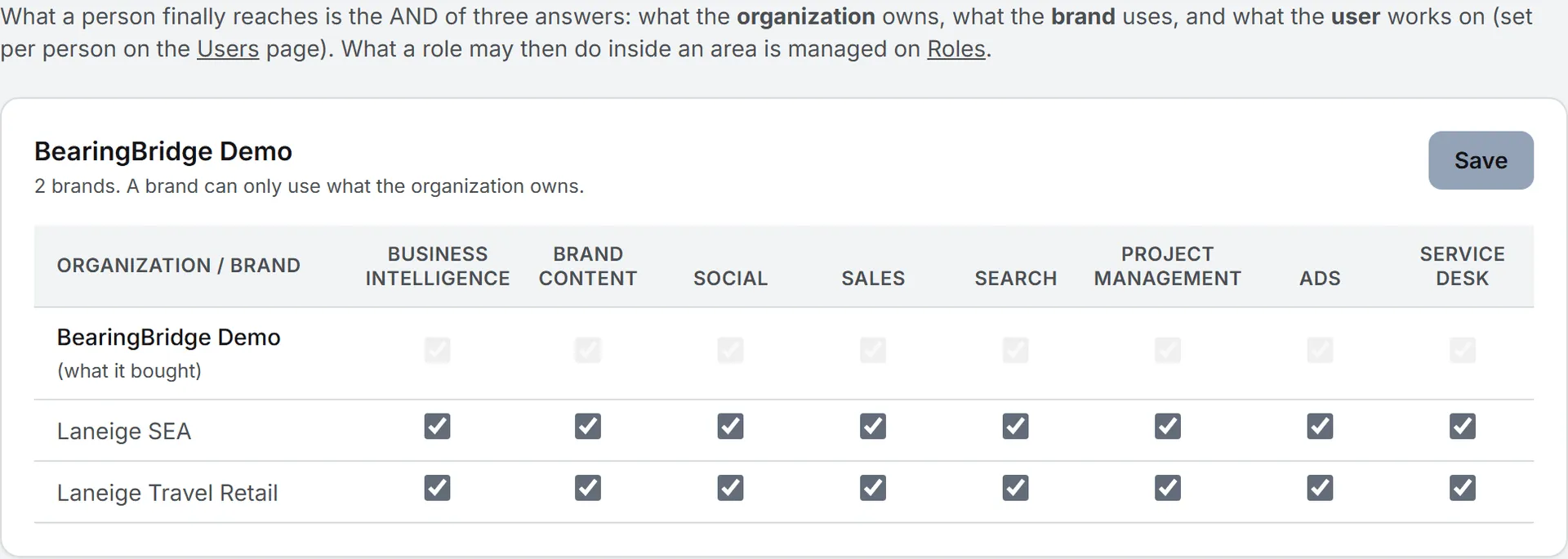
The same switches appear one brand at a time in the Capabilities section of the brand editor, where you also pick the modules inside each capability. Capabilities has the steps.
Modules inside a capability
Inside a capability that stays on, a brand picks which modules it uses. The brand editor shows each capability as a block with a master switch and the module switches inside it. When the master switch is off, the modules inside are dimmed.
A level-1 module counts as on when at least one of its level-2 modules is on. For example, Ads stays on for a brand that uses Google Ads but not LinkedIn Ads.
What happens when something is off
A capability that’s off for your organization, or off for you, is gone from your screen. Its menu group isn’t drawn. If you open a saved link to one of its pages, the app sends you back to the dashboard.
A capability or module off for the active brand is hidden while that brand is selected. Land on one of its pages and you get a notice instead of data. It names what is switched off and for which brand, and says an administrator can enable it on the Brands page. Pick another brand and the area comes back. Ask Intelligence follows the same rules: it only reads the areas and brands you can open.
Note: Switching something off only hides it. No data is deleted, and when you switch it back on, everything is where you left it.
Capabilities always win over rights
One rule sits above everything on this page, and it’s the one people trip on. Rights never reopen a capability that is off. An administrator can give a person every right on the CRM, but if Sales is off for the organization or for that person, the CRM stays closed. The checks always run in this order:
- The capability, at the organization, brand and user levels.
- The feature right, from the person’s role or from rights set for them alone.
- The action: view, create, update or delete.
So if a colleague has the right on paper but still can’t open a page, check the capability switches first.
Beta badges
A Beta tag next to a label in the menu means the area works and you can use it, though it may still change. Today you’ll see it on the Ads capability, on the TikTok entry in Social and on the Revenue Follow Up entry in Sales.
Beta areas follow the usual switches and rights, and they’re billed the same way.
Personal accounts
A personal account runs a personal organization, so the organization level still applies and the BearingBridge team still sets it. The owner is the administrator: they switch capabilities and modules per brand from the brand editor or the Capabilities page. There is no Users page in a personal organization, so there are no per-person switches to set. Organizations has more on personal accounts.