Video generation
Turn a scene into a short clip, pick the engine, length and frame size, feed it pictures or references, and see the price before rendering.
Video generation turns a written scene into a short clip, such as a product close-up or a vertical clip for social. You choose the engine and see the price before anything renders. Each finished clip is saved in the Assets Library.
Where to find it
In the left menu, go to Brand Content > Video. The page is called Video generation. The engine sits on top, the form on the left with results on the right, and Past renders underneath.
Before you start
- Pick the brand in the header. The clip is filed under that brand. See brands.
- Rendering is a paid action. It needs the editor role or above and the view right on Content: Video. Viewers can open the page but can’t render. See roles and rights.
- The brand must have the Video module switched on, or the Video entry disappears from the menu while that brand is active.
- A render takes minutes, not seconds, and each one gets at most five minutes. Long clips on slow engines can run out of time.
Render a clip, step by step
- Pick the Engine. The line next to it describes the engine and prices the current setup.
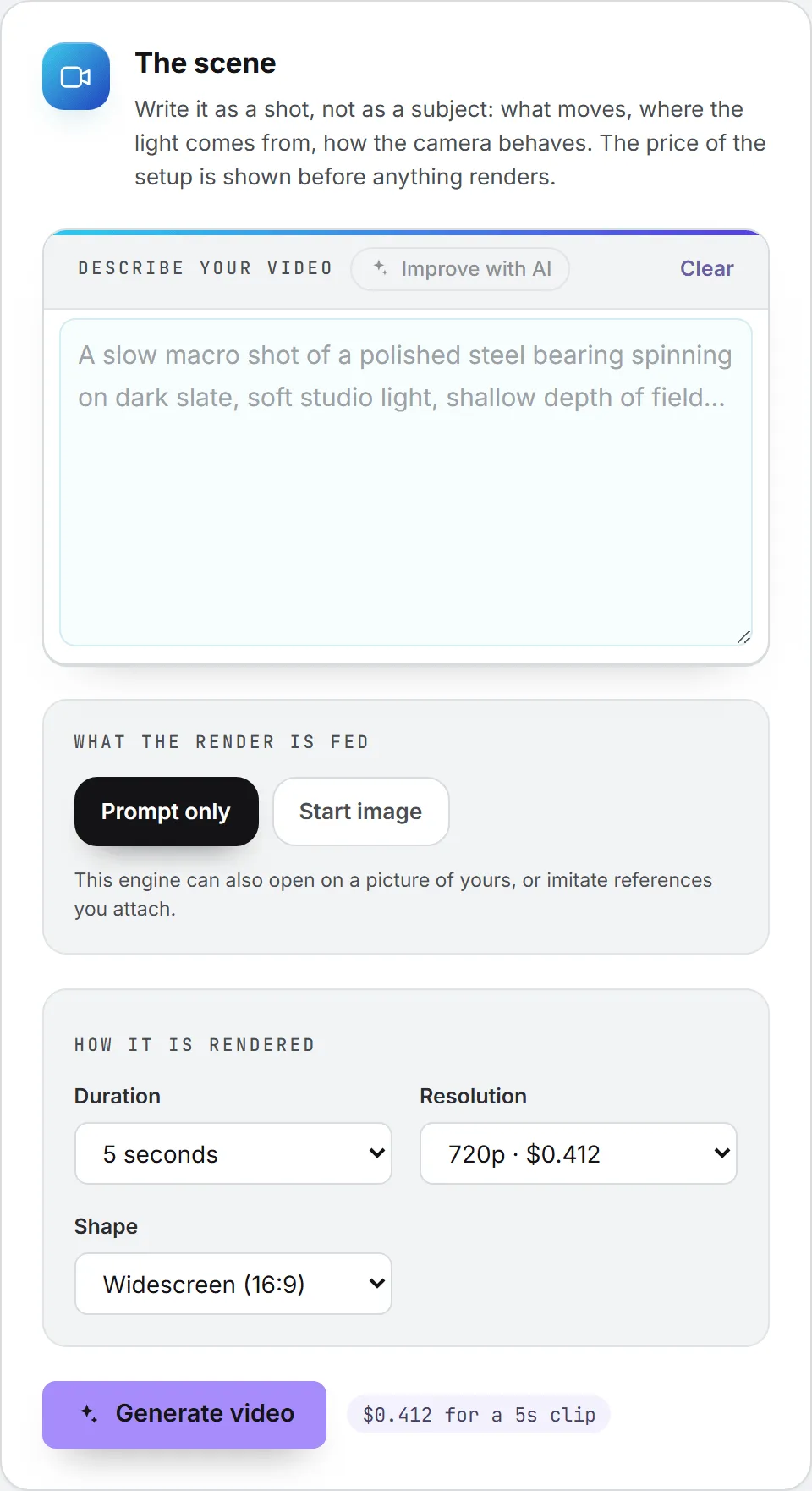
- Write the scene under Describe your video, up to 2,500 characters. Write it as a shot, not as a subject: what moves, where the light comes from, how the camera behaves.
- Optional: click Improve with AI to rewrite your words into a prompt the engine can shoot.
- Optional: choose what the render is fed. See Feeding a render.
- Under How it is rendered, set the Duration, the Resolution or Mode, the Frame size (Kling engines only), the Shape, and Generate sound where the engine offers it.
- Click Generate video. The price of the clip sits next to the button.
The render opens its own tab on the right. Since a clip takes minutes, you’ll usually start the next one while it runs.
The engines
Clips run from 1 to 30 seconds, depending on the engine. The form opens on the cheapest engine; pick another and the options change to match it. Engines get added over time, so your list may be longer than this one.

| Engine | Duration | Resolution or mode | Shapes | Sound |
|---|---|---|---|---|
| Veo 3.1 Fast (Google) | 4, 6 or 8 s | 720p, 1080p, 4K | 16:9, 9:16 | Optional |
| Kling 2.6 (KlingAI) | 5 or 10 s | Standard or Pro mode; 720p or 1080p frame | 16:9, 9:16, 1:1 | Pro mode only |
| Kling 2.5 Turbo (KlingAI) | 5 or 10 s | Standard or Pro mode; 720p or 1080p frame | 16:9, 9:16, 1:1 | Optional |
| Kling 3.0 (KlingAI) | 3 to 15 s | Standard or Pro mode; 720p, 1080p or 4K frame | 16:9, 9:16, 1:1 | Optional |
| Wan 3.0 (Alibaba) | 2 to 30 s | 480p, 720p, 1080p | 16:9, 9:16, 1:1, 4:3, 3:4, Adaptive | No switch |
| Grok Imagine 1.5 (xAI) | 1 to 15 s | 480p, 720p, 1080p | 16:9, 9:16, 1:1, 4:3, 3:4, 3:2, 2:3 | Optional |
| Seedance 1.0 Pro Fast (ByteDance) | 2 to 12 s | 480p, 720p, 1080p | 16:9, 9:16, 1:1, 4:3, 3:4, 21:9 | None |
| Seedance 2.0 (ByteDance) | 4 to 15 s | 480p, 720p, 1080p, 4K | 16:9, 9:16, 1:1, 4:3, 3:4, 21:9 | Optional |
| Seedance 2.5 (ByteDance) | 4 to 30 s | 480p, 720p, 1080p | 16:9, 9:16, 1:1, 4:3, 3:4, 21:9, Adaptive | Optional |
| MiniMax H3 (MiniMax) | 4 to 15 s | 768p, 2K | 16:9, 9:16, 1:1, 4:3, 3:4, 21:9 | Optional |
| Gemini Omni Flash (Google) | 4, 6 or 8 s | 720p | 16:9, 9:16 | Optional |
Ranges mean every whole second in between. Adaptive makes the clip take the shape of the picture or clip you attach. On the Kling engines, the price follows the Mode and the Frame size rides along at no extra cost.
Which engine to pick
The form prints each engine’s description next to it. If you want a safe, cinematic default, start with Veo 3.1 Fast: optional sound, up to 4K, and it can open on your picture, end on another, or imitate up to three references. For motion and characters, try Kling 2.6. Kling 2.5 Turbo is quicker and steadier at the same price, and Kling 3.0 follows a long brief shot by shot and syncs its own audio, at the highest price on the page.
For other needs:
- Complex movement and realism: Seedance 2.0, the best here for physics and interaction.
- A longer story in one shot: Seedance 2.5 (up to 30 seconds, the widest set of inputs) or Wan 3.0 (up to 30 seconds too, but slow: a short clip takes about three minutes).
- The sharpest picture: MiniMax H3 at 2K, or 768p for less. It’s slow, so keep clips short.
- Quick, cheap drafts: Seedance 1.0 Pro Fast (silent) or Grok Imagine 1.5 in its 480p draft mode.
- Long, detailed instructions: Gemini Omni Flash, a language model that answers in video and reasons about the brief first.
Feeding a render
A prompt-only clip needs nothing from this section. Read on if you want the clip built from a picture, a clip or a sound you already have: most engines take more than words. Above the render options, What the render is fed offers up to three ways to work:
| Choice | What it does |
|---|---|
| Prompt only | Nothing attached. |
| Start and last frame (or Start image) | The clip opens on your picture. Where the engine supports it, add a last picture and the engine renders the movement between the two. |
| References | Pictures, clips and sound files the engine imitates rather than shows: a character, a product, a style, a voice. |
It’s one or the other. An engine given a frame ignores references, so the form makes you choose instead of letting a paid render quietly drop half of what you attached. Switching between the two clears what the other held.
For each slot you can Choose from the library, Upload a picture (or Upload a file for references), or Paste a link to a file already published on a site (it must start with https://). An upload goes into the Assets Library, and it’s that library copy the engine receives, so the same reference serves render after render. Remove clears one slot, Remove all clears everything.
What each engine accepts
Kling 2.6, Kling 2.5 Turbo, Kling 3.0 and Gemini Omni Flash render from the prompt alone. For the rest, you need just your engine’s row. The counts are how many references of each kind you can attach. The formats and limits apply to every file of that kind, start and last frames included.
| Engine | Frames | Pictures | Clips | Sound files |
|---|---|---|---|---|
| Veo 3.1 Fast | Start and last | Up to 3; JPG or PNG; 20 MB each | n/a | n/a |
| Wan 3.0 | Start and last | Up to 10; JPG, PNG, BMP, WebP; 20 MB; edges 240 to 8,000 px | Up to 5; MP4 or MOV; 100 MB; 1 to 15 s; edges 240 to 4,096 px | 1; MP3 or WAV; 15 MB; 1 to 15 s |
| Grok Imagine 1.5 | Start only | Up to 7; JPG, PNG, WebP; 20 MB | n/a | 1; MP3 or WAV; 15 MB |
| Seedance 1.0 Pro Fast | Start only | Start image only; JPG, PNG, WebP, BMP, TIFF, GIF; 30 MB; edges 300 to 6,000 px | n/a | n/a |
| Seedance 2.0 | Start and last | Up to 9; JPG, PNG, WebP, BMP, TIFF, GIF; 30 MB; edges 300 to 6,000 px | Up to 3; MP4 or MOV; 50 MB; 2 to 15 s; edges 300 to 6,000 px | 1; MP3 or WAV; 15 MB; 2 to 15 s |
| Seedance 2.5 | Start and last | Up to 30; JPG, PNG, WebP, BMP, TIFF, GIF, HEIC, HEIF; 30 MB; edges 300 to 6,000 px | Up to 10; MP4 or MOV; 200 MB; 2 to 30 s; edges 300 to 6,000 px | Up to 2; MP3 or WAV; 15 MB; 2 to 30 s |
| MiniMax H3 | Start and last | Up to 9; JPG, PNG, WebP, HEIC, HEIF; 30 MB; edges 256 to 5,760 px | Up to 3; MP4; 50 MB; 2 to 15 s; edges 256 to 5,760 px | 1; MP3 or WAV; 15 MB; 2 to 15 s |
Seedance 2.5 takes at most 50 reference files in all. Pictures also have a shape range: from 1:8 to 8:1 on Wan 3.0, and from 2:5 to 5:2 on the Seedance engines and MiniMax H3.
Every file is checked the moment you attach it, from the file itself: its format, weight, length and frame size. A file the engine would refuse is refused right there, with a sentence saying what to change, before anything is paid. Checking a library file or a link costs nothing. The same check runs again when you click Generate video.
Tip: A reference clip pulled from a video site is often longer than 15 seconds. Trim it first: every engine that takes clips refuses one outside its length range.
Improve with AI
Improve with AI rewrites your scene into a prompt written for the engine you picked, taking into account the shape and length you set and whether sound is on. It follows the imagery skills your organization or you have written. A note then says Prompt rewritten, shows what the rewrite cost, and offers Undo. It’s a small paid text call, separate from the render.
Results and tabs
Each render gets a tab beside the form. The tab shows Generating with the time elapsed, then Ready or Failed. Close one with its cross, or use Close all. Closing a tab that is still rendering doesn’t cancel the render, and you’re asked to confirm. A render that has started can’t be stopped from the page.
A ready tab plays the clip and offers Download video, Open large, Send for validation (see validation), Reuse prompt and Run again. A failed tab offers Retry and Reuse prompt. Reuse prompt puts the prompt, the settings and the attached files back in the form. Run again and Retry start a new, billed render.
Each render has five minutes to finish. If the page still has nothing a little after that, the tab turns to Failed and suggests a shorter duration or a faster engine. You can also follow a render from any page in the Activity widget in the header. See activity.
Where your clips go
Every clip is saved in the Assets Library the moment it’s rendered, at the top level of the library, with its prompt, engine, duration and cost. A tab restored after a page reload plays the clip from the library.
A long or high-resolution clip is too heavy to come back inside the page. It’s saved in the library first and the tab plays it from there, a few seconds later.
Important: If a clip couldn’t be saved to the library, the tab says so. Download it before you close the page, because it’s the only copy.
Past renders
Past renders lists the clips of the brand selected in the header, newest first, whichever browser made them, plus the clips made with no brand, which belong to the whole organization. A clip made for a brand only shows to people with access to that brand. Each card shows the clip’s own first frame. Click one to reopen it as a tab. Refresh reloads the list, and Open the Assets Library opens the library in a new tab.
What it costs
Almost every engine is priced per second of output, so a clip costs its rate times its duration. Prices show in your organization’s currency. You see the price before anything renders. The Engine list shows each engine’s cheapest rate per second. Each Resolution or Mode choice shows what the clip would cost at the current duration and sound setting, and the line under the engine gives the cost of the whole clip, repeated next to the button.
Sound costs more on some engines (Veo 3.1 Fast, Kling 2.6 Pro, Kling 3.0), and the price follows the checkbox. Seedance 2.0 and 2.5 are billed by ByteDance per video token; the form converts that to a per-second price at 24 frames per second. On the Seedance engines, a reference clip puts the whole render on a reduced rate, and the form says so.
Gemini Omni Flash is the exception. It’s billed on a token meter, so the form shows “priced per token” and “Priced once the clip is back”. Its exact cost appears on the tab and in your usage log after the render.
Whatever the engine, the exact cost ends up on the tab and in the usage log, next to the engine’s name. A render is billed only when it succeeds. Improve with AI is billed separately.
Two more costs can apply. A library file sent to the engine counts as a download of that file (a pasted link doesn’t), and the clip you keep is a stored file. Both are billed like any other storage use; see storage costs.
If your spending cap or your organization’s budget is used up, the render is refused before it starts.
Good to know
- Social posts use the same engines for a reel, a TikTok clip or a Facebook page video. See writing posts.
- Extending an existing clip isn’t offered. Every render starts from your prompt, plus any frames or references.
- Pick a length over 15 seconds and the form warns you that the clip may not finish within the five minutes a render gets.
- Unlike image renders, video prompts on this page don’t get the brand’s visual identity added. Put the look you want in the scene itself.
Troubleshooting
- ”… does not take that length (or mode, resolution, shape, frame size). Reload the page and choose again.” The form was open while the engine list changed. Reload and pick again.
- ”… makes no sound in this mode.” Kling 2.6 only makes sound in Pro mode. Untick Generate sound or switch mode.
- “Describe the video you want first.” A prompt is required, even when you attach files.
- “That prompt is too long.” The limit is 2,500 characters.
- “No room left for another picture” (or clip, or sound file). You’ve reached the engine’s count for that kind of reference.
- “Use a start and last frame, or references, not both.” Pick one way of feeding the render.
- ”… renders from the prompt alone.” That engine takes no files. Remove them or pick another engine.
- “A link must start with https://.” Paste a secure link.
- A file is refused when you attach it. The sentence says why: format, size, length or frame size. Fix the file, or pick an engine that takes it as it is.
- “Video generation is unavailable right now. Nothing was charged, and our team has been alerted.” The problem is temporary and on the BearingBridge side. Try again a bit later.
- “The engine that made this clip is no longer offered.” Pick another engine and render again.
- “Interrupted by a page reload.” The page was reloaded mid-render. Click Retry, or check Past renders first.