Copy studios
How the five copy studios work: pick one of 37 formats, brief it, get a plan or the full piece, then refine and export versions.
The copy studios write a brand’s copy, one format at a time: a case study, a pricing page, a video script, a press release. They’re for anyone who writes for a brand and wants a first draft in its voice, with the brief kept alongside it.
The five studios
All five live under Brand Content > Text, as tiles in the band at the top of the page. They work the same way; what differs is the list of formats on each.
| Studio | For | Formats |
|---|---|---|
| Brand foundation | What the brand stands for and how it speaks | Manifesto, Brand story, About page, Value proposition, Messaging house, Tagline, Tone of voice guide |
| Editorial | Long-form pieces that earn attention | Blog post, Thought leadership, Whitepaper, Research report, Case study, Ebook or guide, Newsletter issue, Interview or Q&A |
| Commercial | Copy that has to convert | Landing page, Service page, Product description, Pricing page, Sales one-pager, Brochure, Proposal boilerplate, Comparison page |
| Creative | Scripts and campaign ideas | Instagram post, Video script, Short-form video script, Audio or radio script, Podcast episode, Webinar or keynote script, Campaign platform, Customer story |
| Corporate & PR | What the company says publicly | Press release, Bylined op-ed, Executive statement, FAQ, Crisis holding statement, Corporate narrative |
The Brand foundation formats are described in Brand foundation and guidelines. The others are listed at the end of this page.
How a piece is built
Every piece goes through the same three stages; the clicks come after.
- The brief. What the piece is for and who reads it, plus the fields the format asks for.
- The plan. An optional outline you correct before a word of copy is written.
- Versions. The copy itself: version 1, then as many more as you ask for. Versions are added, never overwritten.
Each format carries its own writing skill: instructions on how that kind of piece is built and the mistakes to avoid. That’s why a whitepaper comes back argued and sourced, while a newsletter is written to be opened again next week.
Before you start
- Pick the brand in the brand picker. The studio writes for that brand and its library shows that brand’s pieces.
- You need the Content: Text right to create, and the editor role or above. Viewers can read pieces but can’t run anything.
- Fill in the brand guidelines first if you can. Every run follows them unless you untick Follow the brand guidelines; how to write them is in Brand foundation and guidelines. See brands.
Step by step: write a new piece
1. Pick a format
The Start a new piece card shows the studio’s formats as cards. Each card gives the format’s name, a line on what it is and what one run produces. When a studio has more than four formats, a Search formats… box filters them; press Enter to open the only match.
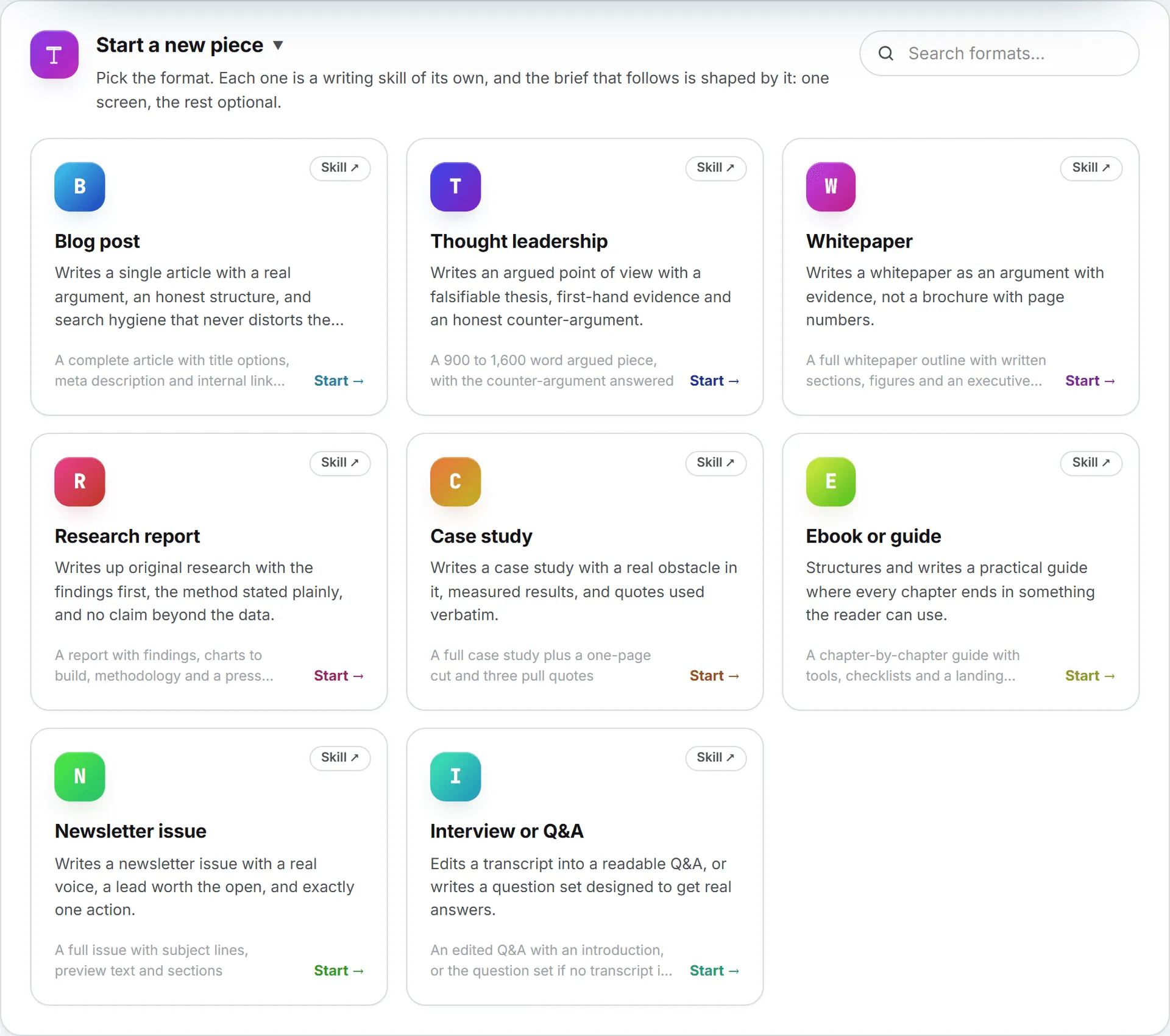
Click a card to open its form. The grid folds away to one line that says Writing and the format’s name. Change format brings the grid back. Skill ↗ opens the skill that format follows, in a new tab.
2. Write the brief
The main column asks for the essentials.
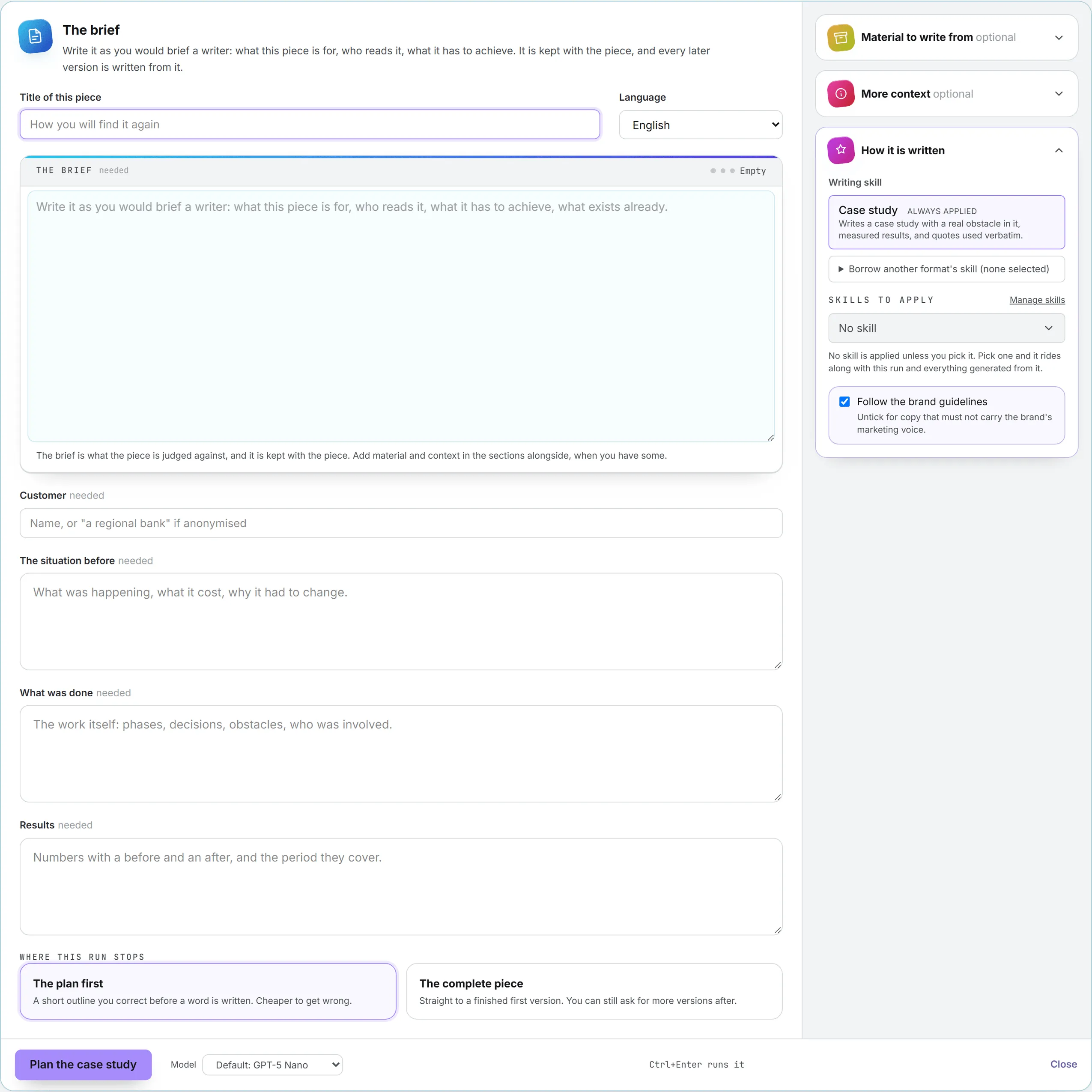
- Title of this piece: how you’ll find it again in the library.
- Language: the brand’s own languages are listed first, then every other language the app writes in. The brand’s main language is preselected.
- The brief: write it the way you’d brief a writer. A meter above the box grades it as you type: Empty, Thin, Usable or Good, depending on its length. The brief is kept with the piece and every later version is written from it.
- Needed fields: the questions this format can’t do without, marked “needed”. If one is empty when you run, it’s flagged with “This one is needed before the run.”
Then choose Where this run stops:
| Option | What happens |
|---|---|
| The plan first | A short outline you correct before anything is written. Cheaper to get wrong, and the better choice for long pieces. This is the default. |
| The complete piece | Straight to a finished first version. You can still ask for more versions afterward. |
3. Add material (optional)
Open Material to write from in the side column. What you add here is read once. It stays with the piece, and every later version is written from it.
| Field | What it takes |
|---|---|
| Files | Up to 5 files: PDF, TXT, MD, CSV or JSON, about 3 MB each. The text is taken out and kept; the file itself is never stored. A scanned PDF has no text to take. |
| Context folder from the Assets Library | One library folder. Every text document in it and its subfolders (PDF, Word, Excel, plain text) is read before writing. Reading the folder counts as a download from your library. |
| Pages to read | Up to 5 web addresses, one per line. Each page is fetched and stripped to its text when the run starts. |
| Keywords to target | Up to 25 terms. Type one and press Enter or a comma. The brand’s tracked keywords are suggested as you type. They’re worked into the copy as it’s written, not stuffed in afterward. |
4. Add context (optional)
More context holds the format’s optional questions (see the format tables below), then four fields every format shares:
- Where it will be published: the blog or site the piece goes on. The page is read before writing, along with up to two articles on it, so the piece is shaped like what’s already published there: how pieces open, how long sections run, how deep the headings go. Nothing is quoted from them.
- Must appear: wording, claims or terms that have to be in it.
- Must not appear: words, claims or comparisons to keep out.
- Anything else: context, links, references, what a previous attempt got wrong.
5. Choose how it’s written
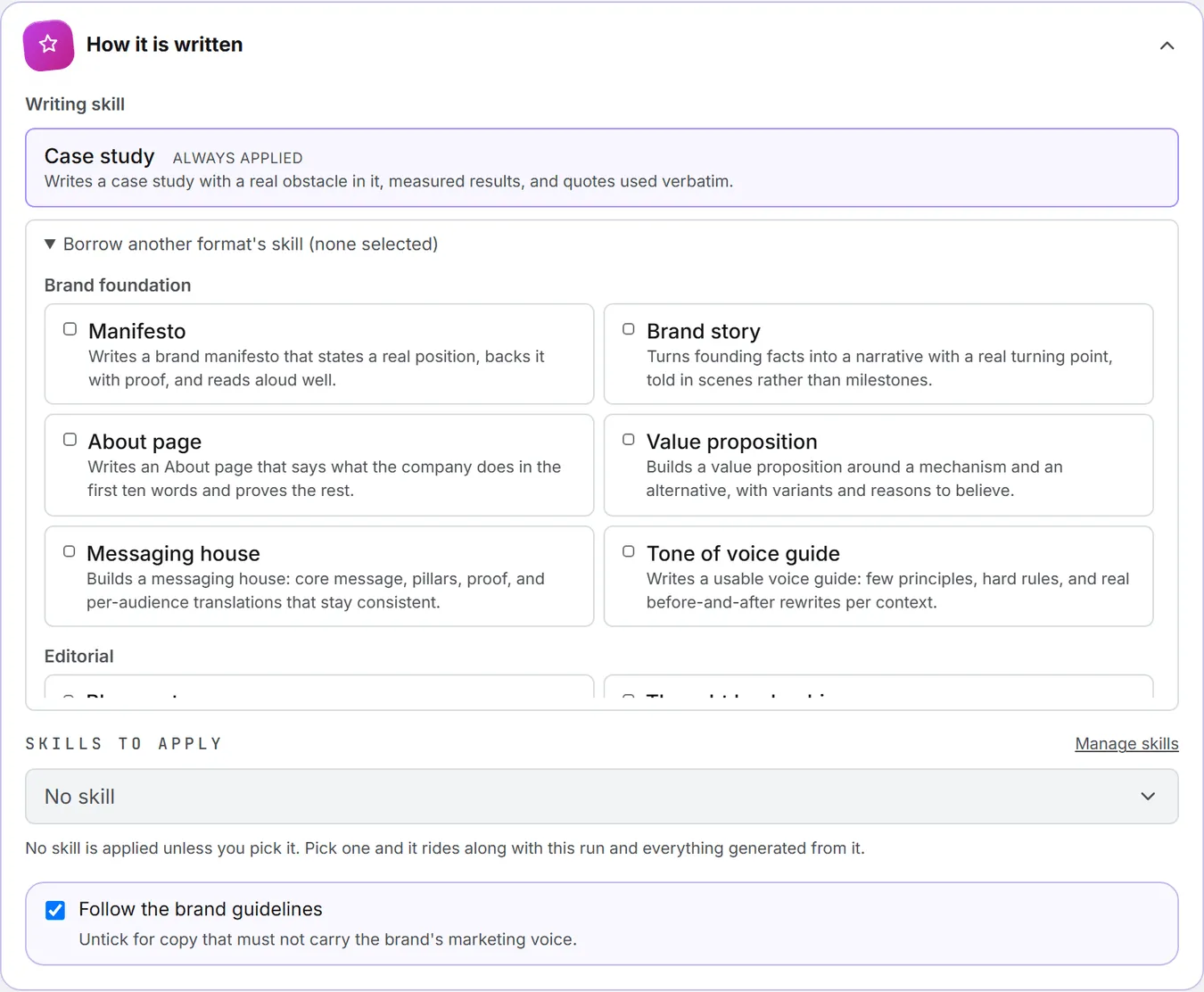
How it is written is open by default. At the top sits the Writing skill, the format’s own, marked Always applied; you can’t untick it.
Under it, Borrow another format’s skill lists every other format’s skill, grouped by studio and all unticked. Tick one to borrow its craft without changing what you’re writing: a case study can borrow the interview skill, for example. One or two is plenty, since each adds instructions to the run.
Skills to apply lists the organization and personal skills that apply to Brand Content, none ticked by default; Manage skills opens the Skills page in a new tab. Last, Follow the brand guidelines is ticked by default. Untick it for copy that must not carry the brand’s marketing voice.
6. Run it
The bar at the bottom of the form holds the run button. It reads Plan the plus the format name, or Write the plus the format name when you chose the complete piece. Ctrl+Enter (Cmd+Enter on a Mac) runs it from anywhere in the form.
Next to it, the Model menu lists the models your organization offers for this studio. Each studio has its own list and its own default, set by your admins (see AI models administration). Close folds the form away.
Switch brands halfway through and what you typed follows you to the same format under the new brand, attached files included.
While it runs
The run streams under the form, in a tab of its own. Run again and you get another tab, which makes two attempts easy to compare.
A status line says what’s happening: reading the material, reading the publication, writing, saving. If a file or a page fails, a Could not read: notice names it and the run goes on without it. When you gave a publication, Publication read: lists the pages read for the house style; if the site couldn’t be read, Could not read the publication says so and the piece is written without it.
A run also shows up in Activity, so you can leave the page. When it lands, the piece appears at the top of the library below without a reload. The form’s saved draft is cleared.
If you chose The plan first, the run stops at the plan and the piece shows “plan only” in the library. Open it, go to the Plan tab, correct the outline, then click Write the plus the format name, from this plan. That’s when version 1 is written.
Your pieces
The writing is done at this point. Everything after it happens in the library.
The Pieces card lists every piece written for the brand, from every studio, newest first. The list is the same on all five studio pages.
Filter it with Search title…, Format (grouped by studio) and Status: Draft, Waiting for validation, Approved or Published.
Each row shows the title, the format, the language, the date, how many versions it has (or “plan only”) and its status. Click a row to open it.
Rename, set the status or delete
At the top of an open piece, change the Title or the Status (Draft, Approved or Published), then click Save. The status is a label for your team; nothing is posted anywhere. Save turns amber while you have unsaved changes, and it only covers the title and status: the text is saved per version, below.
Delete removes the piece and every version. It asks first and can’t be undone.
Below it, three tabs: Versions, Plan and Brief.
The Versions tab
Versions appear as chips, v1, v2 and so on, newest first. Click one to read it. The line above each version gives its number, date, the tokens and price of the run, and the instruction it was asked with, if any.
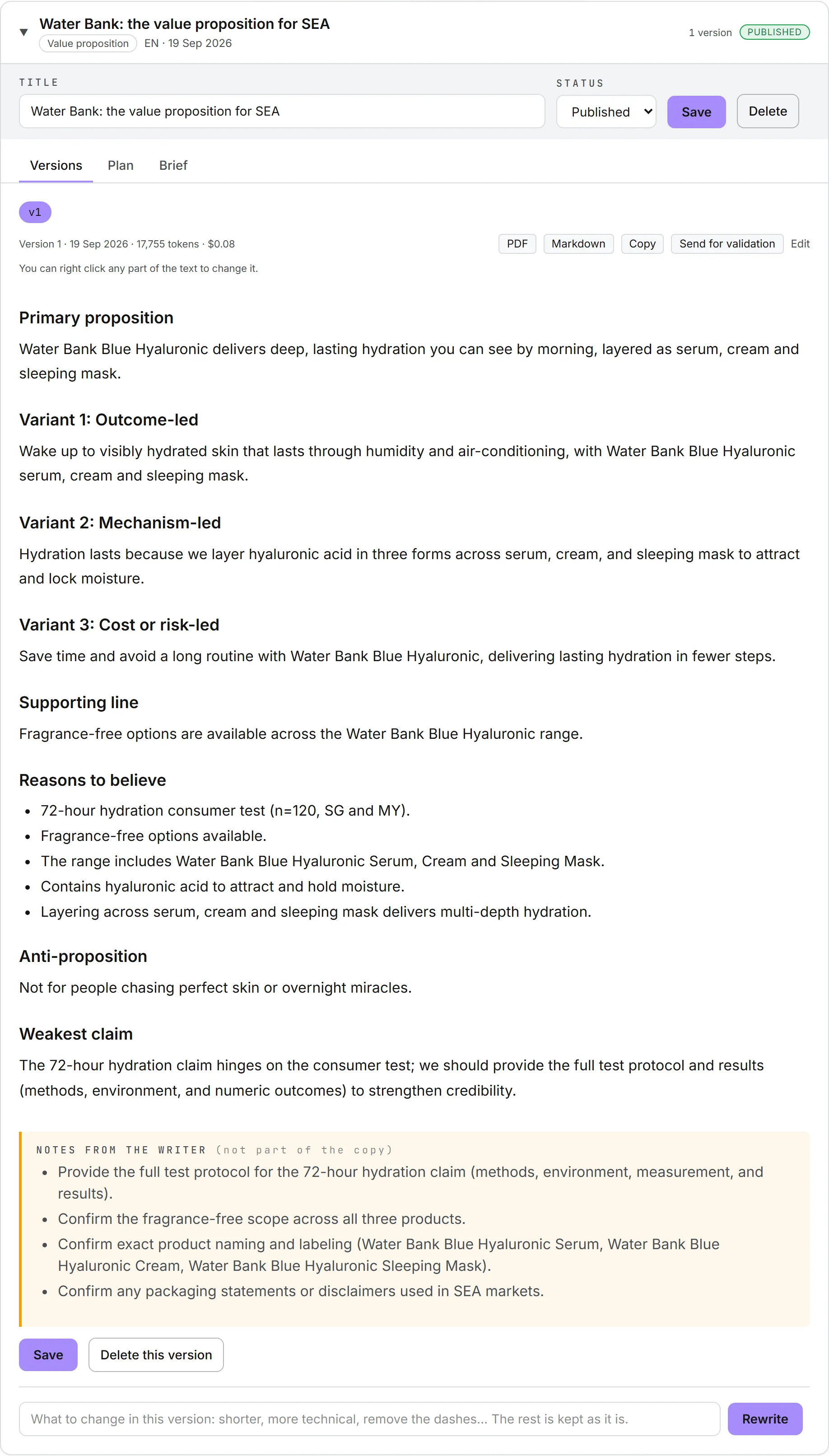
Buttons on each version:
| Button | What it does |
|---|---|
| Downloads the version as a PDF headed by the brand logo, with the format, language, word count, version and date | |
| Markdown | Downloads the version as a Markdown file |
| Copy | Copies the text to your clipboard |
| Send for validation | Sends this version to a colleague for sign-off. See Send a version for validation. |
| Edit | Switches to the Markdown source so you can type. Preview switches back. |
After editing by hand, click Save under the version. Delete this version removes just that one; the others keep their numbers.
Notes from the writer
When the brief left gaps, the writer ends the piece with a To confirm list: facts it needed, claims it couldn’t support. The studio shows these apart, under Notes from the writer (not part of the copy). They’re left out of the PDF, the Markdown file and Copy, and you can answer them without cleaning them out first.
Another version
Under the versions, a box and a button carry the piece forward. Type an instruction such as “shorter” or “remove the dashes” and Rewrite changes the version on screen, the one whose chip is selected, keeping the rest as it is. Leave the box empty and Rewrite writes a fresh version from the brief and the plan.
Either way, the result is added as a new version. On a piece with no version yet, the button reads Write the piece. Runs started from the library use the model picked in the studio’s form on the page.
Rewrite one passage
You can change part of a version without rewriting all of it. Highlight a passage, then click the Rewrite with AI button that appears beside it, or right-click the highlight.
A panel opens with quick edits: Shorter, Longer, Plainer, More concrete and Fix the writing. Or type your own instruction and click Rewrite (Enter works too; Shift+Enter adds a line). The panel has its own Model menu.
On a saved version, the change is saved as a new version and the panel says which number, with the cost. The same tool works on the plan, where the new text replaces the passage in place: Undo puts the old text back, and you still need to click Save the plan to keep it.
The Plan tab
The plan is where you fix the structure cheaply, before the long run. If you started with The plan first, the outline is here, with its cost.
- Edit lets you correct it by hand. Save the plan keeps your edits. Editing by hand costs nothing.
- Rewrite the plan has the AI redo it. Type an instruction first to steer it.
- Write the plus the format name, from this plan: writes the piece following the plan and the format’s skill.
A piece that went straight to a full version has no plan. Write a plan asks for one; later versions can be written from it.
The Brief tab
The Brief tab is the record of how the piece was made: your brief, every field you filled, the keywords targeted and the material it was Written from, with how many characters were read. Every version is written from that same text.
To start a related piece from it:
- Click Re-open the brief. The brief goes back into the studio, filled in, with a note saying where it came from.
- Change anything you like. The material read for the original is reused unless you attach new material.
- Run it. The result is a new piece; the original stays as it is.
Changed your mind? Start a new piece instead clears the link to the original.
Send a version for validation
- On the version, click Send for validation.
- In the dialog, check the Title, pick the Validator and add a Message to the validator if you like. The current text is attached as version 1.
- Click Send for validation.
The validator gets a task on the Project Management board and an email with the link. The request opens in a new tab.
Meanwhile the piece shows Waiting for validation and is locked. Nobody can edit, rewrite or delete it until the validator decides. The rest of the process is on the Validation page.
Where pieces are kept
Pieces are shared with everyone who has access to the brand. The latest AI-written version of each piece is also filed in the Assets Library as a text document, where you can search for it by title alongside everything else the brand has made. Each new AI version, including a passage rewrite, replaces it. A hand edit saved in the studio doesn’t.
Every format, studio by studio
This section is reference: come back to it when a form asks something you don’t recognize.
Fields marked with an asterisk (*) are the ones the form labels “needed”. Every format also has the shared fields described above: title, language, brief, material and more context.
Editorial
| Format | One run produces | Fields |
|---|---|---|
| Blog post | A complete article with title options, meta description and internal link suggestions | Topic*, Primary keyword, Angle, Evidence to use, Audience, Length |
| Thought leadership | A 900 to 1,600 word argued piece, with the counter-argument answered | The thesis*, What most people believe, Evidence and experience, Author and role, Audience |
| Whitepaper | A full whitepaper outline with written sections, figures and an executive summary | The problem*, The approach argued for, Evidence, data and sources, Audience, Length |
| Research report | A report with findings, charts to build, methodology and a press summary | The research question*, Method and sample*, Raw findings*, Audience |
| Case study | A full case study plus a one-page cut and three pull quotes | Customer*, The situation before*, What was done*, Results*, Customer quotes |
| Ebook or guide | A chapter-by-chapter guide with tools, checklists and a landing summary | The promise*, Where the reader starts, Material to build from, Length, Audience |
| Newsletter issue | A full issue with subject lines, preview text and sections | The lead story*, Other items, Cadence and format, The one action, Audience |
| Interview or Q&A | An edited Q&A with an introduction, or the question set if no transcript is supplied | Who is interviewed*, The theme*, Transcript or notes, Audience |
Menu choices:
- Blog post Length: Short (700 to 900 words), Standard (1,200 to 1,500 words), Deep (2,000 to 2,500 words)
- Whitepaper Length: Brief (6 to 8 pages), Standard (10 to 14 pages), Full (16 to 20 pages)
- Ebook or guide Length: Compact (5 chapters, 3,000 words), Standard (7 chapters, 6,000 words), Full (10 chapters, 10,000 words)
- Newsletter Cadence and format: Weekly, short; Fortnightly, mixed; Monthly, long; Occasional, essay
Commercial
| Format | One run produces | Fields |
|---|---|---|
| Landing page | A full page in sections with headline options and a form spec | The offer*, The single action*, Where the traffic comes from, Objections, Proof, Audience |
| Service page | A complete service page with scope, process, pricing framing and FAQ | The service*, Who it is for, How the work runs, Pricing, Proof |
| Product description | Long and short descriptions, bullets, specs and shop metadata | The app*, Specifications, How it is used, Where it is sold, Audience |
| Pricing page | Plan names, positioning, feature table, FAQ and the upgrade copy | The plans*, Pricing model, Which plan should most people choose, Common pricing objections |
| Sales one-pager | A one-page layout with headline, proof block, objections and next step | What is being sold*, When it is handed over, Proof to include, Objections to pre-empt, Audience |
| Brochure | Spread-by-spread copy with headlines, body, captions and image direction | What the brochure is for*, What must be covered*, Format, Audience |
| Proposal boilerplate | A library of proposal sections with placeholders for the deal-specific parts | About the company*, How the work is delivered, Sections needed, Kind of buyer |
| Comparison page | A comparison page with a fair table, honest verdicts and FAQ | Compared against*, Where you genuinely win*, Where they genuinely win, Verified facts about them, Audience |
Menu choices:
- Product description Where it is sold: Own website, Amazon or a marketplace, Retail or wholesale sheet, Catalogue
- Pricing page Pricing model: Flat per plan, Per seat, Usage based, Tiered by volume, Project or quote based
- Sales one-pager When it is handed over: Before a first meeting, Left behind after a meeting, Sent to an internal champion to forward, Handed out at an event
- Brochure Format: Tri-fold leaflet, 8 page A5, 12 page A4, 16 page or more, Digital PDF, any length
- Proposal boilerplate Kind of buyer: Private sector, direct; Public sector tender; Enterprise procurement; Agency or partner
Creative
| Format | One run produces | Fields |
|---|---|---|
| Instagram post | A ready-to-publish caption with hashtags, alt text and slide-by-slide visual direction | The idea*, What the post is for, Post type, Visual ratio, Call to action, Hashtags that must appear, Accounts to mention, Audience, Register |
| Video script | A timed two-column script with visual direction and a shot list | What the video is for*, The one message*, Kind of video, Duration, What can be filmed or used, Audience |
| Short-form video script | Three scripted variants with hooks, on-screen text and a caption | The idea*, Platform, Format, Length, Audience |
| Audio or radio script | Timed audio scripts at several lengths, with a production note | What is being advertised*, Lengths needed, Where it runs, Mandatory wording, Audience |
| Podcast episode | An episode plan with cold open, segments, questions and show notes | Episode topic*, Guest, Format, Target length, Research and material, Audience |
| Webinar or keynote script | A slide-by-slide talk with speaker notes, timings and the Q&A prep | What the talk argues*, Material available, Setting, Slot length, Audience |
| Campaign platform | Three campaign territories, each with an idea, lines and channel executions | The objective*, The insight, Channels, Constraints, Audience |
| Customer story | An interview guide, a story structure and the cut-down versions | The customer*, What is known about the story*, Output, What they will not say, Audience |
Menu choices:
- Instagram post What the post is for: Engagement, Awareness, Traffic to the link in bio, Saves and shares, Announcement
- Instagram post Post type: Single image; Carousel of 3 to 5 slides; Carousel of 6 to 10 slides; Carousel of up to 20 slides
- Instagram post Visual ratio: Portrait 4:5, the recommended default; Square 1:1; Landscape 1.91:1
- Video script Kind of video: Brand film, Product explainer, How-to or tutorial, Customer story, Recruitment film, Event opener
- Video script Duration: 30 seconds, 60 seconds, 90 seconds, 2 to 3 minutes, 5 minutes or more
- Short-form video script Platform: TikTok, Instagram Reels, YouTube Shorts, LinkedIn, All of them
- Short-form video script Format: Talking head, Screen recording, Product in use, Before and after, List or countdown, Skit
- Short-form video script Length: 15, 30, 45 or 60 seconds
- Audio or radio script Lengths needed: 30 seconds; 15 and 30 seconds; 6, 15 and 30 seconds; 60 seconds
- Audio or radio script Where it runs: Radio, Podcast host-read, Podcast produced spot, Streaming audio, In-store or on-hold
- Podcast episode Format: Interview, Solo, Two hosts, Panel, Narrative and documentary
- Podcast episode Target length: 15 to 20 minutes, 30 minutes, 45 minutes, 60 minutes or more
- Webinar or keynote script Setting: Live webinar, Recorded webinar, Conference keynote, Internal all-hands, Sales presentation
- Webinar or keynote script Slot length: 15, 20 or 30 minutes; 45 or 60 minutes with Q&A
- Customer story Output: Filmed story, Written story, Both
Every duration and length menu also offers No length set, the default: the piece runs as long as its subject needs.
The Instagram post format writes the copy only. Building, illustrating and publishing the post happen in the Social capability, covered in Writing posts.
Corporate & PR
| Format | One run produces | Fields |
|---|---|---|
| Press release | A full release with headline options, quotes, boilerplate and a media note | The news*, Why it matters, Facts and figures, Who is quoted, Timing |
| Bylined op-ed | An op-ed to a target word count, with a pitch note and a bio line | The argument*, Author*, Target publication, News peg, Evidence |
| Executive statement | A statement in several lengths, with the lines to hold and the lines to avoid | What the statement is about*, The position taken*, Who is speaking*, What must not be said, Audience |
| FAQ | A grouped FAQ with short answers, plus the questions deliberately left out | What the FAQ covers*, What is known*, What is not yet decided, Where it will live, Audience |
| Crisis holding statement | A holding statement, the channel versions, and the escalation plan | What has happened*, What is confirmed, Who is affected, Legal and regulatory constraints, Severity |
| Corporate narrative | The narrative, the proof structure and the versions from one line to five minutes | The business*, The numbers, The investment thesis, Risks and how they are managed, Audience |
Menu choices:
- FAQ Where it will live: Public website, Customer email or portal, Internal intranet, Press and analyst pack, Support team script
- Crisis holding statement Severity: Service disruption, Data or security incident, Product safety or recall, Harm to a person, Conduct or legal matter
Switch formats off or rewrite them
Your organization can adapt the catalog under Skills > Catalog > Content Formats: rewrite a format’s skill, rename it, or switch it off. New formats can’t be added. If what you need isn’t listed, pick the nearest format and steer it with the brief, a borrowed skill or one of your organization’s skills. A format switched off disappears from its studio and can’t be run. If every format of a studio is off, the studio says so. You can also keep a personal version of a format’s skill. See Content formats.
Who can do what
| Action | What you need |
|---|---|
| Read pieces | Access to the brand and view on Content: Text |
| Run a plan, a version or a passage rewrite | Create on Content: Text and the editor role or above |
| Edit, rename, change status, save | Update on Content: Text |
| Delete a piece or a version | Delete on Content: Text |
Roles and per-person rights are explained in roles and rights.
What it costs
Every run is a paid AI call: a plan, a version, a rewritten plan and a passage rewrite. The tokens and price show next to each version and on the plan, so earlier versions of the same format tell you roughly what the next one will cost. Hand edits cost nothing, and neither do exports.
Runs are billed by the amount of text read and written. To keep costs down:
- Start with The plan first on long pieces. Fixing an outline costs less than rewriting a finished version.
- Rewrite a passage rather than the whole version when only one part is wrong.
- Borrow only the skills you need; each one adds instructions to the run.
- Attach the material that matters, not the whole folder.
Reading a folder from the Assets Library counts as a download, which is billed as storage. See storage costs and credits and costs.
Troubleshooting
- Fill in: followed by field names: a needed field was empty. Fill it and run again.
- Could not read a file: usually a scanned PDF with no text layer, or a file over the size limit. Paste the text into the brief instead.
- This format is no longer offered for this brand: the format was switched off after the piece was written. The piece stays readable, but you can’t re-open its brief.
- The PDF drops some characters. PDF export supports Western European characters only. For Chinese, Japanese, Korean, Cyrillic, Greek or Arabic text, use Markdown or Copy.
- Your role (viewer) is read-only. Viewers can read pieces but not run or edit them. Ask an admin for the editor role.
- A message about credits or a spending cap. The run didn’t start because your credits ran out or you reached your daily cap. See credits and costs.
- The form came back filled after a reload. It’s the Draft restored feature: what you type is kept in your browser per brand and per format, until a run lands. Attached files aren’t kept.