Invoices and credit history
Find the invoice and PDF for every credit purchase and automatic top-up, read the credit history line by line, and learn why your balance changed.
The Invoices page keeps the paper trail for your credits: the invoice for each purchase or automatic top-up, then each movement on your balance. Everyone sees the records of their own credits. Admins also see the organization’s.
Whose invoices
Admins of an organization get a Whose invoices switch at the top, with the organization and Your account, each with its balance. Whichever you pick, both tables below switch to it.
Everyone else sees only their own credits here. The organization’s invoices and history are for its admins.
Your invoices, one per payment
Stripe issues one invoice per purchase and per automatic top-up. Each row shows:
| Column | What it shows |
|---|---|
| Date | When the purchase or top-up was made. |
| Type | Credit purchase or Automatic top-up. |
| Amount | The credits bought, in US dollars. |
| Paid with | Card, Alipay or WeChat Pay. |
| Status | See below. |
| Invoice | The Stripe invoice number. |
| (links) | View opens the invoice online. PDF downloads it. |

The status tells you where the payment stands:
| Status | Meaning |
|---|---|
| paid | Stripe confirmed the payment and the credits were added. |
| pending | The payment is still settling, which can happen with Alipay or WeChat Pay. |
| failed | The payment didn’t go through. Nothing was added. |
| refunded | The payment was refunded and its credits were taken back. |
When there’s no invoice number or link yet, the cell reads “n/a”.
The Amount column is always in dollars, the credits you received. A WeChat Pay purchase was charged in yuan, and its Stripe invoice shows the yuan amount, with the dollar amount of credits in the line description.
An invoice is for what you paid. Free credits from a promotional code never change its total: the code and what it gave you are written into the invoice description instead.
The name and address on each invoice depend on whose credits you bought. See who the invoice is made out to. To change your own name and address, open Settings and go to the Invoices section. A change applies to the next invoice; invoices already issued keep the details they were issued with.
Looking for a receipt rather than an invoice? The Payment page you land on after paying has a Receipt link.
The credit history
Below the invoices, Credit history lists every movement on the balance, newest first. The last 100 movements show. It’s the table to open when a balance doesn’t add up.
| Column | What it shows |
|---|---|
| When | Date and time, in your date and time settings. |
| What | The type of movement. For usage, also the action and the model. |
| Who | The address of the person who ran the action. |
| Amount ($) | Plus for credits in, minus for credits out, to four decimals, since a single AI call often costs a fraction of a cent. |
| Balance | The balance after the movement. |
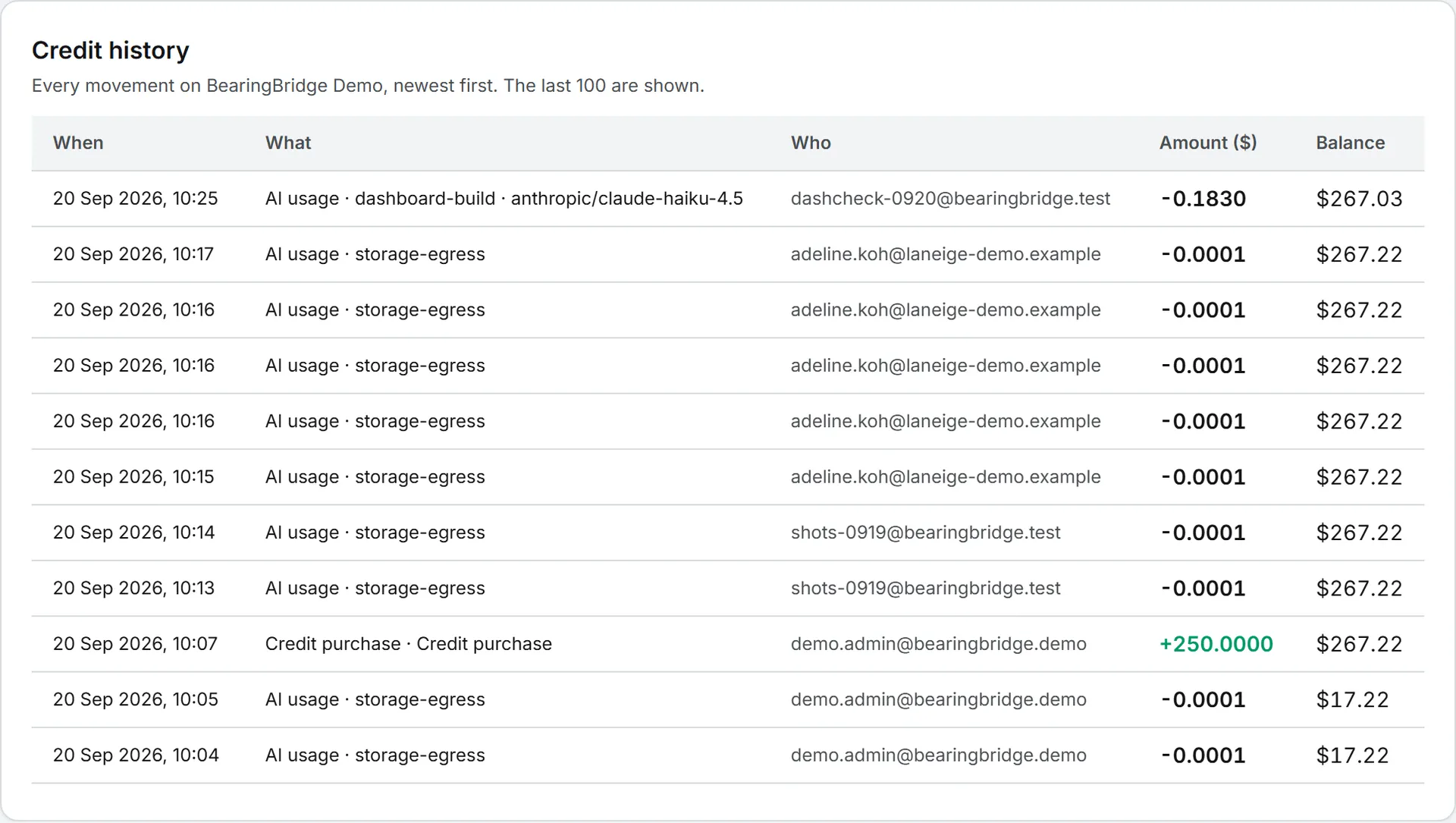
Purchases show as Credit purchase and top-ups as Automatic top-up. Each paid action is an AI usage row, with the action and the model. The rarer ones:
- Promotional code: the free credits a promotional code added to a purchase, with the code named in the reason. It’s a movement of its own, so it sits on the line under its purchase.
- Admin adjustment: credits added or taken back by the BearingBridge team, with the reason given.
- Refund: credits taken back because a payment was refunded. Free credits from a code are taken back with it, in proportion.
- Reversal: a correction that cancels an earlier movement.
If 100 rows isn’t enough, the Usage log has a longer, filterable list of what was spent.
Adjustments by BearingBridge
Note: If your balance changed and you didn’t buy or spend anything, look for an Admin adjustment row and the email that goes with it.
Credits move without a payment in one case only: the BearingBridge team adjusts a balance by hand. Think of a goodwill gesture, or fixing a mistake. Each one is recorded with the reason given.
You’ll always hear about it by email. The email says how much moved and why. It also gives the new balance, with links to Buy Credits and to this page. It’s written in the language you use in the interface. When your own credits moved, it comes to you. When an organization’s shared credits moved, every admin gets it, and so does the billing email if it’s a different address.
An adjustment isn’t a charge: no money moves, so there’s no invoice for it.
Emails about your credits
| When | Who gets it | |
|---|---|---|
| “AI credits added” | After a purchase. With a promotional code, the subject names the free credits too. | The buyer, plus the billing email for organization credits |
| “AI credits added”, opening on “Your credits were topped up” | After an automatic top-up | You for your own credits, the billing email for organization credits |
| Adjustment email | After a hand adjustment | You, or every admin plus the billing email |
Good to know
- Credits never expire.
- The Terms of Service you accept at your first purchase state that credits are never refunded.
How credits work is explained in credits and costs.