Storage costs
Stored files carry daily rent, and downloads are billed as transfer. See what counts, who pays, what happens without credits, and how to spend less.
Keeping files in Intelligence is billed like any other resource: a small daily rent on what your organization stores, and a charge each time a file is downloaded. Both come out of your prepaid credits. Here’s what counts and who pays, with a few ways to keep the bill down.
The two charges
Rent on stored files. Once a day, the app adds up every file your organization keeps and charges one day of rent on that total. Each day is charged once, never twice. The price is set per gigabyte per month, and a day costs a thirtieth of that. If you store less, tomorrow’s line is smaller.
Transfer on downloads. Each time a stored file is downloaded, the size of that download is billed as data transfer, per gigabyte.
BearingBridge sets both prices and may change them.
Note: The library page doesn’t print a price per gigabyte. You see each charge in your usage log once it’s made. To know what your storage costs, look at the File storage (daily) lines there: each is one day of rent on what you stored that day. For the full list of paid actions, see What costs credits.
What counts as stored
Rent runs on every file that stays in the app:
- everything in the Assets Library, uploads and generated assets alike (texts, images, videos), including assets of brands you can’t see
- files added in validation requests, pictures uploaded for social posts and reference files for video renders, since they all live in the library
- files attached in the Playground and files it generated
Your avatar and your brand logos aren’t counted.
Regenerating a piece doesn’t pile up storage either: the new version replaces the old copy.
What counts as a download
Each of these is billed as transfer:
- Download from an asset’s Actions menu
- View on a file the library can’t preview, which opens it the same way
- each document read when a library folder serves as context, in Brand Content, a social post or an agent
- each document Ask Intelligence reads from the library, one by one or as a folder
The thumbnails and previews in the library list are not billed, and neither is viewing an image or a video full size.
Who pays
| Charge | Company organization | Personal organization |
|---|---|---|
| Daily rent | The organization’s shared credits | The owner’s personal credits |
| Downloads | Whoever downloads, from the credits their other paid actions use | The owner’s personal credits |
The rent is billed to the organization as a whole. In the usage log it appears once a day as File storage (daily), with no member attached. Downloads appear as File download (transfer) under the person who downloaded. Both carry the Storage label.
Members see their own lines in the usage log. Admins see every line of their organization, the daily rent included. For how a member draws on the organization’s credits, see Shared credits.
When credits run out
The rent keeps coming, one line a day, even if the balance falls below zero. New uploads, though, are refused until credits are added. The refusal comes before any byte is sent, with a message saying why. The AI runs that make new assets need credits as well. Existing files stay where they are, and you can still delete them.
To top up, see Buy credits or set up an automatic top-up.
Keep the bill down
- Delete what you no longer need. A deleted file stops being billed the next day, as the delete confirmation reminds you.
- Clear out folders you’re done with. Deleting a folder takes its whole content with it, and the confirmation tells you how much space that frees.
- Sort the library by Largest first to find the heavy files. The type tiles in the band also show how much space each type takes.
- Keep context folders lean. Every document in a context folder is billed as a download each time the folder is read.
What the library page shows
Under the title, the Assets Library shows how many assets you can see, the size of the organization’s whole library and the largest file you may upload. A generated asset also shows what its run cost under its name, as “generated for” followed by the amount.
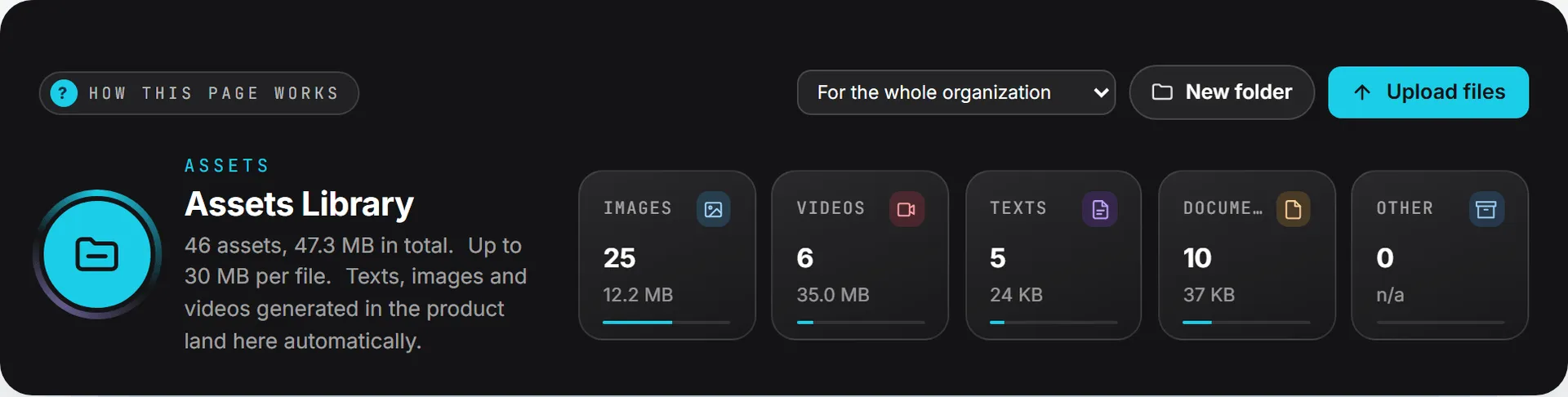
The size on the page covers the library only. The rent also counts Playground files, so the billed total can be a little higher.