Assets Library overview
The Assets Library holds uploads and everything Intelligence generates. Learn who sees each asset, how to upload, open and delete, and how folders feed writing.
The Assets Library holds the files your organization uploads, along with the texts, images and videos the app makes for you. Every role can use it; you’ll find it as Assets Library in the left menu.
What lands in the library
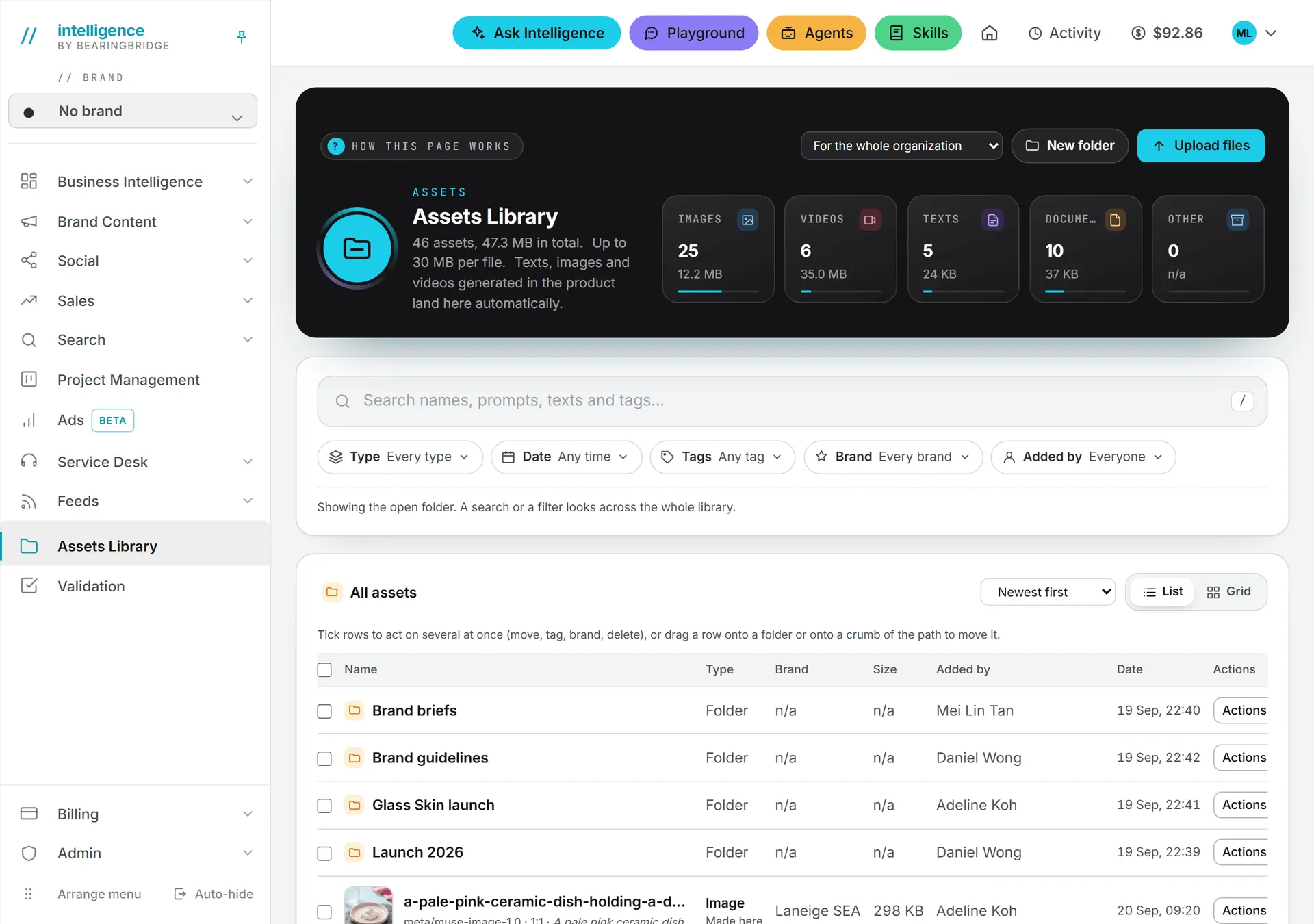
The library holds two kinds of assets.
Uploads are files people add: on this page, in a validation request, as a picture from your computer for a social post, or as a reference file for a video render. Each upload is stored once, in the library. The feature that needed it points at that copy.
Generated assets arrive on their own. Every article, copy piece, social post and post version, image and video made in Brand Content or Social is saved here as soon as it’s made. Each one remembers what made it: the engine, the prompt or the first lines of the text, and what the run cost. Files from the Playground are the exception: they stay in the Playground.
Saving to the library never gets in the way of the work: if the library copy can’t be written, the run still succeeds. When a piece is made again, its library copy is replaced rather than duplicated. Rewrite a copy piece ten times and the library still holds one asset, the latest version.
The band at the top shows one tile per type (Images, Videos, Texts, Documents, Other) with a count and a size. Under the title, a line gives the number of assets you can see, the size of the whole organization’s library, and the largest file you may upload.
Who sees an asset
Every asset is filed under one of three places.
| Filed under | Who sees it |
|---|---|
| The whole organization | Everyone in the organization |
| One brand | The people who have access to that brand |
| No brand | Only the person who made or uploaded it, until they share it |
If you can’t access a brand, its assets stay hidden from you everywhere, Ask Intelligence and context folders included. See Brands and Data access and privacy. See roles and rights.
No brand is the workspace for work that isn’t tied to a brand yet. Its assets show “No brand” in the Brand column, with “Only you” under it while they’re private. The owner opens Who sees it in the Actions menu and picks Only me, Everyone in the organization or Chosen brands. Nobody else can change it. A picture made for a social post follows the sharing of its post.
Upload files
- Open the folder that should hold the files, or stay at the top level, All assets. The upload button’s tooltip names the folder.
- If you have brands, choose who sees the files in the dropdown next to the buttons: For the whole organization or For [brand] only.
- Click Upload files and pick one or more files.
A progress bar fills for each file, then the list refreshes. Each file must stay under the limit printed on the page (30 MB unless the BearingBridge team set another one for your organization). An empty file, or one over the limit, is refused before anything is sent.
The upload itself is free; the stored file then counts toward the organization’s daily rent. Because storage is billed, though, uploads need credits. If your credits are out, the upload is refused with a message saying why. See Storage costs.
Open, preview and download
Click anywhere on a row to open the asset. A generated asset opens in the module that made it, on that very piece: the article, the copy piece, the social post or the render. An upload opens its preview, or the file itself in a new tab when it can’t be previewed, which counts as a download.
Every asset row has an Actions menu. Folder rows have a shorter one: Rename, Move and Delete.
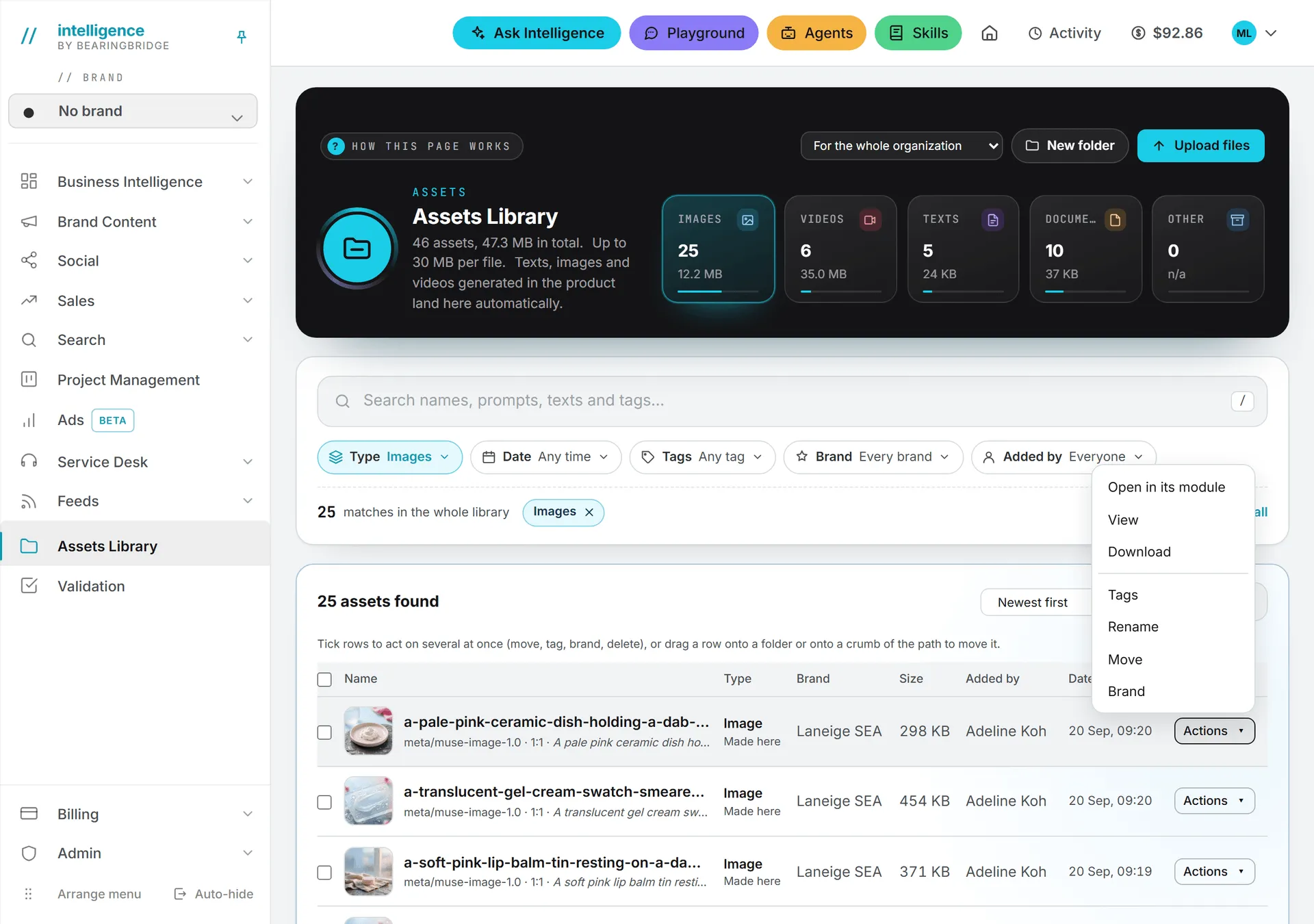
| Action | What it does | Who |
|---|---|---|
| Open in its module | Opens the piece where it was made (generated assets only) | Anyone who sees the asset |
| View | Shows an image or a video full size | Anyone who sees the asset |
| Download | Opens the file in a new tab through a short-lived link | Anyone who sees the asset |
| Tags | Adds or removes tags | Anyone who sees the asset |
| Rename | Changes the name | Anyone who sees the asset |
| Move | Moves it to another folder | Anyone who sees the asset |
| Brand | Files it under the whole organization or one of your brands | Anyone who sees the asset, toward brands they can access |
| Who sees it | Shares a No brand asset | Its owner |
| Delete | Deletes the asset | The person who added it |
A download is billed as data transfer. The thumbnails and previews in the list are not.
Rename, move and delete
Rename asks for the new name in a small box. Move opens a strip under the row with a folder picker: pick the folder, then click Move. You can also drag a row onto a folder. Folders, tags and search covers folders in detail.
Delete asks you to confirm and reminds you that the asset’s storage stops being billed the next day. The button spins while it runs. Then the row fades out and the list is reloaded from the server, so the list shows what’s actually stored. If the delete fails, the list is still read again and the page says what went wrong.
Important: Only the person who added an asset can delete it. Not even an admin can delete someone else’s asset. Folder deletes follow a stricter rule, explained in Folders, tags and search.
Tick several rows to act on them together: a bar appears to move them, tag them, set their brand or delete them. See Select several rows.
Send an asset to validation
The library’s Actions menu has no validation item. You send an asset for validation from where it was made (a copy piece, an article, a social post, an image or a video) or from the Validation page. An asset the library already holds is never uploaded again: the request points at it. A file you add inside a validation request is uploaded into the library.
The validator’s email links straight to the asset. The library opens its folder and highlights the row for a few seconds. See Validation.
Use a folder as context
One more reason to keep folders tidy: writers, Ask and agents can read a library folder before they write or answer.
Writing. In Brand Content copy studios and in social post forms, pick a folder in Context folder from the Assets Library. Every text document in it and in its subfolders (PDF, Word, Excel, plain text and the texts written in the app) is read before the writing starts. At most 20 documents are read, a file over 15 MB is skipped, and a long folder is cut once its text budget is used up. What couldn’t be read is listed, so the run doesn’t silently write without it.
Ask Intelligence. Name a folder or a document in your question. Ask can list the folder tree, read a whole folder, or read a single document, and only ever reads the assets you can see. See What Ask can read.
Custom agents can read library folders and documents too, and a service desk can answer from a linked folder. See Custom agents and Knowledge base.
Each document read as context is billed as data transfer, like a download.
Good to know
- The open folder is part of the page address. A reload or a shared link lands in the same folder.
- Press / anywhere on the page to jump to the search field.
- The List or Grid view and the sort order are remembered in your browser.
- The address /assets leads to the library too.
- Download on a row gives you the file exactly as stored, billed as transfer. Exports and downloads maps every way out of the product.