Campaigns
A campaign gathers one marketing effort's assets under a name and a brief, so Ask Intelligence, agents and the writing forms can read them together.
Watch the video
A campaign gathers the assets of one marketing effort under a name and a short brief. That means the texts, pictures, clips, social posts, articles and documents, whichever module made them, plus the files you uploaded. Once they’re gathered, Ask Intelligence, your agents and the writing forms can read the whole set in one go. Campaigns has its own entry in the left menu, just under the Assets Library.
How a campaign holds its assets
Everything the app makes is saved in the Assets Library, and so is every file you upload. A campaign doesn’t copy any of it. It points at those assets, which has a few consequences worth knowing:
- One asset can sit in several campaigns at once.
- When an uploaded file gets a new version, every campaign holding it shows the new one.
- Taking an asset out of a campaign leaves it in the library. Deleting it from the library takes it out of every campaign.
- Deleting a campaign never deletes a single asset.
A campaign belongs to your organization. You can tag it with the brand it was made for, or leave it on Whole organization. The brand is only a label. Everyone in your organization who can open Campaigns sees every campaign, and inside each one, the assets they’re allowed to see in the library. A colleague’s private asset filed under No brand stays hidden from you, even in a campaign you share.
The Campaigns page
Campaigns in the left menu unfolds into a short list. All campaigns comes first and opens the Campaigns page. Every campaign in your organization follows, by name in alphabetical order. Click a name to open that campaign.
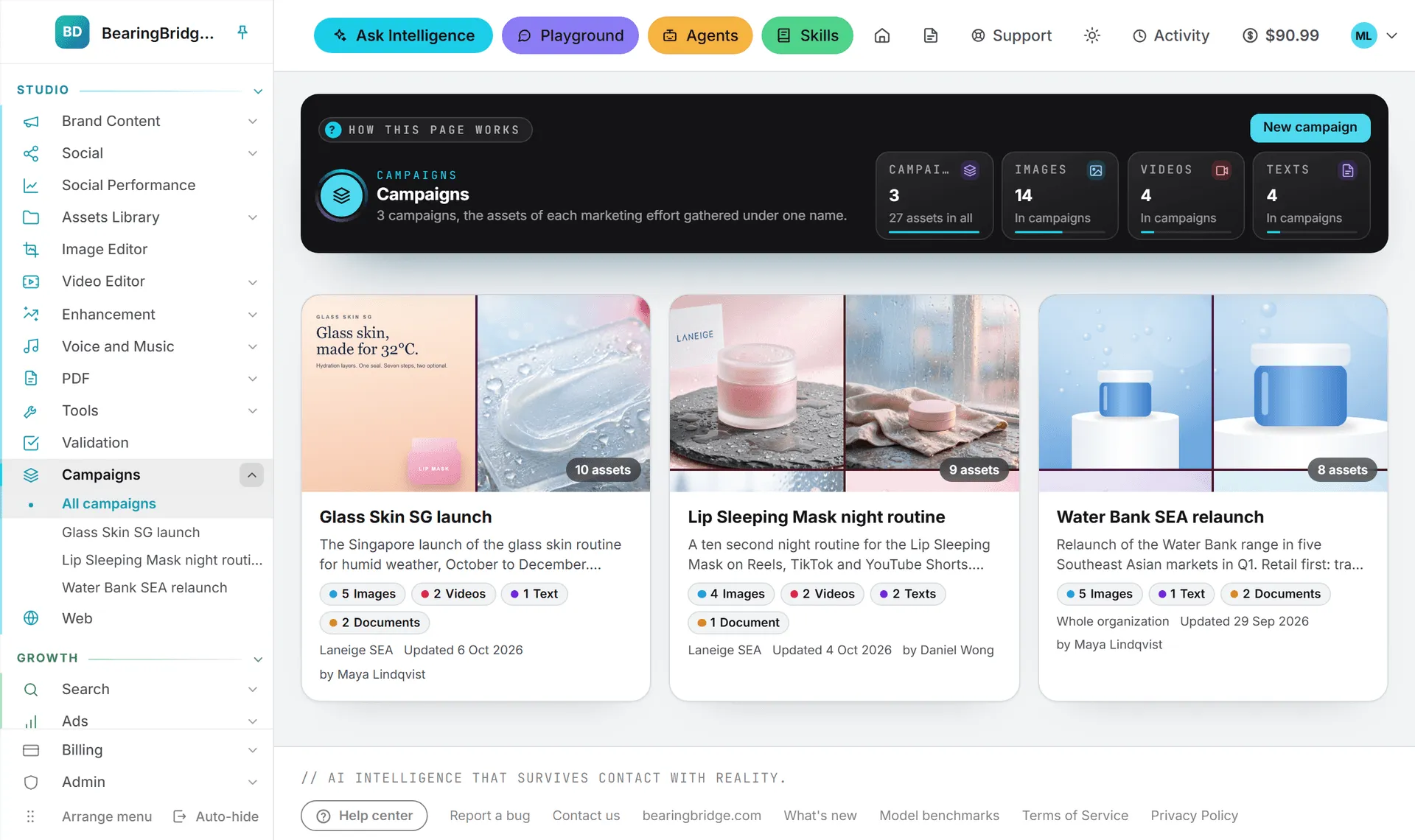
The band at the top counts your campaigns and what they hold: one tile for the campaigns, then one each for the images, videos and texts inside them. Below it, each campaign gets a card.
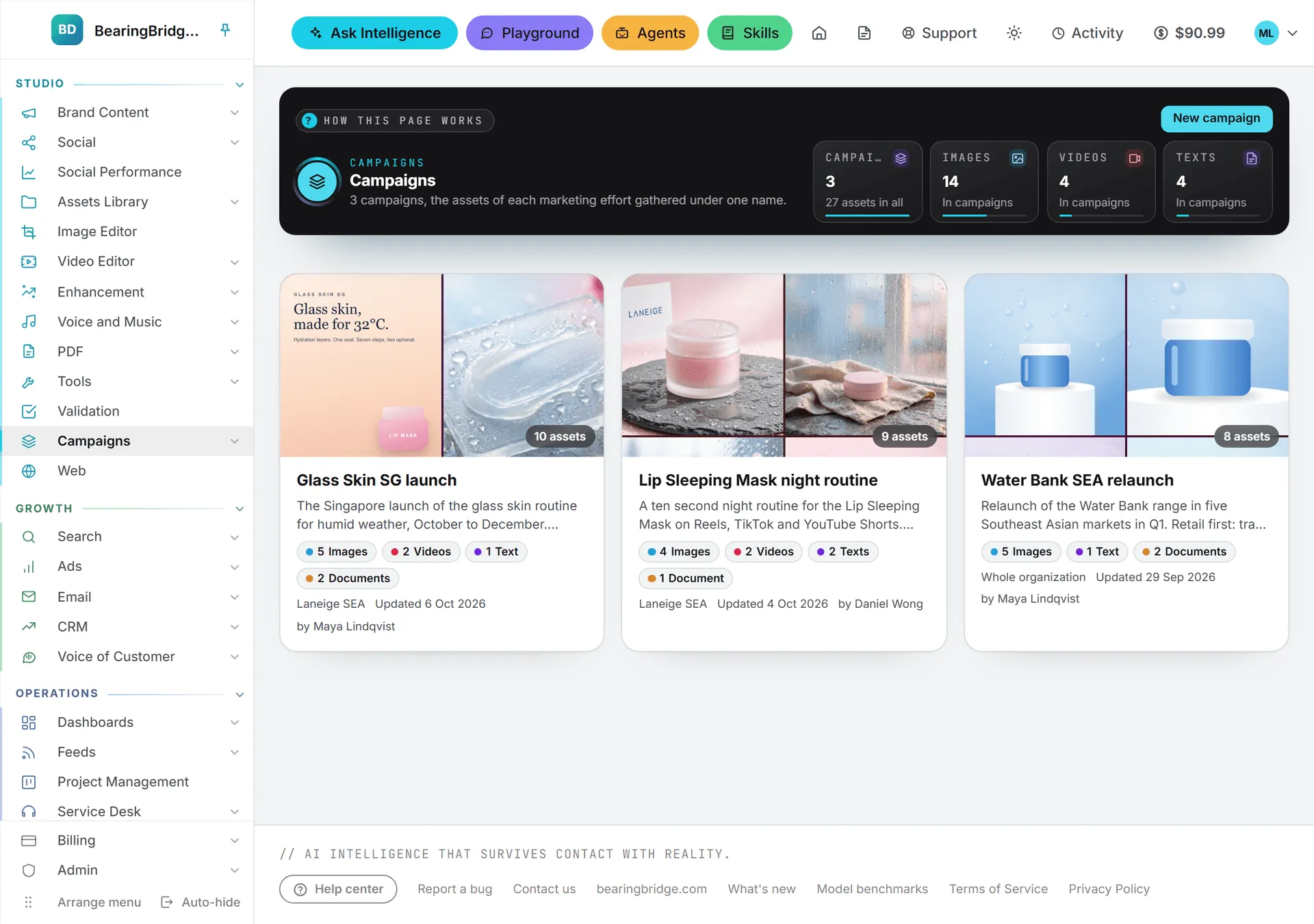
A card shows up to four of the campaign’s pictures, the number of assets, the brief and a count per type. Its last line names the brand (or Whole organization), the day it was last updated and who created it. Click a card to open the campaign.
Create a campaign
- Click New campaign in the band.
- Type a Name, up to 120 characters. No two campaigns in your organization can share a name.
- Write a Brief if you like: the goal, the audience, the key message, the dates. It holds up to 4,000 characters, and Ask and the agents read it along with the assets.
- Pick a Brand, or leave Whole organization.
- Click Create the campaign.
The new campaign opens with its library picker already showing, so you can fill it straight away. Cancel closes the form without creating anything.
You can also start a campaign from the Assets Library, as the next section shows.
Add assets
From the campaign page
- Click Add assets in the band. The Add assets from the library card opens.
- Find what belongs: type in the search box (it searches names, prompts, texts and tags), or narrow the list with All, Images, Videos, Audio, Texts, Documents or Other files.
- Tick each asset to add. Assets already in the campaign say In the campaign and can’t be ticked twice.
- Click the button at the foot of the card, which counts what you ticked, such as Add 3 assets.
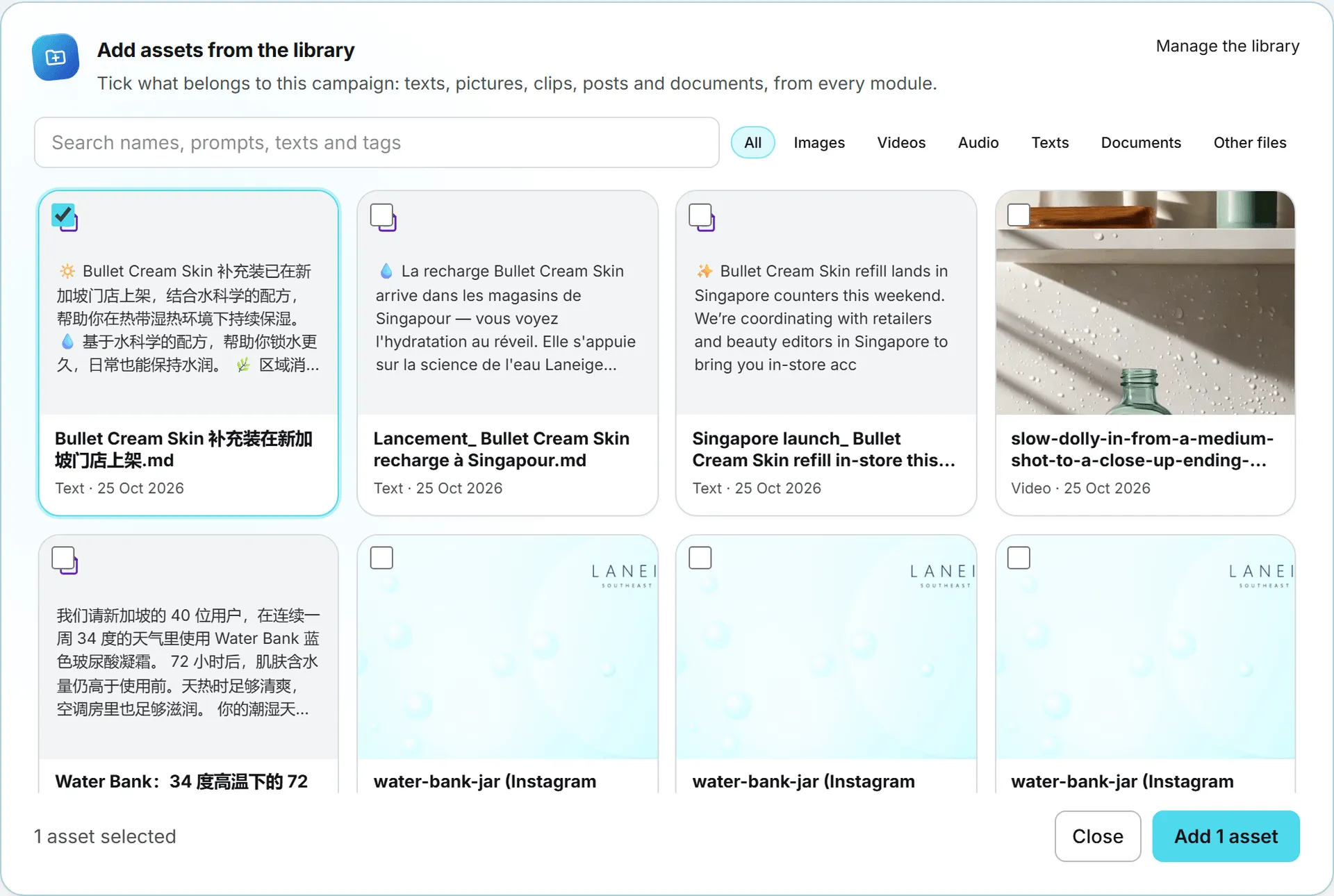
The picker shows the first 200 matches. Search to narrow a long library. Close folds it away, and Manage the library opens the Assets Library in a new tab.
From the Assets Library
In the library, open an asset’s Actions menu and click Add to a campaign. Once the asset sits in a campaign, the item reads Campaigns instead. A strip opens under the row:
- Already in: lists the campaigns that hold it, each one a link.
- The list next to it offers your other campaigns, plus New campaign…, which shows a field for the new campaign’s name.
- Add puts the asset in, and Cancel closes the strip.
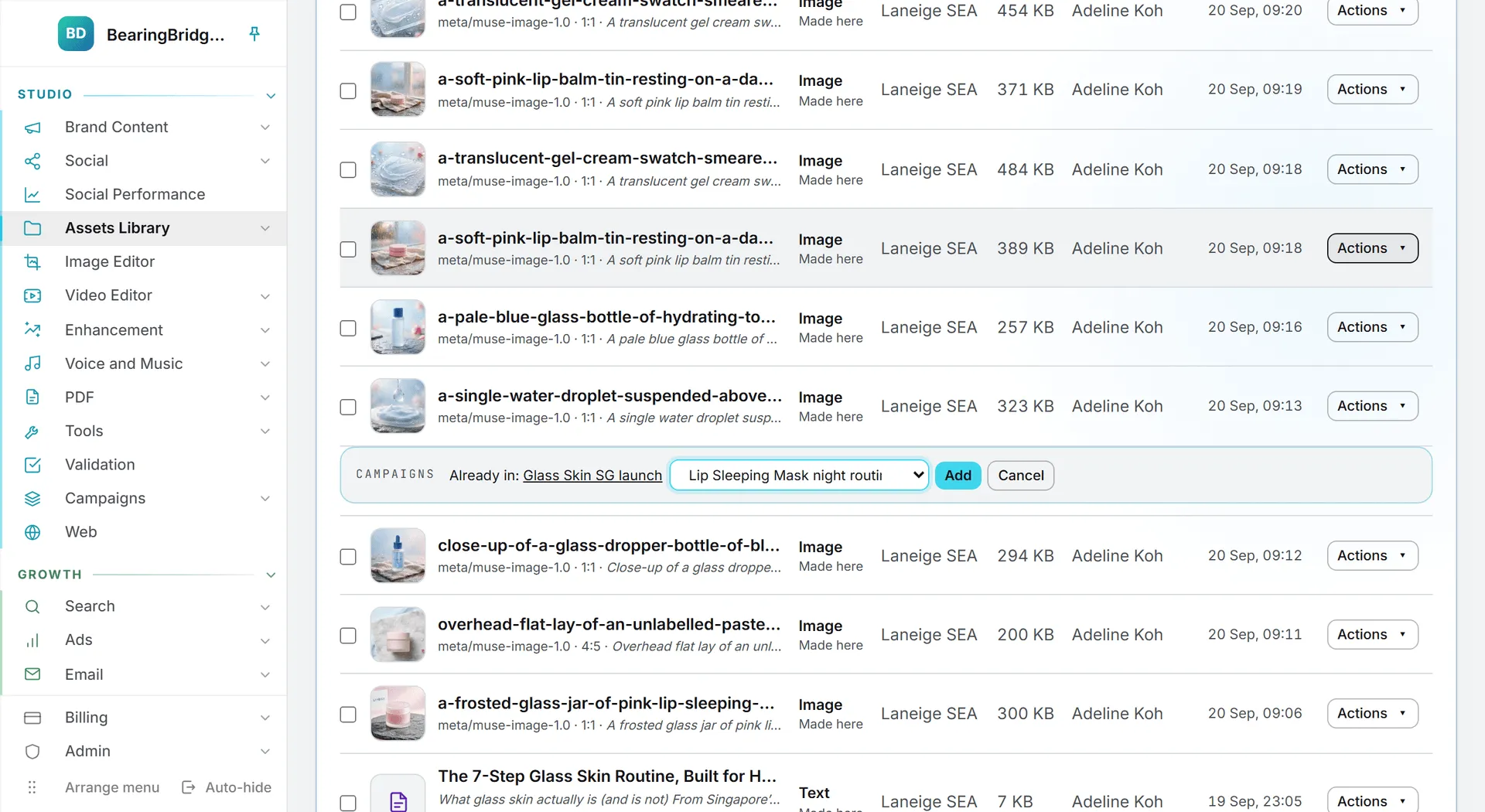
To add many at once, tick their rows. The bar that appears has the same list: pick a campaign, or New campaign… and a name, then click Add to campaign. Only files go in. A folder ticked along with them is left out. One click adds up to 200 assets.
Fill a campaign as you create
You don’t have to file your work after the fact. The forms that make or upload something have a Campaign choice, set to None by default. Pick a campaign there, and while it stays picked, everything the page saves to the Assets Library joins that campaign: the post and its pictures, autosaved edits, renders, drafts and uploads. Each piece still lands in the library as usual.
| Page | Where the Campaign choice sits |
|---|---|
| Image and video studios | Among the options, with Manage campaigns to open the Campaigns page in a new tab (Create a campaign while your organization has none) |
| Copy studios | Next to the button that runs the piece |
| Articles | Next to Draft articles |
| Social posts, on every network | Next to Draft with AI on the networks that start from a brief, and in the pictures step of every post |
| The TikTok brief | Next to Draft the post |
| Shorts autopilot | Next to Make the shorts |
| The YouTube channel pictures | Next to Render with AI |
| The Assets Library | In the band, next to the choice of who an upload is for: No campaign, or a campaign’s name |
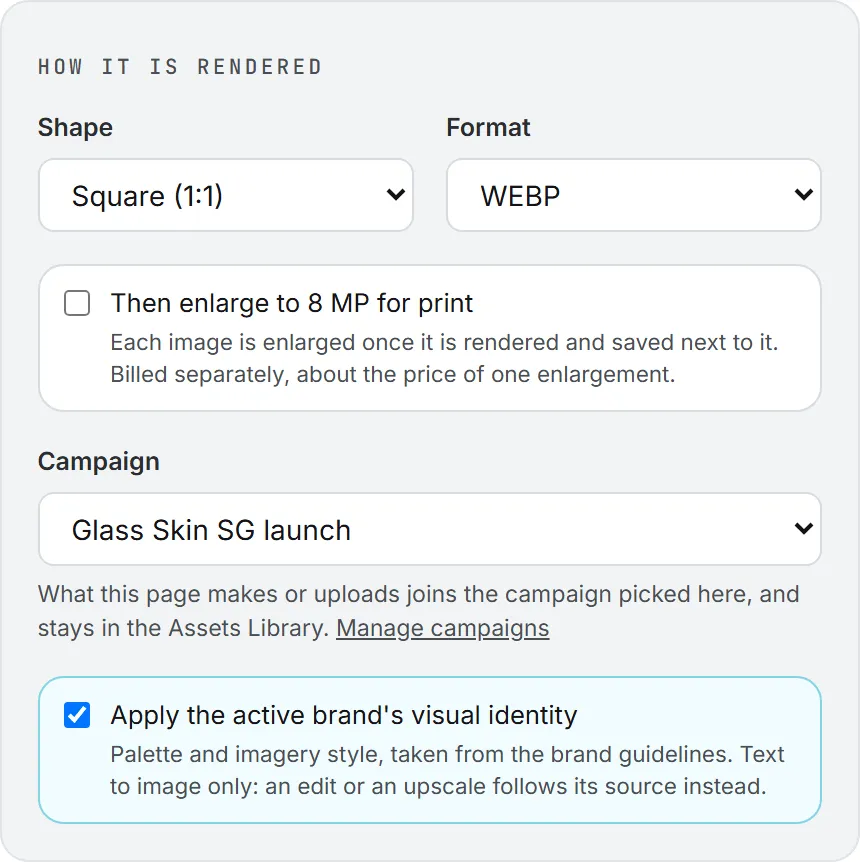
The choice belongs to the page, not to one field. On a page that shows it twice, such as a post and its pictures step, both always show the same campaign: change one and the other follows. A reload puts the page back on None.
Switching back to None stops new work from joining. Nothing already in the campaign leaves it. To take an asset out, use Remove on the campaign page.
Note: The Campaign choice shows only to people with the Update right on Campaigns. Deal files in Sales, uploads sent to Validation and the Playground don’t offer it.
The campaign page
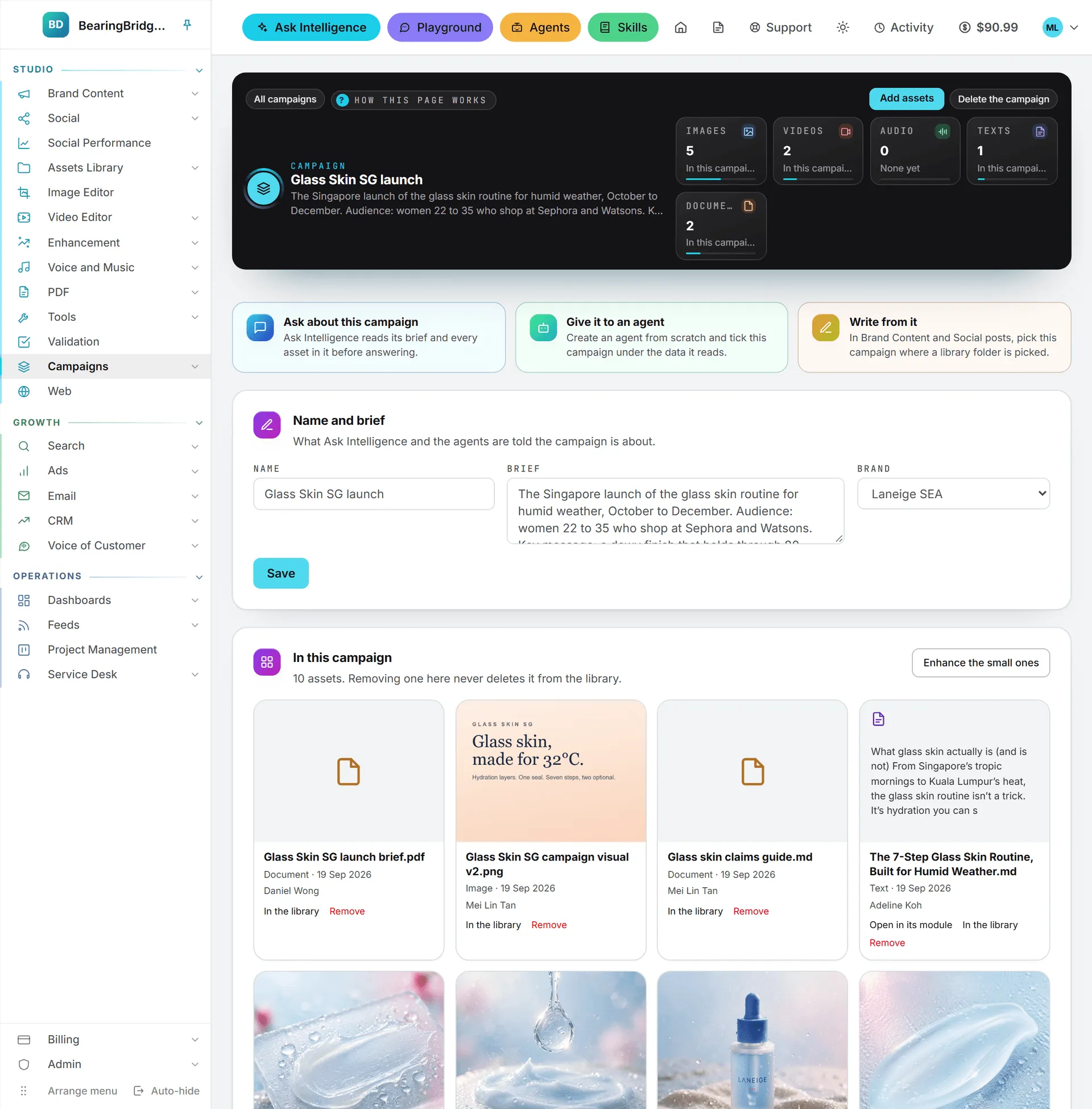
The band shows the campaign’s name and brief, with a tile per type: images, videos, audio, texts, documents and other files. A sound shows its waveform, and clicking it plays it. All campaigns takes you back to the list.
Under the band, three cards say where the campaign can go next:
| Card | What it does |
|---|---|
| Ask about this campaign | Opens Ask Intelligence with the campaign already pointed at in the question box. Finish the question and send it. |
| Give it to an agent | Opens Agents. Create an agent from scratch and tick the campaign under the data it reads. |
| Write from it | A reminder that the Brand Content and Social writing forms can write from this campaign. |
The first two only show when you can open Ask Intelligence or Agents.
Name and brief lets you rename the campaign, rewrite its brief or change its brand. Click Save when you’re done.
In this campaign lists the assets, newest first, with their type, network when there is one, date and who made or uploaded them. Click a picture or a clip to see it large. Each asset has up to three links:
- Open in its module opens a generated piece where it was made, such as the social post or the article.
- In the library opens the Assets Library on that asset.
- Remove takes it out of the campaign and leaves it in the library.
Delete a campaign
Delete the campaign sits in the band. A window asks you to confirm and reminds you that the assets stay in the Assets Library. Any agent that read the campaign stops reading it. Only the person who created the campaign, or an administrator, can delete it.
Filter the library by campaign
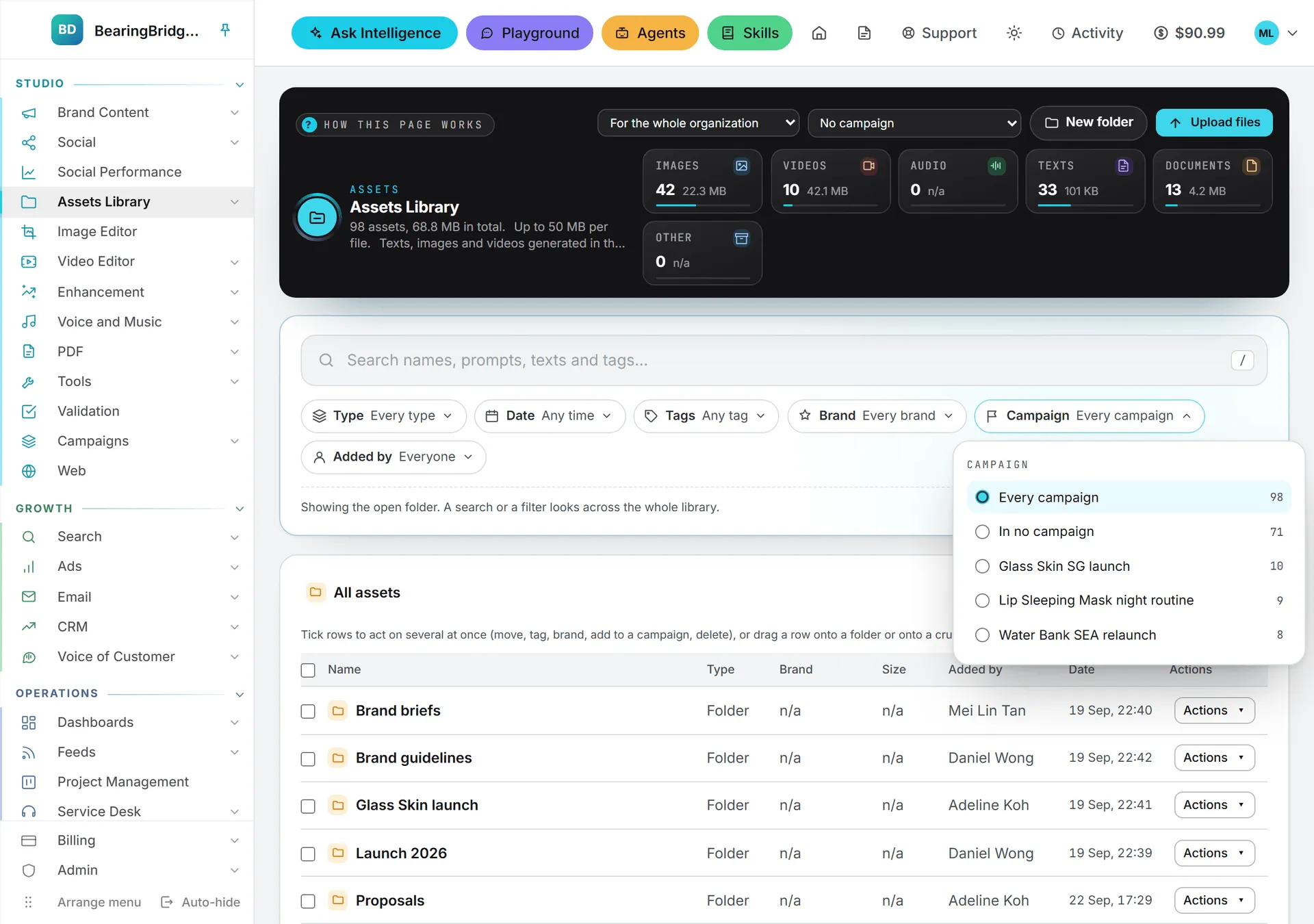
Once your organization has a campaign, the Assets Library gets a Campaign filter next to Brand. It offers Every campaign and In no campaign, handy for spotting what still needs a home. Each campaign follows by name, with the number of assets it would find. The campaign you pick shows as a chip under the filters, like any other filter. Click the chip to remove it. See Folders, tags and search.
Use a campaign elsewhere
So far the campaign is a tidy shelf. Here’s where it starts to pay off.
In Ask Intelligence
Type @ in the question box and start the campaign’s name. Campaigns show up in the same list as the library’s folders and files, marked Campaign. Pick one, and Ask reads exactly that campaign. You can also just name it in your question.
Ask reads the brief, then a line for every asset: its name, type, network, format, the prompt behind each picture or clip, its tags and its date. After that it reads the full text of the campaign’s documents and written pieces, up to 20 documents. It never looks inside pictures and clips. It knows them by their prompt. The Campaigns group under Data included turns this on or off for a conversation, and the Ask panels inside Brand Content and Social can read campaigns too. See What Ask can read.
Note: Here a campaign means a set of assets, not a Google Ads campaign. Ask only turns to your ad campaigns when your question is about ads.
In an agent
When you build a custom agent, the From the Assets Library list offers your campaigns ahead of the folders and documents, each marked Campaign. Tick one, and on every run the agent reads its brief, the line per asset and the text of its documents. When the agent runs for a brand, it reads the organization’s assets and that brand’s own, never another brand’s.
In the writing forms
The copy studios in Brand Content and the social post forms have a field called Context folder from the Assets Library. When your organization has campaigns, that list gets a Campaigns group under the folders. Pick a campaign and its brief, its line per asset and the text of its documents are read before the writing starts. A service desk’s knowledge base doesn’t offer campaigns, because it reads folders only.
Who can do what
Campaigns has its own row in the rights grid, under Assets Library. See Roles and rights.
| Right | What it allows |
|---|---|
| View | Opening the Campaigns pages, and pointing Ask, agents and writing forms at a campaign |
| Create | Creating a campaign, with the assets picked at the same time |
| Update | Renaming it, rewriting its brief, changing its brand, adding or removing assets, and using the Campaign choice in the creation forms |
| Delete | Deleting a campaign you created. Administrators can delete any campaign. |
Until an administrator changes the row, it follows each person’s role: viewers can open campaigns and read them, and editors and above can also create, change and delete them. Campaigns belong to an organization, so a login without one has none.
What it costs
Creating campaigns and filling them is free. Reading one costs what reading the library costs: when Ask, an agent or a writing form reads a campaign, each document it opens is billed as a download, on top of the model run itself. Pictures and clips aren’t downloaded, since they’re known by their prompt. See Storage costs.
Troubleshooting
“A campaign named ”…” already exists.” Two campaigns in an organization can’t share a name. Pick another one, or open the existing campaign and add to it.
“Give the campaign a name.” The name field is empty.
An asset you expected isn’t in the campaign. Either it was deleted from the library, or it’s a colleague’s private No brand asset, which only its owner sees. They can share it from Who sees it in the library.
No campaign shows after typing @. Your role may not include the Campaigns row. Ask an administrator.
A form has no Campaign choice. It shows only to people with the Update right on Campaigns. Ask an administrator.
Something you made isn’t in the campaign. The page was set to None when the piece was saved, perhaps after a reload. Add the asset from the library or from the campaign page.
No Delete the campaign button. Only the person who created the campaign, or an administrator, can delete it.