Runs and schedules
The Runs tab lists recent scheduled agent runs with their findings or report, tokens, and cost. Learn how schedules, run emails, budgets, and failures work.
The Runs tab is the history of your scheduled agent runs: one row per run of one agent on one brand, with what it produced and what it cost. Everyone can open it, and it only ever shows the brands you can see. This page also covers the schedule and the run emails, then failures and costs.
The Runs tab
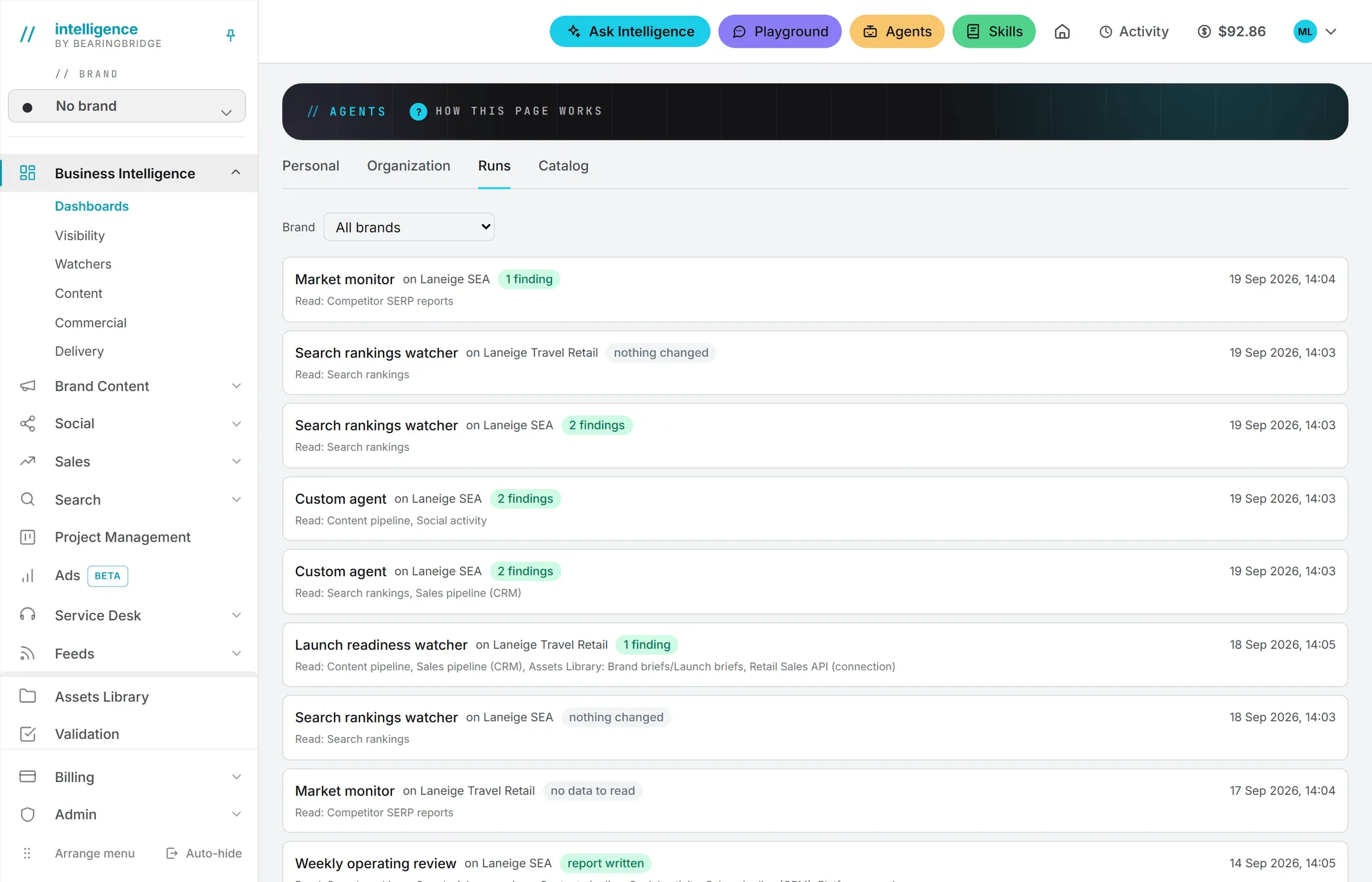
Open Agents in the header, then Runs. The tab lists the 50 most recent completed scheduled runs across your brands, newest first. When you can see more than one brand, a Brand menu at the top narrows the list to one.
Each row shows:
- The agent’s name and the brand it ran on. A run over several brands, or over the organization’s own data, shows on No brand, the workspace it is filed under.
- An outcome chip: the number of findings, report written, nothing changed, no data to read, or failed.
- When it finished, in your own date and time settings.
- What it read, under Read:.
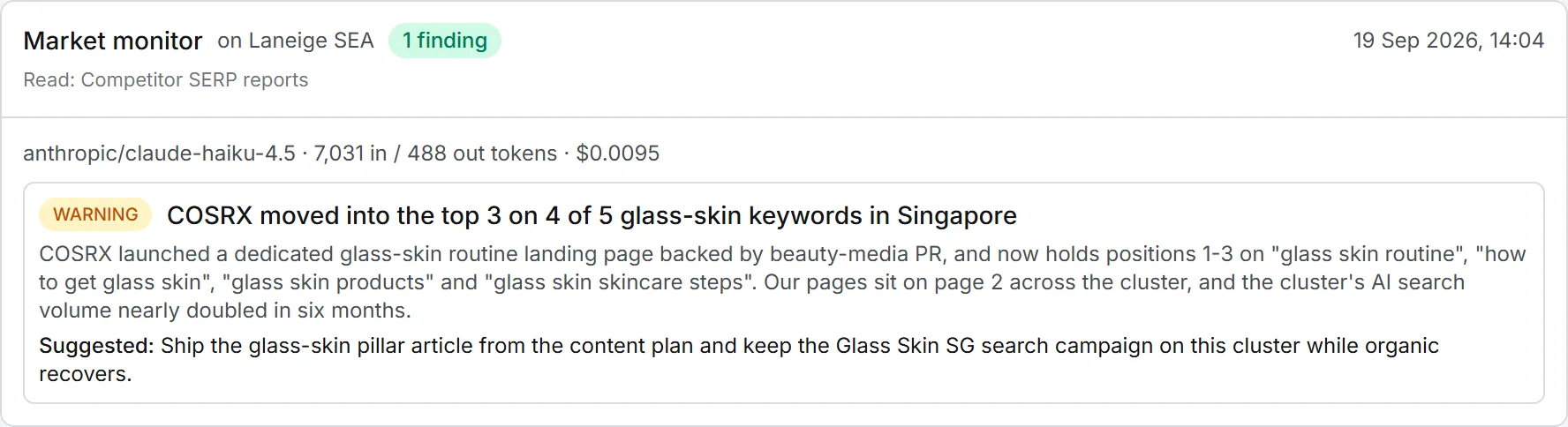
Click a row to open it. The first line gives the model and the tokens in and out, then the cost. The output follows: each finding with its severity, explanation and suggested action for a watcher or custom agent, the report itself for a report agent, or the reason for a failed run.
You won’t find manual runs or test runs here. Their result shows on screen where you started them.
An empty tab means no scheduled run has completed yet. Agents run on their own schedule once they are switched on, so check that the agent is on and that its brand has the right module switched on.
What each outcome means
| Outcome | What happened | Cost |
|---|---|---|
| 3 findings (any number) | The agent read the data, called the model, and posted findings to the brand’s feed. | Billed |
| 0 findings | The agent called the model and found nothing worth flagging. A valid result. | Billed |
| report written | A report agent stored a new report. | Billed |
| nothing changed | The data was the same as on the previous pass, so the model call was skipped. | Free, except reads of a connected system |
| no data to read | The brand had no data for this agent yet, so the run ended before any model call. | Free, except reads of a connected system |
| failed | The run stopped. The reason is shown when you open it. | Free when it stopped before the model call, as most failures do |
A custom agent that reads a connected system pays for reading it on every run, because the reading itself is done by the model; the run shows that cost even when nothing changed. Report agents are another exception: they don’t skip on unchanged data, so as long as there’s something to read, you get a report.
How the schedule works
Every scheduled agent has an interval, set in Runs every (hours). It’s the shortest gap allowed between two runs on the same brand. Once that much time has passed since the agent last completed a run there, it’s due again.
Note: Due runs are picked up by a daily check. In practice an agent runs at most once a day, even with an interval under 24 hours, and a due run can start a little later than its interval suggests.
Only switched-on agents are scheduled. Organization agents run on every brand whose module is on, unless a brand switched them off for itself; a brand can also switch one on just for itself, or change its interval there. Personal agents of an organization member never run on a schedule. They apply to the runs that person starts by hand.
An agent set to read several brands together, or the organization’s own data, runs once over them all. That run is filed under the No brand workspace. See AI agents.
Starting a run yourself
On a findings feed, such as the one on the Google Ads Reporting page, editors see a Run watchers now button. It runs every agent switched on for that brand right away, not only the one shown on the page. The button then reads Done: 3 new findings (with the real count) or Done: nothing new, and the feed refreshes. An agent over its budget is skipped, and the others still run. Your own personal agents are included when you belong to the brand’s organization.
You can also test one agent from its card with Run on real data. See organization and personal agents.
Run emails
If you’re an admin, this is the part that lands in your inbox.
A scheduled run that produced something is followed by an email. Runs that found no data or nothing changed stay quiet. Manual and test runs never send one.
Who receives it is set per agent under Who hears about a run:
| Setting | Recipients |
|---|---|
| The organization’s administrators (default) | Every admin of the organization. On an account without an organization, its owner. |
| These people only | The addresses you list, up to 20. Colleagues are suggested as you type. |
| Nobody, keep it in Runs | No email. The run is still in the Runs tab. |
The subject reads like “[Brand] Agent name: 2 findings”, or “[Brand] New report from Agent name” for a report agent. Inside, a short table names the agent and the brand, when it ran and what it read, what it found or wrote, and what it cost in tokens and dollars. Its Open the run button opens that run in the Runs tab, already unfolded. Set What the mail carries to The full result in the mail to get the findings, or the report, in the email itself.
Dates in the email follow the recipient’s own settings when it goes to one person. Sent to several, it gives the time in UTC, with the zone written out. The email is in your organization’s interface language when it offers exactly one language besides English, and in English otherwise.
Reports
Each run of a report agent stores one report. You can open it from the Runs tab, or from the agent’s card under Recent reports, where the six most recent per brand are kept at hand. The Runs tab can only open recent reports; an older run shows a note instead and points you to the agent’s card.
A report over several brands is shown only to people who can see every brand it read.
Why a run fails
Several of these are safety checks: the run is stopped because a budget or a setting says so.
A run can stop before it starts or partway through. Open the row to see why. The usual reasons:
- Budget used. The agent has used its monthly or weekly budget. The message gives the amount spent against the budget and ends with “Raise its budget under AI Agents, or wait for next month” (or, for the weekly budget, wait for it to clear).
- Switched off. The agent was switched off after the run was queued: “Skipped: this agent is switched off for this brand.”
- Brand choice changed. “Skipped: this agent now runs once over the brands picked for it”, or the reverse, “Skipped: this agent now runs on each brand separately.”
- Brand moved. The brand changed organization since the run was queued: “Skipped: the brand changed organization since this run was queued.”
- Agent removed. The BearingBridge team removed the agent from the app: “This agent was removed from the app.”
- An error while reading data or calling the model.
A failed run doesn’t count as completed, so the agent comes up again at the next check. Fix the cause, or it’ll fail the same way.
What it costs
Any run that reaches the model is billed as AI usage. Its cost is printed on the run and repeated in the email. Some agents also pay for reads: the AI visibility data call, Assets Library downloads, and reads of connected systems all count in the run’s cost.
There’s no flat price per run: it depends on the model and on how much the agent reads. Open a few of an agent’s runs here to see what it typically costs, then size its budgets from that. Two budgets per agent, monthly and weekly, cap its spending. The agent’s card shows what it spent this month and in the last seven days. A run that starts under budget finishes, even if it crosses the line; the next one is blocked. Agent spending is recorded in the usage log like any other AI action. See credits and costs.