AI agents
AI agents read your data on a schedule and report what changed. This covers standard and custom agents, scopes, brand choices, findings, reports, and costs.
AI agents are background workers that read your data on a schedule, compare it with what they saw last time, and tell you what changed. Any member can keep personal agents. Admins run the shared ones for the whole organization.
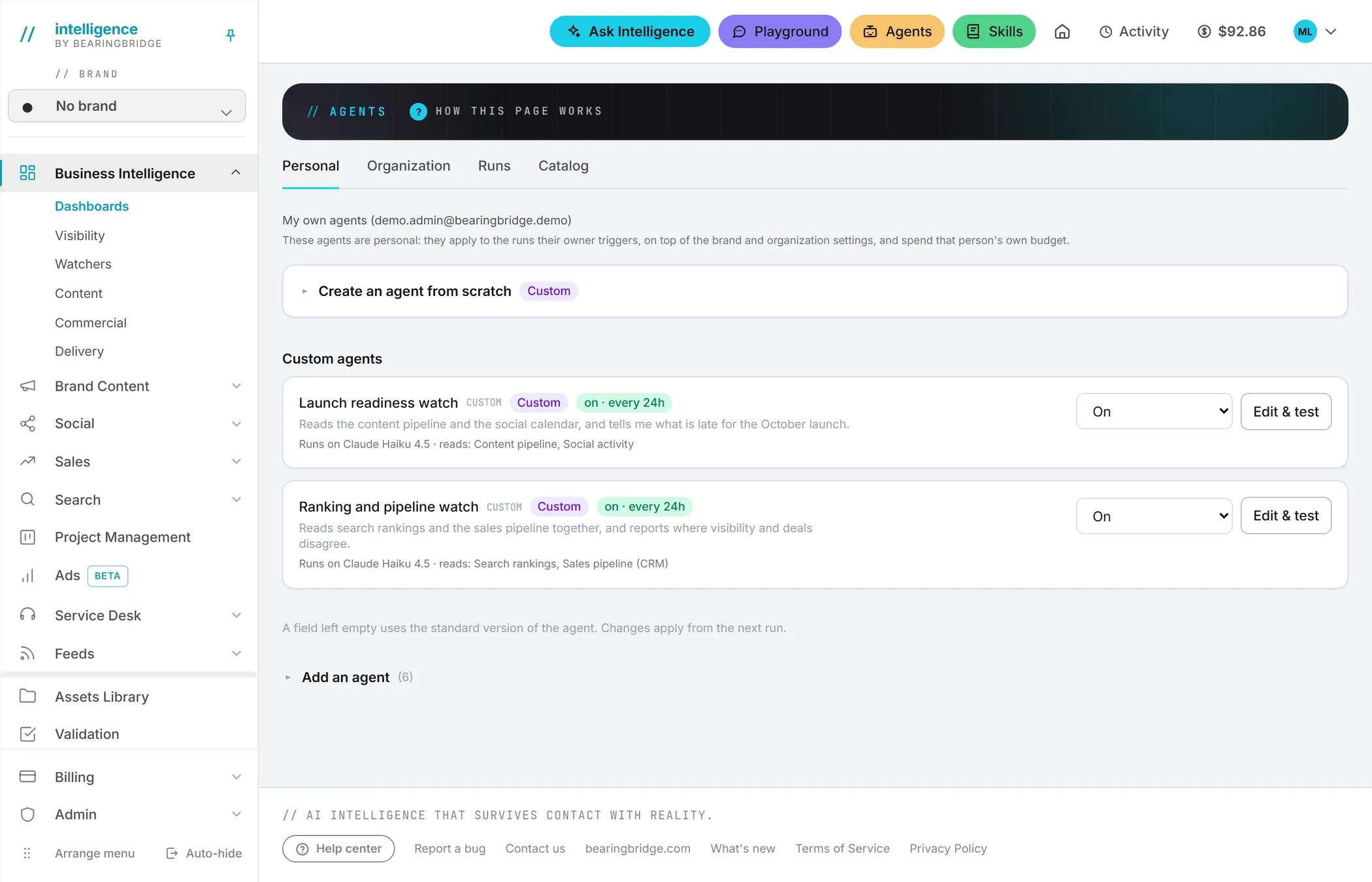
Opening the Agents area
Click Agents in the header, next to Playground and Skills. On a small screen the same link sits in the menu drawer. The area has four tabs:
- Personal: your own agents.
- Organization: the shared agents, for admins and brand managers.
- Runs: the history of scheduled runs.
- Catalog: every standard agent you can add, and the tailor-made ones.
What an agent does
An agent works in passes. On each pass it reads one or more data sources for a brand, such as tracked Google rankings, live Google Ads campaigns, or the sales pipeline. It then compares that data with a snapshot of its previous pass. If something moved, a model reads the data and writes up what changed and what to do next.
If nothing moved, a watcher skips the model call and the pass costs nothing. Same when a brand has no data for the agent yet: the pass ends before any model call.
Agents hand back one of two things. Watchers write findings: short alerts with a title, an explanation and a suggested action, up to 10 per run. Report agents write a report, a longer document such as the weekly operating review, and their top signals land as findings too.
Each finding carries a severity. critical means money or traffic is being lost right now, warning flags a negative trend, and info covers positive or neutral signals worth knowing.
Standard agents and custom agents
Standard agents are built into the app, one per data source. There are six so far: four watchers (search rankings, AI visibility, Google Ads campaigns, and the market monitor) and two report agents (the weekly operating review and the executive report). The watchers run about once a day or every two days, the operating review weekly and the executive report monthly, and you can change each schedule. More agents appear in the catalog as new data sources are added. The full list is in the agent catalog.
Note: Standard agents are opt-in. Nothing runs until someone adds the agent: an admin adds it to the organization, or a member adds it to their personal agents.
Custom agents are the ones you build yourself. You pick the data they read from the app’s modules, your Assets Library, and the systems your organization connected, then you write their instructions. From then on they behave like standard agents, budgets and findings included. The how-to is in custom agents.
Then there are tailor-made agents, which aren’t part of the app at all. BearingBridge builds each one on request, for one organization. They are listed in the catalog with a contact link.
Scopes: organization, brand and personal
Scopes take a minute to get used to. Every agent setting lives at a scope, and the scope decides who may change it and whose money it spends.
| Scope | What it covers | Who can change it | Whose money |
|---|---|---|---|
| Organization | Every brand with the agent’s module on, on a schedule | Admins | The organization’s |
| Brand | One brand, tuning the organization’s agents | Admins, and brand managers assigned to that brand | The organization’s |
| Personal | The runs you start yourself | You, and the admins of your organization | The agent’s owner |
Scheduled work happens at the organization scope. Once an admin adds an agent there, it runs on its own clock for every brand that has the agent’s module switched on.
The brand scope is a tuning layer. Say one brand sells in a market where small ranking swings matter: it can give the rankings watcher stricter instructions for itself. A brand can also switch an agent off or pick another model. Any field left empty inherits from the organization. A brand cannot add new agents or own a custom agent.
Personal agents apply to the runs you start by hand, on top of the organization’s agents. For a member of an organization they never run on a schedule, so they’re a good place to try an idea before it goes to everyone. Admins can also manage a member’s personal agents on their behalf.
Budgets are the one exception to inheritance. Each agent has a monthly and a weekly budget, and the tightest one along the chain wins. A brand or a person can narrow what was set above them, never widen it.
Every field of the settings form is explained in organization and personal agents.
None, one or several brands
If your organization has a single brand, you can skip this part. By default an agent works brand by brand, with one run and one set of results for each.
At the organization and personal scopes you can change that under The brands it reads. Pick One run over the brands ticked below, then tick brands:
- Several brands: one run reads them all together and writes one result that compares them. Each finding names the brand it is about.
- One brand: one run reads that brand only.
- No brand ticked: the run reads only the organization’s own data: the sales pipeline, the Assets Library, and the connected systems.
A run over a set of brands belongs to no single brand, so it is filed under your organization’s No brand workspace. Its findings also show in the feed of each brand it read. Because brand access is data access, those findings and reports are shown only to people who can see every brand the run read. Read more about brands.
Findings and reports
A finding lands in the feed of the brand it is about. Acknowledge it to mark it as seen, Resolve it once it is handled, or Dismiss it if it is noise. Resolved and dismissed findings leave the open list.
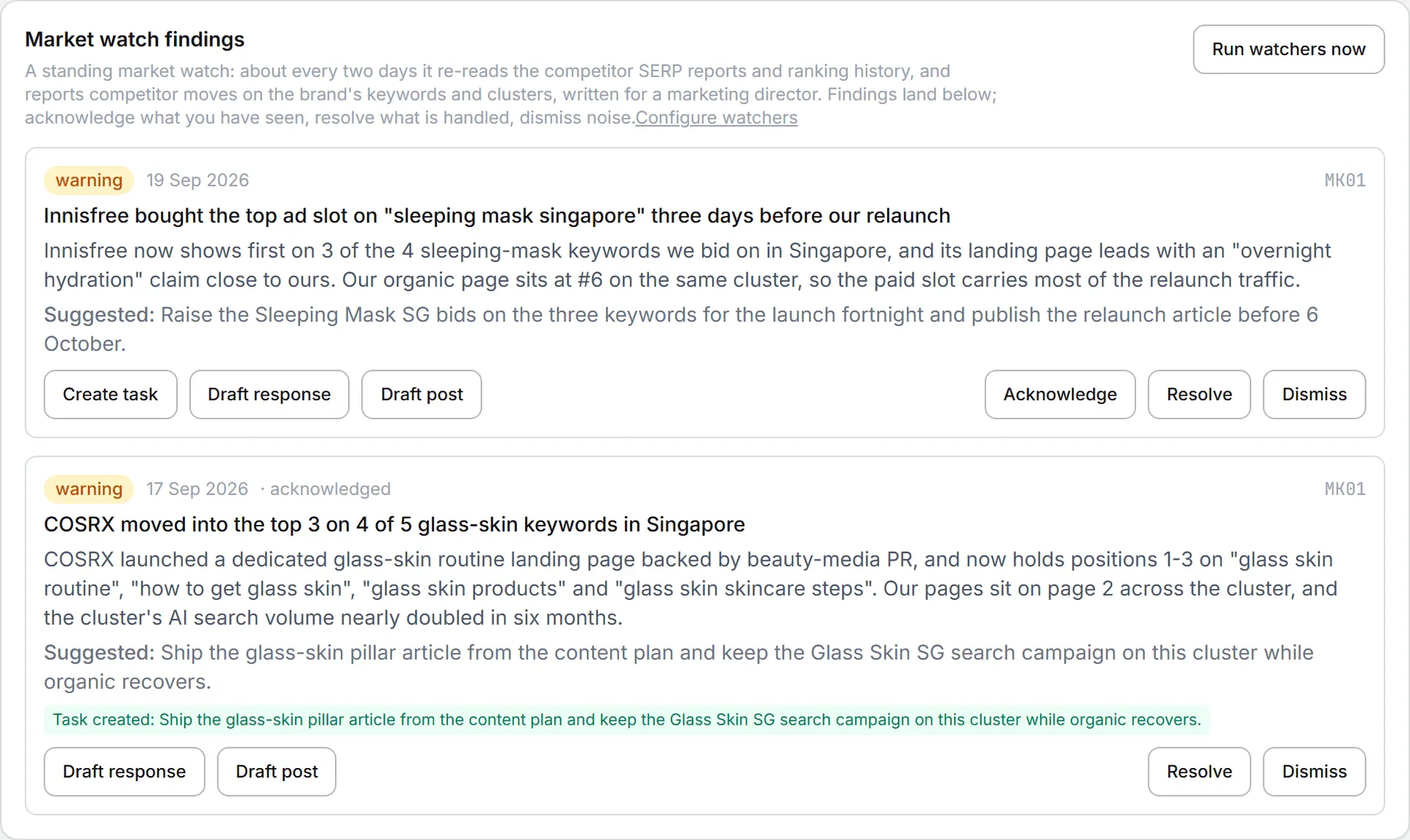
Each finding also offers three shortcuts. Create task turns the suggested action into a task on the brand’s board, free of charge. Draft response has the AI write the concrete plan, brief or copy the finding calls for, and shows it under the finding. Draft post has the AI write a LinkedIn post answering the signal and saves it as a draft in your social content. The two draft actions are paid AI actions. Using any of the three also acknowledges the finding.
The Google Ads Reporting page shows the campaigns watcher’s findings for the current brand. For the wider picture, the Watchers dashboard in Business Intelligence counts open and critical findings across every brand you can see, and tracks how fast they get resolved (dashboards). The Runs tab of the Agents area lists each scheduled run with what it found (runs and schedules). And by default, the organization’s admins get a summary email after each scheduled run that produced something.
Reports from the report agents are read on the agent’s own card, under Recent reports, and from the Runs tab.
What it costs
A run that reaches the model is billed like any other AI action, and the app always shows the price. The Runs tab prints the tokens and the cost of each run, a test run shows its cost as soon as it finishes, and each agent’s settings show what it spent this month and in the last seven days. Runs that found no data or nothing changed cost nothing.
The price of a run depends on the model and on how much data the agent reads, so there is no flat rate. To get a feel for it, test the agent on a real brand first. The test prints its cost. Then give it a monthly or weekly budget, so it stops at a limit you picked.
A few agents have paid reads on top of the model call. The AI visibility watcher makes one paid data call per run for gained and lost citations. A custom agent that reads Assets Library documents pays for each download like a download from the library, and one that reads a connected system counts those reads in the run’s cost. Agent runs are also recorded in the usage log like other AI actions. See credits and costs.
Who can do what
| Role | What they can do |
|---|---|
| Viewer | Open the Agents area and see how agents are set up, read-only. No test runs. |
| Editor | Add and edit personal agents, test them, start runs, act on findings. |
| Brand manager | Everything an editor can do, plus tune agents for the brands assigned to them. |
| Admin | Add, edit and remove organization agents, tune any brand, manage members’ personal agents. |
A member who isn’t an admin can still ask for an agent: in the catalog, Ask your admin to add it emails every admin of the organization. Access to the whole area also depends on the AI Agents right in your role. See roles and rights and capabilities and modules.
Good to know
- An agent never reads across organizations. Everything it does stays inside the organization it belongs to, test runs included.
- Changes to an agent apply from its next run.
- An agent that is on but never seems to run usually has nothing to work with: the brand’s module is off, or the brand has no data yet. On the Organization tab, a card warns you when no brand qualifies.
- Findings are written for your team. They never name the model or the data provider behind them.
- Skills set to apply to Agents are added to the runs of the watchers, the custom agents and the operating review. The executive report follows the skills set for Brand Content instead. A scheduled run uses the organization’s skills; a run you start yourself also uses your personal ones. See skills.