The LinkedIn Ad Library
Search LinkedIn's public Ad Library by keyword or advertiser, filter by country and dates, and see who ran each ad, where, when and for whom.
Watch the video
The Ad Library searches LinkedIn’s public record of ads, run by any advertiser. Use it to see how a topic gets advertised, or what a given company runs and since when. It’s research only: your own campaigns live on the Campaigns tab.
Where to find it
Open Ads > LinkedIn Ads in the left menu and click the Ad Library tab, the third one after Dashboard and Campaigns. Until September 29, 2026, this page was the only LinkedIn Ads page; the old address now opens the Dashboard.
It searches public data, so it isn’t tied to a brand or to the ad account in the picker. The same search works whatever brand is active.
The LinkedIn access it uses
LinkedIn wants a sign-in before anyone can search. The page uses one of two:
- Your own LinkedIn Ads connection, when you connected one on My Connections. The page then reads Searching with your own LinkedIn Ads connection.
- A shared connection an admin set up for everyone, when you have none of your own. The page reads LinkedIn connected with the date it was connected.
To set the shared connection up, an admin clicks Connect LinkedIn, signs in to LinkedIn and approves the access. It renews on its own. If it stops working, the admin clicks Disconnect, confirms, and connects again. When the status line reads via server token, the BearingBridge team set the connection up, and there’s no Disconnect button.
With neither connection, the search form stays grayed out. People who aren’t admins see Ask an administrator to connect it., and can connect their own LinkedIn Ads instead.
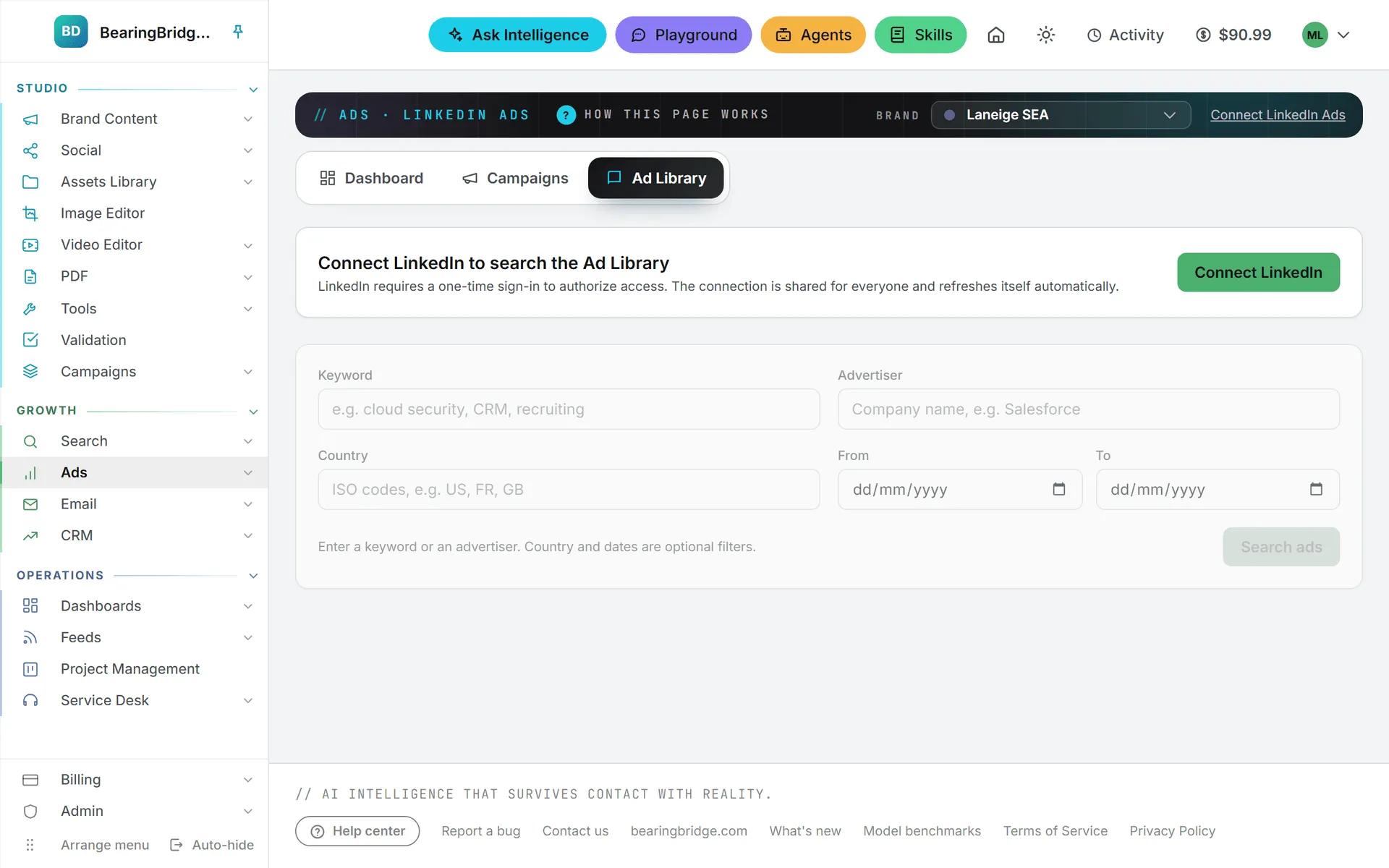
Search the Ad Library
| Field | What to enter |
|---|---|
| Keyword | A topic or phrase, such as “cloud security” or “recruiting”. |
| Advertiser | A company name. |
| Country | Optional. Two-letter country codes separated by commas, such as US, FR, GB. Anything that isn’t a two-letter code is ignored. |
| From and To | Optional. A date range. |
Enter a keyword, an advertiser or both, then click Search ads. Results come 25 at a time. The line above them says how many you’re seeing, and out of how many when LinkedIn gives a total. Load more, at the bottom, brings the next batch.
Reading an ad card
LinkedIn shares who ran each ad, when and where, but not its text or picture. Each card shows:
- the advertiser’s name, linked when LinkedIn gives an address for it, and Paid for by with the payer when someone else paid;
- chips for the format in plain words (such as Sponsored post, Video ad or Document ad), the dates it ran, from first to last impression, written in your own date format, the range of impressions, and Restricted when LinkedIn limits what it discloses;
- Share of impressions by country: the countries where it was shown, each with its share. LinkedIn lists only part of the countries, so the shares seldom add up to 100%;
- Targeting: who the ad was aimed at, such as a location or a job, and what was excluded. A criterion LinkedIn confirms but doesn’t detail reads “used, not disclosed”;
- See the ad beside the list, which opens the ad on LinkedIn in a small window docked on the right of your screen. The list stays where it was, and the next ad you open reuses the same window. If your browser blocks the window, the ad opens in a new tab.
LinkedIn discloses impressions, countries and targeting for ads shown in the European Union. For other ads, those parts are often missing. There’s no spend figure: LinkedIn doesn’t publish what an advertiser paid.
Note: Everything on the cards comes from LinkedIn as is. If LinkedIn leaves a field out, Intelligence has nothing to show there.
Results aren’t saved. To see them again, run the search again.
Ways to use it
Before you advertise on a topic, search it and look at the angles rivals lead with. A competitor’s name, typed in Advertiser, shows the formats they favor and the countries they reach. The dates help too: an ad that has run for months is usually one the advertiser is happy with.
Who can do this
Anyone whose role can open LinkedIn Ads can search, viewers included. Setting up or removing the shared connection needs the admin role or higher.
What it costs
Nothing. Searching the Ad Library doesn’t use credits, however many searches you run.
Troubleshooting
- “Enter a keyword or an advertiser to search.” Country and dates are filters only; add a keyword or an advertiser.
- “No ads matched this search. Try a broader keyword or drop the filters.”
- “Ad search failed (HTTP …)” LinkedIn returned an error. Try again in a moment; if it keeps failing, contact the BearingBridge team.
- “LinkedIn is not connected.” Connect LinkedIn Ads on My Connections, or ask an admin to connect the shared access on this page.
- “This connect link expired or is invalid. Start again.” The admin’s connect step took too long. Click Connect LinkedIn again.
- “LinkedIn isn’t configured yet.” The feature isn’t open yet; contact the BearingBridge team.