Google Ads keywords
AI keeps only tracked searches with buying intent, explains each pick with its monthly volume, and turns your ticked keywords into Google Ads ad groups.
The Keywords page picks the searches worth paying for on Google. AI goes through the keywords your brand already tracks and keeps only the ones typed by people ready to buy, with a reason for each. You then tick the winners into an ad group.
You’ll find it under Ads > Google Ads > Keywords.
Why the list is short on purpose
Ranking for an organic keyword is free. A paid keyword costs you on every click, so this page is strict: it keeps searches from people ready to buy or get in touch, and drops the rest.
Two numbers matter when you judge a keyword. Volume is how often it’s searched each month. CPC (cost per click) is roughly what one click costs. You’re after plenty of searches at a cheap click, from people clearly ready to buy.
The result list shows the volume. The click cost isn’t displayed there, but it travels with each keyword into the ad group, where the bid and budget suggestions use it.
Before you start
The selection is built from your brand’s tracked keywords, the ones on the Search keywords page. If the brand has none, the page says so and points you to Search › Keywords. Add keywords there first (see Search keywords).
The selection works in English and French: the language menu offers those two, and every suggested ad group is either English or French. See brands.
Step by step
- Pick the brand in the brand picker.
- Choose a language in the menu next to the button: All languages, EN only or FR only.
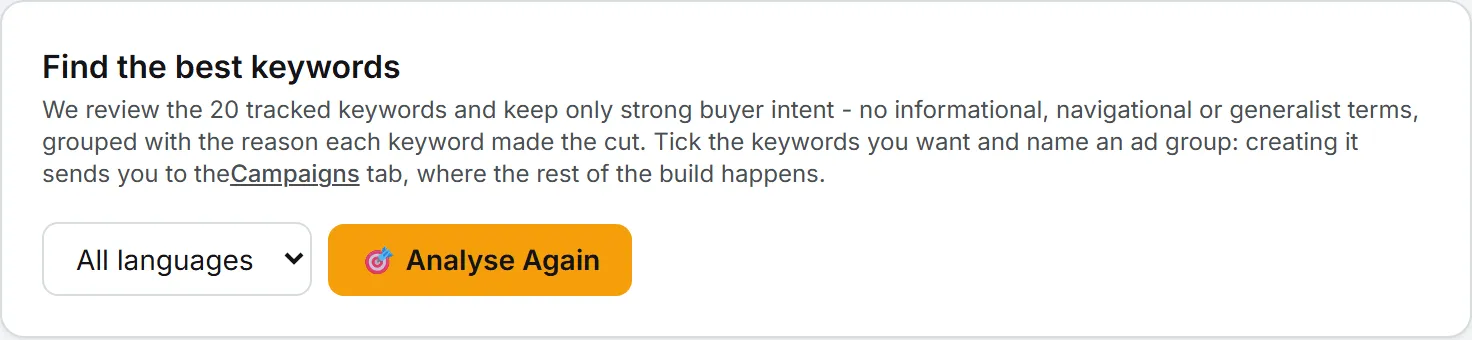
- Click 🎯 Select the Best Keywords.
- Give it a minute or two. A working card shows each phase and the time elapsed. You can leave the page: the result is saved and waits for you here.
- Read the result, tick the keywords you want and create an ad group (see below).
After the first run, the button reads 🎯 Analyse Again. A new run replaces the saved selection for that brand. The selection is a snapshot: keywords you add in Search later only count after you run Analyse Again.
What the AI keeps and rejects
The AI reads each tracked keyword with the language, intent, cluster and priority you gave it in Search. It works from that list and never invents or rewrites a keyword. It keeps only searches with strong buying or hiring intent, where the person wants to buy what this business sells.
It rejects:
- informational searches, such as how-to questions and research;
- navigational searches, such as lookups of a tool or a brand;
- broad head terms of one or two words with mixed intent, even when your keyword list tags them Commercial;
- commercial searches aimed at a different kind of vendor, such as a hosting provider or a do-it-yourself tool.
What survives is sorted into themed ad groups, the ones likeliest to bring revenue first. You can’t set how many keywords to keep: the AI keeps whatever qualifies. English and French keywords always land in separate groups, and French groups get French names.
What the result shows
The line at the top says how many keywords were kept out of how many tracked. It also gives the language covered, the time of the run and its cost.
Below it come the group cards. Each one carries a suggested group name, its language and its keyword count. Every keyword row has a checkbox, the keyword, its monthly volume (for example 1,300/mo) and one sentence on why it earns paid spend. When the selection mixes both languages, All, EN and FR buttons above the cards show one side at a time.
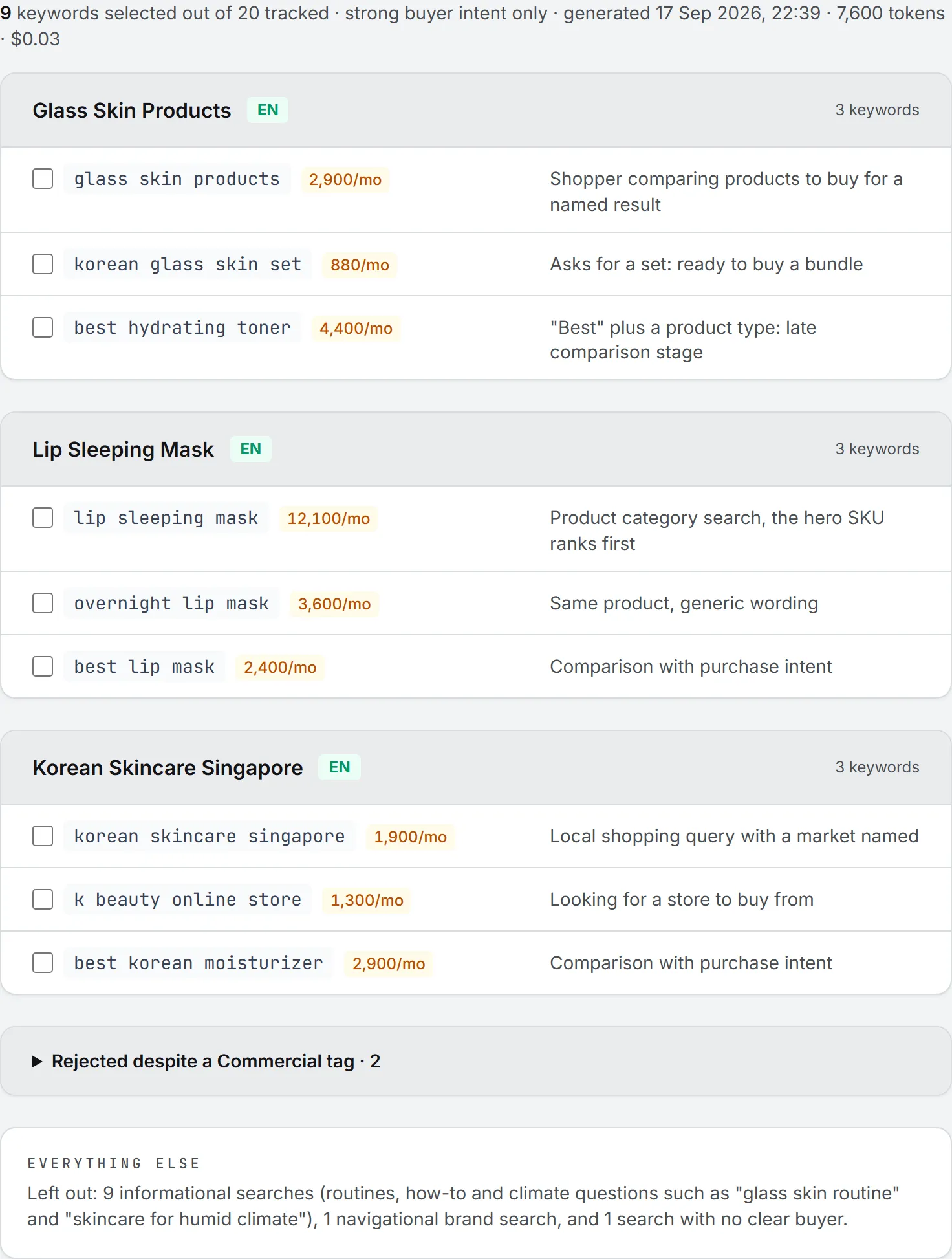
Two sections close the page. Rejected despite a Commercial tag is a folded list of keywords your list tagged Commercial that the AI still turned down, each with its reason. If you disagree, you can still add any of them to an ad group by hand on the Campaigns page. Everything else sums up, in a few lines, why the informational and navigational clusters were left out.
Volumes are looked up live once the AI has made its picks. If that lookup fails, you still get the selection, just without volumes.
Turn keywords into an ad group
The reasons are there so you can overrule the AI. Once you’ve read them, the rest takes a few clicks, and anything you disagree with just stays unticked.
- Tick the keywords you want. A bar appears at the top with the count and the language.
- Type a name in Ad group name.
- Click 🗂 Create Ad Group.
The group is created with the ticked keywords in phrase match (you can change the match type later), and the app takes you to the Campaigns tab. The new group waits there under Ad groups without a campaign, ready to link to a campaign. See Google Ads campaigns.
An ad group targets one language. If you tick English and French keywords together, the button locks and a message asks you to untick one side.
Who can do this
Anyone with access to Google Ads and the brand can read the saved selection. There’s one per brand, so the whole team sees the same list. Running a selection and creating an ad group need an editor role or higher.
A run reads the brand’s tracked keywords, so it also needs the right to create on Search (SEO) in your role’s rights grid. See roles and rights.
What it costs
Each run is an AI call plus a live volume lookup, both paid in credits, and every run is charged again, Analyse Again included. The tokens and cost of the AI part show in the result line, and the full amount lands in your usage log. The model is the one picked for Google Ads in the model picker under Write ads with AI, on the Campaigns page. Your pick is remembered in your browser. If you haven’t picked one, your organization’s default applies. See AI models and credits and costs.
Creating the ad group doesn’t cost anything.
Troubleshooting
- “No tracked keywords for [brand] yet.” Add keywords on the Search keywords page first.
- “No FR keywords in the database for this brand.” You chose a language the brand has no keywords in. Pick another.
- “Give the ad group a name first.” Type a name in Ad group name before clicking 🗂 Create Ad Group.
- An error after you left the page during a run. The finished selection may already be saved. Reload the page to check.
- A credits or budget message. The run was refused before it started: the wallet is empty, your personal spending cap is reached, or the organization’s monthly budget is used up. See credits and costs.