Shared credits
Admins see the organization's shared credits, set each member's daily allowance, and learn how the monthly spend cap, their own credits, and low-credit emails work.
The Credits page shows your organization’s shared wallet and who drew on it today. It also tells you how much the team may still spend this month. It’s where admins make sure one heavy user can’t empty the pot for everyone else. Credits themselves are bought on the Buy credits page.
Note: Personal organizations don’t have this page. A personal organization holds one person, who spends only the credits they bought, with no allowance and no cap.
How the shared wallet works
Your organization has one pot of credits. One credit is one US dollar, and credits never expire. Every AI run is paid at the price shown on the run, and that amount comes straight off a wallet. What costs credits lists the paid actions.
For a member, the shared wallet pays first. Each member has a daily allowance on it, counted over the UTC day and reset at midnight UTC. Unused allowance doesn’t carry over to the next day. Once a member has used today’s allowance, or once the shared wallet is empty, their runs are paid from their own credits, if they bought any. A person’s own credits are never capped.
When neither wallet has anything usable, that member’s AI features pause. Nothing else in the app is affected.
An example: Maria has a $10 daily allowance, has drawn $4 today, and bought $20 of her own credits. The Credits left figure in her top bar reads $26: the $6 left of today’s allowance plus her own $20. She sees the same breakdown, with her allowance and today’s draw, on the Buy credits page. How credits work across the app is explained in Credits and costs.
Set a member’s daily allowance
Most admins come to this page for the allowance, but it isn’t changed here. It’s set on the person’s own page, along with everything else they may reach.
- Open Admin > Credits and click Set it next to the member. You can also open Admin > Users and click the person.
- Go to the Credits and spending section.
- Type an amount in Daily allowance on the shared credits ($).
- Click Save changes.
| Value | What it means |
|---|---|
| 0 | The person takes nothing from the shared wallet. Every new member starts here |
| A positive amount | The most the person may take from the shared wallet in one UTC day |
| Empty | No limit. The person may use the whole shared balance |
Important: New members start at $0. Until you give them an allowance, they can only run AI features on credits they bought themselves.
The same section shows the person’s own credits and what’s left in the shared pot. Next to them sit what they spent today and this month from both wallets, plus a gauge of what they took from the shared wallet alone today.
What the Credits page shows
Open the Admin menu and click Credits. The page has two cards.
Who may spend the shared credits
This card opens with the shared balance, then lists every member:
| Column | What it shows |
|---|---|
| Member | The person’s name, with their sign-in address |
| Role | Their role in the organization |
| Drawn today | What they took from the shared wallet since midnight UTC, at billed prices. It turns red once they reach their allowance |
| Daily allowance | Their allowance, or No allowance when the field is empty |
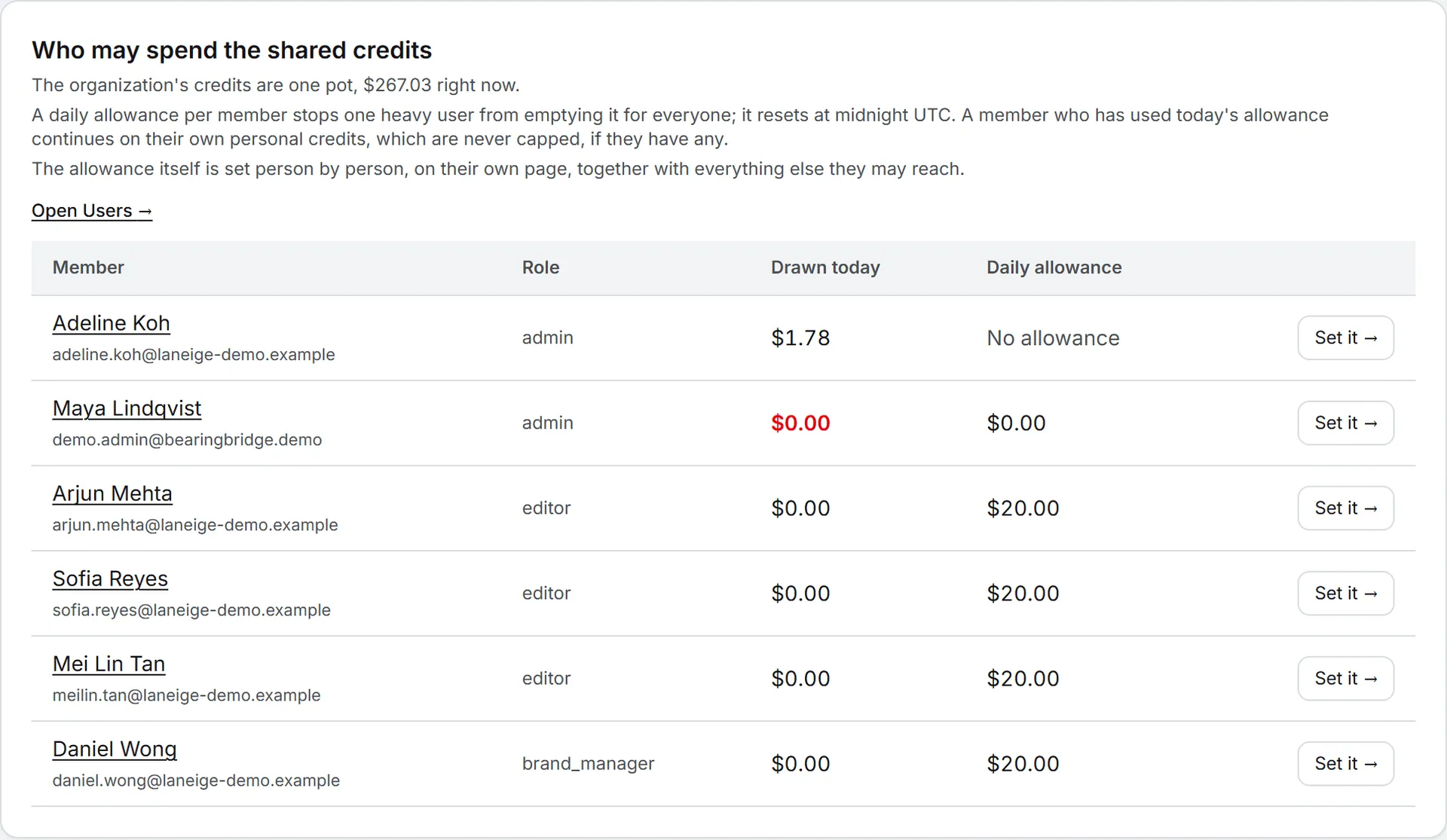
You can’t edit the table itself. Use Set it, or Open Users, to change an allowance.
The Organization card
This card shows what the team drew from the shared wallet this month, against the cap when there is one, with a bar that fills as the month goes on. Below that come the shared balance and the billing contact (Billed to), then the Monthly spend cap. These figures are read-only here.
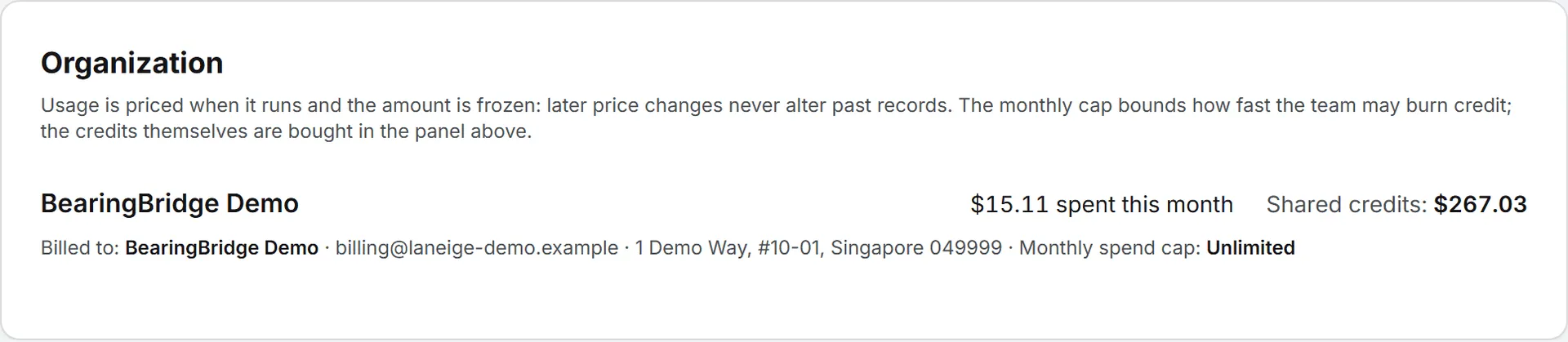
The monthly spend cap
The allowance works person by person. The cap works on the whole team.
The monthly spend cap limits what the whole team draws from the shared wallet in one calendar month (UTC). It doesn’t add money; it only limits how fast the pot can be spent.
Only runs paid from the shared wallet count. Runs paid with a member’s own credits never do, and neither do runs of a member’s personal agents.
When the cap is reached, members are told that the organization’s monthly budget is used up, with the amount spent against the cap, and asked to contact their administrator. The cap reads Unlimited when none is set. It’s set by the BearingBridge team, so to change it, contact support.
When credits run low
A member whose available credits fall under $5 sees a Running low warning on their balance.
When the shared wallet itself drops under $5, every admin of the organization gets an email, and so does the billing address if it’s a different one. It’s sent once, on the run that crosses the line, in each recipient’s interface language. It isn’t sent when automatic top-up is on for the shared wallet, since the wallet refills itself. A member’s own wallet never triggers this email.
To refill, go to Buy credits and pick the organization’s wallet. If you’d rather not watch the balance at all, set up automatic top-up.
Who can do this
| Task | Who |
|---|---|
| Open the Credits page | Organization admins |
| Set a member’s daily allowance | Organization admins, on the person’s page |
| Buy credits for the organization | Organization admins |
| Change the monthly spend cap or billing contact | The BearingBridge team |
The page follows the Shared AI credits right in the rights grid. See Roles and rights.
Good to know
- Credit is checked before a run starts. A run that starts with credit finishes, even if it crosses zero; the next one is blocked.
- Organization and brand agents run as the organization’s own work. The daily allowance of the person who started them doesn’t block them. The organization’s monthly cap still applies.
- Answers a service desk gives the public are paid from the organization’s credits, never from an admin’s own wallet. See Conversations and costs.
- Prices are fixed when a run happens. Later price changes never alter past records.
- To see who spent what, run by run, open the Usage log.
Troubleshooting
A member sees “You have no allowance on your organization’s credits yet.” Their allowance is 0. Set one on their page.
A member sees “You have used today’s allowance of your organization’s credits.” They reached their allowance. Raise it, or they can wait for midnight UTC or use their own credits.
A member sees “Your organization is out of AI credits.” The shared wallet is empty. Buy credits for the organization.
Everyone is told the monthly budget is used up. The team reached the monthly spend cap. Contact support to change it.
A member can’t buy credits for the organization. Only admins can. A member can still buy credits for their own account on the Buy credits page.