Organization settings
The Organization page shows what your organization owns and its credit balance, and lets administrators set interface languages and emailed sign-in codes for every member.
The Organization page is the first stop in the Admin menu. It shows what your organization owns and how many credits it has left. It also holds the two settings administrators decide on their own: the interface languages offered to members, and whether signing in takes an emailed code. The organization’s name and billing details are shown here but set by the BearingBridge team.
Open the page
Open the Admin menu and pick Organization. It is the first entry in that menu.
The page is for administrators. If someone below that role types the address, they land back on the home page.
What the band at the top shows
The dark band at the top names your organization and shows a few live figures:
- Credits available: the balance your paid actions draw on. A colored dot and a short line give its state: “Shared by every member” when your organization has a shared wallet, “Running low” when the balance is getting thin, and “No credit left: runs are blocked” when it’s empty. A Buy credits link appears once the figure has loaded.
- Brands, Users and Projects: how many of each the organization holds, each with a link to the page that manages them.
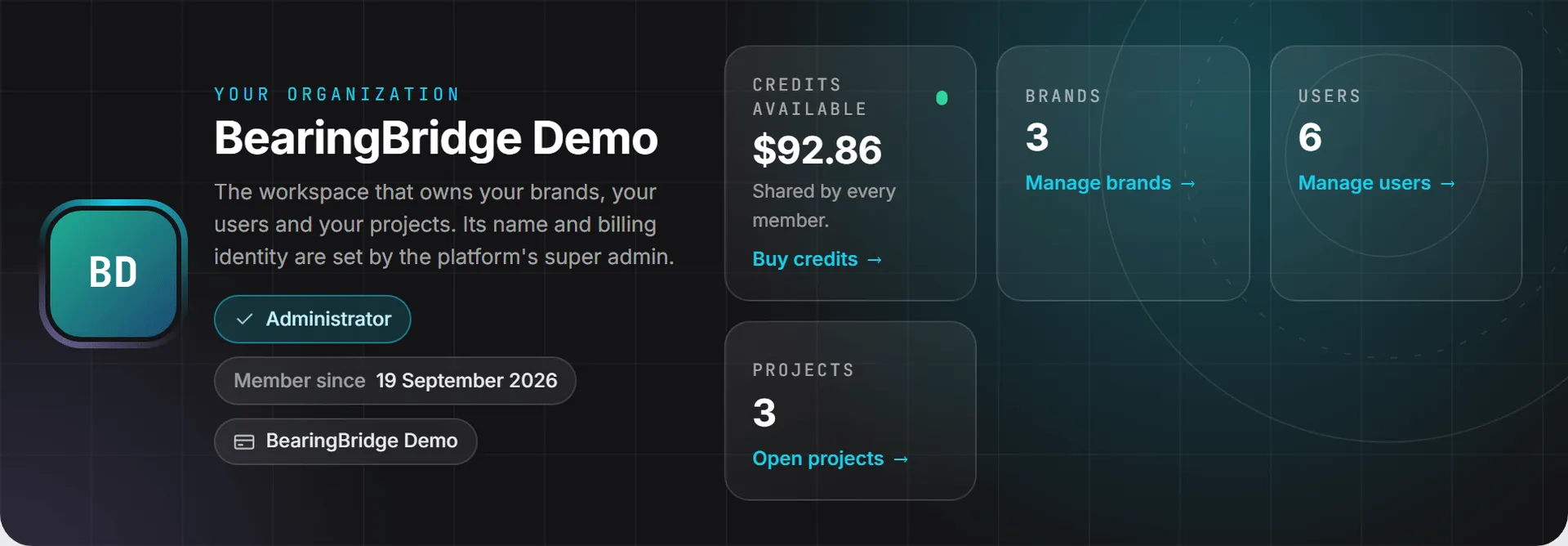
The pills under the name show your Administrator status, the date the organization was opened (Member since) and the billing contact, when one is set.
On the left, a section index lists the four cards: Overview, Modules, Languages and Sign-in security. Click one to jump to it.
What the organization owns
The Overview card has one tile each for brands, users and projects, and each tile opens its page: Manage brands, Manage users and Open projects.
Underneath, the Billing contact tile shows the name and email printed on the invoice of every credit purchase. You can’t edit it here; the BearingBridge team changes it for you. Next to it, Credits and invoices links to Buy credits and Invoices, a reminder that every AI run in the organization draws on the same wallet.
Modules of the organization
This card lists the product families your organization may use, each marked On or Off. A counter such as 6/8 shows how many are on. The BearingBridge team switches these on for your organization, so the card is read-only.
| Module | What it covers |
|---|---|
| Business Intelligence | The default dashboard, cross-area reporting and executive views |
| Brand Content | Text, image and video content for the brand |
| Social | Social media calendar, content and reporting |
| Sales | Pipeline and follow-up |
| Search | Google Search (SEO) and AI Search |
| Project Management | Projects, tasks and delivery follow-up |
| Ads (Beta) | Google Ads and LinkedIn Ads |
| Service Desk | Customer-facing assistance, including the self-service portal |
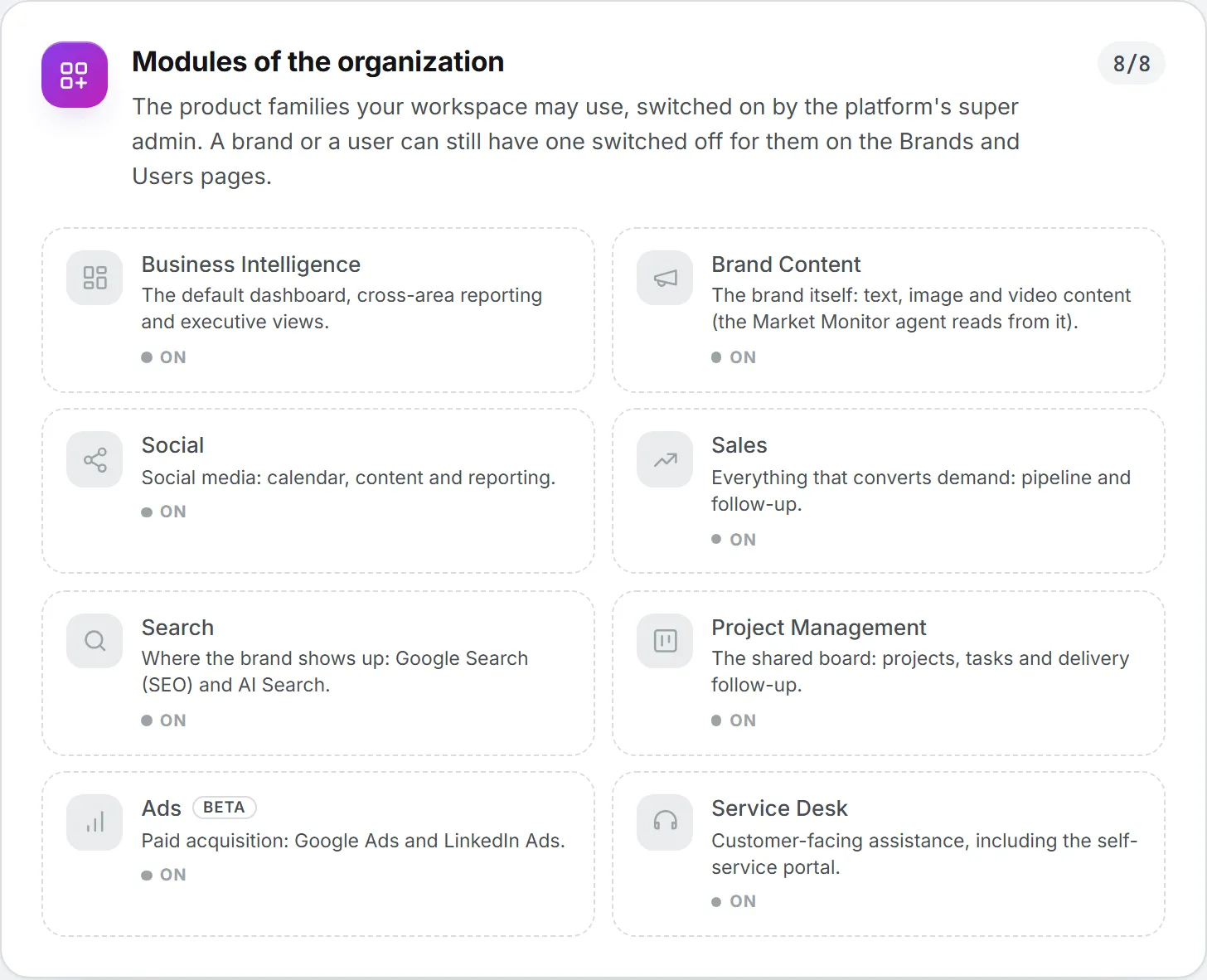
A module that is on here can still be switched off for one brand on the Brands page, or for one person on their page in Users. If your team needs a module that shows Off, ask the BearingBridge team. How the organization, brand and person levels combine is explained under Capabilities.
Interface languages
Here you choose the languages your team can switch the interface to, from the language menu in the header. English is always on: it is the base language of the app. You can also offer Français and 中文.
To change the languages:
- In the Interface languages card, switch each language on or off.
- Click Save languages. The button turns amber as soon as you change something.
Once it’s saved, the status line reads “Saved. Members see the change on their next page load.”
This setting covers the interface only. Content and data stay in the language they were written in. Anyone using a language you switch off sees the interface in English from their next page load. Each person then picks their own language from the header menu, as described in Date, time, language and theme.
Sign-in security
This is the one setting on the page that changes how your whole team signs in, so it’s worth a slow read.
Turn this on and everyone in the organization gets a second step at sign-in. After typing their password, each person receives a 6-digit code at their login address. The code is valid for 10 minutes, and the session opens only once they type it back. Five wrong tries cancel that sign-in, and they start over with their password.
To turn it on or off:
- In the Sign-in security card, flip the Code by email at sign-in switch.
- Click Save security.
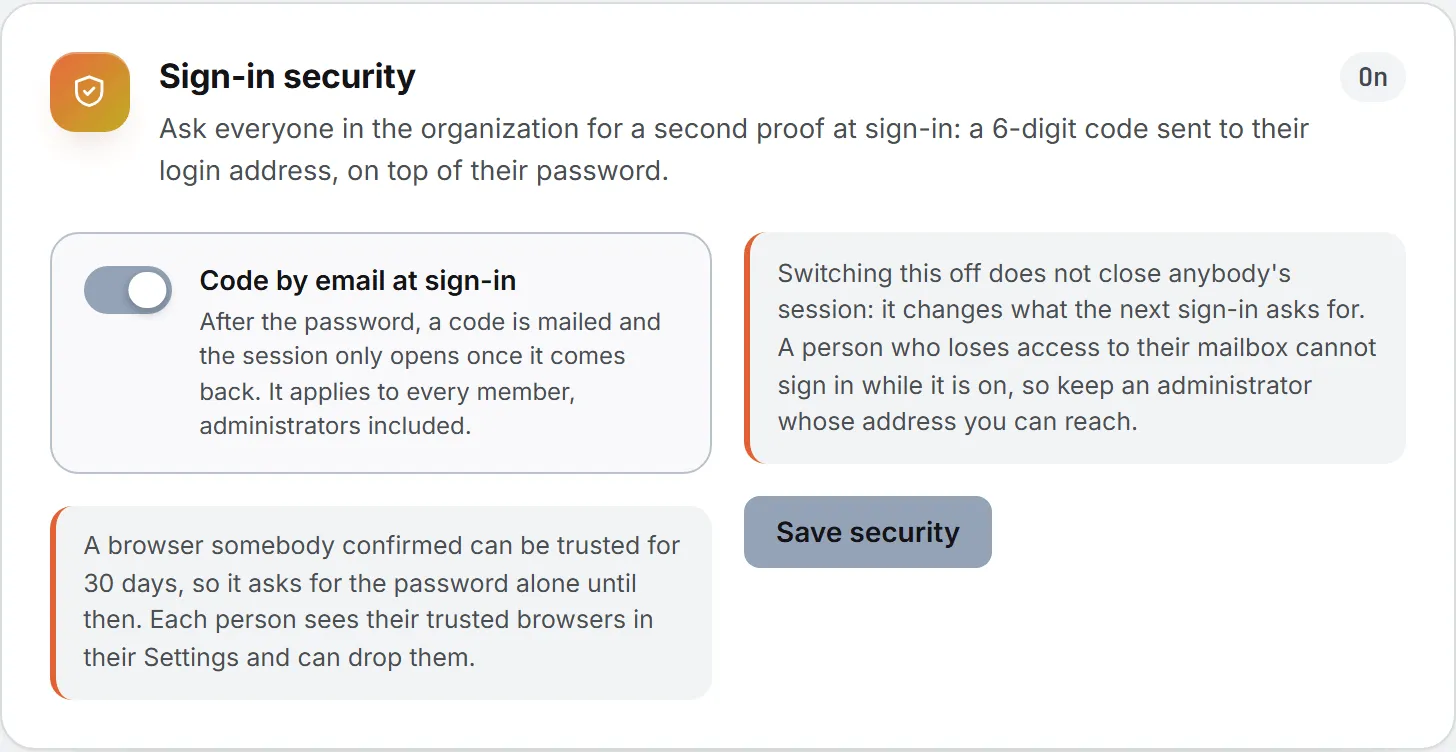
When you turn it on, the status reads “Saved. Everyone is asked for a code at their next sign-in.” When you turn it off, it reads “Saved. The password alone signs people in again.” The badge on the card shows On or Off.
What changes for your team:
- It covers every member, administrators included. Nobody can exempt themselves.
- A person can have a browser trusted for 30 days. That browser then asks for the password alone. Each person sees and removes their trusted browsers in their Settings, and an administrator can remove them from the person’s page in Users.
- Switching it off closes nobody’s session; only the next sign-in changes.
- New organizations start with it on.
If you’re switching it on for an existing team, tell people first, so the first code in their inbox doesn’t catch them off guard.
Important: While it is on, a person who loses access to their mailbox cannot sign in. Keep at least one administrator whose address you can always reach.
For what members see at sign-in, read Sign-in and security.
What you can’t change here
Looking for the organization’s name or its billing address? Those, and a few other details, live elsewhere:
| Setting | Where it lives |
|---|---|
| Organization name | Set by the BearingBridge team |
| Billing contact, billing email and billing address | Set by the BearingBridge team |
| Modules the organization owns | Set by the BearingBridge team |
| Connected systems and accounts | Connections |
| Shared credits and the monthly spend cap | Shared credits |
| The CRM’s reference currency | CRM settings |
Who can do this
| Action | Who |
|---|---|
| Read the figures, modules and billing contact | Administrators |
| Change interface languages | Administrators of this organization |
| Turn the sign-in code on or off | Administrators of this organization |
| Rename the organization or change billing details | The BearingBridge team |
Access also follows the Organization settings row in the roles table: View opens the page and Update is needed to save. Administrators hold both by default. See Roles and rights.
If you run a personal account
If you run a personal account, you have an organization too: one that holds only you. The page works the same way, with two differences: there is no Users tile, and the credit figure reads “On your personal wallet.”
What it costs
Nothing here costs credits, so change the languages or the sign-in rule as often as you like. The credit figure in the band is the balance your AI runs draw on; to top it up, see Buy credits, and for what draws on it, What costs credits.
Troubleshooting
The page says my account is not attached to an organization. Your login has no organization yet. Ask the BearingBridge team to assign you to one.
A member doesn’t see a new language. The change shows up on their next page load, so a quick reload usually does it.
Someone can’t sign in because the code never arrives. Ask them to check their spam folder, then click Send another code on the sign-in screen. A new code replaces the previous one. Check that their login address is right. If their mailbox is down for good, you can switch the requirement off until they’re back in, then switch it on again.