Connections
Admins connect Zoho, Google Sheets, MCP servers, and REST APIs, read-only, so Ask Intelligence and agents use live data, then grant each connection per person.
The Connections page is where an admin plugs the organization’s own systems into Intelligence: a Zoho account, Google Sheets, an ERP, or any tool with an MCP server or a REST API. Once a system is connected, Ask Intelligence and your agents can read its live data. Nothing is ever written back.
What a connection does
A connection lets the app read a system you already use, so answers draw on your live data. Every connection is read-only: the app makes lookups and nothing else.
Connecting a system costs nothing, and neither do the lookups as such. What costs credits is the model doing the reading, as with any AI run, paid by whoever asked the question or pays for the agent’s run. The cost shows with the answer or the run. See credits and costs.
There are two levels of connection:
| Level | Who sets it up | Who reads it |
|---|---|---|
| Organization (this page) | An admin | Admins, plus the people granted it |
| Personal (My Connections) | Each person, for themselves | Only that person |
A person’s own Gmail and spreadsheets belong on My Connections, and so do the social accounts they publish on. Social accounts exist only at that level.
Before you start
- You need the admin role. Members can’t open this page.
- The Zoho card appears only when your organization has the Sales capability.
- Have the system’s address at hand, plus its key if it uses one.
The page at a glance
- Open the Admin menu.
- Click Connections.
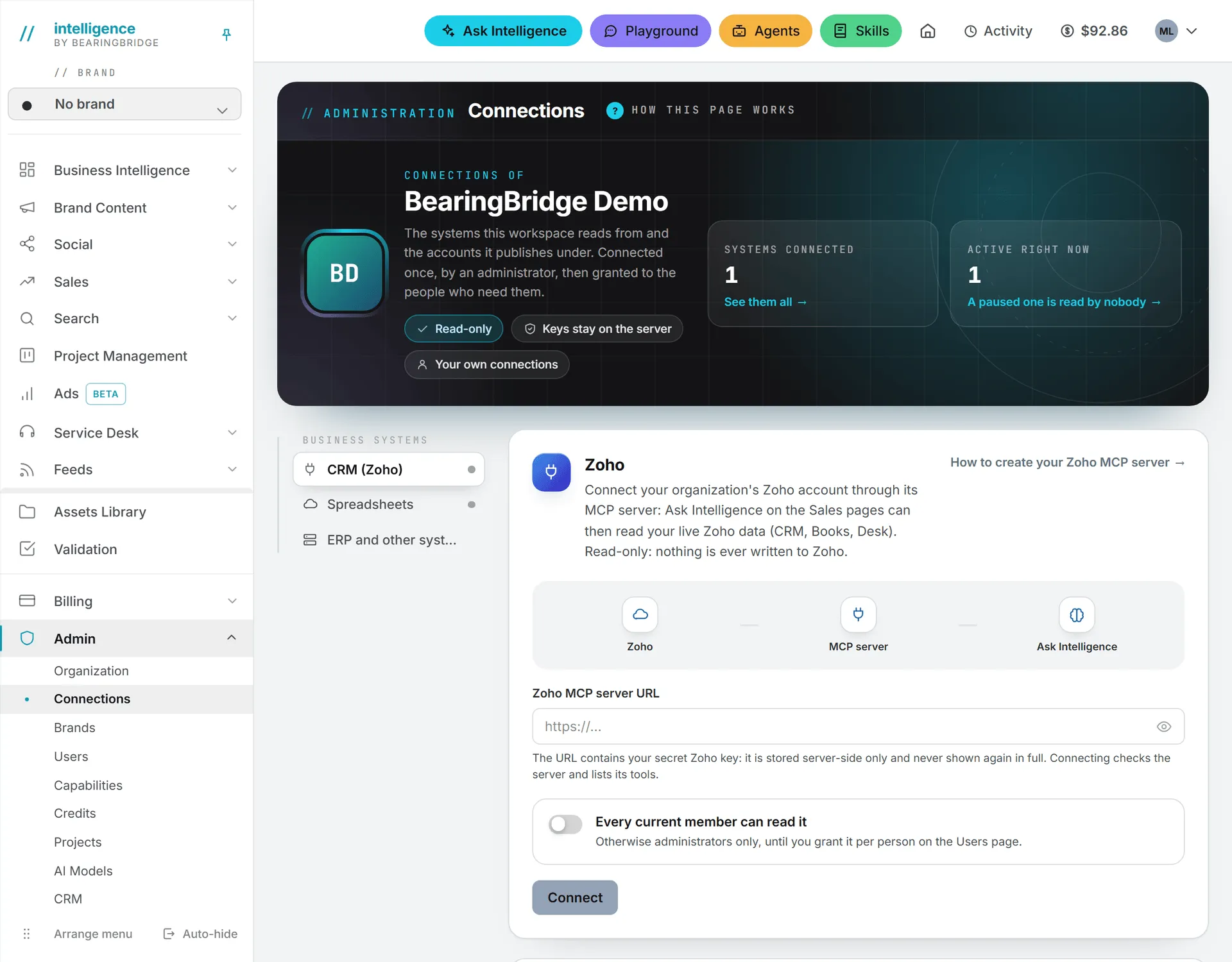
The top band counts Systems connected and, among them, those Active right now (not paused). The left rail lists the cards: CRM (Zoho), Spreadsheets, and ERP and other systems. A dot turns green once a card is connected.
Connect Zoho
Zoho connects through an MCP server that you create in your Zoho account. The card links to Zoho’s own guide, How to create your Zoho MCP server.
- Create the MCP server in Zoho and copy its URL.
- On the Zoho card, paste it into Zoho MCP server URL.
- Turn on Every current member can read it if the whole team should read it. Leave it off to keep it to admins until you grant it person by person.
- Click Connect.
The app checks the server and lists its tools. The URL contains your secret Zoho key, so it’s stored on the server and shown masked from then on. Nobody, admins included, can read the full URL back from the page.
Each tool gets a switch. Only tools that read can be turned on. Tools that write are marked (write: not available yet) and stay off.
| Control | What it does |
|---|---|
| Active | Pauses or resumes the connection |
| Refresh tools | Reads the server’s tool list again |
| Replace URL | Swaps in a new URL. The current connection stays until the new one checks out |
| Disconnect | Removes the connection. Ask loses access to your Zoho data |
Zoho is read by Ask Intelligence on the Sales pages, and by the main Ask page for people with access to the CRM. A member needs both the grant and CRM access.
Connect Google Sheets
This card connects one Google account that can open your organization’s spreadsheets. Ask Intelligence and the agents can then find a spreadsheet and read the figures on any of its tabs.
- Decide which Google account to use. Everyone reads through it, so pick one that can open the right spreadsheets.
- Turn on Every current member can read it if needed.
- Click Connect Google Sheets.
- Sign in with Google and allow reading your spreadsheets.
Google sends you back to the page with the card connected. Each reading is listed with a switch, and none of them can change a cell. The card also has Active, Check connection, Change account, and Disconnect. Disconnecting removes the spreadsheets from Ask and the agents, and withdraws the permission from the Google account too.
If Connect Google Sheets is grayed out, Google sign-in isn’t available at the moment, and the card says why.
Connect an MCP server
The Other external systems card takes any system that exposes an MCP server. Not sure which one your system offers? Its documentation usually says whether it has an MCP server or a REST API.
- Pick MCP server.
- Type a Name, such as “ERP” or “Help center”.
- Paste the server URL into Address. It must start with https.
- Choose whether Every current member can read it.
- Click Connect.
The app asks the server for its tools before saving anything. A URL that doesn’t answer is never stored, and the saved URL is shown masked, like Zoho’s. Each tool is sorted as a read tool or a write tool, using the server’s own label when it gives one and the tool’s name otherwise. Only read tools can be switched on. Write tools stay listed, marked (writes, kept off).
Connect a REST API
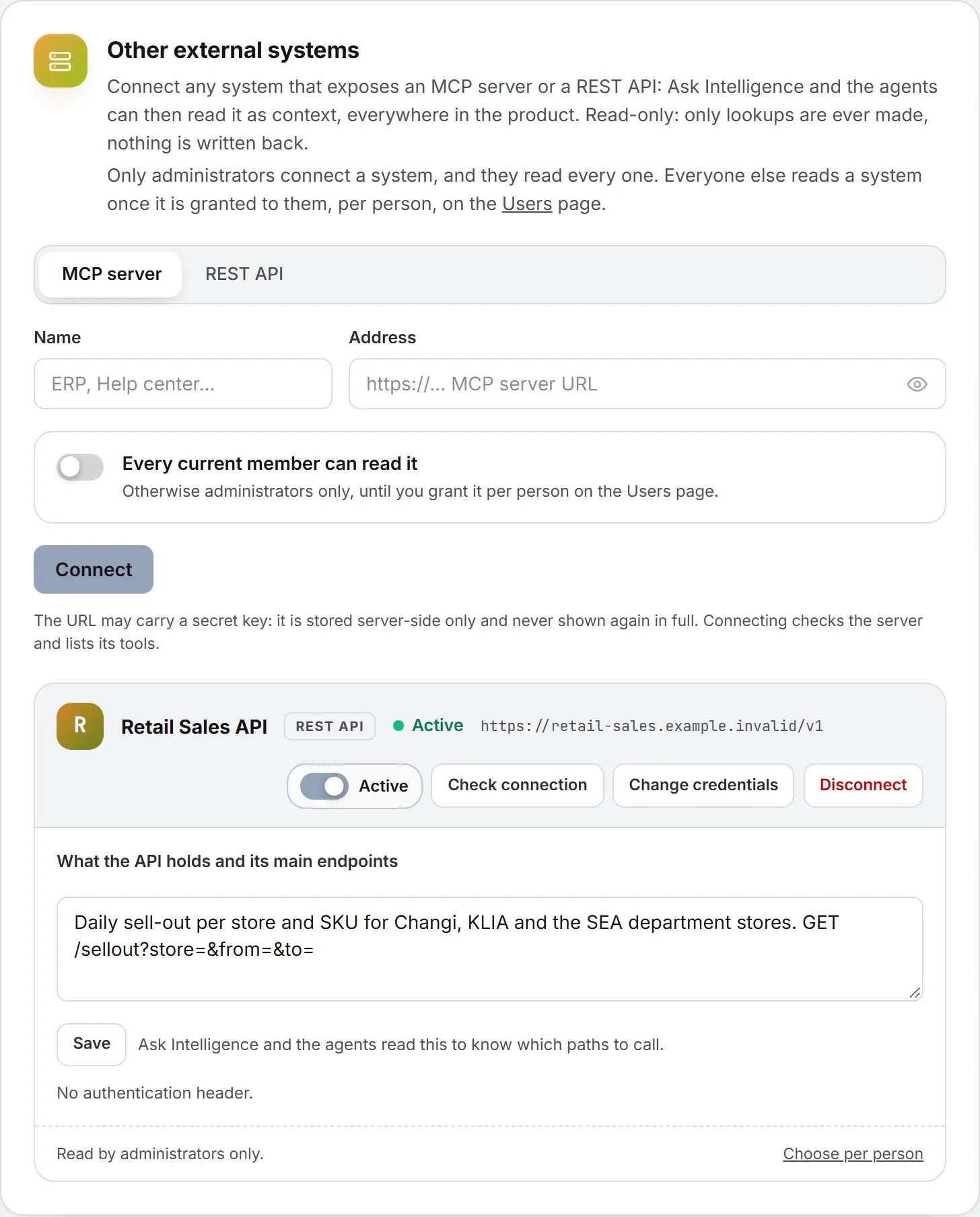
- Pick REST API.
- Type a Name.
- Paste the API’s base URL, the root address its requests start from, into Address.
- If the API needs a key, fill in Authentication header (for example, Authorization) and Header value. Give both or neither.
- In What the API holds and its main endpoints, describe the data and its main paths. For example: “GET /customers lists the customers, GET /orders?status=open the open orders.”
- Choose whether Every current member can read it.
- Click Connect.
The app sends one GET request to the base URL. If the API refuses the credentials or answers with a server error, nothing is saved.
Take a minute over the description, because Ask Intelligence and the agents read it to know which paths to call. You can edit it later on the connection’s card and click Save. Without one, they start at the base path and follow what it returns.
A REST API connection has these limits:
- It only sends GET requests, so it can’t change anything.
- The base URL must use https and can’t hold a user name or password.
- Addresses on private or internal networks are refused.
- Requests stay under the base URL. Redirects aren’t followed.
- Each request has a time limit, and long answers are cut.
- The header value is stored on the server. The page shows only the header name.
To change the key, click Change credentials, fill in the header, and click Update. Leave both fields empty to send no header. The API is checked with the new credentials before they replace the old ones. The card’s other buttons are Active, Check connection, and Disconnect.
Choose who reads each connection
Once a system is connected, the next question is who gets to read it.
Admins read every connection. Everyone else reads a connection only once it’s granted to them.
The quick way is the Every current member can read it switch when you connect. It grants the connection to everyone in the organization at that moment, but not to people who join later.
For them, or to pick people one at a time, use the Users page:
- Open Admin > Users and click the person.
- Go to Connected data.
- Switch on each system they may read. A paused one is marked paused.
- Click Save changes.
An admin’s page has no switches in that section, since admins read every system. Each card says who reads it, such as “Read by administrators and 3 members,” with a Choose per person link to the Users page.
Note: Turning off Active pauses a connection for everyone, admins included. The grants stay in place and apply again when you turn it back on.
Where connections are used
Connections don’t show up as a page of their own. They’re read in the background, when someone asks a question or an agent runs.
Ask Intelligence offers each person the connections they may read. The main Ask page and every module’s Ask can use your other systems. Zoho joins in only where sales data is in reach. See What Ask can read.
Agents can read a connection as a source when you build one from scratch. The person building it must be able to read the connection, and Zoho also needs the CRM. An agent reads the connection of the organization it runs for, never another one. See Custom agents.
Who can do this
| Task | Who |
|---|---|
| Add, change, pause, or remove a connection | Organization admins |
| Grant a connection to a person | Organization admins |
| Read a connection through Ask or an agent | Admins, and the people granted it |
| Connect a personal Gmail or spreadsheet | Each person, on My Connections |
Roles and per-person rights are explained in roles and rights.
Troubleshooting
“A connection with that name already exists.” Pick another name, or remove the old connection first.
“The MCP server URL must use https.” Use the server’s https address.
“The API refused the credentials.” Check the header name and value, or give a base URL that answers a GET.
“The server exposed no tools.” Add tools to the MCP server on its side, then click Refresh tools.
You need to change an MCP server’s address. Only the Zoho card has Replace URL. For another server, disconnect it and connect it again under the same name, then grant it again: disconnecting removes its grants.
A member doesn’t get the data in Ask. Check that the connection is Active and switched on for them under Connected data. For Zoho, also check that they have the CRM.