Voice input
Click the microphone in any text box and speak, and your words appear as you say them. Choose the model and your language in Settings.
You can talk instead of typing. Every text box with more than one line has a microphone: briefs, prompts, notes, emails and chat boxes. Click it, speak, and your words appear in the box as you say them. You choose the model that listens and the language you speak in Settings.
Where the microphone appears
The microphone sits in the bottom right corner of the text box. It shows when you click into the box or move your pointer over it, and it stays out of the way the rest of the time.

The sheets of your Scratchpad have one too, and the words go where the cursor is in the sheet.
Boxes you can only read, not change, have no microphone. Neither does a single line field, such as a title or a search box.
Dictate into a text box
- Click where you want the words to go. To replace a passage, select it first.
- Click the microphone. The first time, your browser asks for permission to use the microphone: allow it.
- Two short rising notes tell you the microphone is listening. Speak. The button turns red, with a running clock and a ring that follows your voice, and your words appear in the box as you say them.
- Click the button again to stop. It now shows a square.
The text stays in the box, and a small note under it says Dictation added, with the price of that dictation.
While it listens, the box is locked, so nothing you type can get mixed into the dictation. A dictation stops by itself after 5 minutes.
Tip: Changed your mind? One Undo (Ctrl+Z, or Cmd+Z on a Mac) removes the whole dictation at once.
Cancel a dictation
Press Esc while the microphone is listening. The dictation stops and the text it wrote is removed from the box. The seconds already listened to are still billed.
Set up voice input
- Click your picture (or your initials) in the top right corner of any page.
- Choose User Settings.
- In the index on the left, under Preferences, click Voice input.
- Make your changes and click Save.
The next dictation uses the new settings. There’s no need to reload the page.
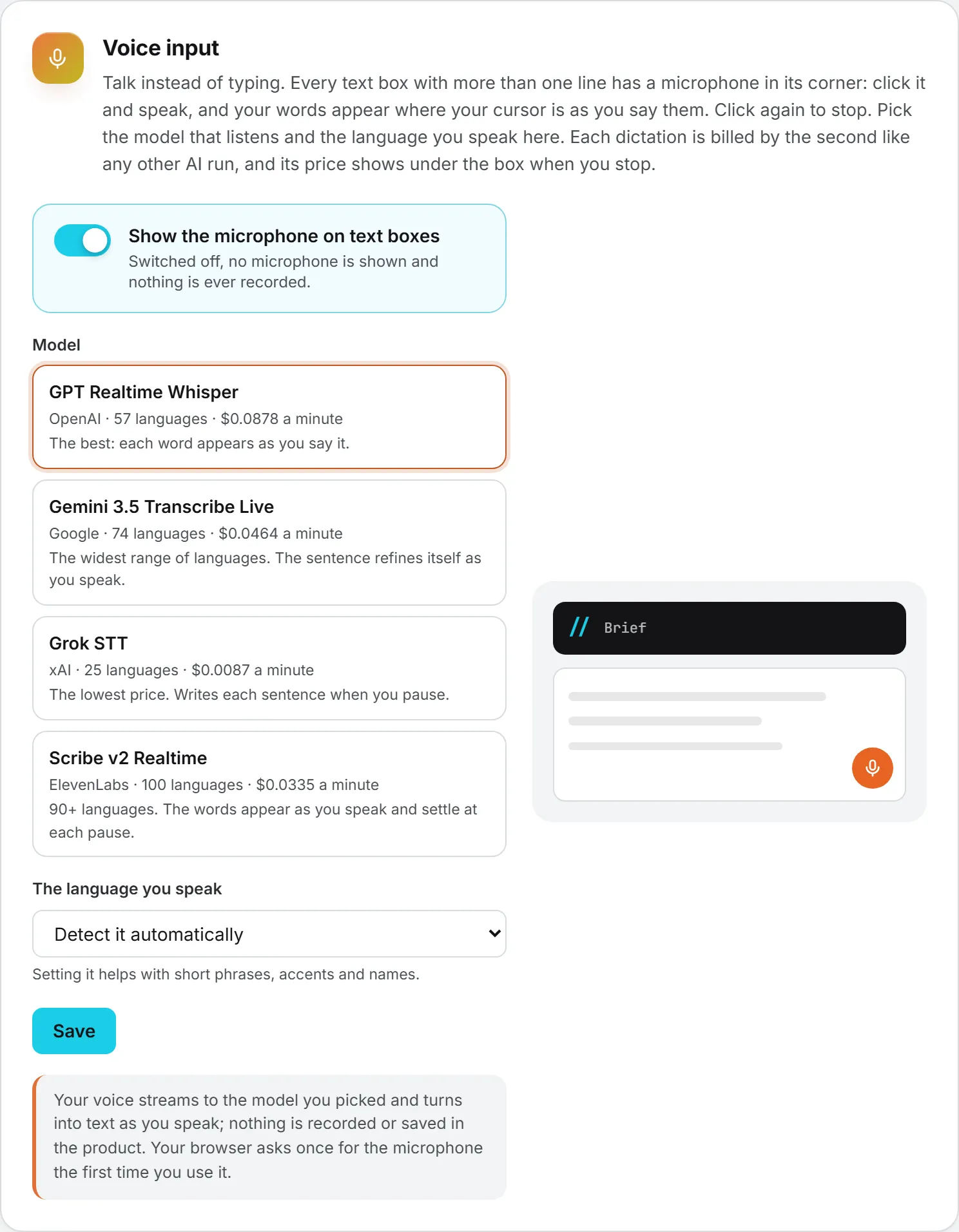
Show the microphone on text boxes
This switch is on by default. Switched off, no microphone is shown on any text box and nothing is ever recorded. Switch it back on at any time.
Model
Four models can listen to you. Each choice shows its maker, how many languages it understands and its price per minute, in your organization’s currencies.
| Model | Maker | Languages | What sets it apart |
|---|---|---|---|
| GPT Realtime Whisper (default) | OpenAI | 57 | Each word appears as you say it. |
| Gemini 3.5 Transcribe Live | 74 | The widest range of languages. The sentence refines itself as you speak, and the model always recognizes the language by itself. | |
| Grok STT | xAI | 25 | The lowest price. It writes each sentence when you pause. With a language set, it writes numbers and amounts in figures. |
| Scribe v2 Realtime | ElevenLabs | 90+ | The sentence refines itself as you speak and settles at each pause. |
The language you speak
Leave Detect it automatically, or pick your language from the list. The list holds only the languages the chosen model’s maker documents, so it changes with the model.
Setting your language helps with short phrases, accents and names. With Gemini 3.5 Transcribe Live, the list stays on automatic detection: that model always recognizes the language by itself.
Your organization’s vocabulary
Dictation doesn’t use the vocabulary an administrator lists on the Organization page, whichever model listens: live transcription can’t receive it. The vocabulary serves sound that is already recorded, such as captions, call notes and Voice of Customer recordings. A rare name a dictation gets wrong is quickest fixed in the box once you stop.
Your voice stays yours
Your voice streams to the model you picked and turns into text as you speak. Nothing is recorded or saved in the product: what stays is the text in the box.
What it costs
Each dictation is billed by the second of speech, like any other AI run, from the same credits. Its price shows under the box when you stop, and it appears in your usage log with your other runs. A cancelled dictation still pays for the seconds already listened to. See credits and costs.
Who can do this
Each person sets voice input for themselves, on their own Settings page, and it changes nothing for colleagues.
Administrators can take voice input models away from the whole organization on the AI Models page, in the Voice input models group, the same way as text, image and video models. See AI models administration.
Troubleshooting
| What you see | What to do |
|---|---|
| No microphone in a text box | Check that Show the microphone on text boxes is on in Settings. Single line fields and boxes you can only read have none. |
| The microphone is blocked for this site. Allow it in your browser’s address bar, then try again. | You refused the microphone once. Allow it from the icon in the address bar, then click the microphone again. |
| No microphone was found. Plug one in or check your system settings. | Connect a microphone, or check that your computer lets the browser use it. |
| No speech was heard. Try again a little closer to the microphone. | Speak a little closer to the microphone, or check which one your computer uses. |
| The connection to the model dropped. Please try again. | Click the microphone again. |
| Your organization does not allow any voice input model. An administrator can allow one on the AI Models page. | Ask an administrator to allow a voice input model. |
| Names or short phrases come out wrong | Set The language you speak instead of detecting it automatically, or try another model. Dictation doesn’t use the organization vocabulary, so fix a rare name in the box once you stop. |