Emails and notifications
Every email Intelligence can send you, from sign-in codes and task reminders to low credit alerts and the weekly digest, and which you can stop.
Intelligence emails you when something needs you: a code to sign in, a task with your name on it, a post that didn’t go out, credits running low. Below is every email a customer can receive, who gets each one, and which ones you can switch off.
Inside the app, long jobs report in the Activity panel instead of by email.
Looking for one email? Search this page for a word from its subject. Subjects are quoted here in English; if you use the app in French or Chinese, most of them arrive translated.
Sender, greeting, language and dates
Our emails come from Intelligence by Bearingbridge, so that’s the sender name to look for. An email sent to one person opens with “Hi” and your first name, if you set one in your profile.
Dates and times in an email follow your own settings, time zone and formats included. See date, time, language and theme.
Most emails are written in the interface language you last used (as long as your organization still offers it). A few follow other rules, and those are flagged below.
Account and sign-in
| When you get it | Good to know | |
|---|---|---|
| “Your verification code for Intelligence by Bearingbridge” | You sign up on your own | The code works once and for 20 minutes. |
| “You already have an account on Intelligence by Bearingbridge” | Someone signs up with your address | Nothing is created. Sign in or reset your password. |
| “Your account on Intelligence by Bearingbridge” (or “Your organization account…”) | An administrator creates your account | The activation link works once, for 24 hours. If it expired, use Forgot password on the sign-in page. |
| “Name invites you to join organization on Intelligence by Bearingbridge” | An administrator invites you | The invitation works once, for 7 days. |
| “Your sign-in code for Intelligence by Bearingbridge” | You sign in, and your organization asks for a code | 6 digits, valid 10 minutes, works once. |
| “Choose a new password for Intelligence by Bearingbridge” | You click Forgot password | The link works once, for 24 hours. |
| “Your access to Intelligence by Bearingbridge has been deactivated” (or “…is open again”) | An administrator closes or reopens your login | Written in the language of the administrator who made the change. |
You can’t switch these off, since your account depends on them. See sign in and security.
Tasks, validation, agents and publishing
If you work with colleagues in the app, these are the emails you’ll see most.
Tasks
You get “New task for you: task title” each time a task is assigned to you, even when you assign it to yourself. When the task belongs to a brand, the subject starts with the brand in brackets, like “[Acme] New task for you: …”. The email names the task, who assigned it, its column, project and dates, with a link to open it.
The person who creates a task can also switch on daily reminders. You then get “Still open: task title” once a day while the task is not done, for 7 days at most. Finishing the task stops them, and so does archiving it or taking it off your hands. A new assignee starts a fresh run of 7 days. See reminders and recurrence.
Task emails are written in the language of the colleague who assigned the task, which can differ from yours. If you reply, the answer goes to that colleague.
Validation
The Validation module sends these emails:
| Who gets it | |
|---|---|
| “To validate: title” | The validator, when an asset is sent to them |
| “New version to validate: title” | The validator, when a new version arrives |
| “Validated: title” or “Not validated: title” | The person who asked for the validation |
| “New comment on title” | The other person on the thread, or both when a third colleague comments |
They are written in the language of the person who acted, and a reply reaches that person.
Agent runs
An agent that runs on a schedule and comes back with something tells the people responsible. The email gives the agent, the brand, when it ran, what it read and what it cost, with a link to the run. Runs you start by hand don’t send anything. You’re already looking at the result.
Each agent has two settings for this, set by whoever can edit the agent. Who hears about a run sends the email to The organization’s administrators, to These people only (a list of addresses you type), or to nobody with Nobody, keep it in Runs. What the mail carries is either A summary and a link to the run or The full result in the mail; the link to the run is there either way.
These emails are written in English, or in your organization’s language when it offers exactly one besides English. See runs and schedules.
If you are an administrator, you may also get “Agent request: agent name” when a member asks you to add an agent from the catalog. Your reply goes to the member who asked.
Social publishing
Social publishing only writes when something went wrong or is about to:
- “Scheduled LinkedIn post did not go out” (with the network’s name) when a network refuses a post for good. It names the post, the account, the time it was due and what the network said.
- “LinkedIn has to be connected again”, or “LinkedIn will stop publishing in 5 days” (with the real number of days), when a connected account needs you to authorize it again.
Social accounts are personal, so these emails go to the account’s owner. They are written in English. See my connections and publishing.
Credits and money
Three emails are about money. Amounts are in US dollars, since one credit is one dollar.
| Who gets it | |
|---|---|
| “AI credits added: amount”, with the invoice number when there is one | The person who bought credits, and the organization’s billing address when it differs. After an automatic top-up, the wallet’s owner or the billing address. |
| “Your AI credits are running low: balance left” (or “The AI credits of organization are running low…”) | For shared credits, the organization’s administrators and the billing address. For a personal account, its owner. Sent once, when a run takes the balance under $5. It comes again only after the balance has gone back above $5 and dropped again. |
| “AI credits added to your account” or “A correction to your AI credits” | When the BearingBridge team adds credits or corrects a balance by hand. A personal wallet’s owner, or an organization’s administrators and billing address. |
Tip: The low credits email is not sent while automatic top-up is on, because the balance refills itself before it runs out.
The weekly digest
Every Monday, the weekly digest (“What’s new this week: 3 improvements”) sums up what changed in the app the week before. It’s written in plain words, in your interface language. Everyone is subscribed when their account is created. Nothing is sent on a week without changes, and nothing goes to a deactivated login or a paused organization.
You can stop it three ways:
- In Settings, go to Weekly digest and switch off Send me the weekly digest of what’s new.
- Click the unsubscribe link at the bottom of any digest. It works without signing in.
- Use your mail app’s own unsubscribe button, if it shows one.
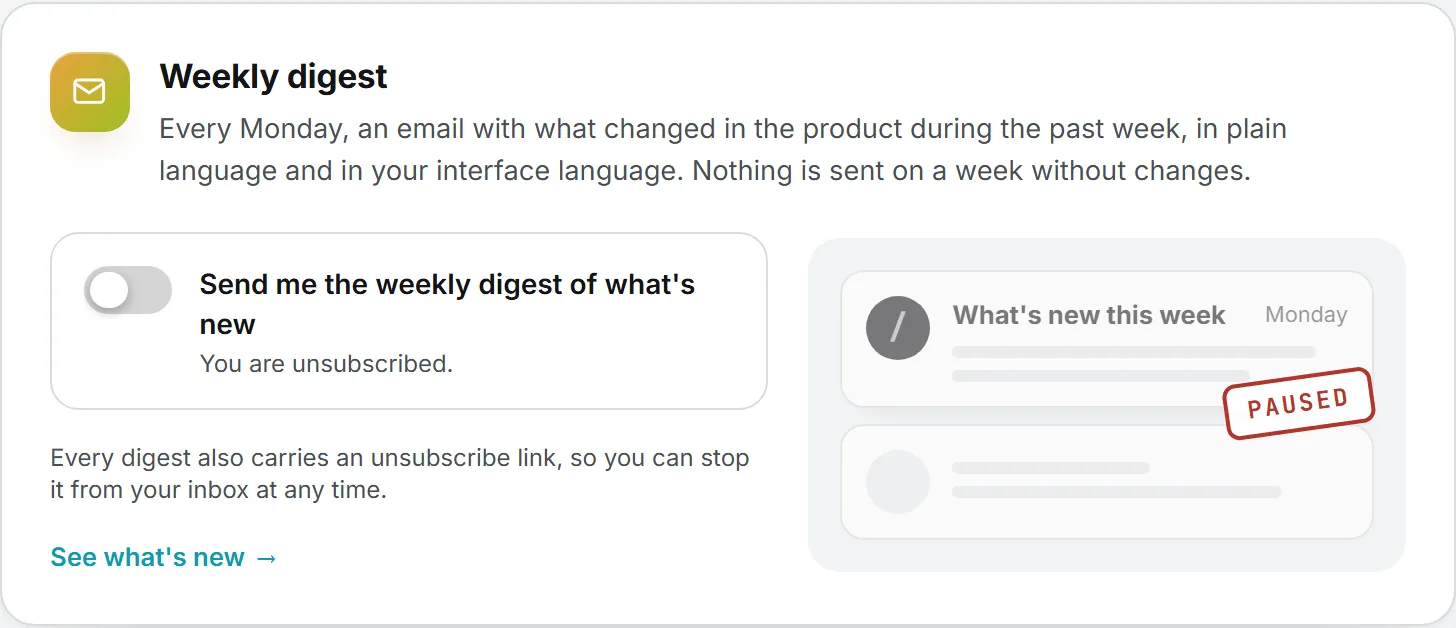
Changed your mind? Switch it back on in Settings. The page confirms “Subscribed. The next digest arrives on Monday.”
What you can turn off
Here’s the short version of everything above.
| Can you stop it? | |
|---|---|
| Weekly digest | Yes, in Settings or with the unsubscribe link |
| Task reminders | Ask the person who switched them on, or finish the task |
| Agent run emails | Whoever manages the agent can pick Nobody, keep it in Runs |
| Low credits | It stops while automatic top-up is on |
| Everything else | No. They keep your account safe or tell you about money and shared work. |
What it costs
Emails are free. Some of them report spending, though: an agent run email shows what the run cost, and the credit emails show amounts and balances.
There is no separate notification address. Emails go to the address on your account.
If an email doesn’t arrive
- Look in your spam or junk folder first, where missing emails most often turn up.
- Check that the address shown under your name in Settings is the one you expect.
- Wait a minute and try again. Sign-in codes can be sent 3 times for one sign-in.
- Still nothing? Contact support. The BearingBridge team can see whether an email left and send it again.
Note: A sign-in code belongs to one sign-in attempt, so the team never sends one again. Start a new sign-in to get a fresh code.