Revenue Follow Up
Revenue Follow Up tracks what you bill, what you spend and what reaches the bank each month, with a P&L, client margins and cash projections.
Revenue Follow Up is the finance side of Sales. It follows your organization’s money month by month, from invoices and costs to the cash that should be in the bank. It’s meant for admins and the finance people they trust with the numbers. The menu marks it Beta.
Open it from Sales, Revenue Follow Up. It has five tabs: P&L, Revenue lines, Costs, Team and Cash flow.
Think of it as a management view. It doesn’t issue invoices or file taxes; it follows the invoices you issue elsewhere and what they mean for profit and cash. There’s no export either, so the figures stay on these pages.
Who can open it
By default only admins can open Revenue Follow Up. An admin can give it to other people, per role or per person. See roles and rights and, for admins, setting them.
Important: Viewing Revenue Follow Up already shows every figure, salaries included. Open it to someone only if they should see all of that.
Someone without access who opens a Revenue page lands on the pipeline instead. The buttons show for everyone who can open the tabs, but saving follows your rights: a viewer given access can read every tab and change nothing.
Years, currency and what feeds what
The tabs read one year at a time. Use the arrows on either side of the year, in the top band, to move to the previous or next year, and the other tabs stay on it. The Team list is the exception: it always shows everyone, whatever the year.
Every amount is in your organization’s reference currency, set in CRM settings. The tables name that currency in their headers, such as CNY or USD.
You record four kinds of data:
| What | Where | Feeds |
|---|---|---|
| Revenue lines | Revenue lines tab | Income on the P&L, collections on Cash flow, gross margin by client |
| Overheads | Costs tab | Costs on the P&L and on Cash flow |
| Vendor payables | Costs tab | Costs on the P&L and on Cash flow, gross margin by client |
| Team members | Team tab | Payroll on the P&L and on Cash flow |
The P&L and Cash flow tabs compute everything from these. Nothing on them is typed in, apart from the cash anchor, the tax rate and capital movements on Cash flow.
P&L
The P&L tab is a table with one column per month and a Year total.
| Row | What it adds up |
|---|---|
| Income | Revenue lines by their billing month |
| Payroll | The monthly cost of every team member active that month |
| Overheads | Overhead rows by month |
| Vendors | Vendor payables by month |
| Total cost | Payroll, overheads and vendors together |
| Profit / loss | Income minus total cost, green when positive, red when negative |
Income counts a line in the month it’s billed, whenever the money actually arrives. For the cash view, go to Cash flow.

Below the table, Monthly profit draws each month’s profit or loss as a bar. Hover a bar to read the amount.
Gross margin by client
The last table on the tab, Gross margin by client, lists each client billed during the year. Revenue adds up its revenue lines billed in the year, and Vendor cost the payables of the year attached to it. Margin gives the difference, and Margin % gives it as a percentage of revenue. Payroll and overheads stay out of it.
Revenue lines
A revenue line is one amount you bill to a client, such as “Phase 1: 50% downpayment”. The tab lists the lines billed in the selected year.
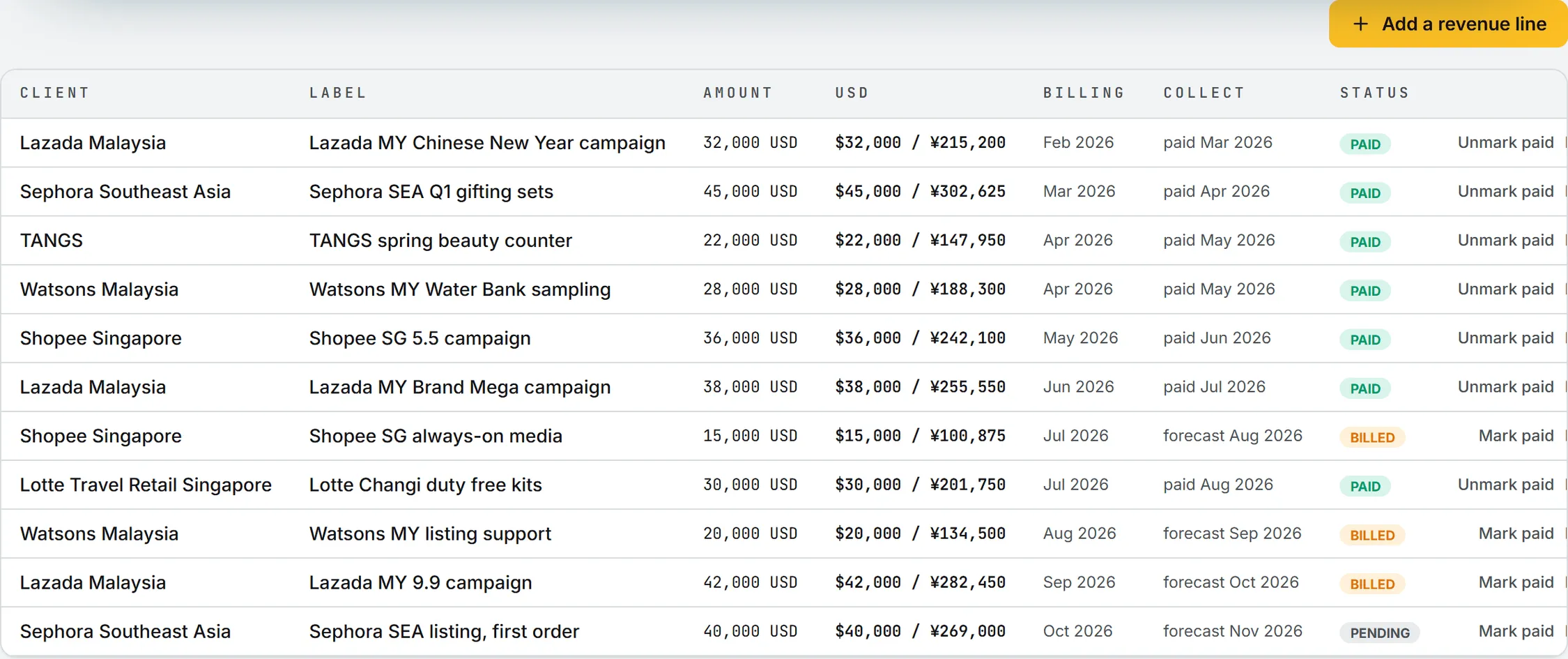
Add a revenue line
- Click Add a revenue line.
- Pick the Client. Only clients are offered, not suppliers.
- Type a Label.
- Enter the Amount and its Currency. The amount must be more than zero.
- Tick Gross up with the organization’s tax rate if the client bears the tax. See tax gross-up.
- Pick the Billing month and the Collect forecast month, when you expect the money.
- If the money already arrived, pick the Collected (paid) month.
- Add Notes if you like, then click Save line.
From a won deal
A won deal has a Create revenue lines button on its page. It opens this tab with a line already filled in: the deal’s client, its name as label, its amount and currency, this month as billing and forecast month, and a note naming the deal. Billing in stages? Turn the prefilled line into the first stage, save it, then add the others by hand. See pipeline and deals.
Statuses and payments
Every line carries one of three statuses. It’s pending until its billing month arrives, then billed. It turns paid once you record the month the money came in.
Mark paid records this month as the collected month. Unmark paid clears it. To pick another month, use Edit and set Collected (paid).
The Collect column shows “forecast” with the expected month, or “paid” with the actual one.
Edit or delete a line
Edit opens the same form. Delete asks you to confirm, then removes the line from income, collections and the gross margin by client.
Costs
So much for money coming in. The Costs tab covers what goes out, in two tables, both for the selected year.
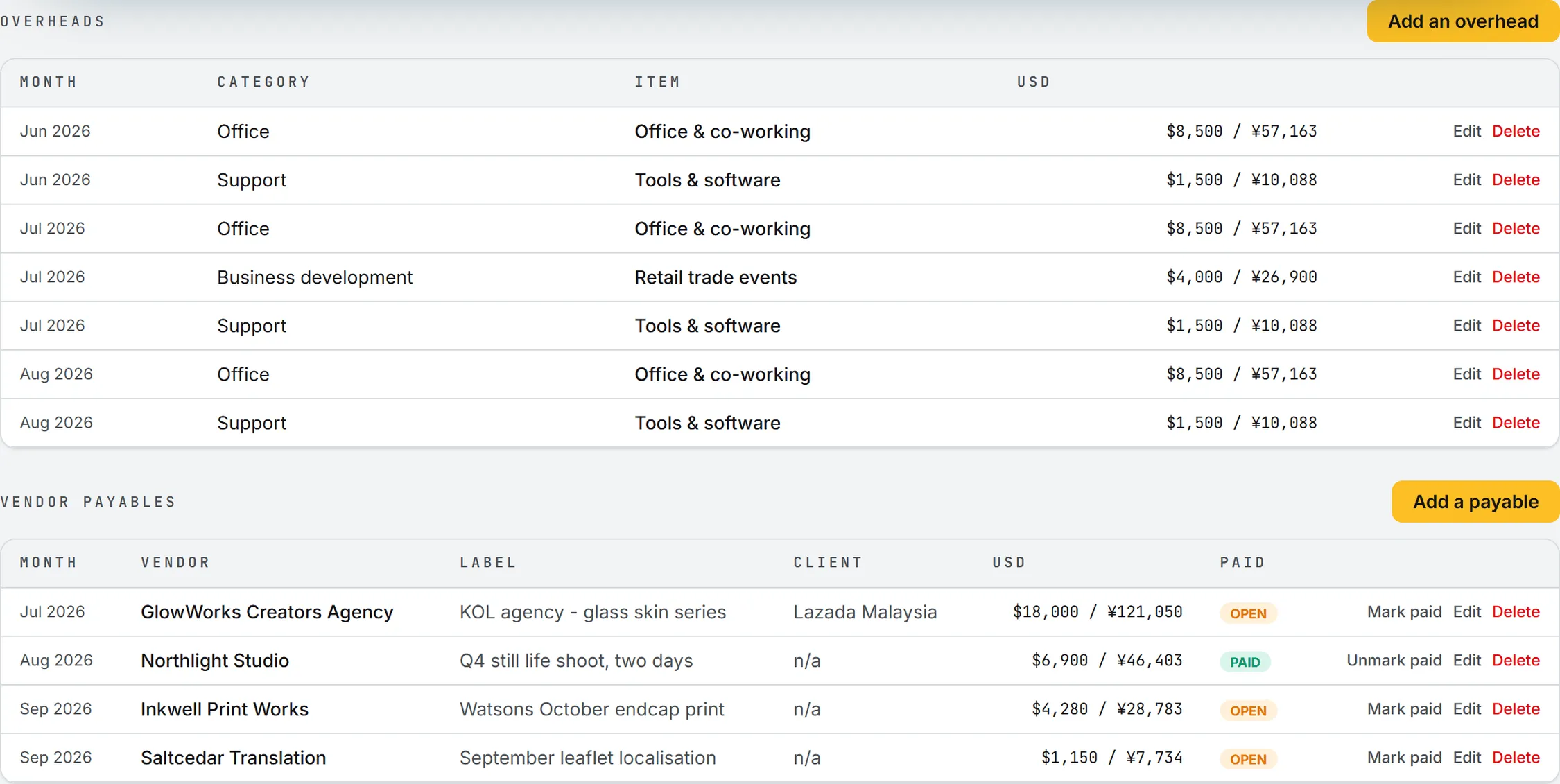
Overheads
Overheads are running costs: office, tools, business development and so on.
- Click Add an overhead.
- Pick the Category and type the Item.
- Enter the Amount, its Currency and the Month.
- To repeat it, pick a Repeat until month. The app writes one row per month, from the first month to that one.
- Notes are optional. Click Save.
Each monthly row can then be edited or deleted on its own. Repeat until only works when you add: editing a row changes that month alone.
The categories (by default Office, Business development and Support) are managed in CRM settings.
Vendor payables
Vendor payables are the invoices your suppliers send you.
- Click Add a payable.
- Type the Vendor name and a Label.
- Pick a Client if the cost belongs to one. It then counts against that client in the gross margin by client on the P&L tab. Leave No client otherwise.
- Enter the Amount, Currency and Month.
- Tick Already paid if it is.
- Click Save, with a note first if it helps.
The vendor name is free text. It doesn’t have to match a supplier from the CRM.
The Paid column shows open or paid. Mark paid and Unmark paid switch it. The paid flag is for your follow-up: the payable counts in costs and cash flow in its month either way.
Payroll isn’t on this tab. It comes from the Team tab.
Team
This tab lists the people behind the payroll line. A line above the table sums up what the team costs per month right now, and how many people that covers.
Add a team member
- Click Add a team member.
- Type the Name. Title and Location are optional.
- Pick the Status: Full-time or Freelance.
- Set the Start date, and the End date if they have left or will leave.
- Enter the Base salary per month, in the reference currency.
- Check the social charges: Social rate (0 to 1) starts at 0.35. Fill in Social base (override) only if charges are computed on another amount than the base salary.
- Check Medical / month (starts at 125) and Others / month (starts at 0).
- Leave Active ticked, then click Save.
How the monthly cost is computed
For a full-time member:
base salary + (social base, or base salary if blank) x social rate + medical + others
For a freelancer: base salary + others, plus social charges only if a social rate above zero is set. Medical never applies.
Note: The form fills in 0.35 as the social rate for everyone. For a freelancer who carries no social charges, set it to 0.
A member counts in payroll every month from the start date to the end date, as long as Active is ticked. So someone on the team in March costs money in March, even if nobody touched the tab that month.
Tip: When someone leaves, set an End date. Don’t delete them, and don’t untick Active. Both remove them from every month, past ones included, so last year’s P&L would change.
Cash flow
This tab projects what should be in the bank at the end of each month.

| Row | What it holds |
|---|---|
| Opening | The previous month’s closing balance |
| Collections | Money in from revenue lines |
| Costs | Payroll, overheads and vendor payables, shown as negative |
| Capital | Owner money in or out |
| Closing | Opening plus collections and capital, minus costs; red when negative |
For this month and past months, collections use the month each line was actually paid. For future months they use the forecast month, marked with a tilde (~).
The cash anchor
The chain starts from a known balance. In the Cash anchor and tax card, enter the Opening cash (in the reference currency) and the As of month it was true for, then click Save. Each month’s closing becomes the next month’s opening. Months before the anchor show “n/a”.
Tax gross-up
The same card holds the Tax gross-up rate (0 to 1). A revenue line with Gross up ticked is worth its amount times (1 + that rate). A rate of 0.06 turns 10,000 into 10,600. The rate is applied when a line is saved. Change it later and existing lines keep the old result until someone edits them.
Capital movements
Capital movements are owner money in or out. They move the bank balance and leave the profit alone. To add one, pick its kind (by default Injection, Payout or Transfer) and its month, type the amount in the reference currency and a label, then click Add movement. Money going out takes a negative number, and zero isn’t accepted. Delete removes a movement. The kinds are managed in CRM settings.
Currencies and exchange rates
This part matters most if you bill or pay in more than one currency. Revenue lines, overheads and vendor payables are entered in their own currency (USD, EUR, CNY, HKD or AUD). The app converts each one into your reference currency when you save it, with the exchange rates the BearingBridge team keeps for the whole product.
When those rates change, unpaid revenue lines and unpaid payables of this month or later are converted again. Paid rows and past months never move. Overheads keep the value they were saved with.
Salaries, opening cash and capital movements are entered in the reference currency directly.
Tip: The Currency menus on the revenue line, overhead and payable forms start on CNY, whatever your reference currency. Check it before you save.
What it costs
Nothing in Revenue Follow Up spends credits. Ask Intelligence can read your revenue and costs, but only for people with access to Revenue Follow Up. See credits and costs.