Sign in and security
Sign in with your password, confirm the 6-digit code your organization may email you, manage trusted browsers, reset a forgotten password and sign out safely.
You sign in to Intelligence by BearingBridge with an email address and a password, and many organizations add a second step: a 6-digit code sent by email. Below you’ll find both, along with password resets, signing out and the log of sign-ins that admins can read.
Sign in
- Open the sign-in page. The row of language names under the form switches it to English, French or Chinese.
- Type your email address in Login.
- Type your Password. The eye icon shows or hides what you typed.
- Click Sign in.
If your organization asks for a code, the form is replaced by a second step, described below.
Where you land depends on how you got there. Came from a link to a specific page, say a task a colleague sent you? That page opens once you’re in. Otherwise you land on your home page: the one you picked, or the default for your account. Read your home page to change it.
Two-step sign-in with an emailed code
With two-step sign-in on, the password is only the first step. The app then mails a 6-digit code to your login address, and you’re in only once you type it.
It’s the organization’s call, not any one person’s. When it’s on, it applies to every member, admins included. It starts switched on in every new organization, personal ones included. Organizations that existed before it shipped started with it off, and their admins switch it on when they’re ready.
If you’re never asked for a code, your organization has it off. You can skip ahead to Forgot your password.
Enter the code
The card changes to One more step. It tells you where the code went, with part of the address hidden (for example “ja…oe@example.com”), and how long the code lasts. The mail is titled “Your sign-in code for Intelligence by Bearingbridge” and is written in the language you use the app in.
- Type the code in Sign-in code. Six digits submit the form on their own.
- Trust this browser for 30 days, so it only asks for my password. comes ticked. Leave it that way on a computer that’s yours, and untick it on a shared one.
- If the form didn’t submit, click Confirm and sign in.
A code lasts 10 minutes and works once. Each wrong entry tells you how many attempts are left, and the fifth wrong code cancels the sign-in. If the mail doesn’t come, Send another code mails a fresh one and voids the previous code. You can get three codes for one sign-in, at least 45 seconds apart. Sign in as someone else throws the pending sign-in away and brings the password form back.
Tip: The sign-in code mail never carries a link or a button, only the code. If a mail asks you to click something to confirm a sign-in, it isn’t from us.
Trusted browsers
A browser you trusted asks only for your password for 30 days. The trust lives in that browser alone. Clear its cookies or use another browser, and you’ll be asked for a code again.
You see your trusted browsers in Settings, card Sign-in and security, tab Sign-in code. The tab shows up only when your organization asks for a code. Each line names the browser and system, such as “Chrome on Windows”, with the day it was last used and the day its trust ends. The one you’re using is marked “(this browser)”.
Click Stop trusting on a line to drop that browser, or Stop trusting every browser to drop them all. The next sign-in from a dropped browser asks for a code again. Do it when a laptop is lost, or after signing in on a computer that isn’t yours.
Admins can do the same for anyone in their organization, from that person’s page in Users.
Turn it on or off
Admins decide, each for their own organization, in Admin > Organization, card Sign-in security. Tick or untick Code by email at sign-in, then click Save security. The page confirms with “Saved. Everyone is asked for a code at their next sign-in.” or “Saved. The password alone signs people in again.” On a personal account you’re the admin, so the switch is yours.
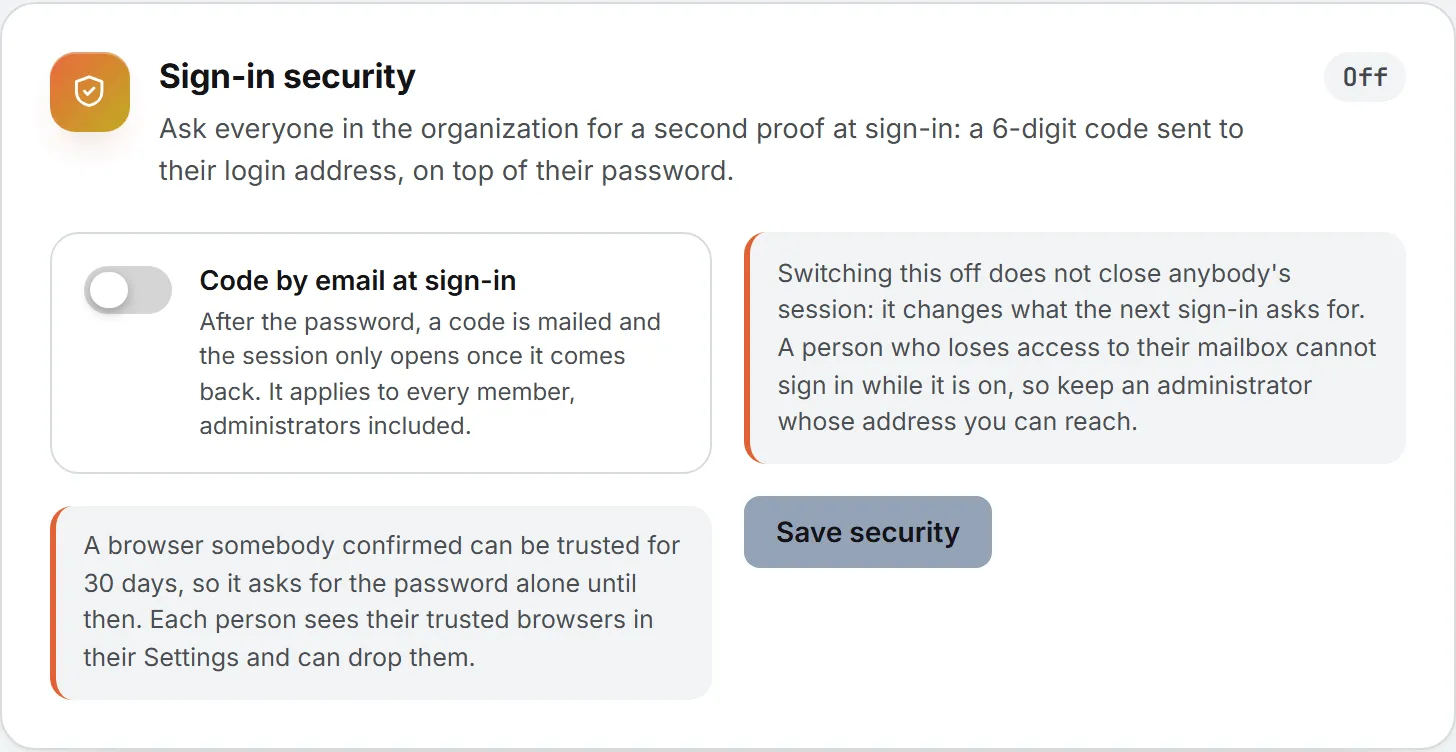
Changing it doesn’t kick anyone out. People meet the new rule the next time they sign in. One warning from the card itself: while it’s on, someone who loses access to their mailbox can’t sign in. Keep at least one admin whose address you can always reach. More in organization settings.
Forgot your password
The rest of this page moves away from codes, to passwords, signing out and the admin side.
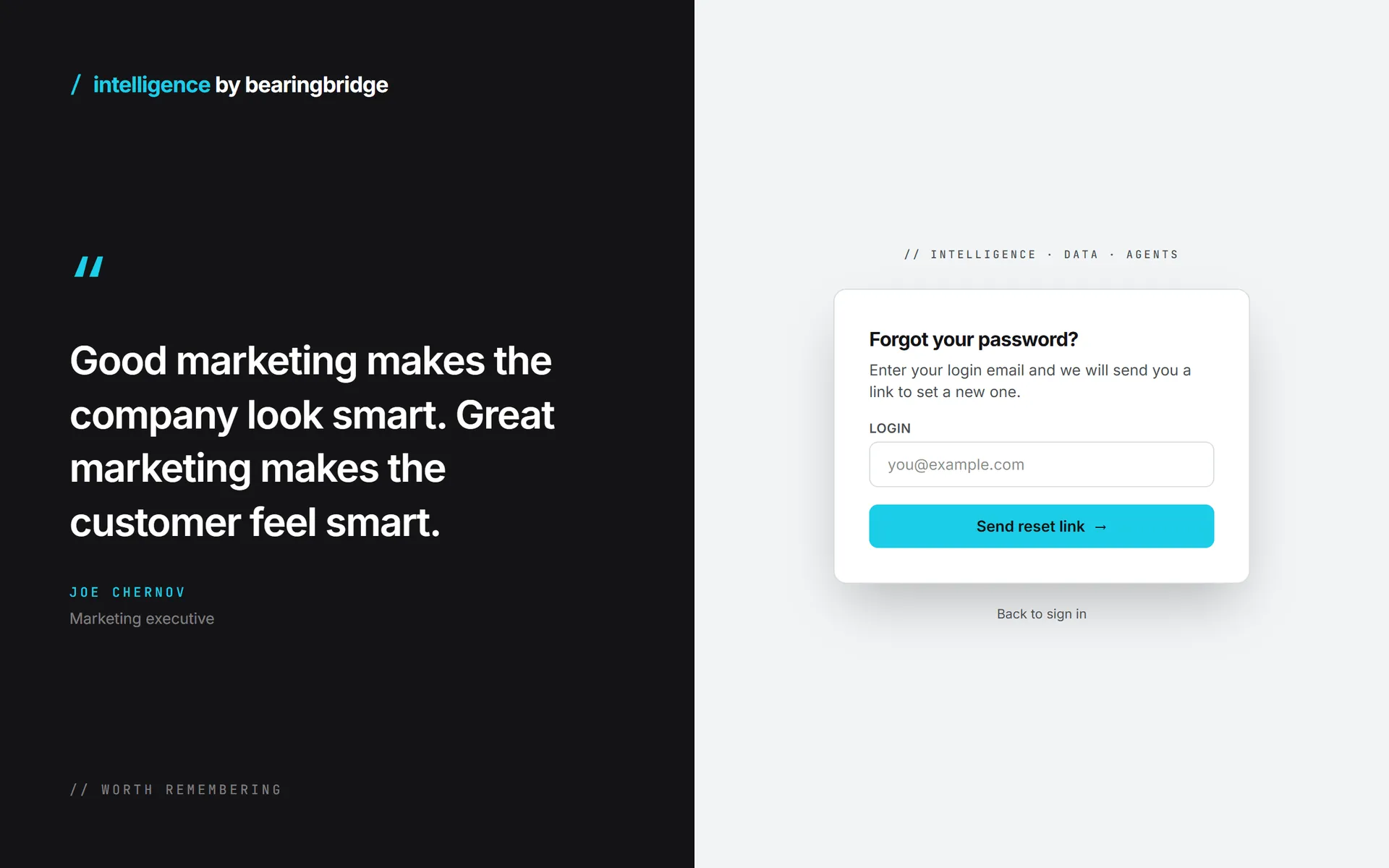
- On the sign-in page, click Forgot password? next to the password label.
- Type your login email and click Send reset link.
- Open the mail and click its link. The link works once and stays valid for 24 hours.
- On Choose a new password, type a New password of at least 8 characters and repeat it in Confirm password.
- Click Set new password. The page shows Password updated.
- Click Sign in and use the new password. If your organization asks for a code, that step still follows.
The link goes to your current login address. If you changed that address in Settings, look in the new mailbox.
The confirmation after step 2 reads the same whether or not the address has an account, so nobody can use the form to test addresses. An old or used link shows This link is invalid or has expired, with a Request a new link button.
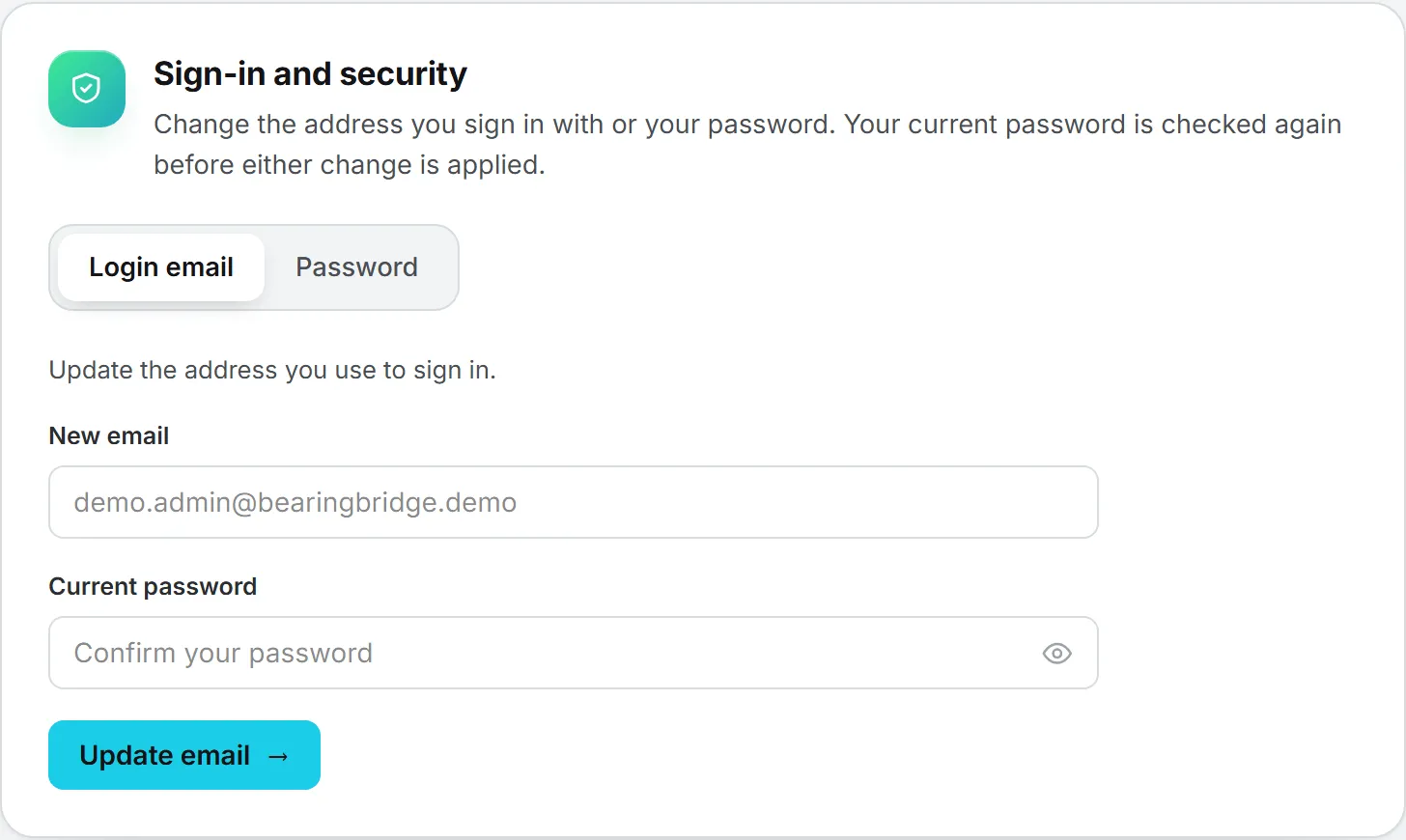
To change a password you still know, use Settings instead. See profile and password.
Sign out
Open the menu under your picture, top right, and click Sign out. The session ends in this browser and you’re back on the sign-in page. Other browsers where you’re signed in stay signed in.
Leaving a tab open overnight won’t sign you out. It renews its session quietly in the background.
Deactivated logins and paused organizations
An admin can deactivate a login from the person’s page in Users. It locks the person out at once and mails them. Nothing is deleted. The account and its history stay put, and the admin can reactivate the login whenever they choose. Nobody can deactivate their own login. At sign-in, a deactivated account reads “This account has been suspended. Contact your administrator.”
The BearingBridge team can also pause a whole organization. Its members then read “Access for your organization is currently paused. Please contact your administrator.” The organization’s data stays intact.
Sign-in history and who can do what
Every sign-in event goes into a log: successful and refused sign-ins, sign-outs, password reset requests, codes sent and wrong codes, each with the network address it came from. A sign-in through a trusted browser is recorded as such.
| What | Member | Admin |
|---|---|---|
| See and drop your own trusted browsers | Yes | Yes |
| See a colleague’s last sign-ins | No | Yes, on their page in Users |
| Drop a colleague’s trusted browsers | No | Yes |
| Set a new password for a colleague | No | Yes |
| Deactivate or reactivate a login | No | Yes, except their own |
| Turn two-step sign-in on or off | No | Yes, for their organization |
On a person’s page, Last sign-ins lists their most recent events, newest first. An admin who sets a new password there must tell the person: the app doesn’t. Details in users and invitations. See roles and rights.
What it costs
Nothing on this page uses credits. Codes and reset links aren’t paid actions, and neither is the log. See credits and costs.
Troubleshooting
“Invalid login or password.” Check the address for typos, then the password. If it still fails, reset the password with Forgot password? on the same page.
“That code is not right.” The message counts the attempts you have left. After the last one you read “Too many wrong codes. Sign in again to get a new one.” and must start over from the password.
“This code is not valid, or it has expired. Sign in again to get a new one.” The 10 minutes ran out, or the sign-in was already canceled. Sign in again for a fresh code.
“Please wait 30 seconds before asking for another code.” (the number varies) means you clicked Send another code too soon. Wait out the seconds and click it again. “A code was already sent three times.” means that sign-in has used up its codes; sign in again in a few minutes.
“The code could not be sent.” The mail didn’t go out. Try again in a minute.
Lost access to the mailbox you sign in with? While two-step sign-in is on, you can’t get past the code. Ask an admin of your organization. They can switch the code off for the organization until you’re back in. Admins who are locked out themselves can contact support.
“Too many attempts. Please try again later.” or “Too many reset requests. Please try again later.” Too many tries came from your network, or for your address, in a short time. Wait before trying again.