Roles and rights
Five built-in roles, custom roles and a view, create, update and delete grid decide what each person in Intelligence can do, and capabilities come first.
Every person in Intelligence holds one role. The role decides what they may view, create, update and delete, feature by feature, and administrators can also set rights for one person alone. This page walks through the built-in roles and the grid behind them, then the rules no grid can override.
Four layers decide what a person can do
A person reaches an area only when all four layers say yes:
- The organization: the capabilities your company bought.
- Their role: what they may do in an area they can reach.
- Their brands: below admin level, a person sees only the brands they were granted.
- Their own switches: the capabilities left on for them, and any rights set for them alone.
The first layer is covered in Capabilities and modules, the third in Brands. The rest of this page is about the second and the fourth.
The five built-in roles
Five roles ship with the app. Their names and authority levels can’t be changed.
| Role | Authority level | In short |
|---|---|---|
| Super Admin | Super admin level | BearingBridge staff only. Platform-wide. Never given to customers. |
| Admin | Admin level | Runs the organization: every brand, the Admin menu, users, roles and credits. |
| Brand Manager | Brand manager level | Everything an editor does, plus brand-level settings of the brands they were granted. |
| Editor | Editor level | Works in the product, paid actions included, on the brands they were granted. |
| Viewer | Viewer level | Read-only. No paid action. |
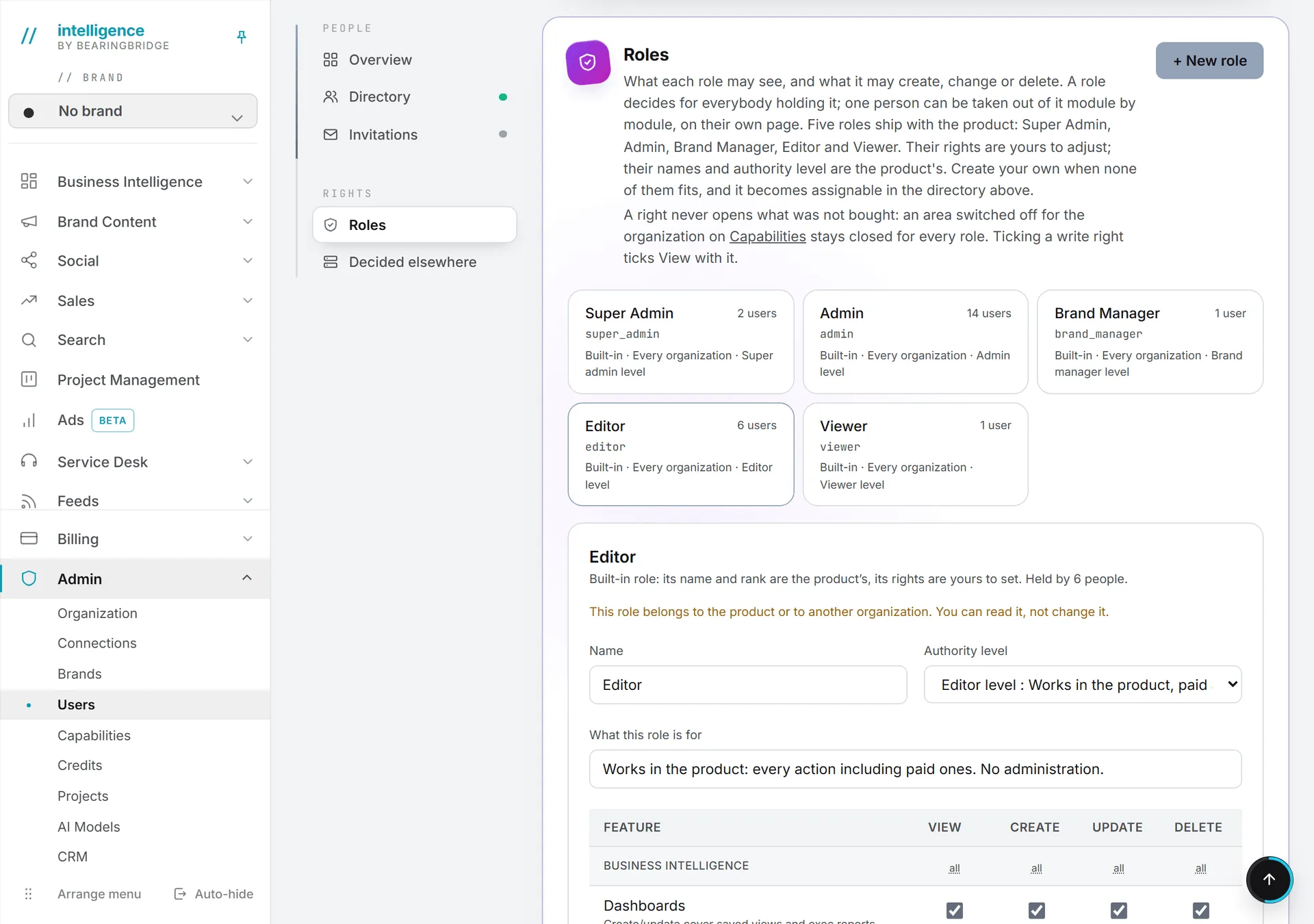
As delivered, the grids behind these roles look like this. Admin holds every right inside its organization. Editor and Brand Manager hold every right on the working areas, but no finance (Revenue Follow Up) and no Admin pages. Viewer can view the same areas and change nothing. BearingBridge can adjust them, so the Roles card in Admin > Users is the reference for your organization: pick a role there to read its grid.
The difference between a brand manager and an editor is scope. A brand manager can create and edit brand-level agents for the brands they were granted, from the Organization tab of the Agents area. In Search, they can also use Initialize with AI to get a starting keyword list for a brand. Editors can do neither. Despite the name, a brand manager doesn’t edit the brand itself: the brand editor in Admin > Brands stays with administrators.
Roles and spending
Paid actions, such as AI generations and data refreshes, need Editor level or above. A viewer can’t run anything paid, but can still open Billing to see their credits and buy some for themselves.
On top of the role, an administrator decides how much of the organization’s shared credits each person may use per day, on the Credits card of their page. Credits a person buys for themselves are never capped. Shared credits explains the allowance.
Authority levels
Each role sits on a five-step ladder called the authority level. The app uses these labels and descriptions:
| Level | Description in the app |
|---|---|
| Viewer level | Read-only. No paid action. |
| Editor level | Works in the product, paid actions included. |
| Brand manager level | Editor, plus the settings of assigned brands. |
| Admin level | Administers an organization (or their own account). |
| Super admin level | Platform-wide. Reserved. |
The level answers “how senior is this person” wherever the app still asks it: whose brands they see and whose organization they manage. Below admin level, a person sees only the brands granted to them. At admin level, they see every brand of the organization and get the Admin menu. And a role at Viewer level stays read-only whatever its grid says, because every write needs Editor level or above.
The rights grid
So much for the ladder. What a role may actually do is written in its grid, with one row per feature and four boxes per row: View, Create, Update and Delete. The rows are grouped the way the left menu is, from Business Intelligence down to Administration, and each row names a feature such as Content: Text, CRM, Revenue Follow Up or Usage log. Roles and rights in the Administration section lists every group and every row, along with the hints the app prints beside the touchier ones.
Ticking Create, Update or Delete ticks View too, since you can’t change what you can’t see.
The CRM, Revenue Follow Up, Project Management, Users, Organization settings, Shared AI credits and Usage log rows belong to an organization. A person with no organization has nothing there, whatever the grid says. Which agent scopes a person may configure (organization, brand or personal) sits outside the grid: it’s decided by role alone.
Custom roles
When none of the five roles fits, an administrator builds one: a name, an authority level below their own, and a starting grid copied from an existing role or left empty. A typical case is a campaign manager at Editor level who works on Social and Ads but may only view the CRM. A custom role belongs to your organization and is offered only to its people. Built-in roles are read-only for administrators, and only BearingBridge changes their grids.
Create a custom role has the form, field by field.
Rights for one person
A role decides for everyone who holds it. An administrator can also set rights for one person alone, on the Rights card of that person’s page. Until you touch a row it follows the person’s role; change one of its four boxes and that feature becomes the person’s own, whatever happens to the role later. Three limits apply: you can only grant an action your own role holds, you can’t change your own rights or role, and no administrator can open the Super Admin (platform) area to anyone.
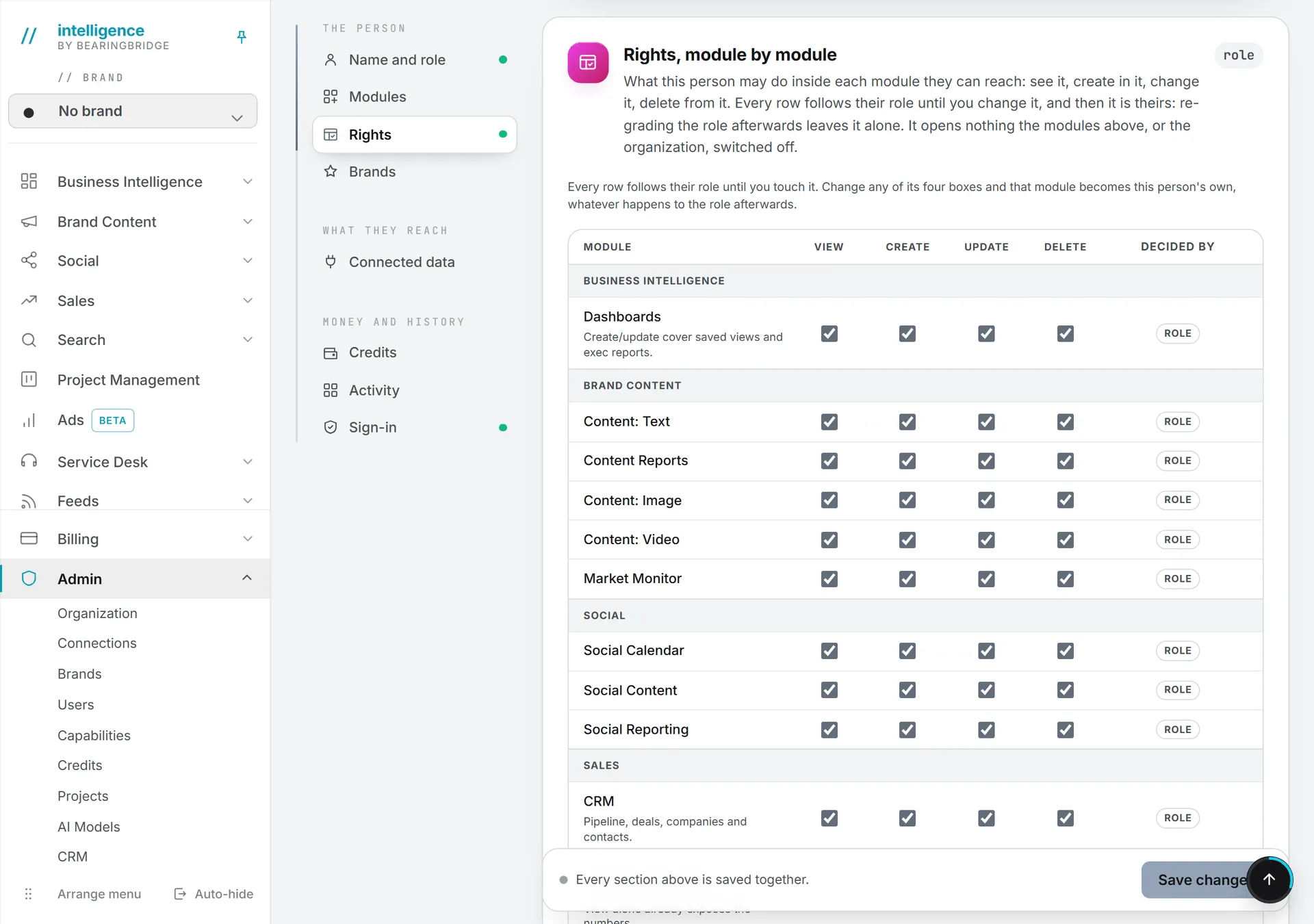
The steps, and how to hand a row back to the role, are in Rights for one person.
Capabilities always win
A right never opens what was not bought. If a capability is off for the organization, for the active brand or for the person, the feature stays closed, however generous the grid is. On a person’s page, those rows are marked Module off above. For a personal account, rows that need an organization are marked Needs an organization.
Users are never deleted
Important: There is no way to delete a user in the app. Deactivating the login is how you remove someone’s access.
When someone leaves, an administrator deactivates their login. The person is signed out at once and gets an email saying their access is closed. Nothing about the account is lost: settings and history stay where they were, and the login can be reopened at any time. See Deactivate or reactivate a login.
The partner flag
Being a commercial partner of BearingBridge is not a role. It’s a flag that any account can carry on top of its role. The flag adds a Partner menu with Leads, Invitations and Commissions, and changes nothing else about what the person may do. Only the BearingBridge team turns it on or off. The Partner program section covers the rest.
Who can manage roles and rights
| Action | Who |
|---|---|
| Assign a role to a person, Admin included | Administrators, for people in their organization |
| Create, edit or delete a custom role | Administrators, below their own level |
| Set rights for one person | Administrators, within their own rights |
| Change a built-in role’s grid | The BearingBridge team |
| Make someone a Super Admin or a partner | The BearingBridge team |
Roles and rights in the Administration section has the step-by-step guide.